How to Create a Custom Sidebar?
Foxiz lets you create as many widget areas as you need and assign each one to the posts or pages you choose. To get started, follow the steps below.
Creating a sidebar (widget section)
-
Navigate to Your Dashboard > Theme Options > Sidebars.
-
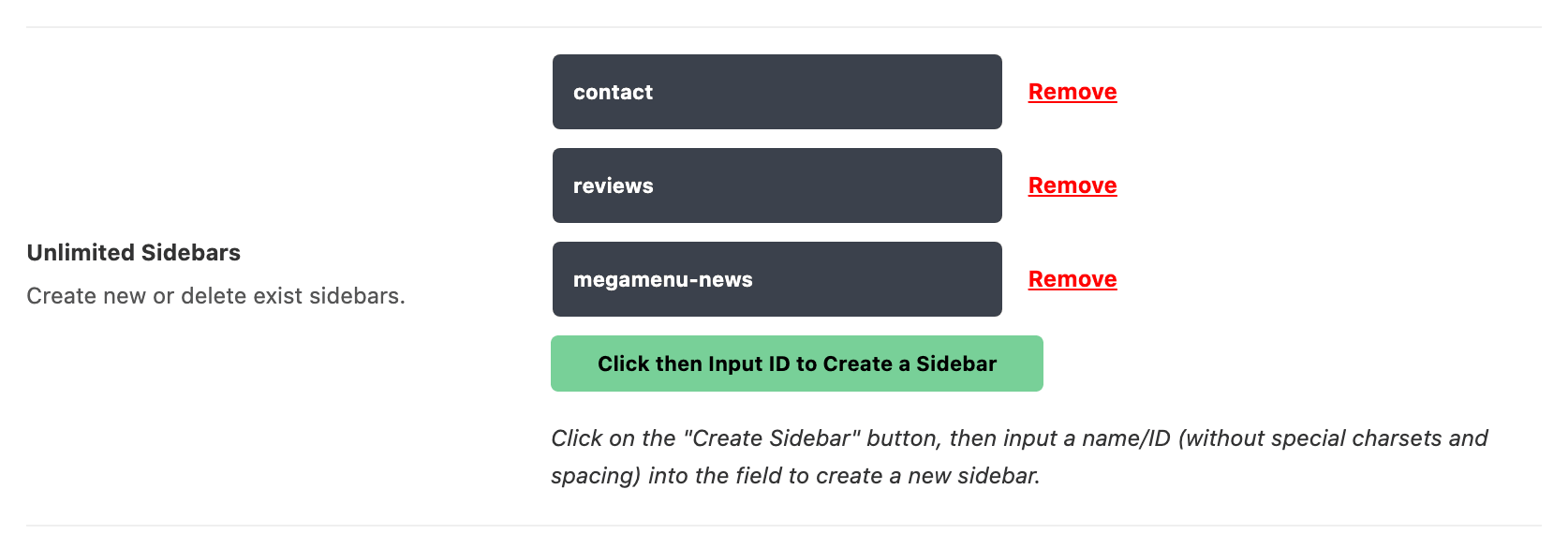
Under the Unlimited Sidebars setting, click on the "Click then Input ID to Create a Sidebar" button, a small text field will appear, labelled Add a Sidebar ID.
-
Then input a sidebar name/ID you want to create without spacing or special charsets.
-
Click "Save Changes" for the theme option panel to finish.
-
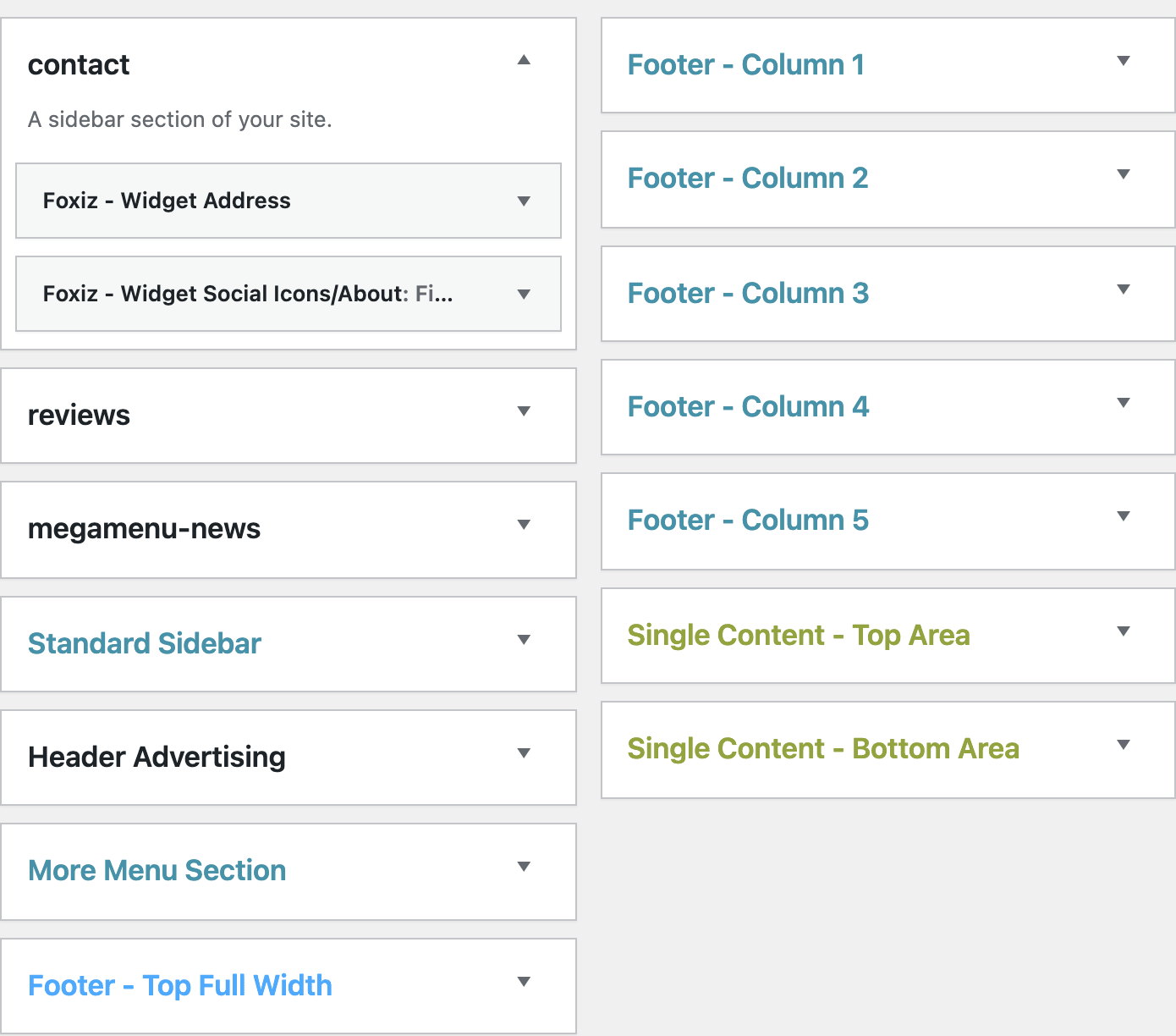
Once finished, You can navigate to Your Dashboard > Appearance > Widgets, the new sidebar section will appear.
Naming rules for a sidebar
The name you type is what appears on the Widgets screen, unchanged. Behind it the theme builds a widget area id by lowercasing the name, turning spaces into hyphens, dropping anything that is not a letter, a digit or a hyphen, and then cutting it to the first 20 characters. That is why the field asks for no spaces and no special characters: you can type them, and the area still works, but its id stops matching what you typed.
Two consequences of that 20 character cut, both of which look like bugs when they happen.
Two sidebars whose names match for the first 20 characters after conversion end up sharing one id. The Widgets screen shows two differently named areas and WordPress stores one set of widgets for both. Keep the names short and distinct.
Renaming an existing sidebar changes its id, so the theme registers a new empty area and the old one disappears. The widgets are not deleted, they move to Inactive Widgets, but you have to drag them back. Rename sidebars before you fill them, not after.
The field is empty by default, so a fresh install has no custom sidebars at all, only the predefined areas. Nothing in the theme caps how many rows you add.
Show the new sidebar on your site
A new sidebar is empty space until you assign it somewhere. It now appears in every Assign a Sidebar dropdown, next to Standard Sidebar.
Pick the place that matches where you want it. When one post, page or category has its own sidebar set, that one wins; left on - Default -, it uses the Theme Options setting for its type.
-
Every single post: Theme Options > Single Post > Sidebar Area.
-
Every page: Theme Options > Single Page > Sidebar Area.
-
Listing pages: the Post Listing - Sidebar group in each listing panel of Theme Options. Each one is set separately:
- Category
- Blog Index
- Author Page
- Archives
- Search Page
All but Blog Index have no sidebar by default, so pick a left or right layout in Sidebar Position in the same group first, or the sidebar never shows.
-
One post or page only: open it in the editor, then the Sidebar Area tab of its settings box below the content.
-
One category only: go to Posts > Categories, edit the category, then the Predefined Blog tab.
Save, and the sidebar shows with the widgets you added under Appearance > Widgets.
Delete a sidebar
To delete one, clear its row in Unlimited Sidebars and save. The widget area stops being registered and its widgets go to Inactive Widgets.
Did this answer your question?