How to Create a New Instagram Access Token?
In order to display your Instagram photos on your website, you are required to provide an Instagram Access Token. Creating a token will only work for your owned Instagram accounts. (i.e. accounts for which you know the login credentials).
Two things about the account before you start. It has to be an Instagram professional account, business or creator, because that is the only kind the API answers for, and you make the token yourself in a Meta app rather than in Instagram. If you have never made a Meta app, keep Meta's own guide, linked under the steps, open beside you and follow it page by page.
Creating the token
-
Sign in at https://developers.facebook.com/ and create an app of the Business type, or open the one you already use for this site.
-
In the app dashboard, open Instagram > API setup with Instagram business login in the left side menu.
-
Click Generate token beside the Instagram account whose photos you want to show.
-
Log in to Instagram when it asks, and copy the token it gives you.
-
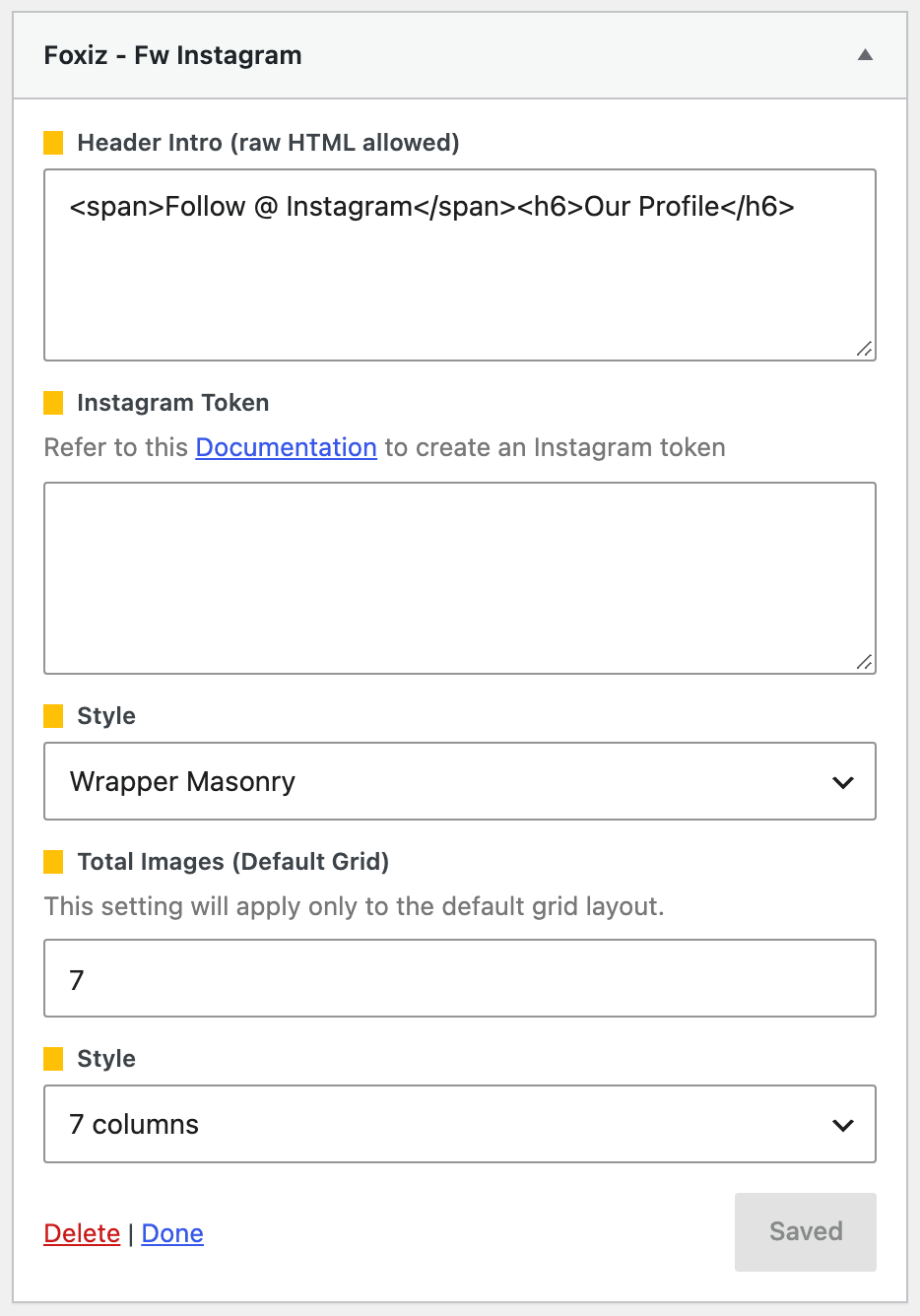
Add an Instagram widget (the two sections at the end of this page), paste the token into its Instagram Token field (Input Instagram Token in the sidebar widget) and save the widget.
A token made this way lasts 60 days. Meta's own instructions for steps 1 to 4, and for extending a token's life, are at https://developers.facebook.com/docs/instagram-platform/instagram-api-with-instagram-login/get-started.
you can refer to the video below:
https://www.youtube.com/watch?v=rWUcb8jXgVA
The video was recorded against an older version of Meta's dashboard, so where its screens differ from the steps above, the steps above are the current ones.
What should I do when the access token stop working?
A token stops working, most often because it has expired. Create a new token as above and paste it into your Instagram widget.
You can tell a rejected token from a broken setup by what the widget prints instead of the photos. With the field empty it says "Instagram token not found". With a token Instagram refuses, it prints Instagram's own error message, and if the request never arrives at all, "Could not connect to Instagram API server."
The token goes into the widget itself, in a field called Instagram Token (Input Instagram Token in the sidebar widget), and each Instagram widget carries its own. There is no site wide token in Theme Options, so a site with a footer grid and a sidebar grid has two places to update.
Give it time before deciding the new token has not worked. Foxiz caches what Instagram returns for six hours, so the old result, including an old failure, can survive the fix.
Add an Instagram grid to the top footer.
To get started, follow the steps below:
-
Navigate to Appearance > Widgets
-
Drag and drop Foxiz - Fw Instagram to the Footer - Top Full Width Section at the right screen.
noteOlder instructions call this widget Foxiz - Instagram Full Width. Nothing carries that name; it is Foxiz - Fw Instagram in the widget list.

-
Paste your token into Instagram Token and click Save.
Adding an Instagram grid to a sidebar.
To get started, follow the steps below:
-
Navigate to Appearance > Widgets
-
Drag and drop Foxiz - Widget Instagram to the Standard Sidebar Section you would like on the right screen.

-
Paste your token into Input Instagram Token and click Save.
Did this answer your question?