How to Config Sticky Sidebar?
The theme supports the sticky sidebar feature for the whole website and per page created by Elementor.
The whole feature is native CSS position: sticky, so there is no script to load and nothing to configure beyond picking a value. It also means it only applies from 1025px wide upward: on tablet and mobile the sidebar scrolls away like any other column.
Global Sticky Sidebar Setting
This setting applies to your whole website: single posts, archives, the blog and the other default pages.
A page type's own Sticky Sidebar, or a category's, wins over this one. So set the site wide value first, then change only the page types or categories that should differ.
-
Navigate to Theme Options > Sidebars
-
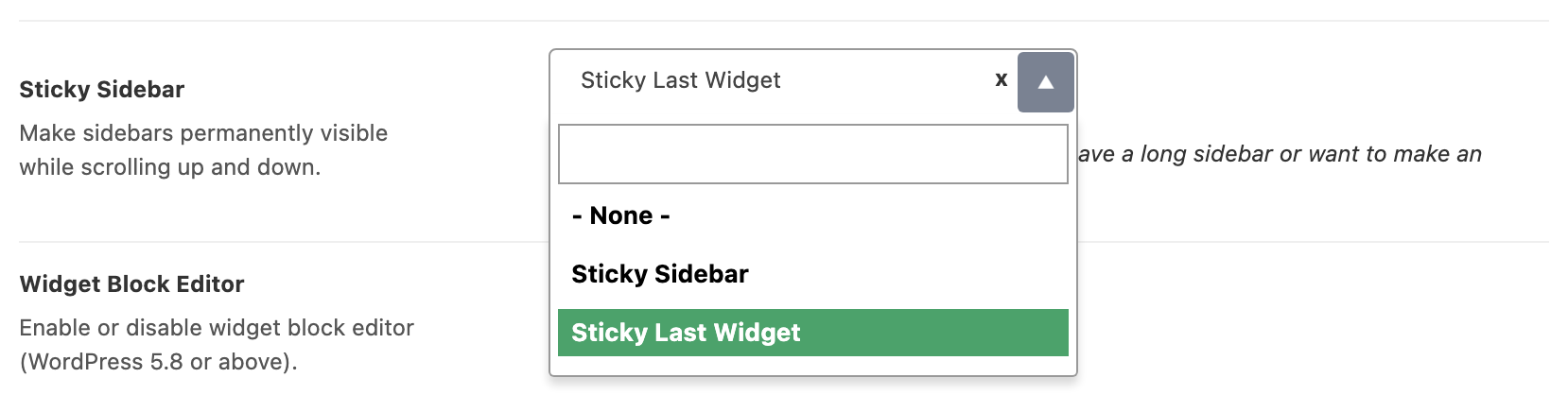
Set the Sticky Sidebar option. It is a dropdown, not a switch, and its default is - None -. The other two values are Sticky Sidebar, which pins the whole sidebar, and Sticky Last Widget, which lets the sidebar scroll normally and pins only the bottom widget.
-
Save your changes.
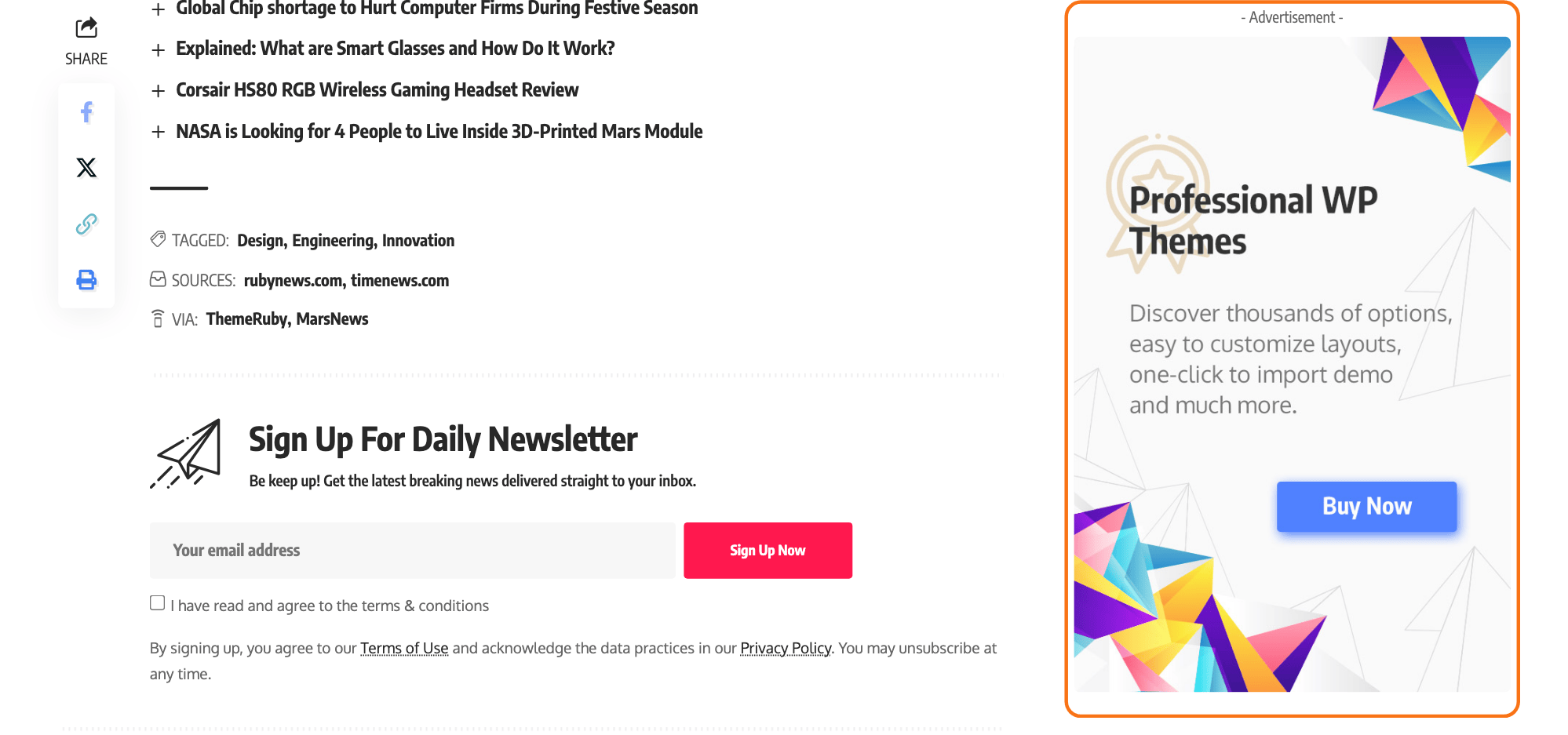
Pick Sticky Sidebar for a short sidebar and Sticky Last Widget for a long one, or when the thing you want kept on screen is an advertisement at the bottom. A tall sidebar pinned whole simply stops scrolling with the article and leaves the reader looking at its top.
Sticky can be set in three places, and Foxiz uses the first one that is set. A dropdown left on - Default - hands the decision to the next place down the list.
- One category: the Sticky Sidebar in that category's own Foxiz Category Settings. It only affects that category's archive.
- One page type: the Sticky Sidebar in that page type's own Theme Options panel, listed below.
- The whole site: Theme Options > Sidebars > Sticky Sidebar, set in the steps above.
Almost every page type has its own Sticky Sidebar dropdown:
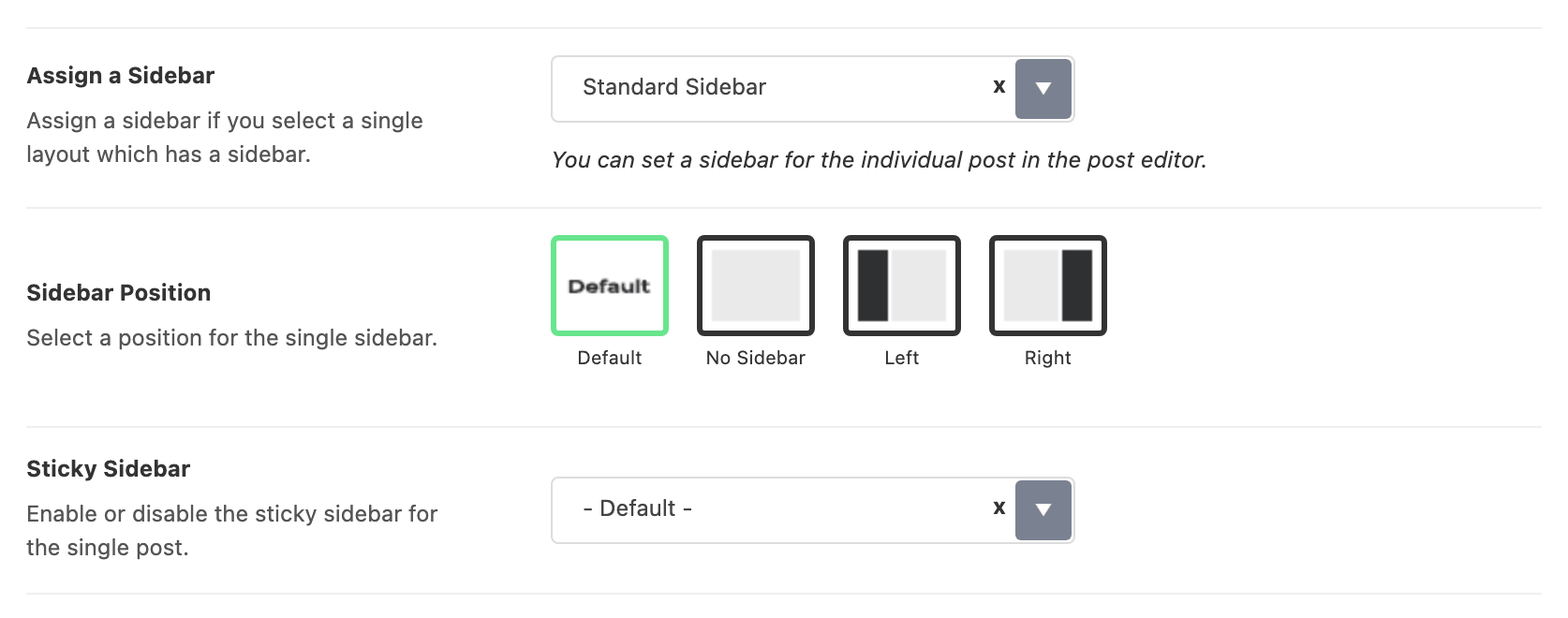
- Single posts: Single Post > Sidebar Area.
- Pages: Single Page > Sidebar Area.
- One category: Post Listing - Sidebar on the Predefined Blog tab of its Foxiz Category Settings, which overrides the Category panel for that category alone.
- Listing pages: Post Listing - Sidebar in Category, Blog Index, Author Page, Archives and Search Page.
Each of those defaults to - Default -, which means "use the global setting", and each also offers Disable to turn sticky off for that page type alone. If the global setting is not taking effect somewhere, look for the override on that page type.
There is one more override beneath all of them: a Ruby Template used as the only widget in a sidebar sticks to the template's last widget rather than to the sidebar.
Sticky Sidebar for Elementor
On a page built with Elementor, the sidebar is a container or column you placed yourself, so the Theme Options setting above does not reach it. You make it stick by adding a CSS class to it.
Most sites use containers, which every new Elementor site has switched on: skip to the container steps. The column steps right below are for older pages built with sections and columns.
To get started, follow the steps below:
-
Open the page with Edit with Elementor (in Pages, hover the page and click the link).
-
Find the section that holds your sidebar column.
-
Right click the sidebar column and choose Edit Column.
-
Select the Advanced tab.
-
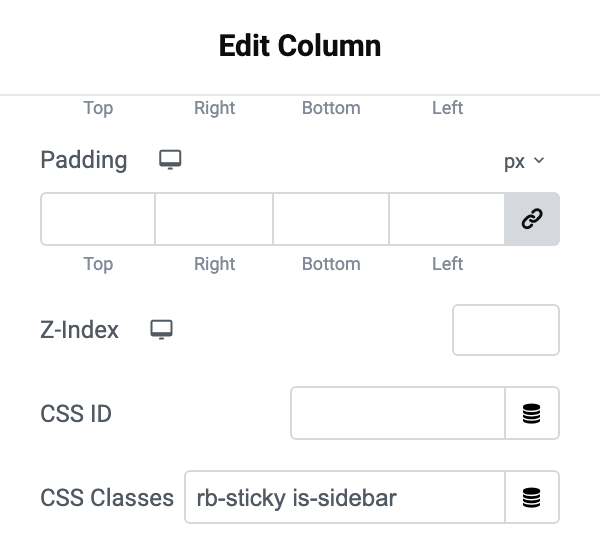
Input rb-sticky is-sidebar into the CSS Classes input field
Click Publish, then check the page on a screen wider than 1024px, where sticky applies.
Those are two independent classes and it is worth knowing which does what:
rb-stickyis the one that sticks: on a column it pins the column's contents from 1025px up.is-sidebardoes nothing to stickiness at all. It caps the column at 420px and centres it between 768px and 1024px, so the sidebar reads as a sidebar on tablet instead of stretching.
Add only rb-sticky if you are happy with the tablet width you already have.
Elementor's Flexbox Container lets you design device-responsive web pages using containers similar to the CSS Flexbox. It replaces the columns Elementor used before.
If you are using the Container to create a sticky sidebar, follow the steps below:
-
Open the page with Edit with Elementor (in Pages, hover the page and click the link).
-
Find the container that holds your sidebar, usually the narrow one beside the content.
-
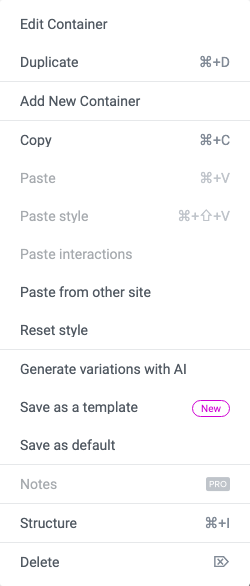
Right click it and choose Edit Container.
-
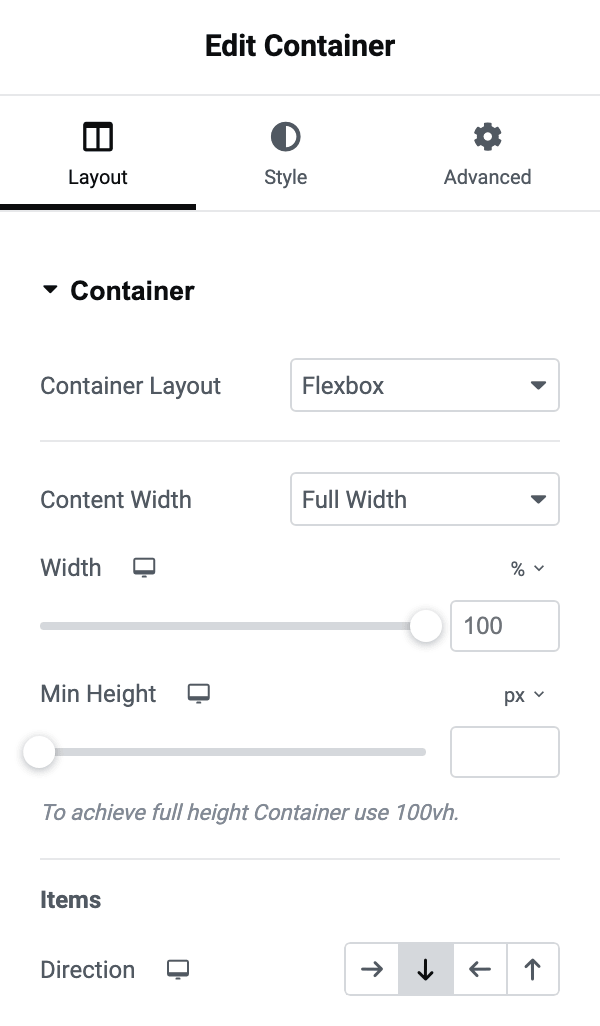
Select the Layout tab
-
After clicking on the Layout tab, navigate to the Container section to find the Direction option, then select Column - vertical as shown in the screenshot below. It stacks the sidebar's widgets one under another at full width, the way a sidebar reads.
-
Select the Advanced tab.
-
Input rb-sticky into the CSS Classes input field

-
Click Publish, then check the page on a screen wider than 1024px.
On a container there is a second class with no equivalent on columns: rb-sticky-last-widget pins only the last widget inside the container and lets everything above it scroll. It is the container version of Sticky Last Widget, and you use it instead of rb-sticky, not alongside it.
A container only sticks if its parent leaves it top aligned rather than stretching it to full height, and Foxiz handles that for you: it sets align-items: flex-start on any parent container holding an rb-sticky child. So you do not have to change the parent's alignment by hand.
The sticky offset accounts for the WordPress admin bar and for a sticky navigation bar, so the pinned column stops below them rather than under them. Nothing needs setting for that.
Did this answer your question?