WooCommerce
This tab styles how the WooCommerce shop looks inside Foxiz: product listings, the shop and archive pages, and the single product page. It does not add products or run checkout; WooCommerce does that.
Where to find it
Go to Theme Options > WooCommerce. The tab has no settings of its own. Click it and it opens a list of three subsections; each subsection has its own settings.
The Theme Options menu on the left lists the subsections in panel order: General, Shop & Archives, Single Product. Each one is split into groups, and each has a section below.
After changing anything, click Save Changes. The button is at the bottom of the panel, and also in the bar that stays at the top while you scroll.
Until WooCommerce is installed and active, each of the three subsections holds only a notice that the plugin is missing, with a link to it. Activate WooCommerce and the settings appear.
WooCommerce or another tab?
A few shop settings live in other tabs:
- The look of product listings, the shop and product pages: WooCommerce, this tab.
- The shop's fonts: Typography > WooCommerce. See typography options.
- The cart icon in the header: Header > Mini Cart. See Mini Cart.
- AdSense auto ads on shop pages: Disable on Woocommerce Pages, in Ads & Slide Up > Adsense - Auto Ads. It is on by default.
Both Typography > WooCommerce and Header > Mini Cart show the same notice until WooCommerce is active.
General
How products look in a listing: the styles and layout of the product cards on the shop, product category and archive pages.
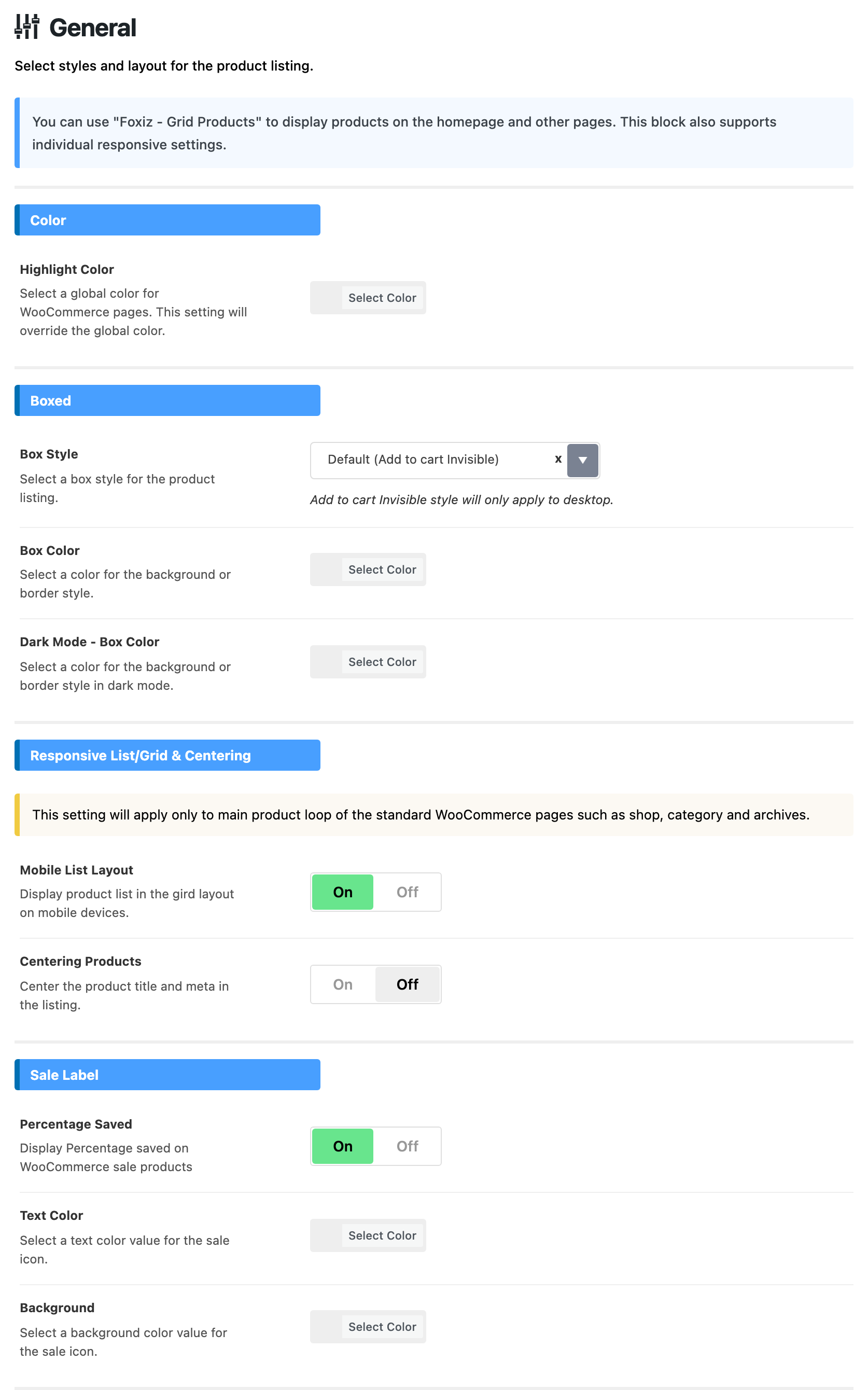
The notice at the top points to the Foxiz - Grid Products block, for showing products on the homepage and other pages. That block has its own responsive settings.
Every colour field in this subsection is empty by default, except Dark Mode - Text Color under Add to Cart - Normal. Empty keeps the theme's own colour.
Color
- Highlight Color: the accent colour on WooCommerce pages, used in place of the site's global colour there.
Boxed
The box around each product.
- Box Style: the frame of each product card. Its default is Default (Add to cart Invisible).
- Default (Add to cart Invisible): no frame. On desktop the Add to cart button is hidden until the pointer is over the product; then the card lifts with a shadow and shows it. On tablets and phones the button is always visible.
- Standard, Background, Border and Shadow: the button is always visible. Background fills the card, Border draws a thin line around it, Shadow puts a soft shadow under it.
- Box Color: the fill colour for Background, or the line colour for Border.
- Dark Mode - Box Color: the same, in dark mode.
Responsive List/Grid & Centering
These two apply to the main product list of the shop, product category and archive pages, not to a block or a shortcode.
- Mobile List Layout: on phones, each product becomes a horizontal card, with a small image beside the text instead of above it. On by default. Turn it off to keep the grid on phones.
- Centering Products: centres the product name, price and other details under the image. Off by default.
Sale Label
The sale badge on a discounted product's image.
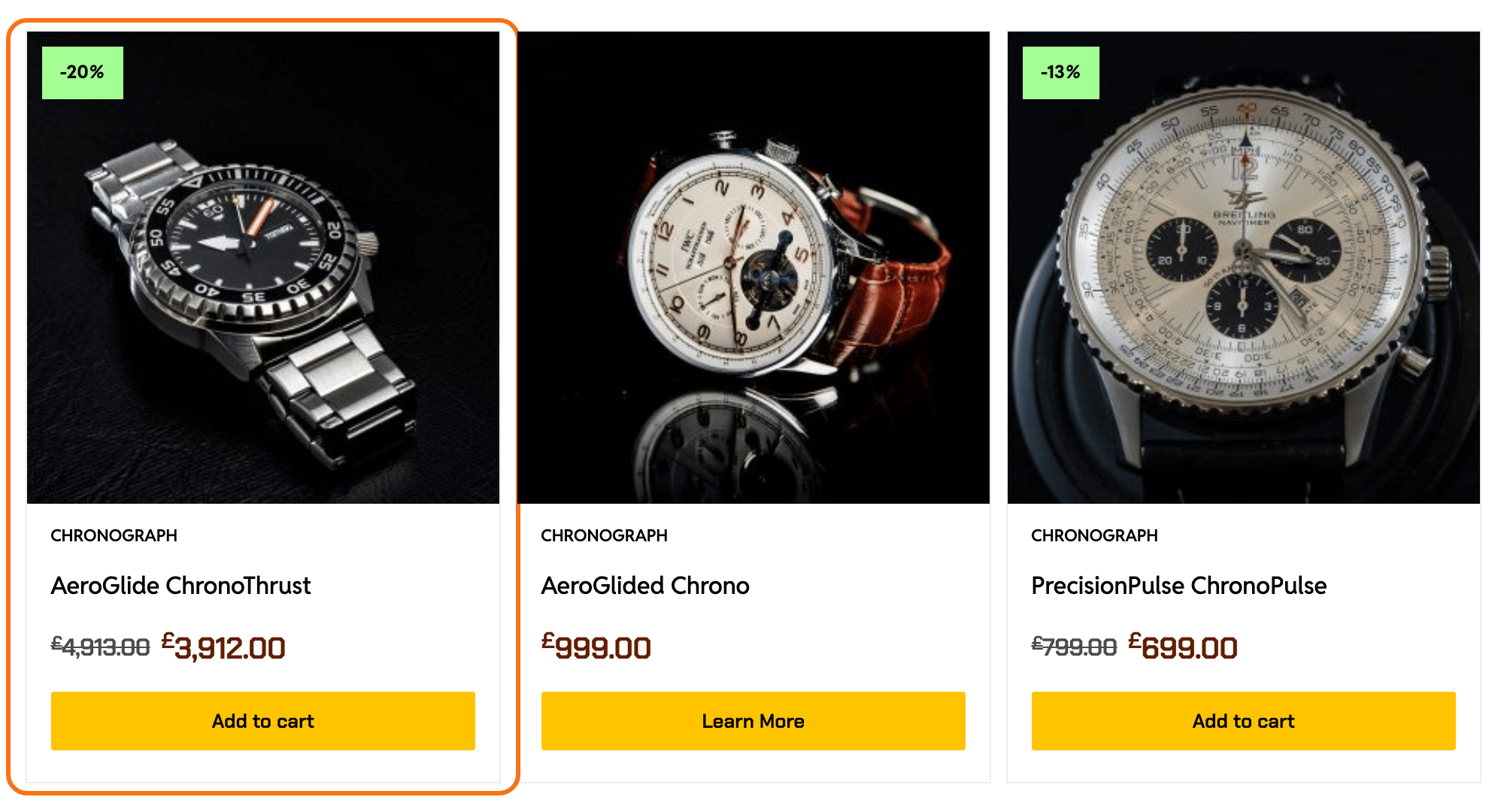
- Percentage Saved: the badge shows how much the reader saves, such as -20%, instead of WooCommerce's own sale badge. On by default.
- Text Color: the badge's text colour.
- Background: the badge's background colour.
Price
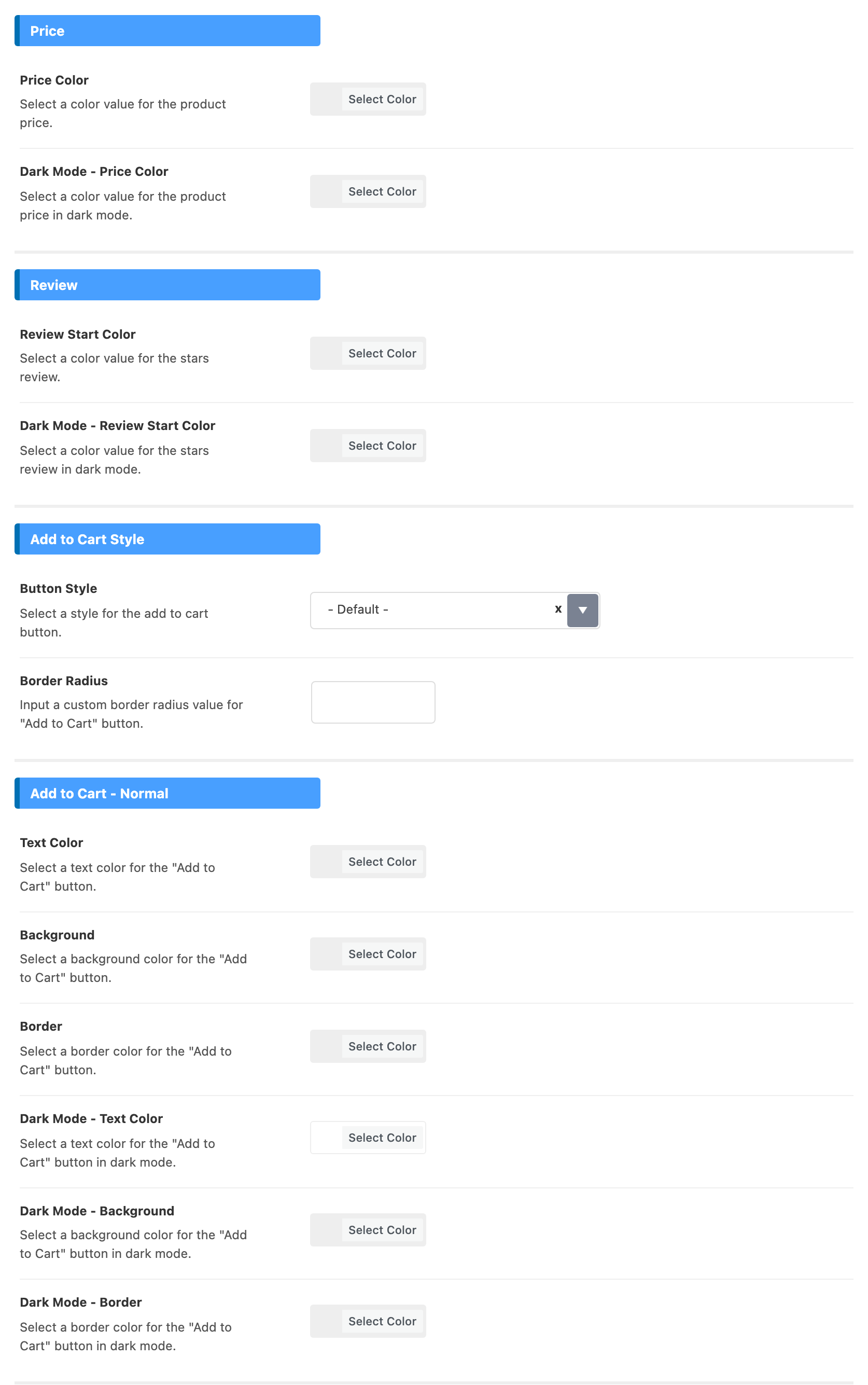
- Price Color: the colour of the product price.
- Dark Mode - Price Color: the same, in dark mode.
Review
- Review Start Color: the colour of the rating stars. The label reads Start, not Star.
- Dark Mode - Review Start Color: the same, in dark mode.
Add to Cart Style
The shape of the cart button.
-
Button Style: the button's shape. Its default is - Default -.
- - Default -: a button as wide as its text.
- Fullwidth: a button as wide as the product card.
- Inline with Border: as wide as its text, with a border.
- Fullwidth with Border: as wide as the card, with a border.
-
Border Radius: how round the button's corners are, in pixels. Empty by default, which keeps the theme's own rounding. Enter 0 for square corners.
Add to Cart - Normal
The button's colours at rest.
- Text Color: the button text.
- Background: the button fill. The two with Border button styles have no fill at rest, so it does not show with them.
- Border: the button border. It shows with the two with Border button styles.
- Dark Mode - Text Color: the button text in dark mode. Its default is white (#ffffff).
- Dark Mode - Background: the button fill in dark mode.
- Dark Mode - Border: the button border in dark mode.
Add to Cart - Hover
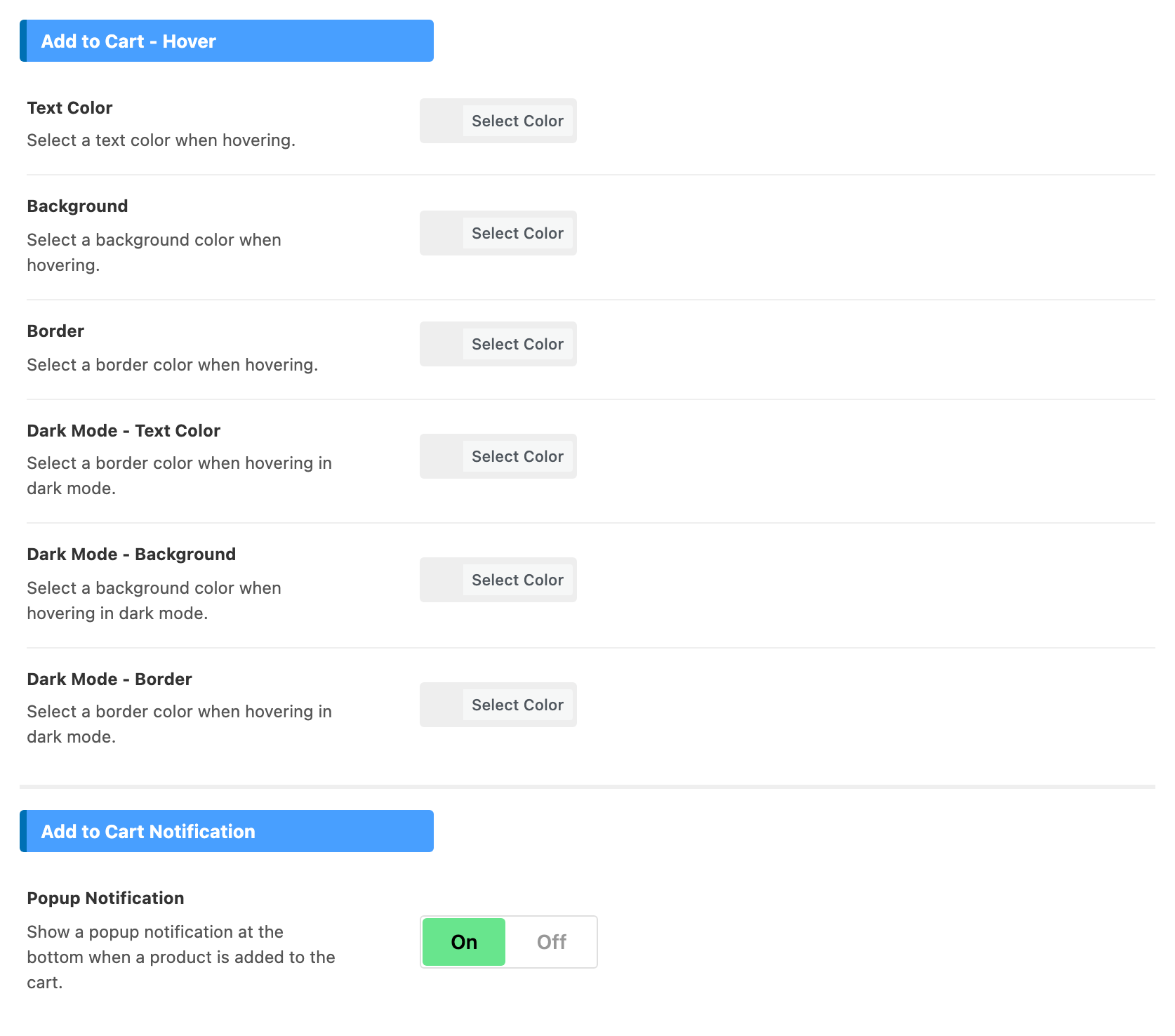
The button's colours under the pointer. The same six fields as Add to Cart - Normal.
- Text Color, Background and Border: the hover colours.
- Dark Mode - Text Color, Dark Mode - Background and Dark Mode - Border: the hover colours in dark mode. The help text under Dark Mode - Text Color says border colour, but the field sets the text colour.
Add to Cart Notification
- Popup Notification: after a reader adds a product to the cart, a small box at the bottom of the screen says Product added to cart! with a View Cart button. On by default.
Shop & Archives
The shop and category pages: the main shop page, product category pages, their sidebars and the spacing of the product grid.
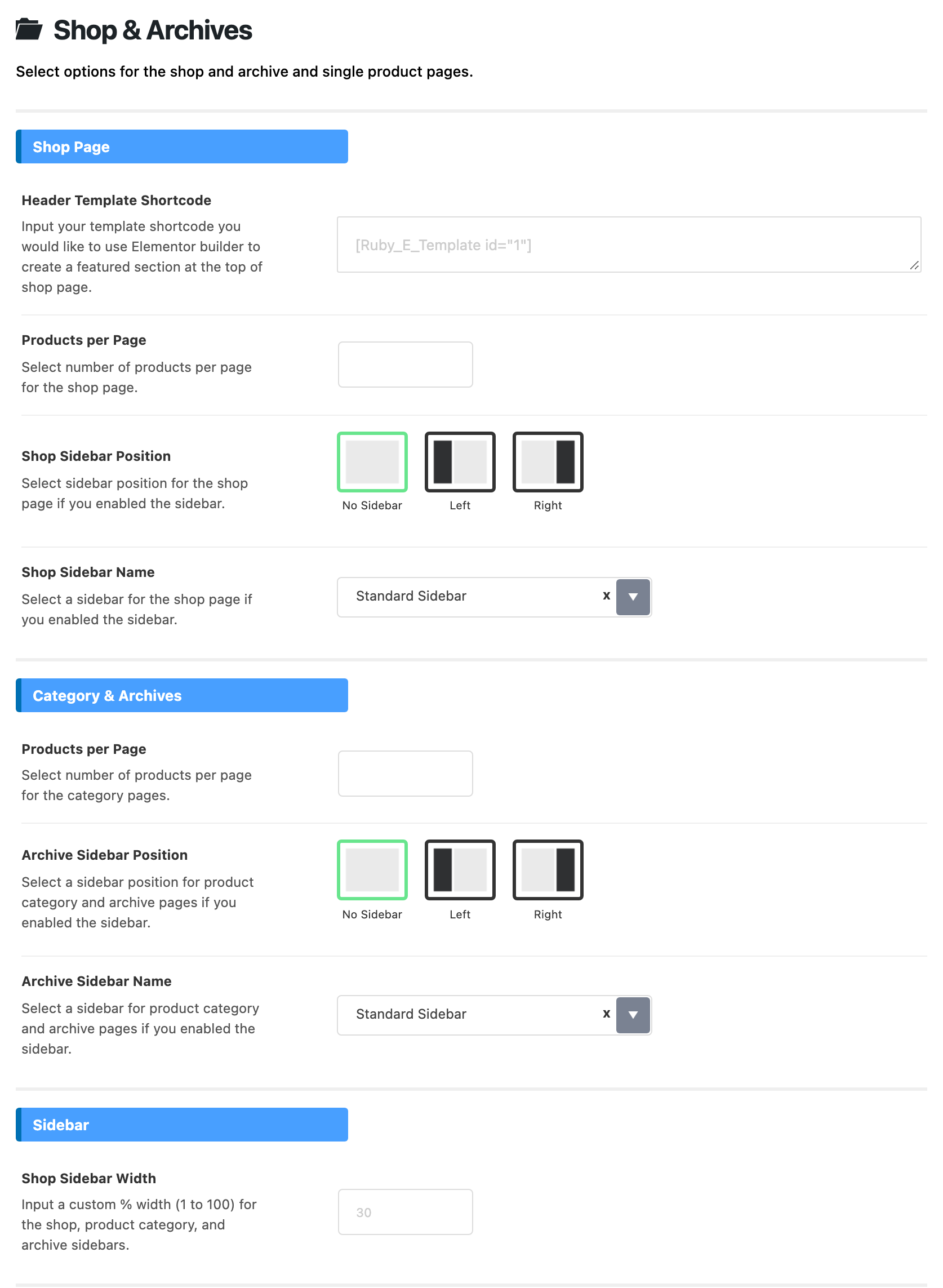
Shop Page
- Header Template Shortcode: a featured section built in Elementor, shown at the top of the shop page above the products. Build it as a Ruby Template and paste its shortcode, such as
[Ruby_E_Template id="1"]. Empty by default. See Ruby Templates for where to copy the shortcode. - Products per Page: how many products the shop page shows before the next page. Empty by default, which leaves the number to WooCommerce.
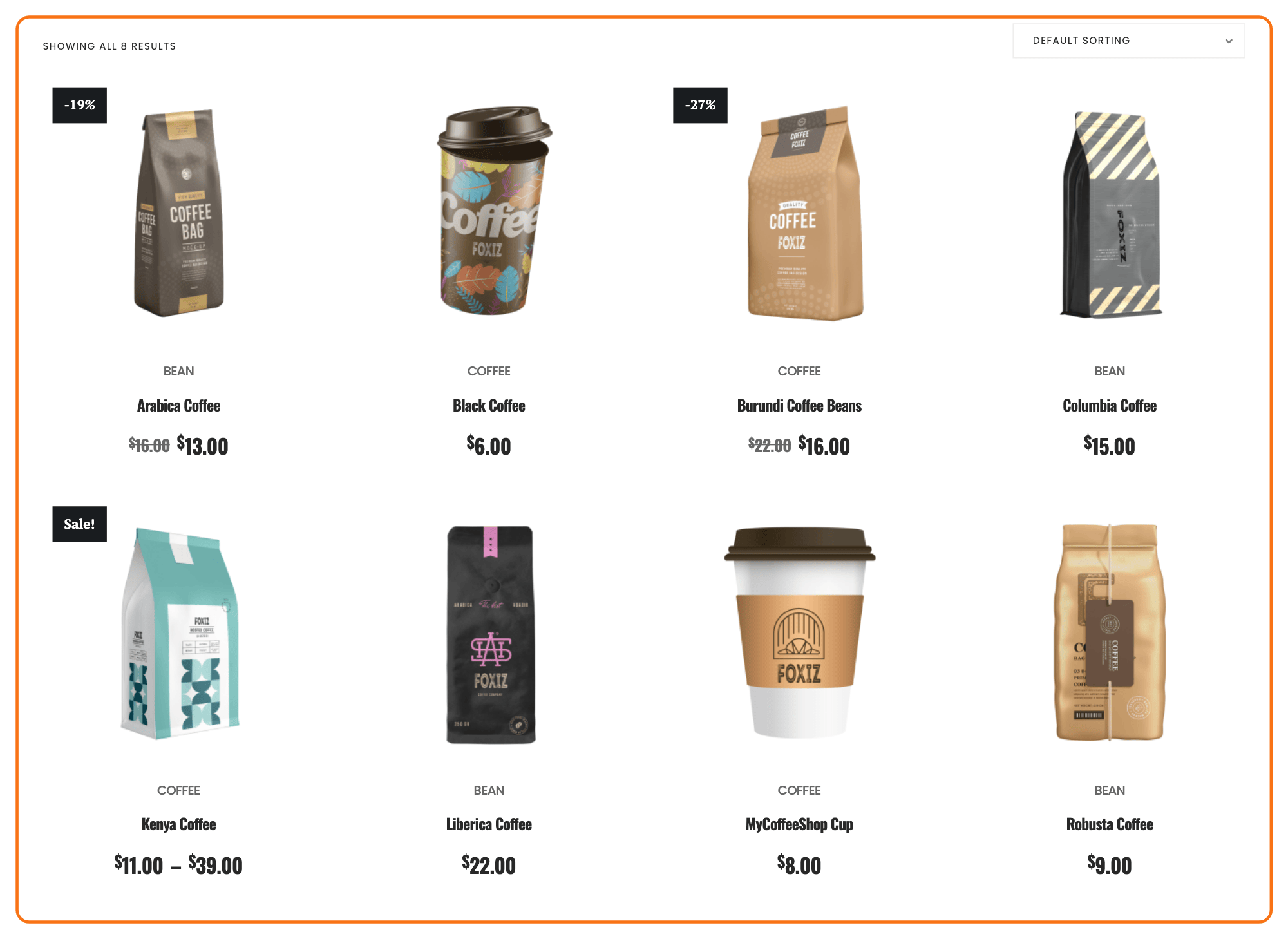
- Shop Sidebar Position: No Sidebar, Left or Right. Its default is No Sidebar. With no sidebar the grid shows four products to a row; with a sidebar, three.
- Shop Sidebar Name: which sidebar the shop page shows. Its default is Standard Sidebar. Sidebars you create in Theme Options > Sidebars > Unlimited Sidebars are listed too; see how to create a custom sidebar. Fill it with widgets at Appearance > Widgets.
Category & Archives
The same choices for product category pages.
- Products per Page: product category pages do not read this field. Set their number in Theme Options > Taxonomy > Posts per Page.
- Archive Sidebar Position: No Sidebar, Left or Right. Its default is No Sidebar. Four products to a row without a sidebar, three with one.
- Archive Sidebar Name: which sidebar category pages show. Its default is Standard Sidebar.
Product tag pages do not show this sidebar. It appears on the shop page and product category pages only.
Both sidebars stick while scrolling when Theme Options > Sidebars > Sticky Sidebar is set.
Sidebar
- Shop Sidebar Width: how wide the shop, product category and archive sidebars are, as a percentage from 1 to 100. Empty by default, which gives the sidebar 30% of the width. It applies on desktop screens.
Product Listing Gap
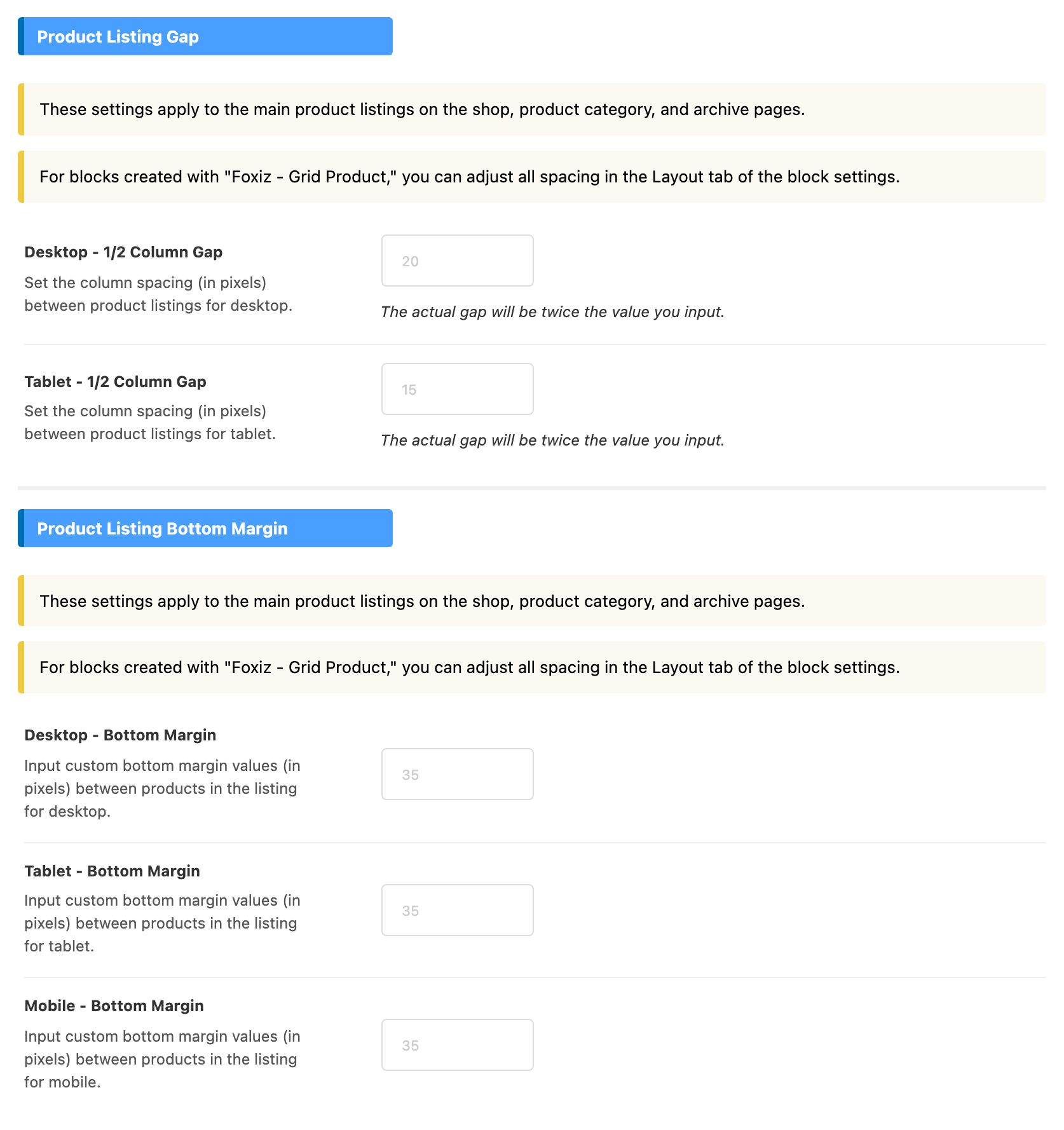
The space between product columns, on desktop and tablet. Both fields take half the gap in pixels: the space you see is twice the number.
- Desktop - 1/2 Column Gap: empty by default, which uses 20, a 40 pixel gap.
- Tablet - 1/2 Column Gap: empty by default, which uses 15, a 30 pixel gap.
Product Listing Bottom Margin
The space under each product, between one row and the next, in pixels. Each field is empty by default, which leaves 35 pixels.
- Desktop - Bottom Margin
- Tablet - Bottom Margin
- Mobile - Bottom Margin
The gap and margin groups apply to the main product list on the shop, product category and archive pages. A Foxiz - Grid Products block sets its own spacing in its Layout tab.
Single Product
The product page: the images and gallery, the review box and related products.
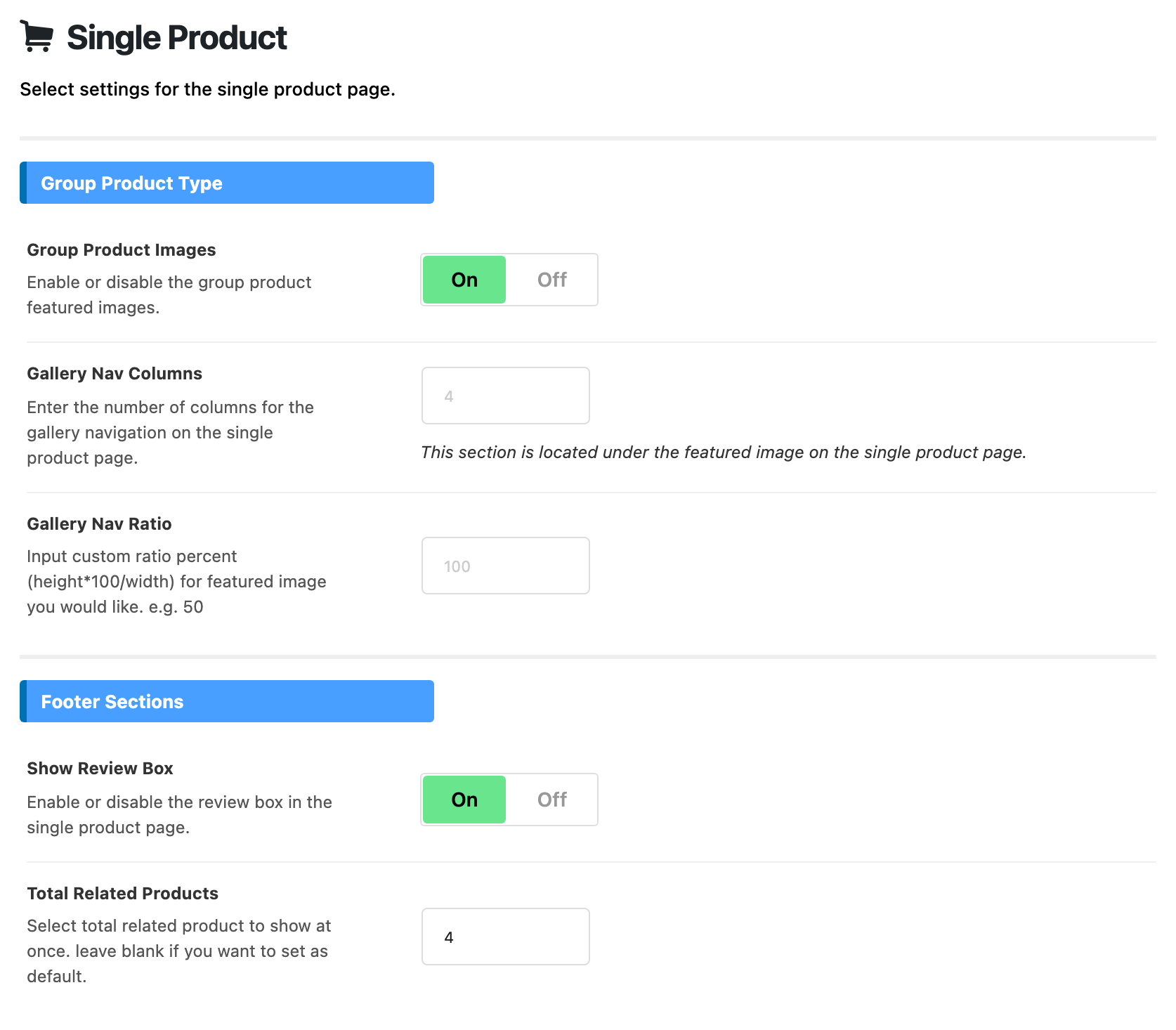
Group Product Type
The product images and the gallery strip under the featured image.
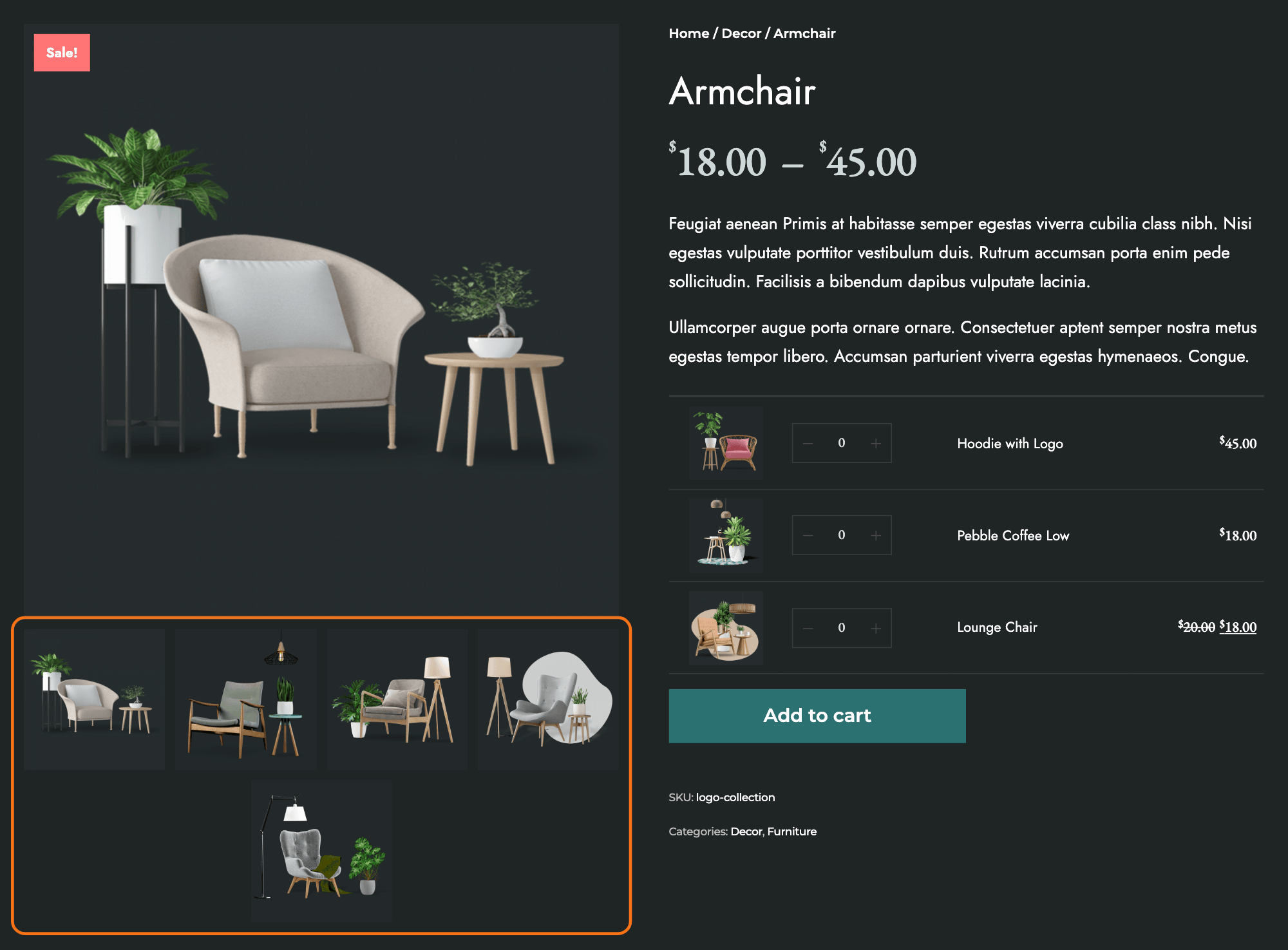
- Group Product Images: on a grouped product, shows each product's image in the list of products it holds. On by default.
- Gallery Nav Columns: how many thumbnails fit in one row of the gallery strip under the featured image. Empty by default, which shows 4.
- Gallery Nav Ratio: the shape of those thumbnails, as height times 100 divided by width. 100 is square, 50 is twice as wide as tall. Empty by default, which keeps them square.
Footer Sections
The review box and related products below the product.
- Show Review Box: the Reviews tab below the product. On by default. Turn it off and the tab is removed.
- Total Related Products: how many related products show under the product, four to a row. Its default is 4.
Common jobs
- Set up a shop from the start, before styling it here: how to set up a shop with Foxiz.
- Build a shop page with a banner above the products, which uses Header Template Shortcode in Shop & Archives: how to build a custom shop page.
- Show products on the homepage or any Elementor page: how to use the Foxiz Product Block in Elementor. The notice at the top of General points to the same block, Foxiz - Grid Products.
- Put a product list in a post with a shortcode: creating products list and products shortcode.
If a change does not show
- Is WooCommerce active? Without it the subsections hold only the notice, and there is nothing to style.
- Did it save? Click Save Changes again and wait for the confirmation.
- Is a cache serving the old page? Clear your caching plugin and any server or CDN cache, then reload the shop page on the site.
- Is the product list a Foxiz - Grid Products block? That block has its own responsive settings; check them on the block.
- Is it a product tag page? The shop and category sidebars do not show there.
Did this answer your question?