AMP: Setting up and testing AMP for WordPress
AMP (Accelerated Mobile Pages) is an open-source initiative to make websites of all kinds more accessible on smartphones and tablets.
The theme supports AMP in Transitional Mode and for page/post and all other default templates. It is served to mobile visitors when they find the content on platforms such as Twitter, Pinterest, Google Search, and others.
Transitional is not a mode you pick. As soon as the AMP plugin is active, Foxiz sets the plugin's template mode to transitional on every load, hides the mode selector on the AMP settings screen and replaces it with a line saying so.
Everything below needs that plugin. Until it is installed and active, Theme Options > AMP shows a warning in place of its settings telling you to install it.
To get started, follow the steps below
-
Install and activate the AMP plugin: https://wordpress.org/plugins/amp/
-
Navigate to AMP > Settings, scroll to Advanced Settings and open the Supported Templates panel.
-
Tick what you want under its two fieldsets, Content Types and Templates.
For most sites:
- Content Types: tick Posts, and Pages if you want them.
- Templates: keep Singular ticked and untick Homepage, Blog and Archives. When your homepage is a page, Homepage sits under Singular.
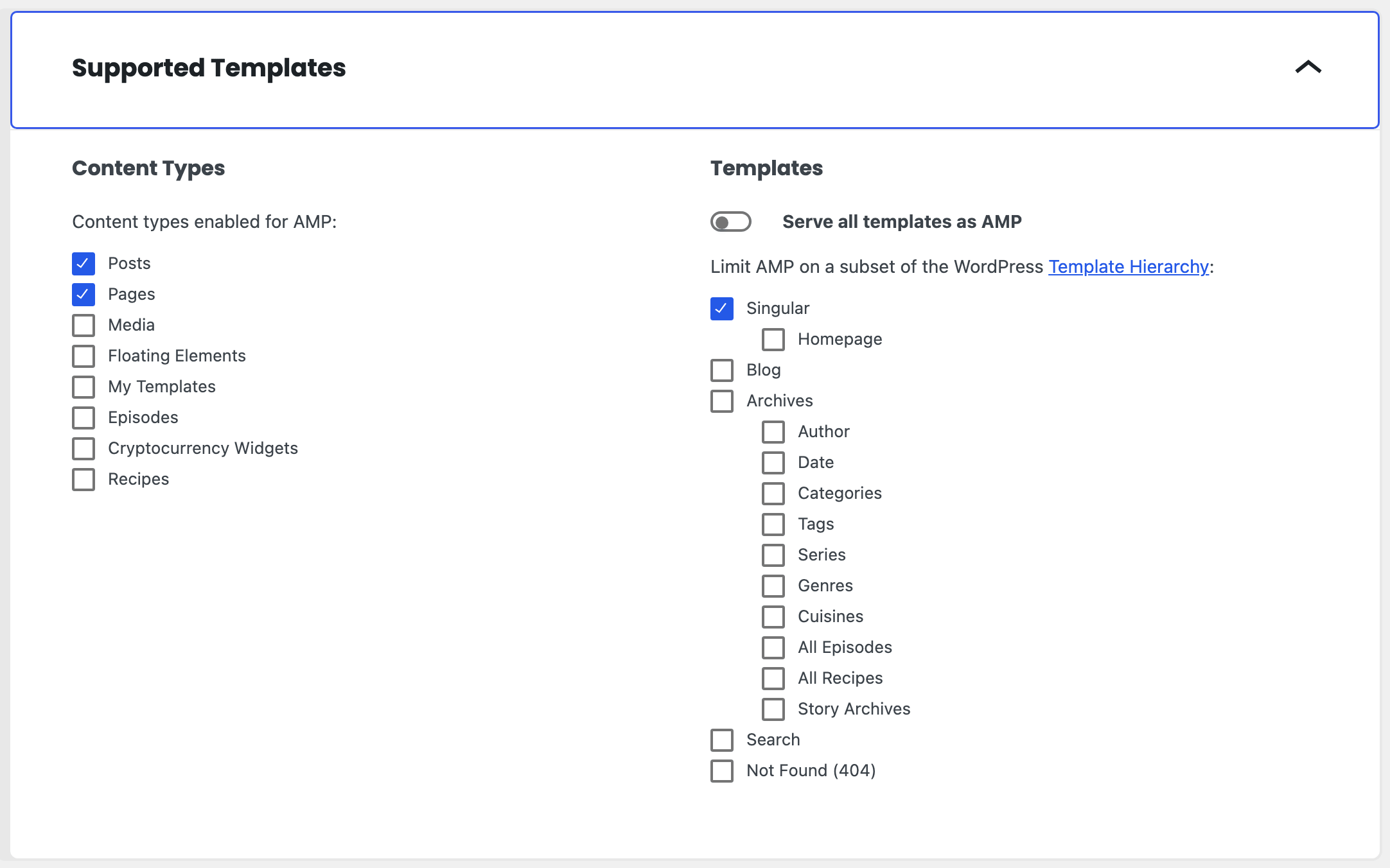
You have to choose them. Foxiz turns the plugin's "all templates supported" option back off on every load and removes the fieldset that switches it on, so this list is always what decides.
Two entries are taken out of Content Types before you see it: Ruby Templates and WooCommerce products. Foxiz removes them, so you cannot enable AMP for either.
AMP Settings
- Navigate to Theme Options > AMP
- Set what you need and save changes.
The panel holds four subsections: General, Single Post, AMP Auto Ads and AMP Ads.
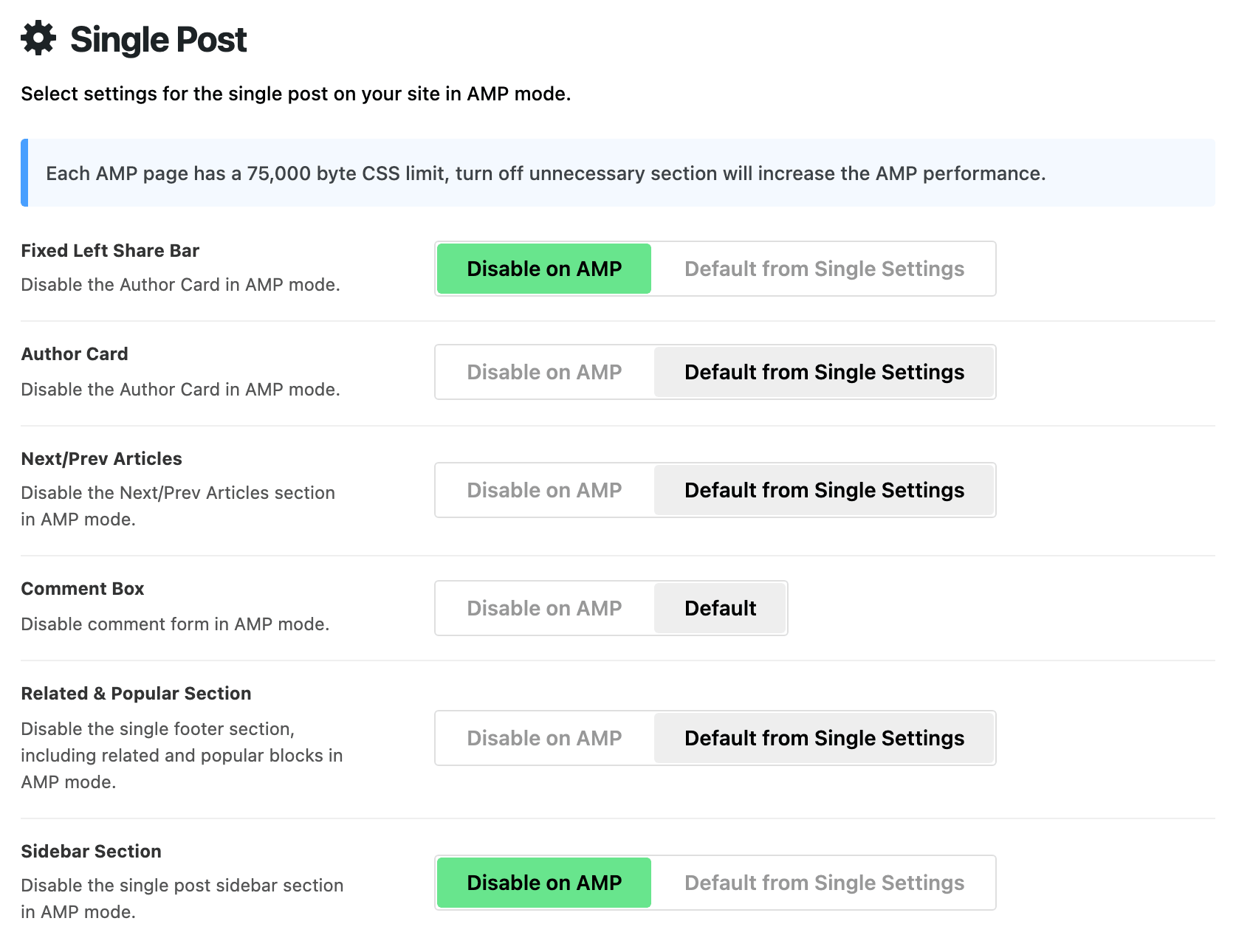
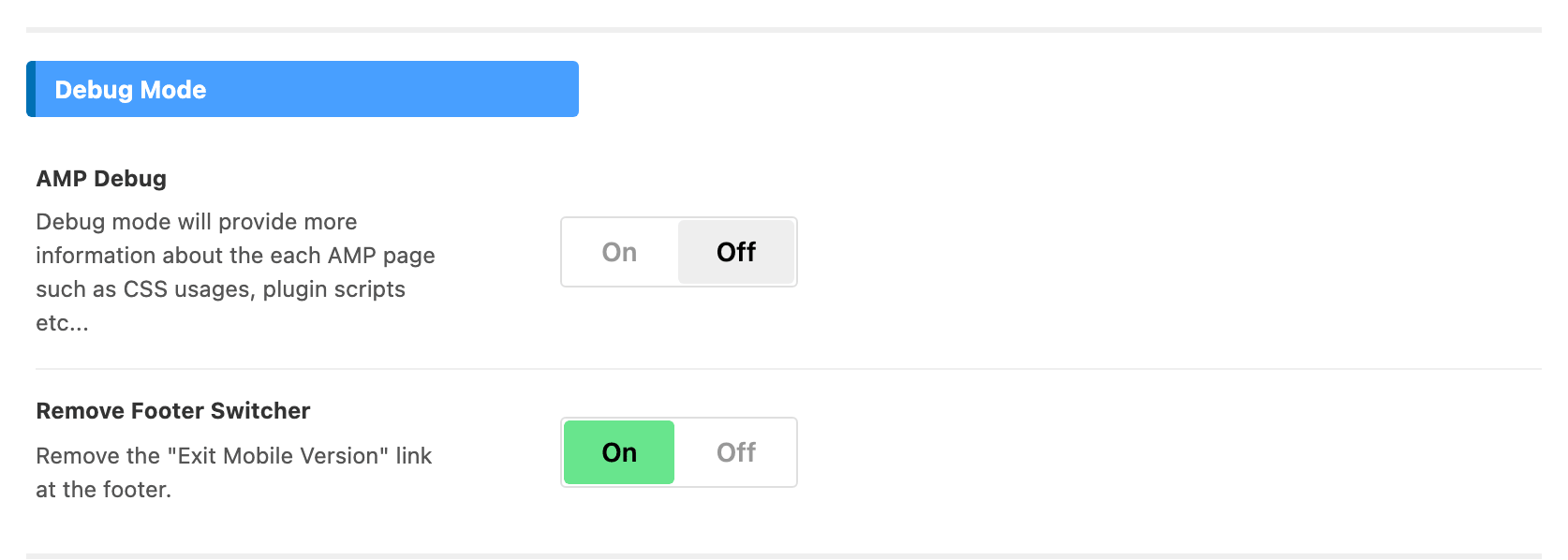
Three switches are already on before you change anything, and they are the usual reason an AMP page looks different from the normal one. Under General, Remove Footer Switcher hides the "Exit Mobile Version" link at the foot of the page. Under Single Post, both Fixed Left Share Bar and Sidebar Section are set to Disable on AMP by default.
The rest of General is the compact footer AMP pages get in place of yours:
- AMP Footer Logo is the logo shown in that footer, and Logo Height sets its height in pixels. With no logo uploaded, the footer shows no logo.
- Social Icons adds your profiles from Theme Options > Social Profiles beside the logo, and is off by default. Centered Mode centres the logo, icons and copyright line, and is off by default.
- Copyright Section shows the copyright line and copyright menu you set at Theme Options > Footer > Copyright, in its Copyright Text and Copyright Menu fields. It is on by default; switch it off to drop both from AMP pages only.
- Back to Top adds an arrow button at the foot of the page that jumps back up, and is on by default.

Every switch under Single Post works the same way: left on Default from Single Settings (just Default for Comment Box), the AMP page follows Theme Options > Single Post; set to Disable on AMP, that part is left off AMP pages only. Besides the three above, there are Author Card, Next/Prev Articles and Comment Box, and all three are on by default.
Next/Prev Articles is the previous and next post links under the article; turning it to Disable on AMP hides them on AMP even when Next/Prev Post Pagination is on for your normal posts.
Font & Color Settings: AMP will use default fonts, colors of the site settings.
You can refer the official site for further information.
Missing an element or section on AMP pages?
AMP imposes certain restrictions on CSS usage (maximum of 75KB of CSS), Javascript is not allowed and many other restrictions.
75,000 bytes per page, to be exact, which is why Foxiz serves a compact footer in AMP mode rather than the one you built.
We tried to do our best to support as many features as possible for the AMP. However, some features may not display on the AMP version, and we do not guarantee that third party plugins are compatible with it.
When something is missing and you want to know why, turn on AMP Debug under Theme Options > AMP > General. It is off out of the box, and while it is off Foxiz strips the AMP plugin's validation submenus, its admin bar items and its editor notices, so a page can fail validation without ever saying so. Turning the switch on puts all of that back, along with the per page CSS usage figures.
We do not recommend enabling AMP for the Home Page, for the reasons below
- Google AMP cache can live longer than 1 month in their server and it is very difficult to refresh.
- Elementor isn't compatible with AMP, because some settings that relate JS will not work correctly.
AMP is very good for single posts and single pages with static content. It will not be good for pages that have dynamic content data and reload regularly such as the homepage, blog, and category page.
How to Properly Disable Elementor on AMP
Which method? If AMP serves only your posts, as recommended above, pick Method 2: with Elementor suppressed, the theme prints nothing for a Ruby Template shortcode instead of a broken block. Pick Method 1 only if pages built with Elementor must work on AMP, and accept that their JavaScript features will not.
+ Method 1:
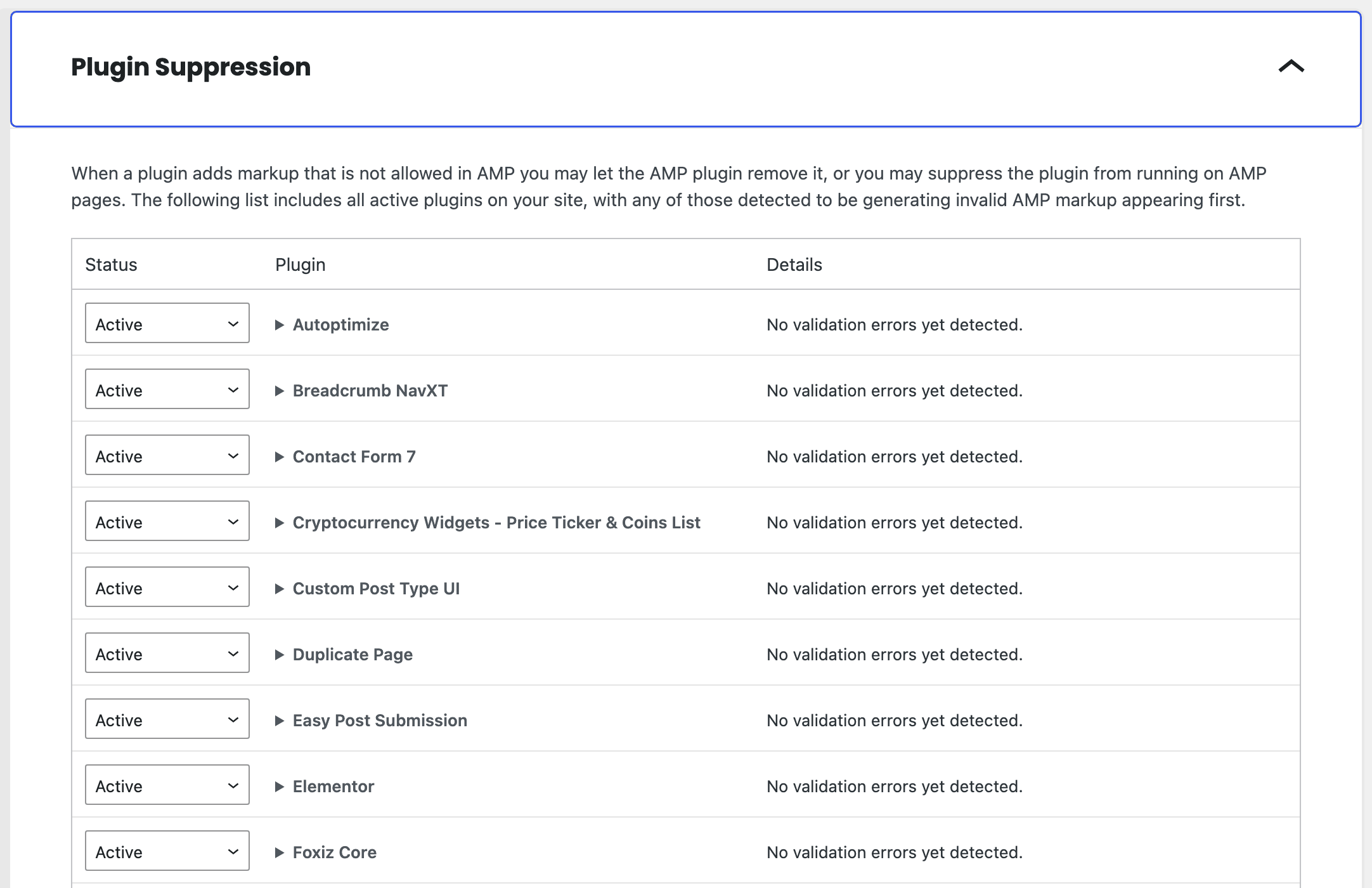
As the theme utilizes blocks integrated with Elementor, enabling Elementor on AMP facilitates the rendering of built-in templates. However, functionalities related to JavaScript will be deactivated. To do this, navigate to AMP > Settings, open the Plugin Suppression panel under Advanced Settings, find the Elementor row and set its Plugin status: to Active.
+ Method 2:
You can disable Elementor on AMP: on the same Plugin Suppression panel, set Elementor's Plugin status: to Suppressed.
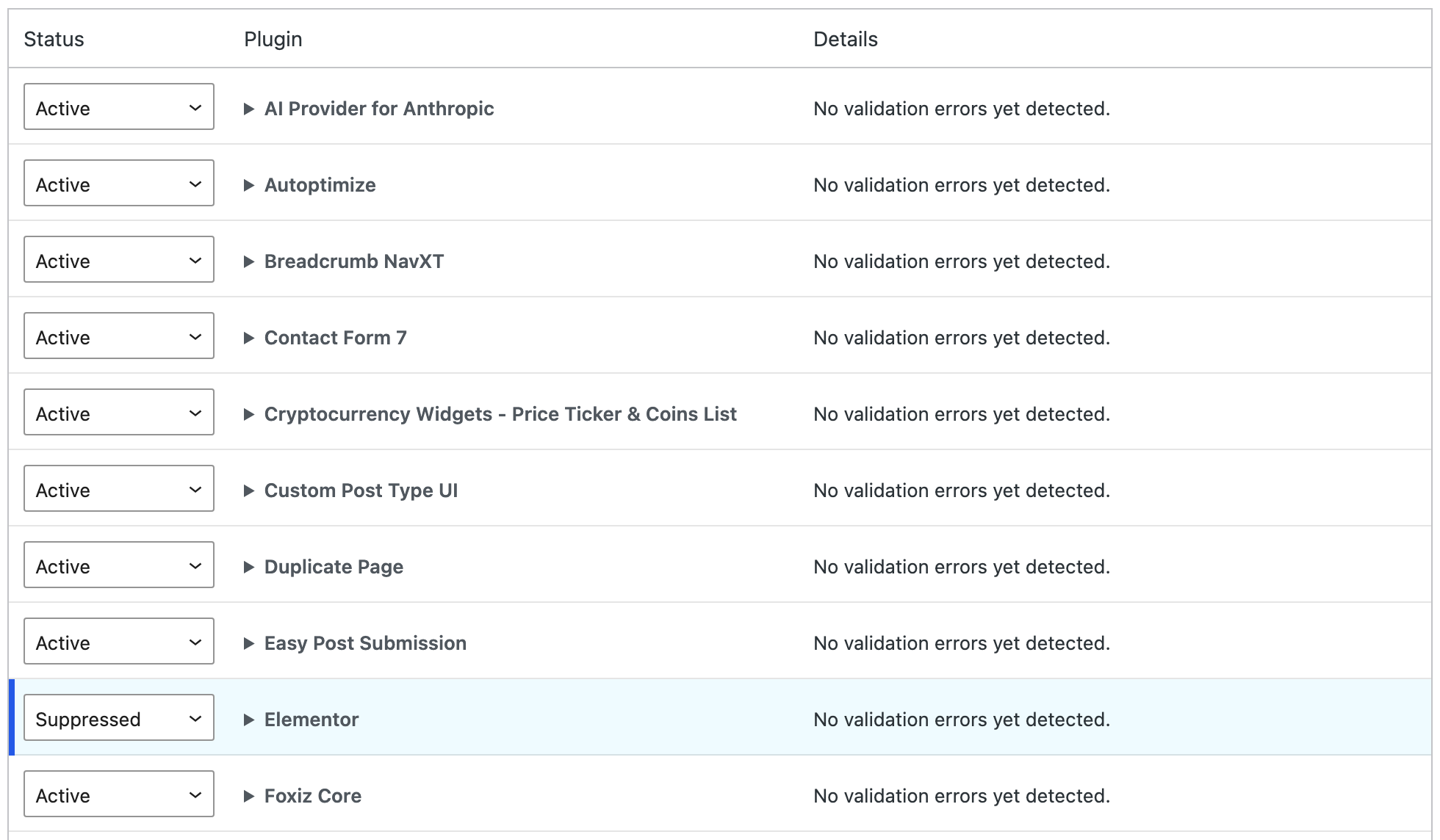
However, in this case, you need to consider the removal of blocks built with Elementor. Please refer to the blocks below for more information:
-
Nothing to do here: or Use Ruby Template for the Mobile Header: leave this one alone. The field is at Foxiz > Theme Options > Header > Mobile Header, and the theme already skips it in AMP mode and falls back to the predefined mobile header layout. Clearing the field would change your ordinary mobile header and gain you nothing on AMP.

-
Related Template : Navigate to Foxiz > Theme Options > Single Post > Related & Popular > Related Template > Template Shortcode
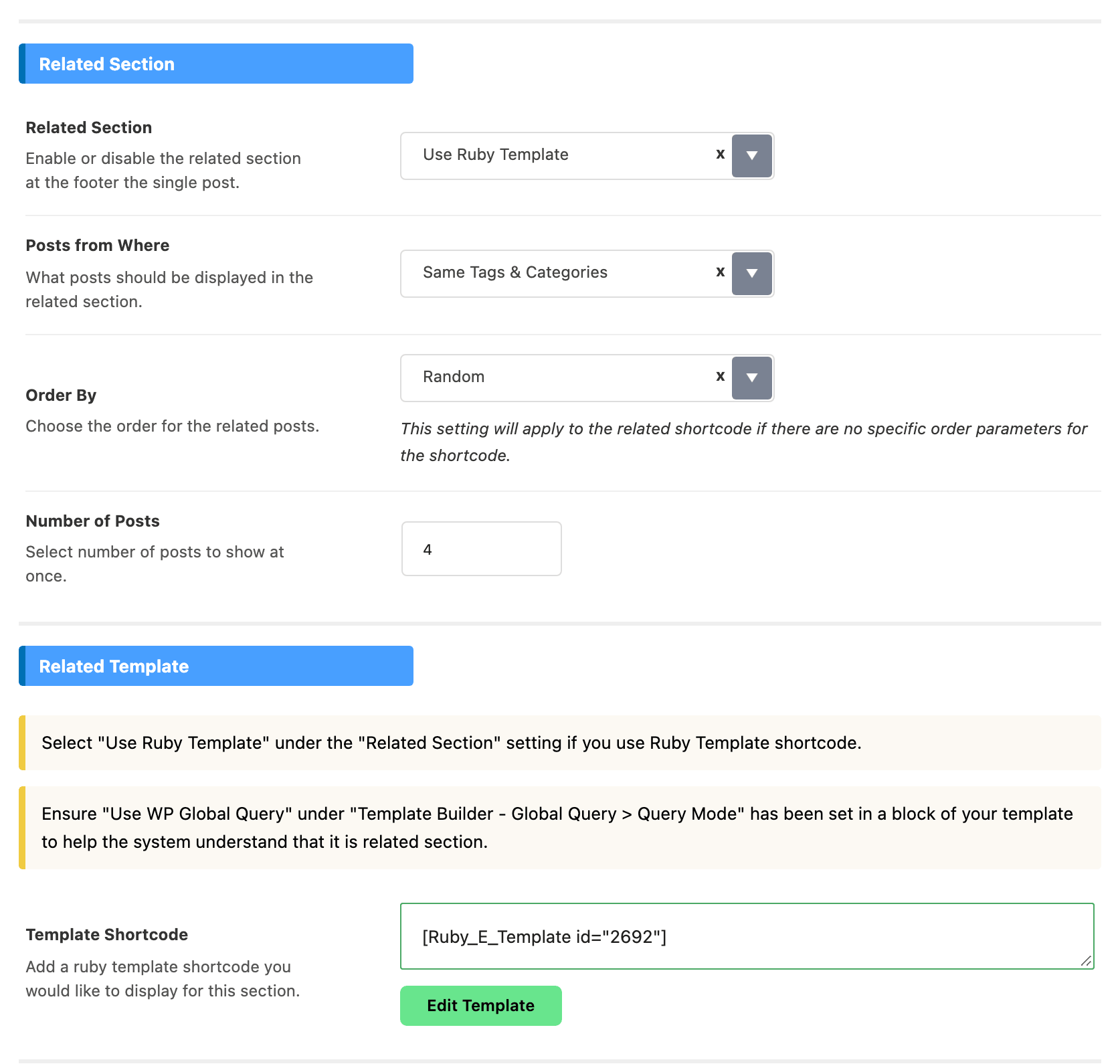
Emptying that field removes the related section from every single post, not only the AMP one. To keep a related section without Elementor, set Related Section at the top of the same subsection to Standard Layout: the theme then renders its own listing instead of the shortcode.
-
Popular Section: Navigate to Foxiz > Theme Options > Single Post > Related & Popular > Popular Section > Template Shortcode
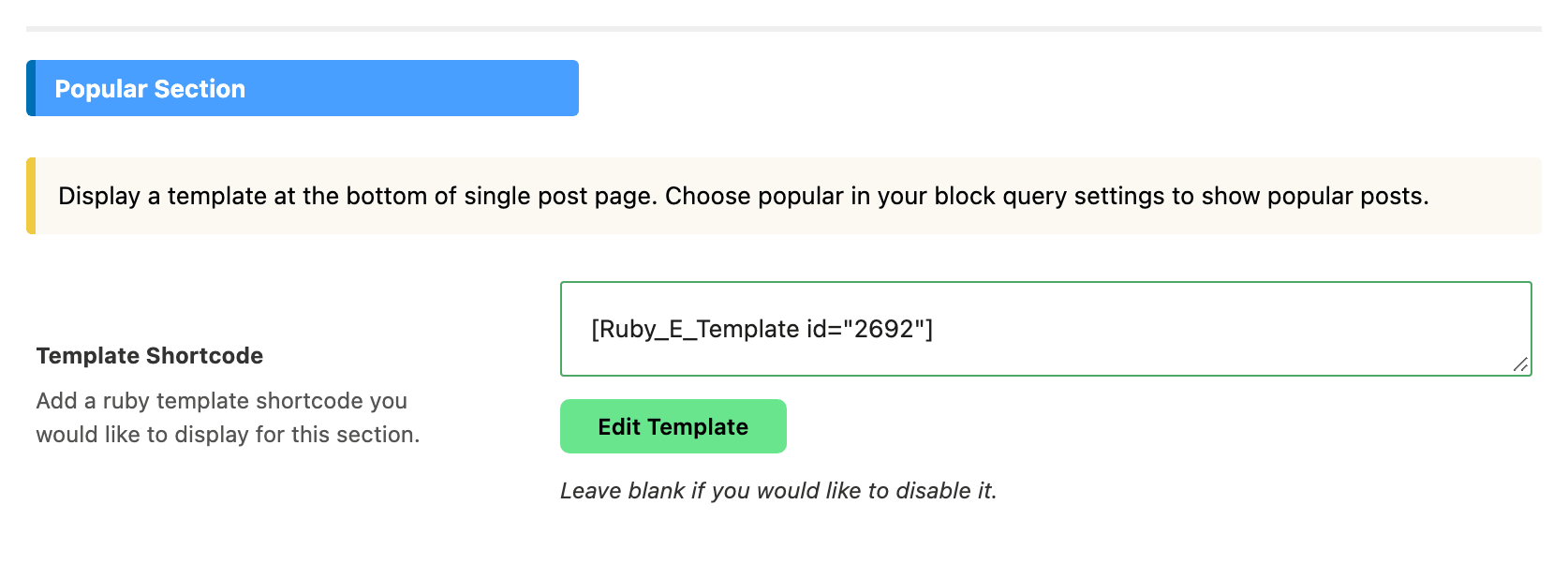
This one has no standard layout behind it. The popular section is only ever a Ruby Template shortcode, so leaving the field blank is what disables it.
One switch covers both of the last two without touching your normal single post. Set Related & Popular Section under Theme Options > AMP > Single Post to Disable on AMP and the whole single footer, related block and popular block together, is skipped on AMP pages only. It is off by default.
Did this answer your question?