How Frontend Login Works
Foxiz lets your readers sign in, sign up and reset their password on pages of your own site, styled like the rest of it, instead of on the WordPress login screen.
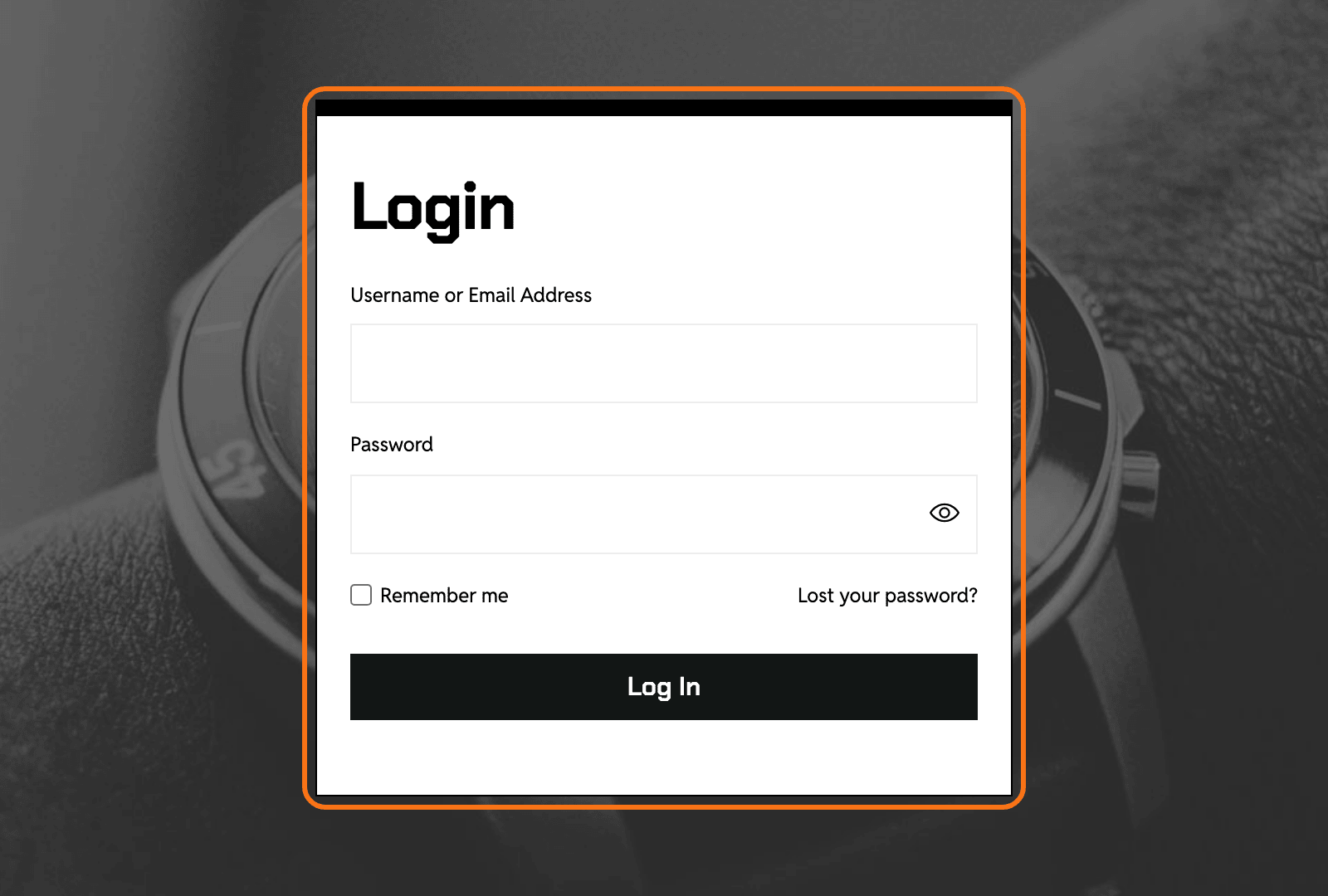
Here is a finished login page on the Chronograph demo: foxiz.io/chronograph/login. It is one Elementor page with the Foxiz - Login Form block in a white box over a full screen background image, and a logo in the corner.
The pieces
| Piece | What the reader gets | Where you set it |
|---|---|---|
| Login page | a page with the login form, a lost password form and, once signed in, a "Hi, name" box | the Foxiz - Login Form Elementor block, then Custom Login Page URL |
| Registration page | a sign up form | the Foxiz - Register Form block, then Custom Registration Page URL |
| Sign in button | a button in the header | Theme Options > Login > Popup Sign In, or a block in a header template |
| Sign in popup | the login form over the current page, without leaving it | Popup Login Form in the same subsection |
| Signed in menu | "Hi, name" in the header, and a dropdown with your links and Sign Out | Logged User Menu |
| Redirects | where a reader lands after signing in or out | Logged-In Redirect URL and Logout Redirect URL |
| The WordPress login screen | wp-login.php with your logo, background and colour | Default Login Screen |
You do not need all of them. For most sites, turn on Sign In Button and keep the popup. That is working frontend login: the popup signs readers in through WordPress. The button is off by default and the popup is on.
Add a login page when readers meet login links outside the popup: when you turn the popup off, or when a plugin such as Easy Post Submission sends writers to a login page. Without one, those links open the plain wp-login.php.
What setting a login page changes
Once Custom Login Page URL is set, every login link WordPress builds on the front end points at your page. That includes:
- the header sign in button when the popup is off;
- the "Sign In to Save" and "Sign In to Follow" bookmark and follow buttons;
- the login links of other plugins, such as Easy Post Submission;
- the "Lost your password?" link, and a failed sign in, which comes back to your page with the error.
wp-login.php itself stays in place. It still checks the password, and the WordPress admin still sends signed out visitors there.
Set it up in this order
-
Decide whether readers may sign up. At Settings > General, tick Anyone can register and pick a New User Default Role. Subscriber, the WordPress default, can sign in and read but not write posts. Keep it for readers. Pick Contributor if readers sign up to send posts through Easy Post Submission and should edit them afterwards: it can edit and delete its own posts until they are published, and cannot publish. Without the tick, every sign up form and link stays hidden or refuses.

-
Add the sign in button: How to Add a Sign In Button to the Header.
-
Set up the popup, or turn it off: How to Set Up the Sign In Popup.
-
Give signed in readers a menu: How to Add a Menu for Signed In Readers.
-
Build the login page, only if the popup is off or a plugin needs a login page: Guide to Creating a Login Page. Skip it if you keep the popup. A login page needs Logged-In Redirect URL filled in (step 8); without it, a reader who signs in there stays on the login page.
-
Build the registration page, only if readers sign up: Guide to Creating a Registration Page. Without one, the popup's Sign Up link opens the WordPress registration screen.
-
Optional: protect the forms with Turnstile, a free Cloudflare bot check on the login, registration and lost password forms, the popup included: How to Protect Login, Registration and Comment Forms with Cloudflare Turnstile.
-
Choose where readers land: How to Choose Where Readers Land After Login and Logout.
-
Optional: restyle
wp-login.php, which readers still see when they set a new password: How to Restyle the WordPress Login Screen.
Every field of the panel is in Every Setting in the Login Panel.
What a new reader goes through
- They fill in a username and email on your registration page. The form is replaced by your thank you message.
- WordPress emails them a link to set their password, and tells you a new user signed up.
- The link opens
wp-login.php, where they choose a password. Foxiz does not move this step to your page, so restyle the screen if you want it to match. - Its "Log in" link takes them to your login page.
The email never arrives? Many hosts block the mail WordPress sends. See Registration and Password Emails Do Not Arrive.
Related
- How to Protect Login, Registration and Comment Forms with Cloudflare Turnstile: a free Cloudflare check on the login, registration and lost password forms, the popup included.
- How to Set Up Login for Easy Submission: letting writers sign in to submit posts.
Did this answer your question?