How to Restyle the WordPress Login Screen
Even with a Foxiz login page, readers still see the WordPress login screen, wp-login.php, at a few moments:
- when they set their password from the email WordPress sends after sign up or a reset;
- when they open the WordPress admin while signed out;
- when you have no login page at all.
Custom Login Screen gives that screen your logo, background and colour. It changes wp-login.php only, not your login page.
Turn it on
-
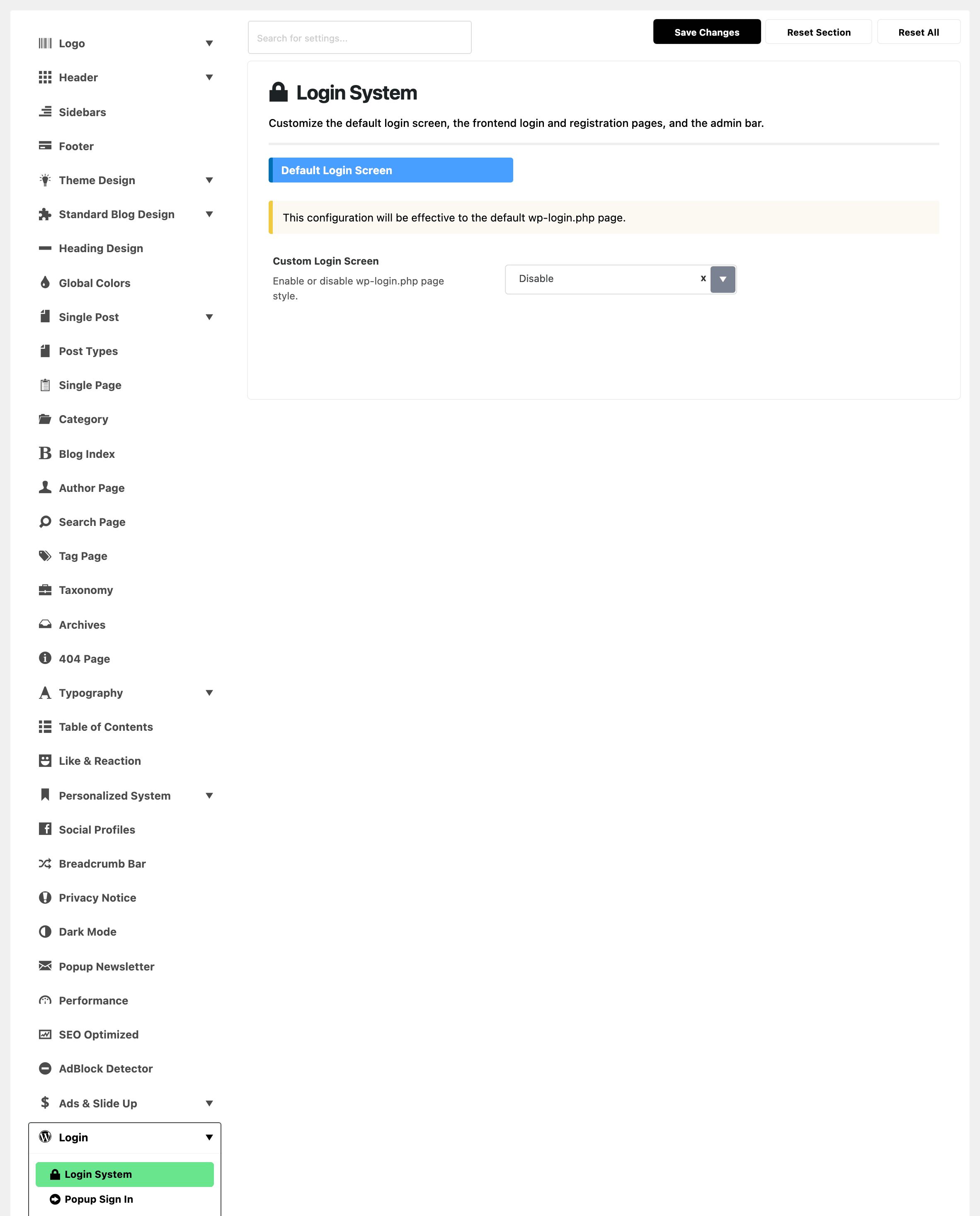
Go to Foxiz > Theme Options > Login > Login System, group Default Login Screen.
-
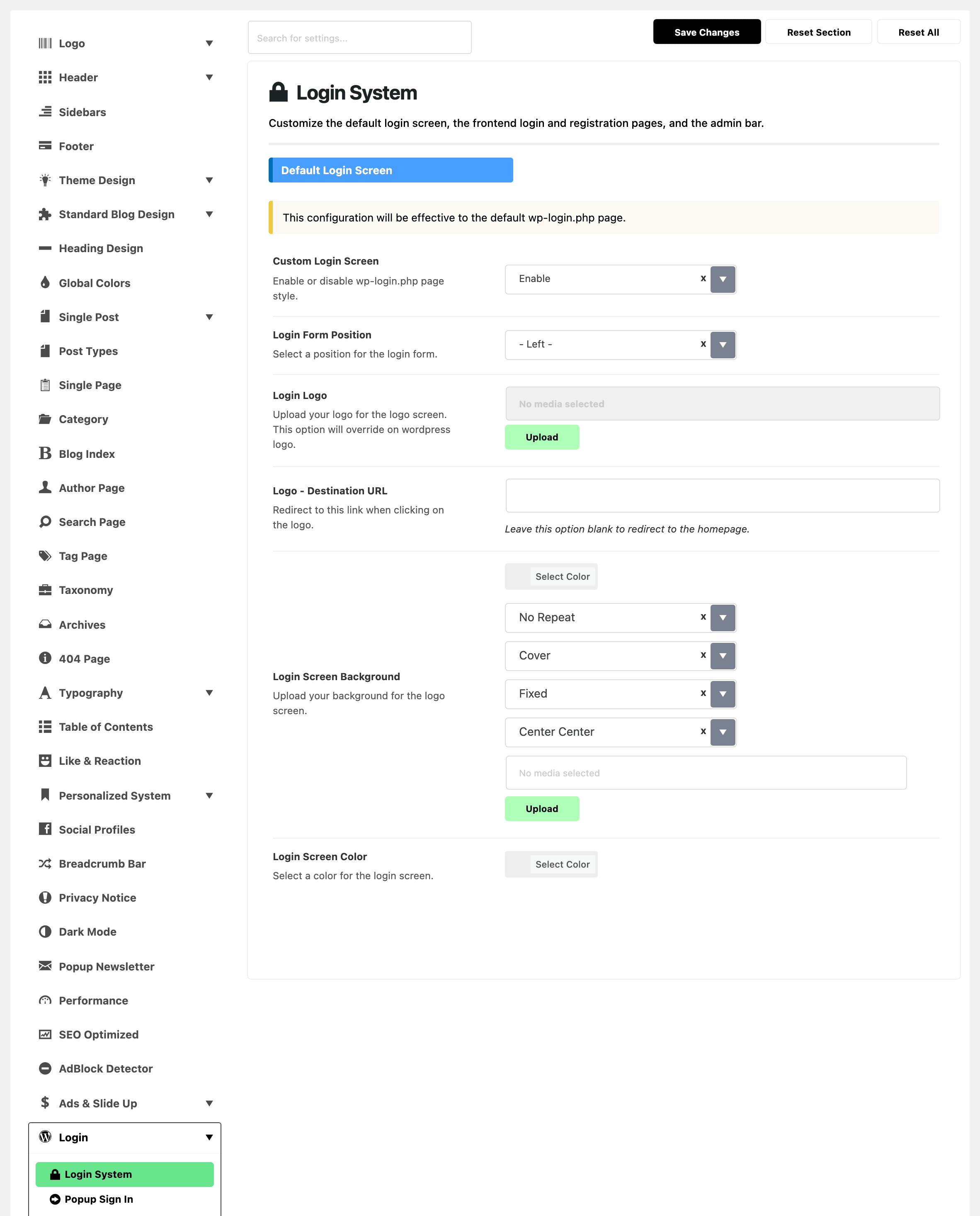
Set Custom Login Screen to Enable. It is Disable by default. Five fields appear.
-
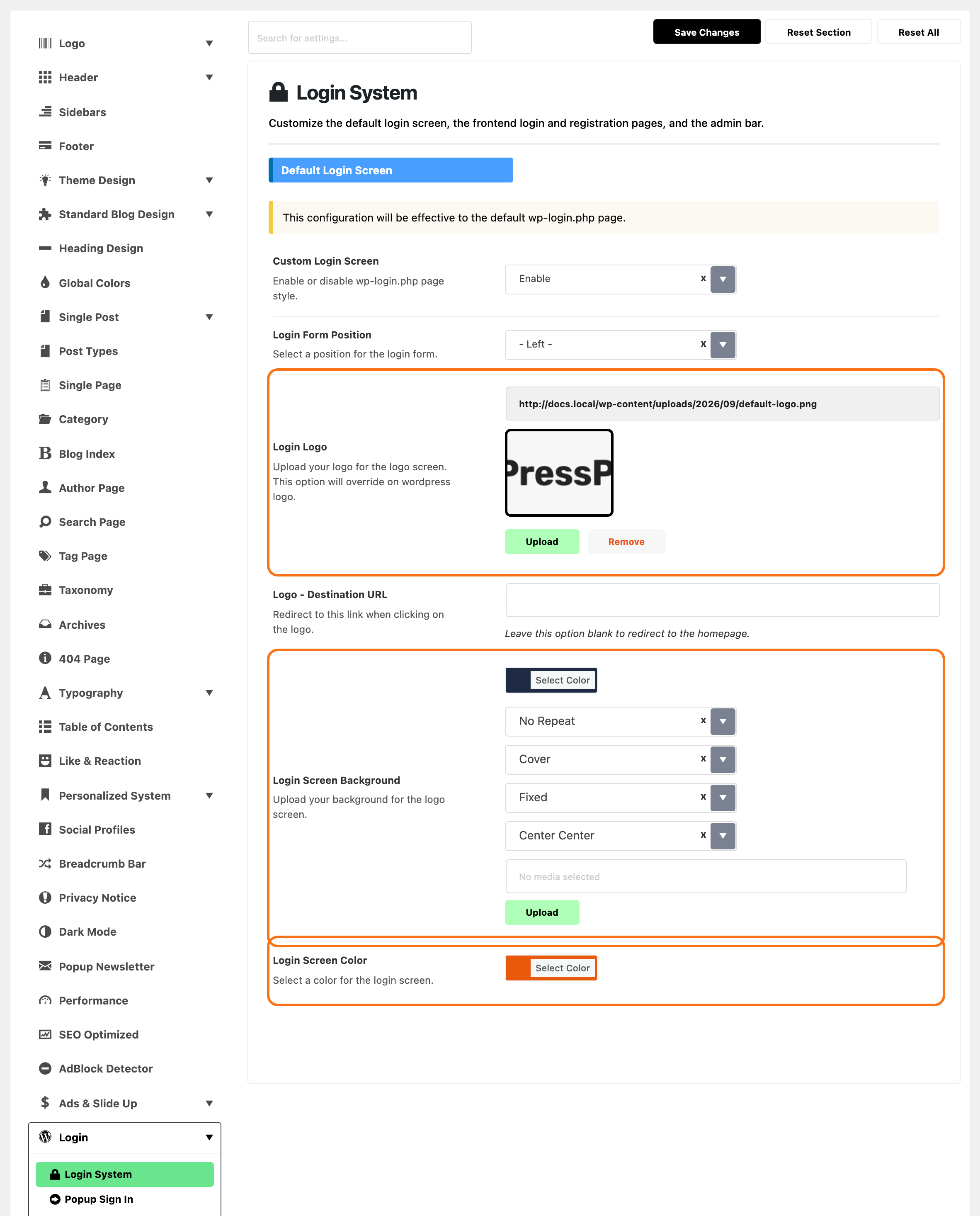
Fill them in:
- Login Form Position: - Left - (the default), Center or Right. Screens narrower than 1024 px always centre it.
- Login Logo: replaces the WordPress logo. It is drawn 60 px tall and up to 300 px wide, so a wide, short logo works best.
- Logo - Destination URL: where the logo links. Empty means your home page.
- Login Screen Background: a colour or an image for the whole screen. An image starts out covering the screen, fixed and centred.
- Login Screen Color: the colour of the Log In button and the show password icon.
-
Click Save Changes, then open
wp-login.phpin a private window to check it.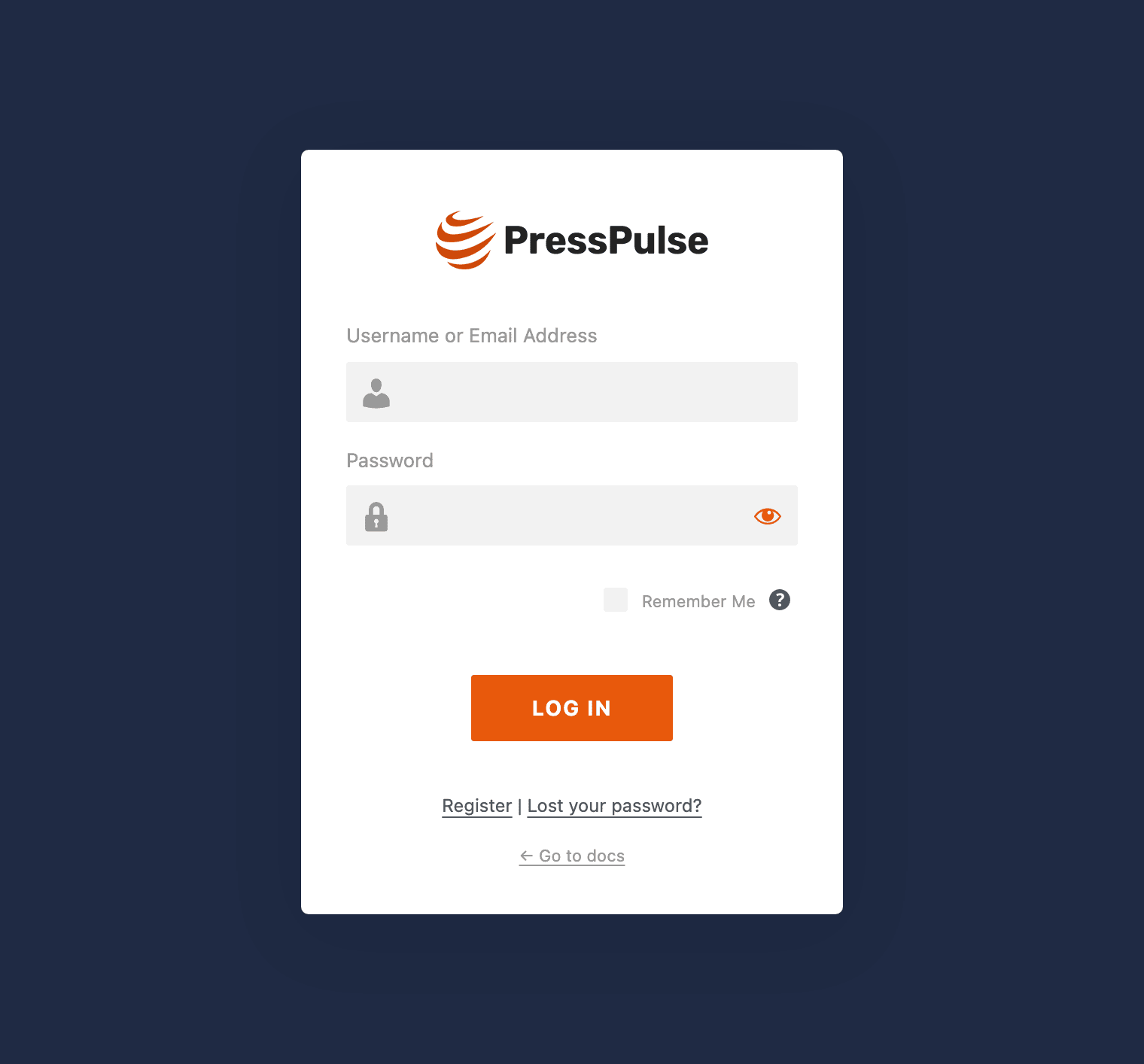
The form sits in a white card with rounded corners and a soft shadow. Every wp-login.php screen gets the style: login, lost password, new password and register.
The language bar
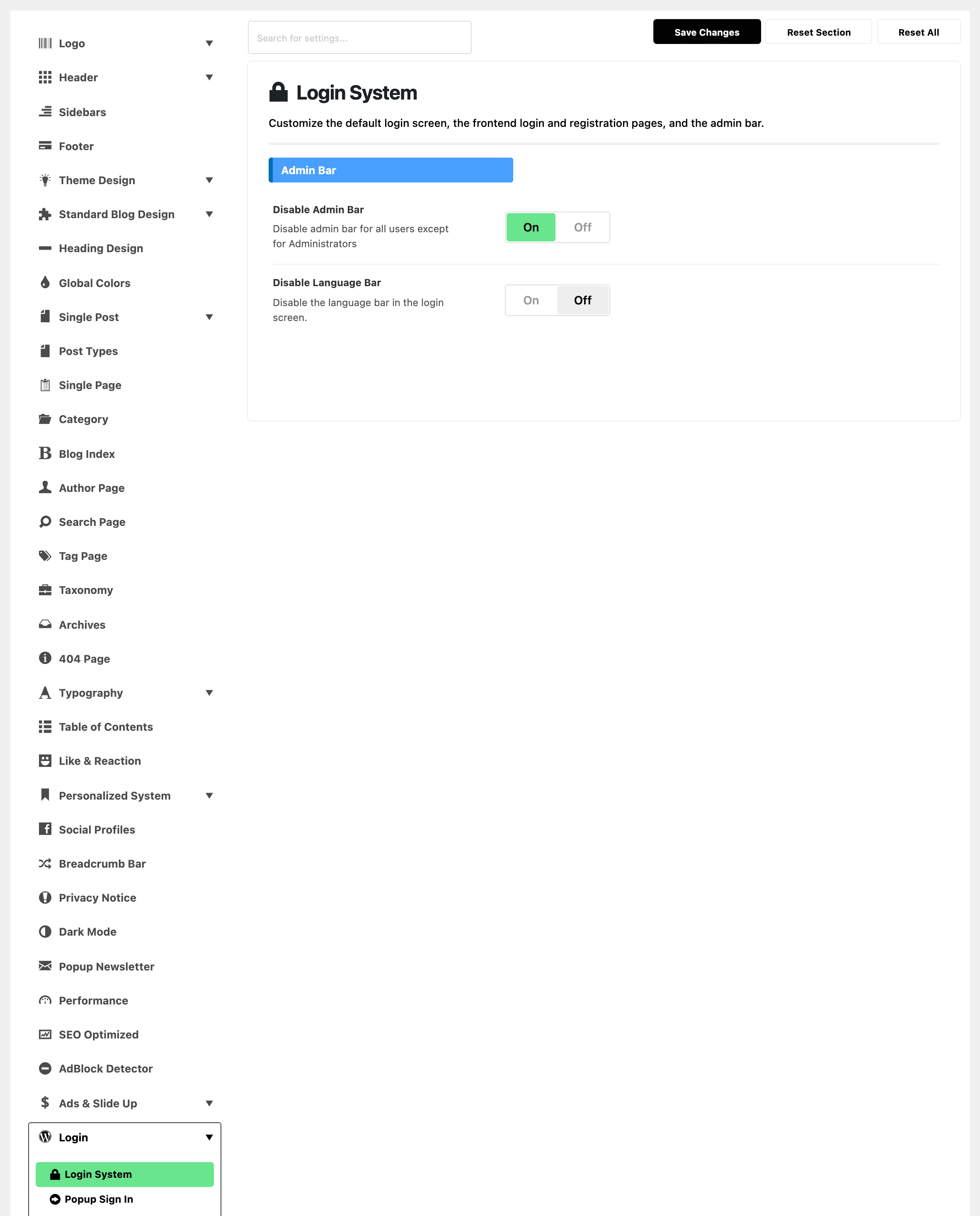
Disable Language Bar, in the Admin Bar group below, removes the language picker under the wp-login.php form. It is off by default and works with Custom Login Screen on or off.
WordPress only shows that picker when a second language is installed, so on an English only site the switch changes nothing.
The admin bar
Disable Admin Bar, in the same group, is on by default. It hides the WordPress toolbar on the front end for every signed in user except Administrators. Readers with accounts see your site, not a strip of admin links.
It wins over each user's own Show Toolbar when viewing site choice in their profile. Turn it off to give editors and authors their toolbar back.
Did this answer your question?