How to Add a Menu for Signed In Readers
Once a reader signs in, the header sign in button turns into "Hi, name". A click on it opens a dropdown with Sign Out. You can add your own links above Sign Out: their reading list, their submitted posts, their account page.
Out of the box there are no links: the dropdown holds Sign Out only.
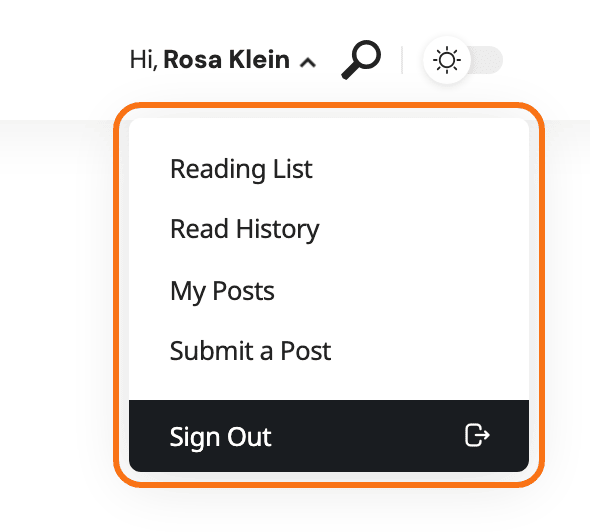
Add the links
The dropdown uses an ordinary WordPress menu, which you pick in Theme Options rather than in a menu location.
-
Go to Appearance > Menus and click create a new menu. Name it, for example "Account".
-
Add the links. Only top level items show; sub items are left out.
-
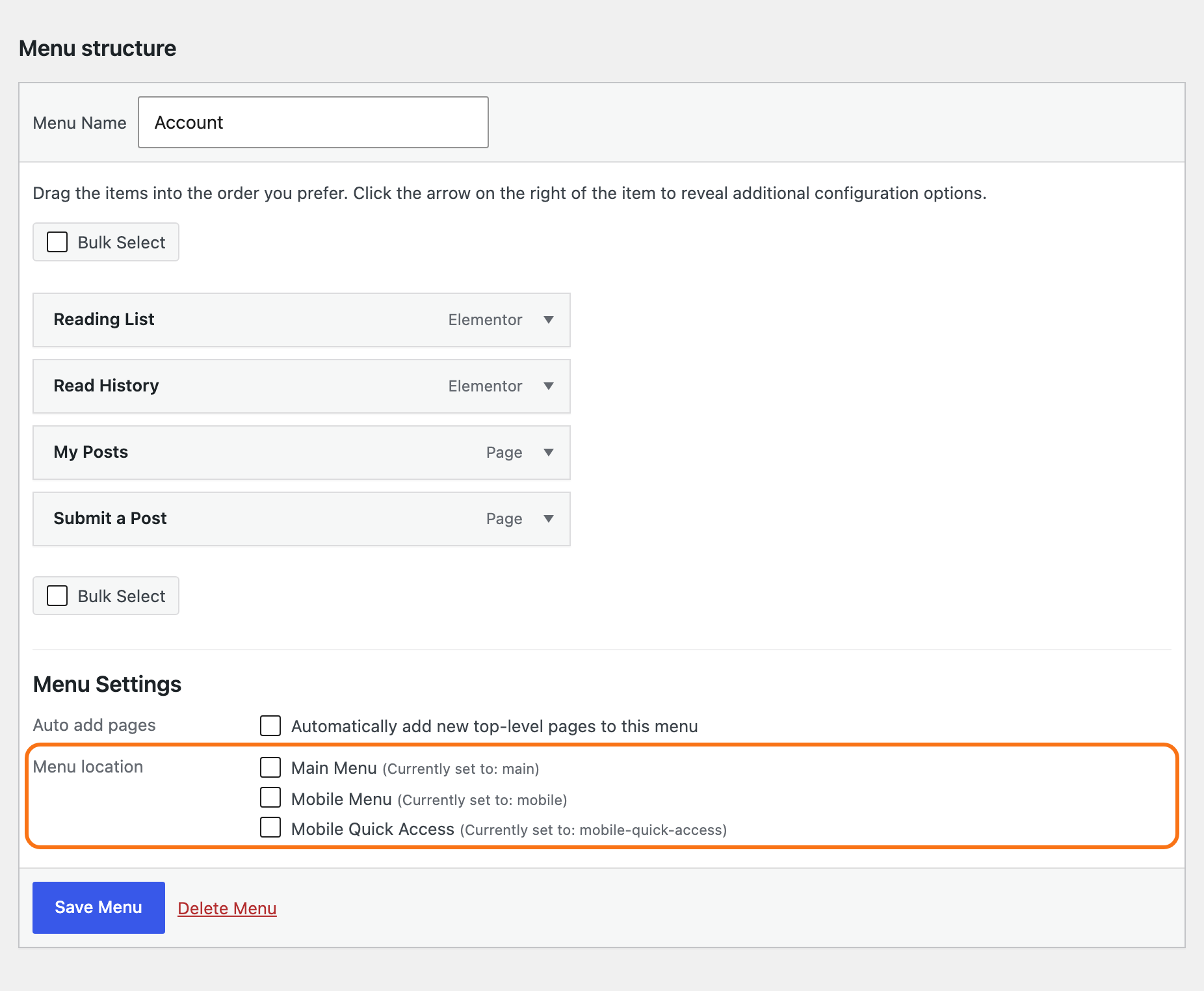
Leave every Menu location unticked, and click Save Menu.
-
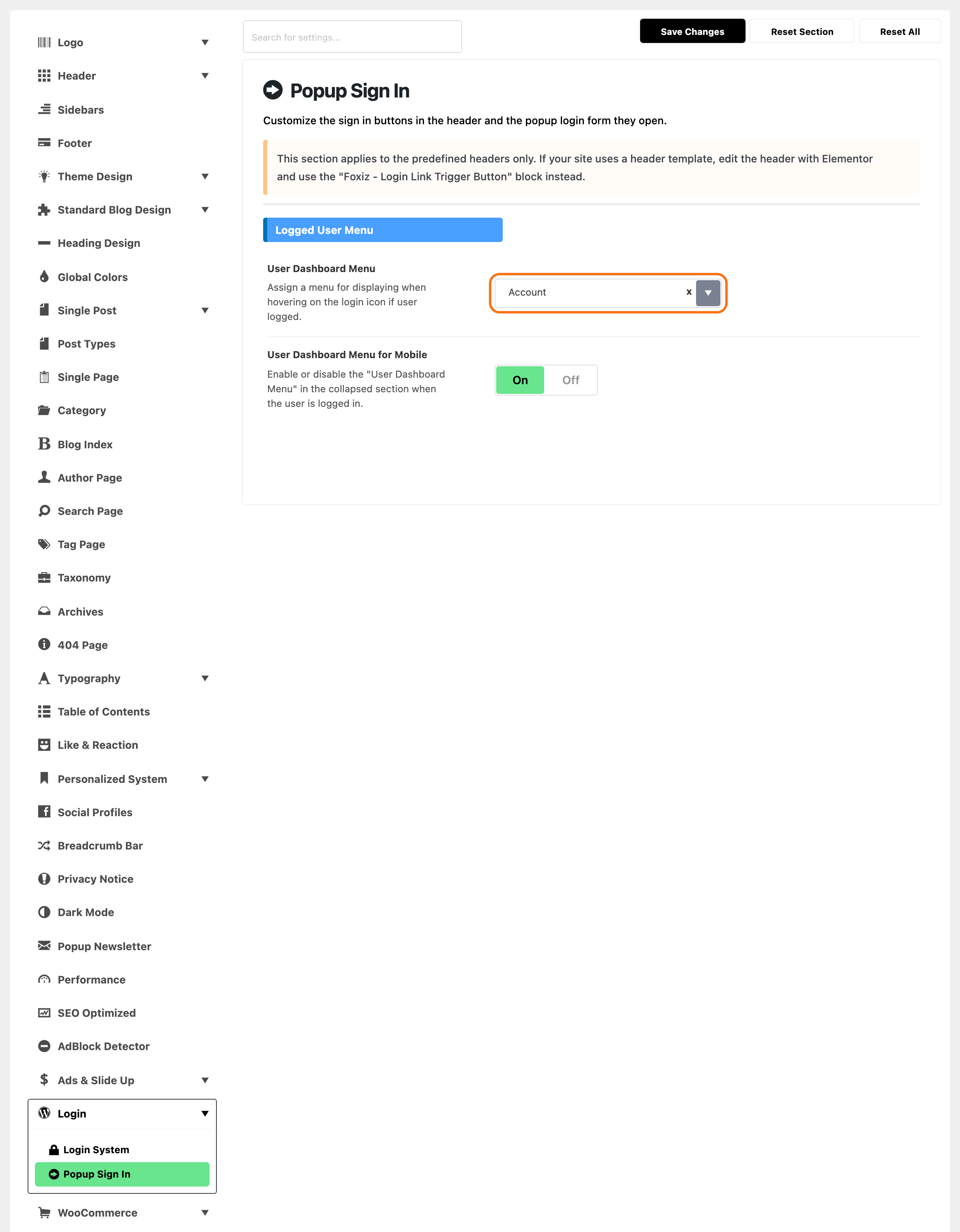
Go to Foxiz > Theme Options > Login > Popup Sign In, group Logged User Menu.
-
In User Dashboard Menu, pick your menu.
-
Click Save Changes.
The same menu shows in the dropdown of the Foxiz - Login Link Trigger Button block on a header template. The block has no menu setting of its own.
The panel says the menu shows "when hovering". It opens on a click.
Links worth adding
- the reading list page, if you use bookmarks;
- the post list page of Easy Post Submission, for writers;
- a membership or shop account page, if a plugin gives you one.
On phones
User Dashboard Menu for Mobile shows the same menu in the phone menu for signed in readers. It is on by default, and it works even with Mobile Header - Sign In off.
The reader's picture and name
- The name is the user's Display name publicly as, from their profile.
- The picture shows when Logged Gravatar is on in Sign In Button for Desktop, or Gravatar Icon on the header template block. It is the image uploaded in their Foxiz profile, or their Gravatar. See How to Add User Avatar Image.
Where Sign Out leads
Sign Out keeps the reader on the page they were on, unless you set Logout Redirect URL. See How to Choose Where Readers Land After Login and Logout.
Next: Guide to Creating a Login Page, only if the popup is off or a plugin needs a login page. Keeping the popup? Go on to Guide to Creating a Registration Page, if readers sign up on your site.
Did this answer your question?