How to Add a Sign In Button to the Header
The sign in button opens the sign in popup, or your login page when the popup is off. Once the reader is signed in, the same spot shows "Hi, name" and a dropdown with Sign Out.
Popup or login page
One setting decides what a click does: Login Popup Support, at Foxiz > Theme Options > Login > Popup Sign In, group Popup Login Form. It applies to every sign in button: the predefined header, the Elementor block and the phone menu.
- Enable (the default): the button opens the popup on the page the reader is on. It does not go to your login page, even when Custom Login Page URL is set.
- Disable: the button goes to the login page. That is the page in Custom Login Page URL (Login > Login System, group Frontend Login and Registration Pages), or
wp-login.phpwhen that field is empty.
For most sites, keep the popup: the reader signs in without leaving the article. Choose Disable when you built a login page and want every sign in to happen there. On AMP pages there is no popup, so the button always goes to the login page.
Where you add it depends on your header:
- A predefined header, one of the ready made layouts the theme draws for you: a switch in Theme Options > Login > Popup Sign In.
- A header template, a header you build yourself in Elementor as a Ruby Template (a layout saved under Ruby Templates and placed by its shortcode): the Foxiz - Login Link Trigger Button block. The Theme Options switch is for predefined headers only.
To see which one you have, open Foxiz > Theme Options > Header > Header Layout and look at Header Layout:
- Layout 1 (Left Menu) to Layout 5 (Center Logo): a predefined header.
- Use Ruby Template, with a shortcode such as
[Ruby_E_Template id="1"]in Template Shortcode below it: a header template.
A single page can use a different header. If the button shows on some pages and not others, open that page in the WordPress editor and check its Single Page Settings > Site Header tab. A shortcode in or Use Ruby Template for Site Header gives that page a header template. Otherwise Predefined Header Layout, when it is not on - Default -, gives it a predefined one.
The phone menu has its own switch, which works with both. See On phones.
On a predefined header
-
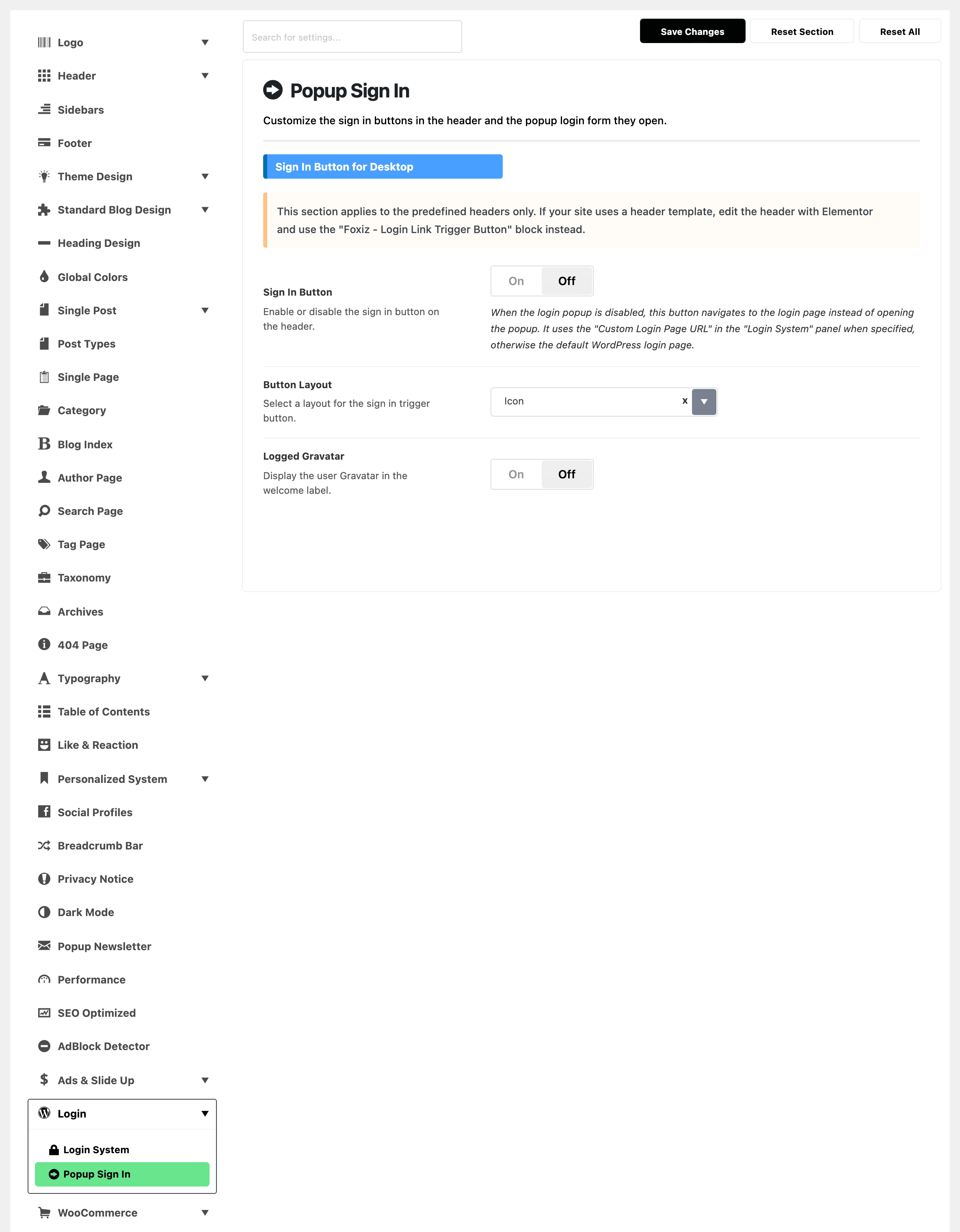
Go to Foxiz > Theme Options > Login > Popup Sign In, group Sign In Button for Desktop.
-
Turn on Sign In Button. It is off by default.
-
Pick a Button Layout:
- Icon (the default): a person icon;
- Text Button: a button reading "Sign In";
- Text with Icon Button: both.
-
Turn on Logged Gravatar to show the reader's picture next to "Hi, name" once signed in. The picture is the one uploaded in their Foxiz profile, or their Gravatar.
-
Click Save Changes.

The text always reads "Sign In" on a predefined header. No Theme Options field changes it; a header template can.
On a header template
-
Open the header template in Elementor. See How to Structure a Header Layout Using a Header Template.
-
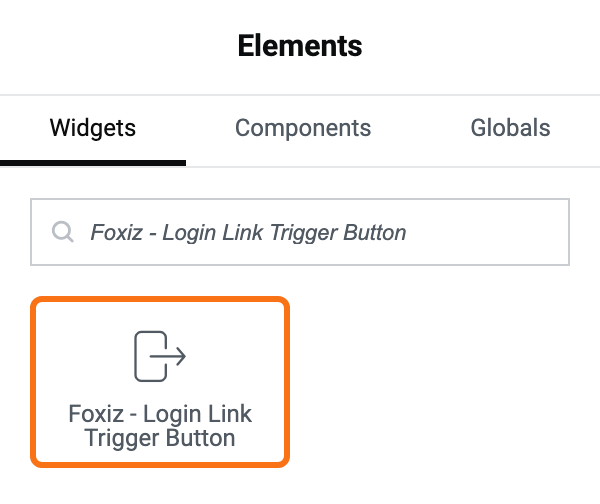
Search for Foxiz - Login Link Trigger Button and drag it into the header. It is in the Foxiz - Header group.
-
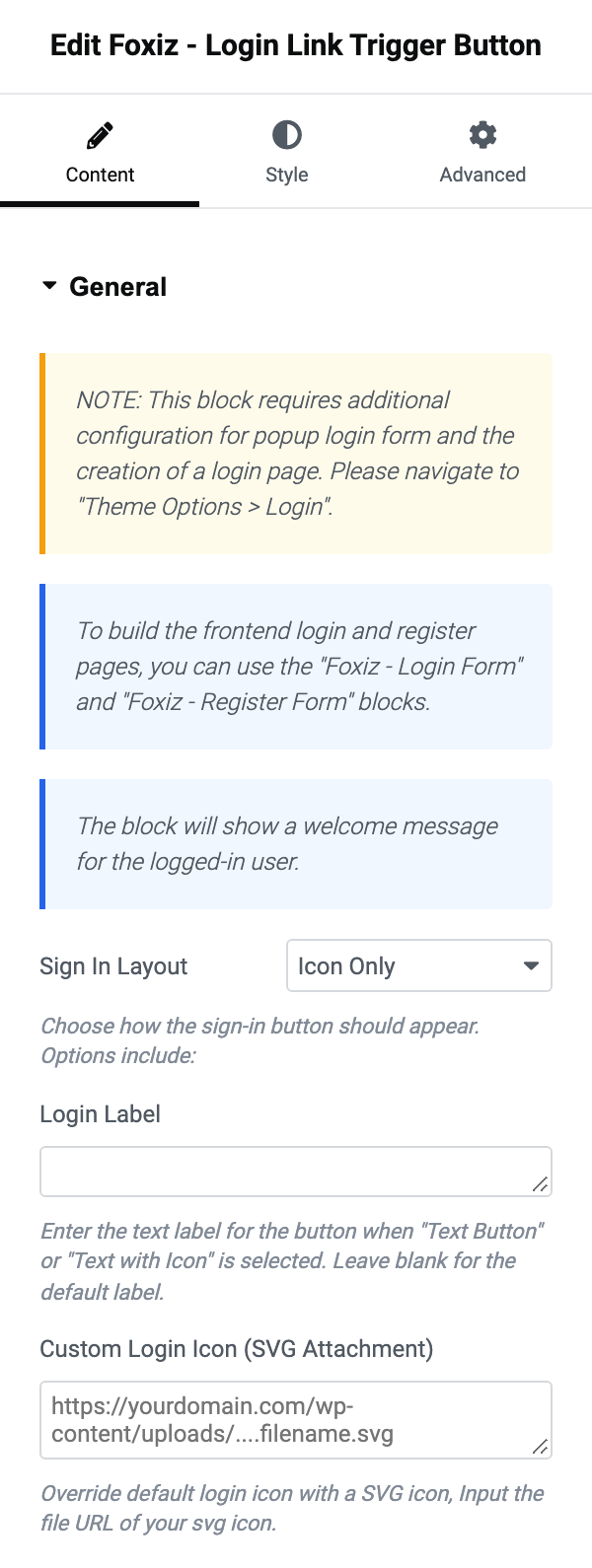
On the block's Content tab, in the General section, set:
- Sign In Layout: Icon Only (the default), Text Button, or Text with Icon;
- Login Label: the button text, for Text Button and Text with Icon. Empty means "Sign In";
- Custom Login Icon (SVG Attachment): the address of an SVG file, to replace the person icon. Empty uses the icon from Theme Options.
-
On the Style tab, style it in the Icon, Text Button and Font & Dimensions sections.
-
Also on the Style tab, in When Logged, Gravatar Icon (on by default) shows the reader's picture. It wins over Logged Gravatar in Theme Options. This section also styles the welcome text and the dropdown.
-
Update the template.

The dropdown's links come from Theme Options, not from the block: How to Add a Menu for Signed In Readers.
A Sign Up button next to it
If readers can register, add Foxiz - Register Link Button from the same group. It links to your registration page, and its Register Label defaults to "Sign Up".
It hides itself from signed in readers, and while Anyone can register is off at Settings > General. In the editor it then says "User registration is currently disabled."
On phones
The phone header bar has no sign in button. Sign in sits in the menu that slides open:
-
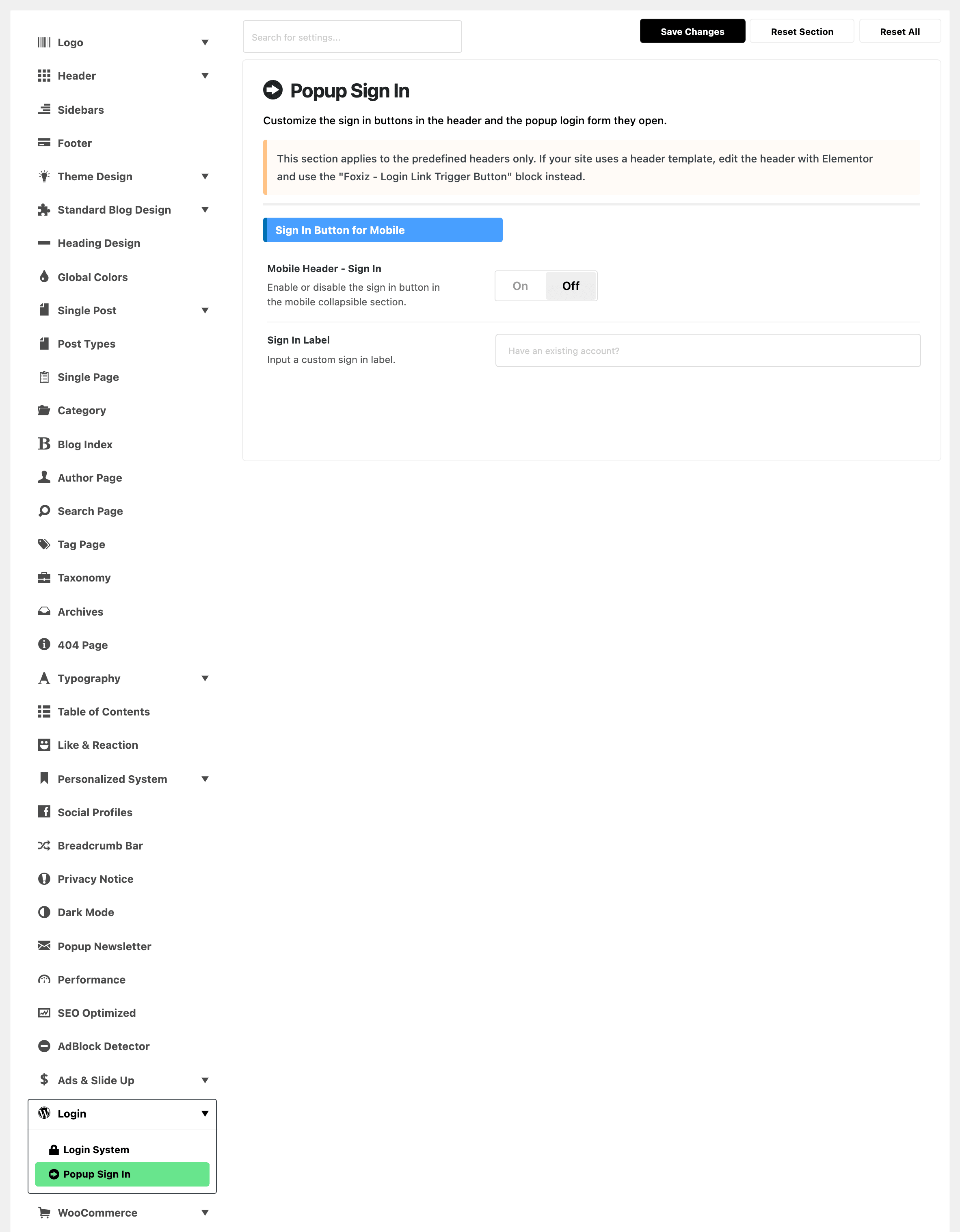
In Popup Sign In, group Sign In Button for Mobile, turn on Mobile Header - Sign In. It is off by default.
-
Optional: type a Sign In Label, the line above the button. Empty means "Have an existing account?".
-
Click Save Changes.
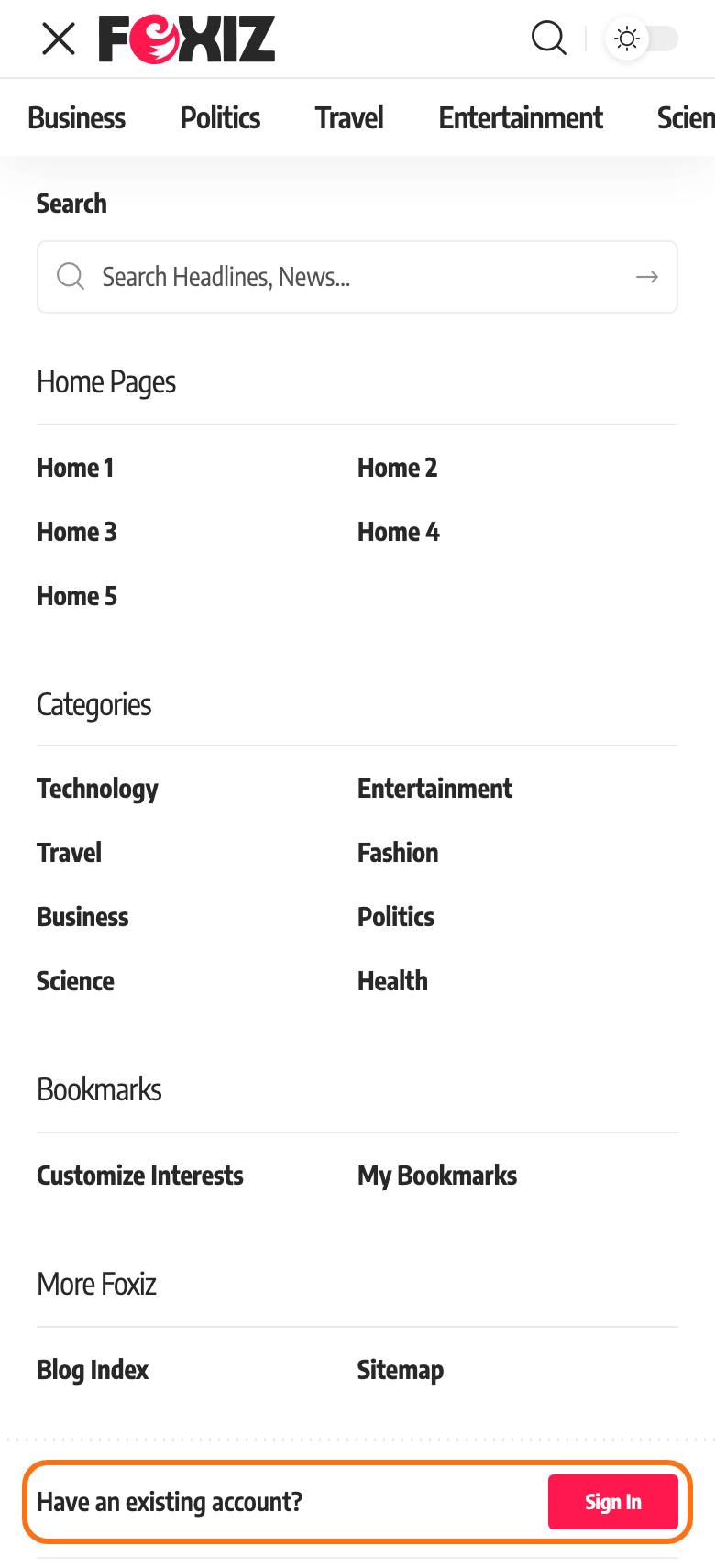
A signed in reader sees "Hi, name" and a Sign Out button there instead.
This works with a header template too, because the phone menu is drawn for every header. The exception is a mobile collapse built as its own template, which replaces this whole section.
Use your own icon
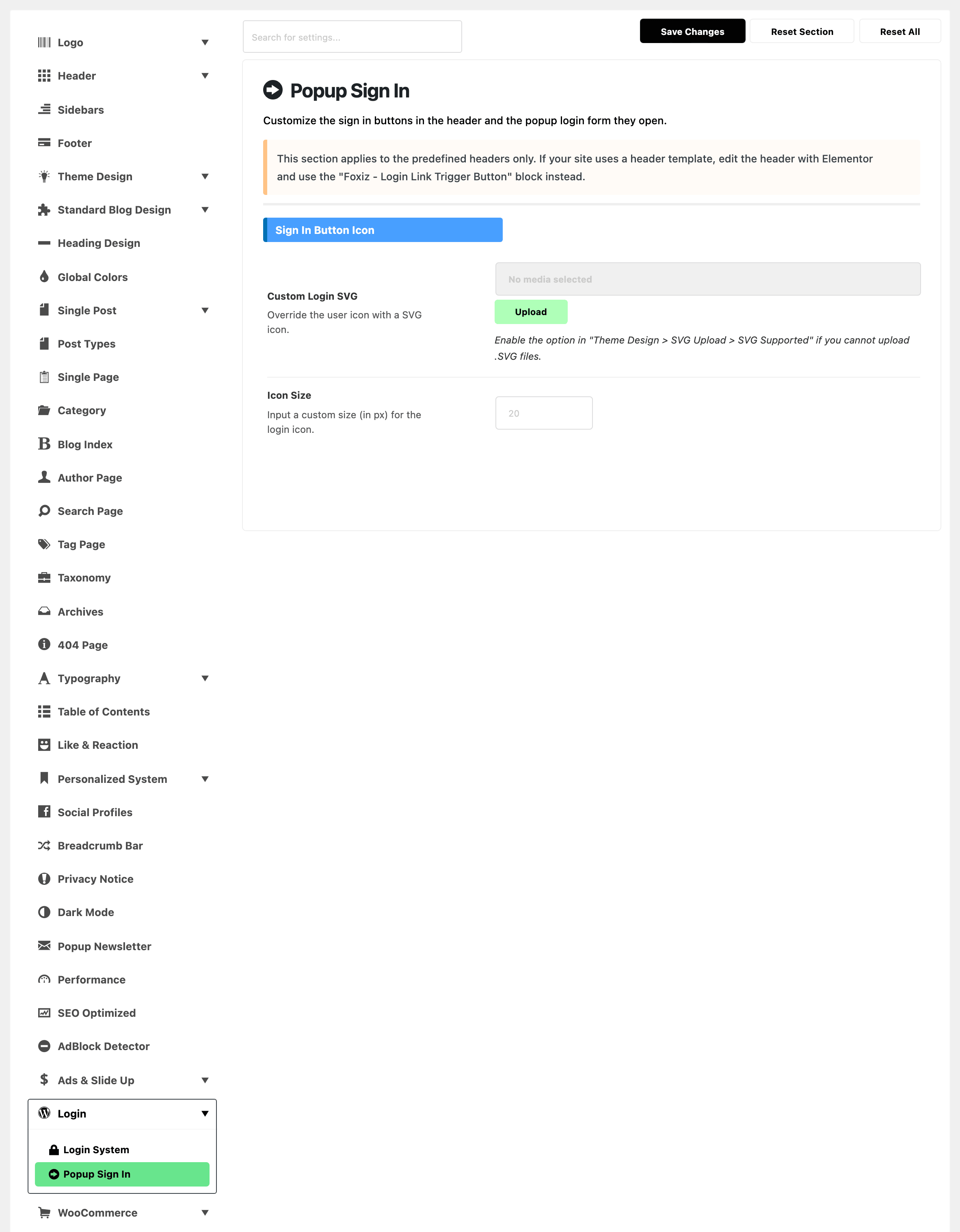
In Popup Sign In, group Sign In Button Icon:
- Custom Login SVG: upload an SVG to replace the person icon. If WordPress refuses the file, turn on SVG Supported first, at Theme Design > SVG Upload.
- Icon Size: its size in pixels. Empty means 20. Phones show it at 85%.
The button does not show
- On a header template, add the block: the Theme Options switch is for predefined headers.
- On phones, turn on Mobile Header - Sign In; the desktop switch does not reach the phone menu.
Did this answer your question?