Guide to Creating a Login Page
Build one Elementor page with the Foxiz - Login Form block, publish it, and enter its address in Theme Options. Every login link on the front end then opens your page.
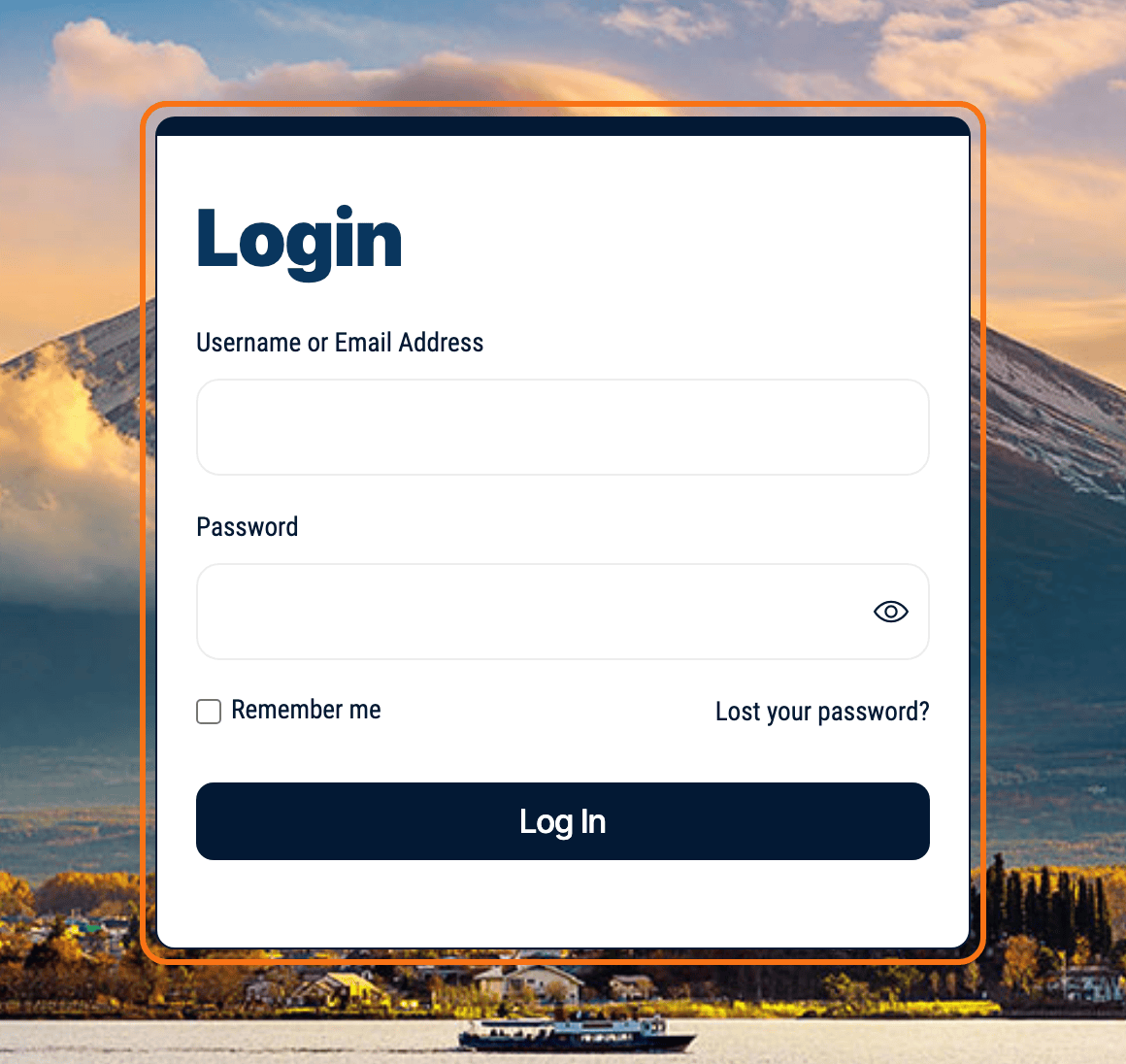
Step 1: Create the Login Page with Elementor
-
Open Elementor: go to Pages > Add Page, give the page a title such as Login, and click Edit with Elementor.
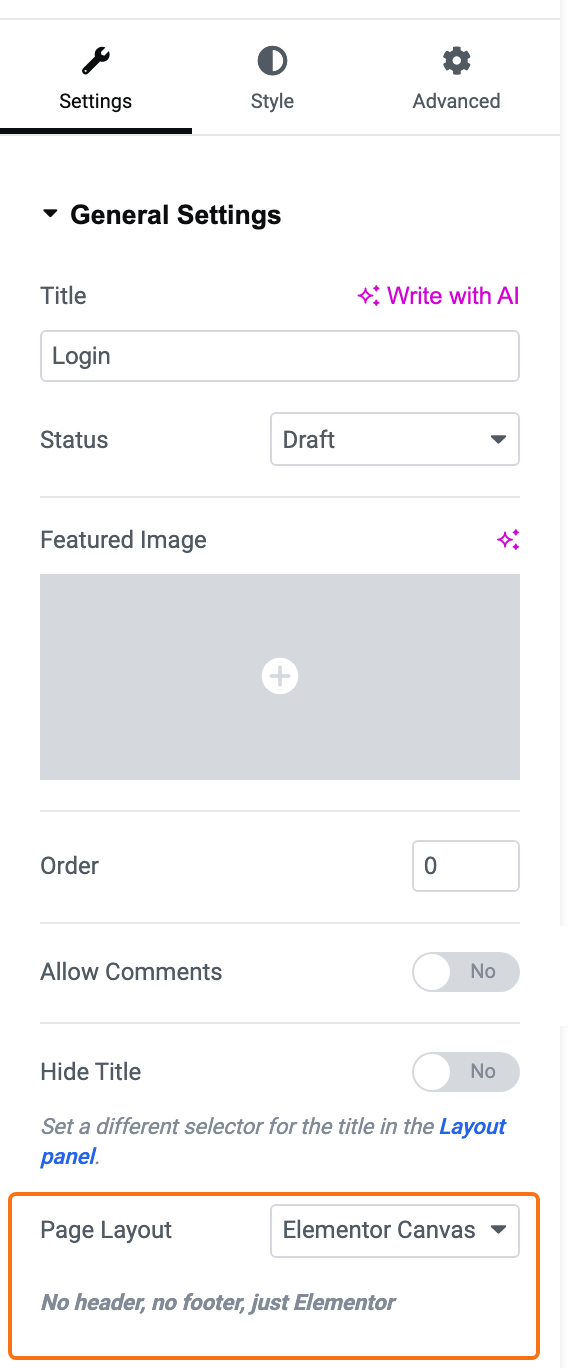
For a full screen login page without your site header and footer, open the page settings in Elementor and set Page Layout to Elementor Canvas, Elementor's blank page template. Keep Default if readers should still see your menu.
-
Search for the Login Block: In the Elementor editor, search for a block named Foxiz - Login Form.
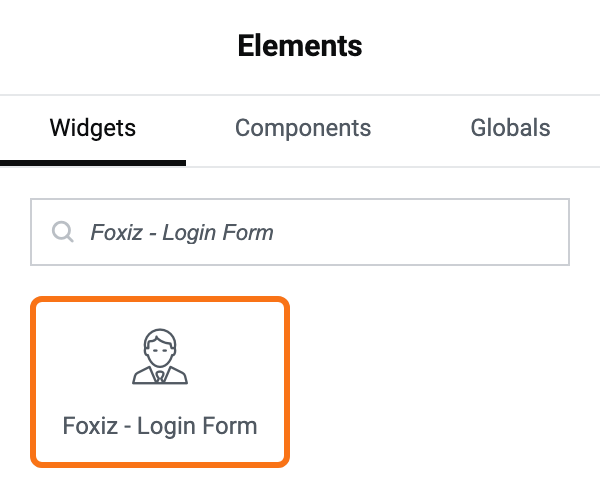
It is in the Foxiz - Element category, and the search also answers to
user,login,registerandcreate. -
Add the Login Block: Drag and drop the Foxiz - Login Form block into your page.

One block covers three states. Besides the form itself it has a Lost Password Form section and a Logged Status Box for what a visitor who is already signed in sees on this page.
-
Set the wording: click the block, and on its Content tab open the Login Form section. Style the page around it as you would any Elementor page.
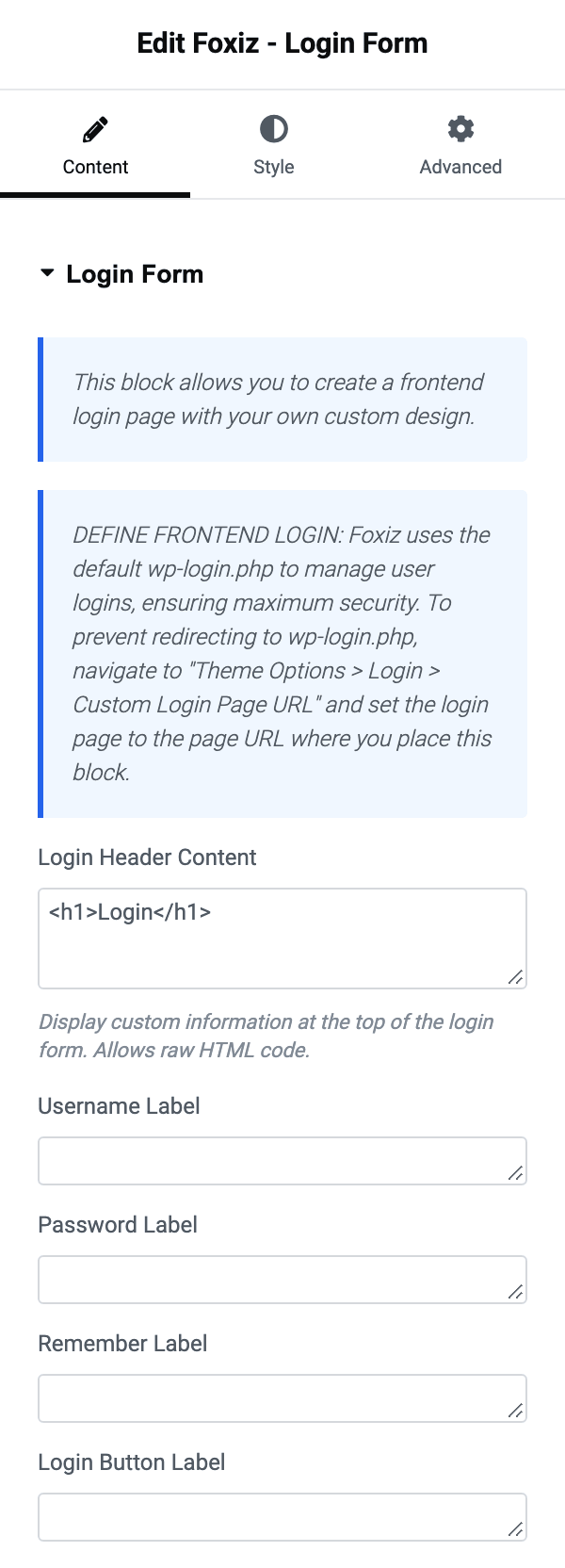
The Login Form section is where the wording lives: Login Header Content, which is the raw HTML
<h1>Login</h1>by default and takes any HTML you give it, plus Username Label, Password Label, Remember Label and Login Button Label. -
Publish the page, then copy its address. A draft's address only opens for you: signed out readers get nothing there.
Step 2: Set the Custom Login Page
-
Open the Login settings: navigate to Foxiz > Theme Options > Login > Login System and find Custom Login Page URL.
It is in the Frontend Login and Registration Pages section.
-
Enter the URL: Input the URL of the custom login page you created with Elementor.
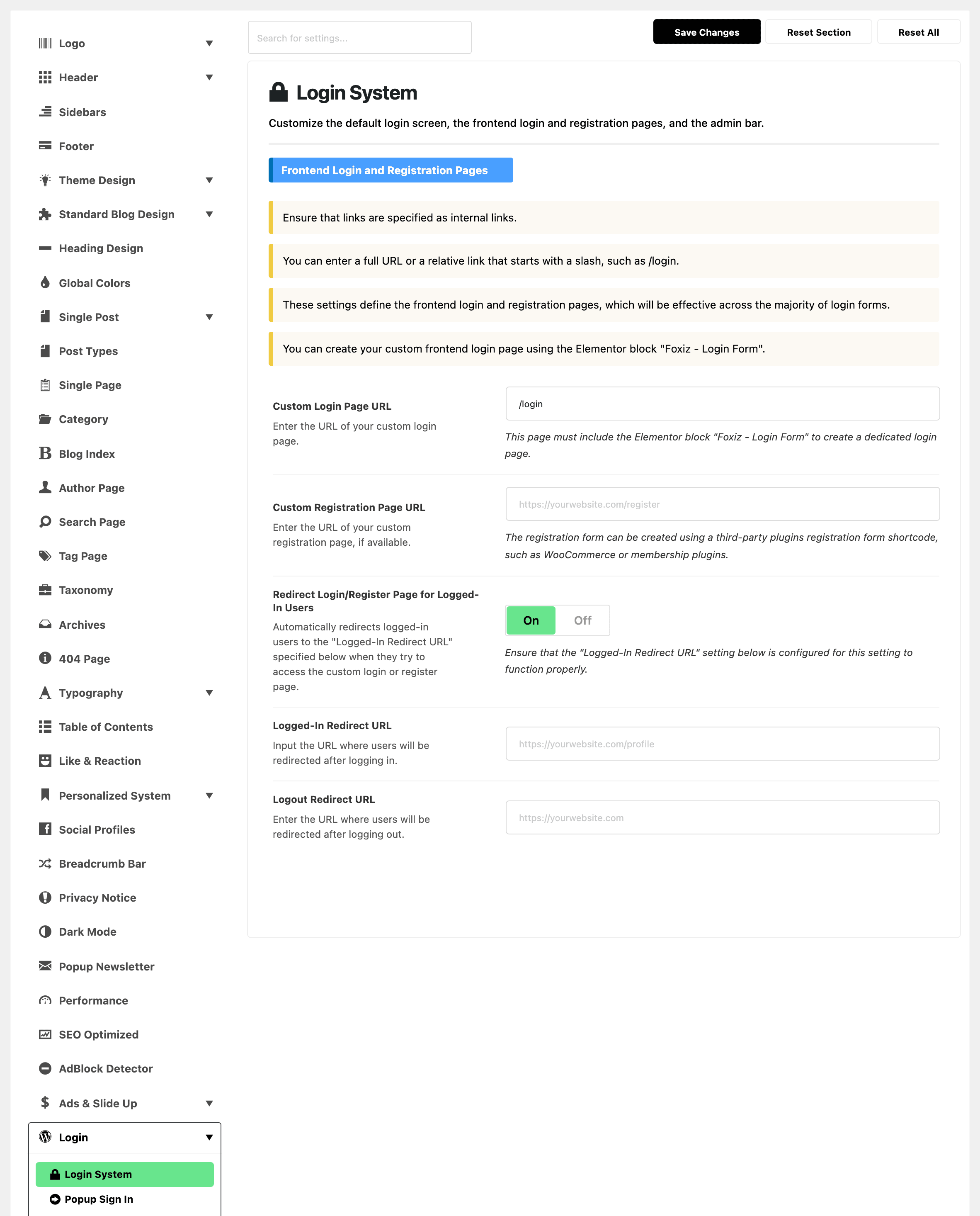
A relative link works and is the safer choice if the site ever moves domain:
/loginis as valid here as the full address. -
Save Changes: Confirm and save your changes to replace the default WordPress login page with your new custom login page.
Every login link on the front end now points at your page, while
wp-login.phpstays in place and still checks the password. Fill in Logged-In Redirect URL in the same section too, or a reader who signs in stays on this page./sends them to the homepage.Keep Redirect Login/Register Page for Logged-In Users on, as it is by default. A reader who is already signed in and opens your login or registration page is then sent to Logged-In Redirect URL instead of seeing the form again. Logged-In Redirect URL only shows while this switch is on.
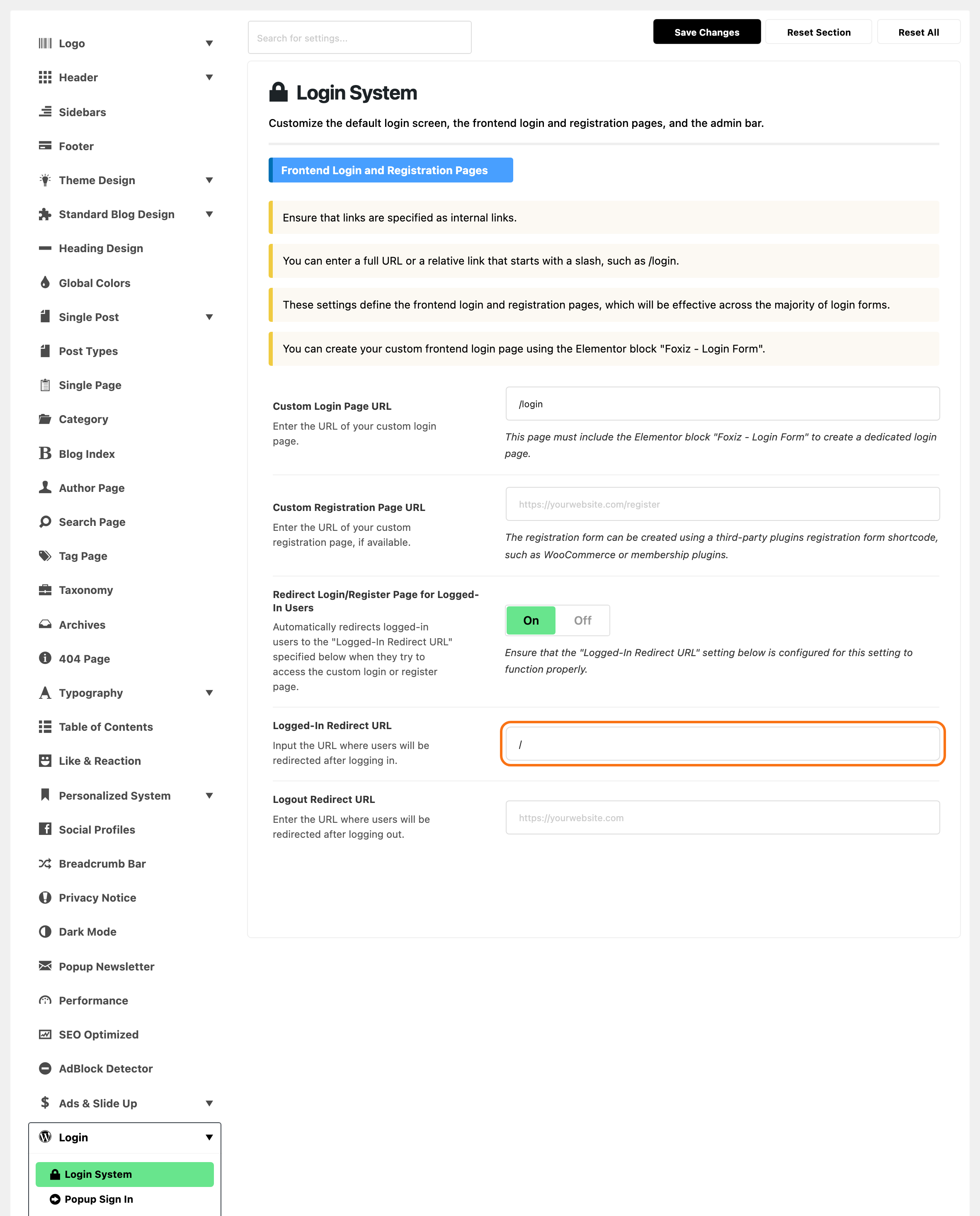
See How to Choose Where Readers Land After Login and Logout.
Next: Guide to Creating a Registration Page, if readers sign up on your site; otherwise How to Protect Login, Registration and Comment Forms with Cloudflare Turnstile.
Did this answer your question?