How to Set Up the Sign In Popup
The popup lets a reader sign in without leaving the page. It is on by default, on every page of the site, but it only opens from a sign in link. The header Sign In Button is off by default, so turn it on first: How to Add a Sign In Button to the Header.
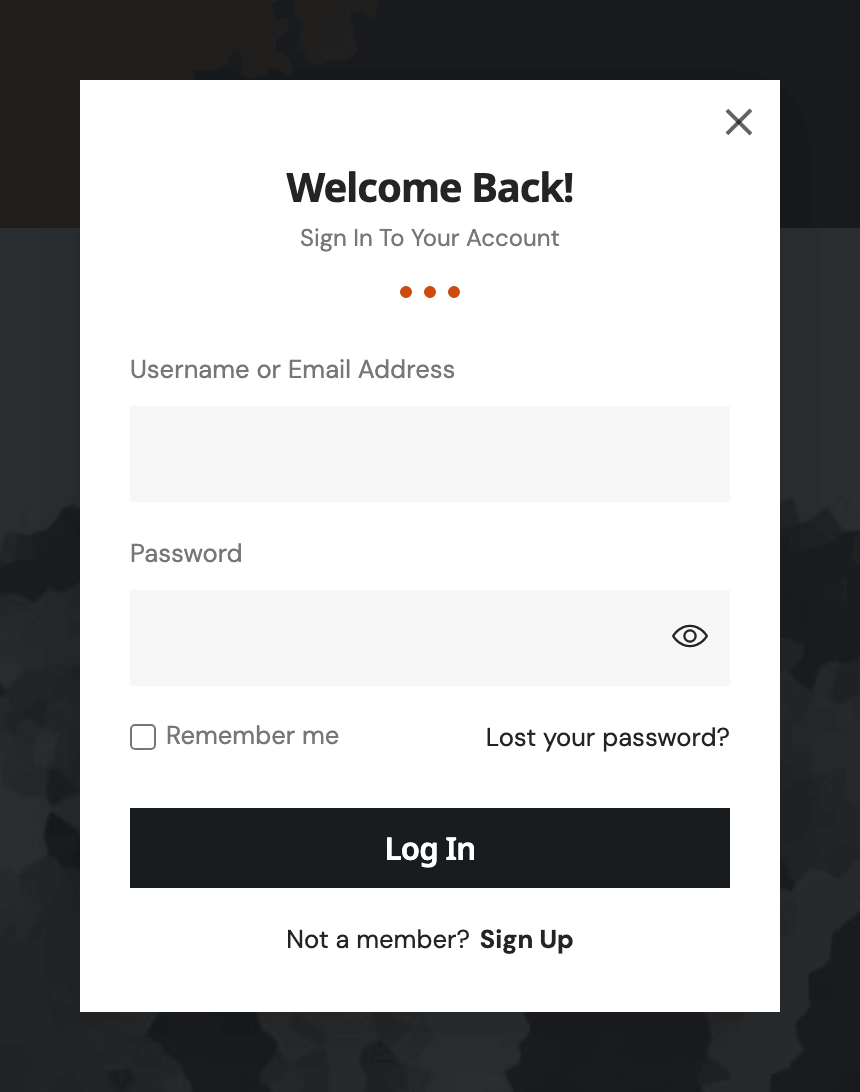
What opens it
Every sign in link of the theme opens the popup:
- the header sign in button, on a predefined header or a header template;
- the Sign In button in the phone menu;
- the "Sign In to Save" and "Sign In to Follow" buttons a signed out reader sees on bookmarks and follows.
It closes with its close button, not with a click on the page behind it.
What it shows
From top to bottom:
- your Form Logo, if you add one;
- Form Heading and Form Description;
- "Username or Email Address", "Password", "Remember me" and a "Lost your password?" link;
- the Log In button;
- "Not a member? Sign Up", when Anyone can register is on at Settings > General.
The field labels are fixed. To change them, use a login page, whose block has a label field for each.
Change its look
-
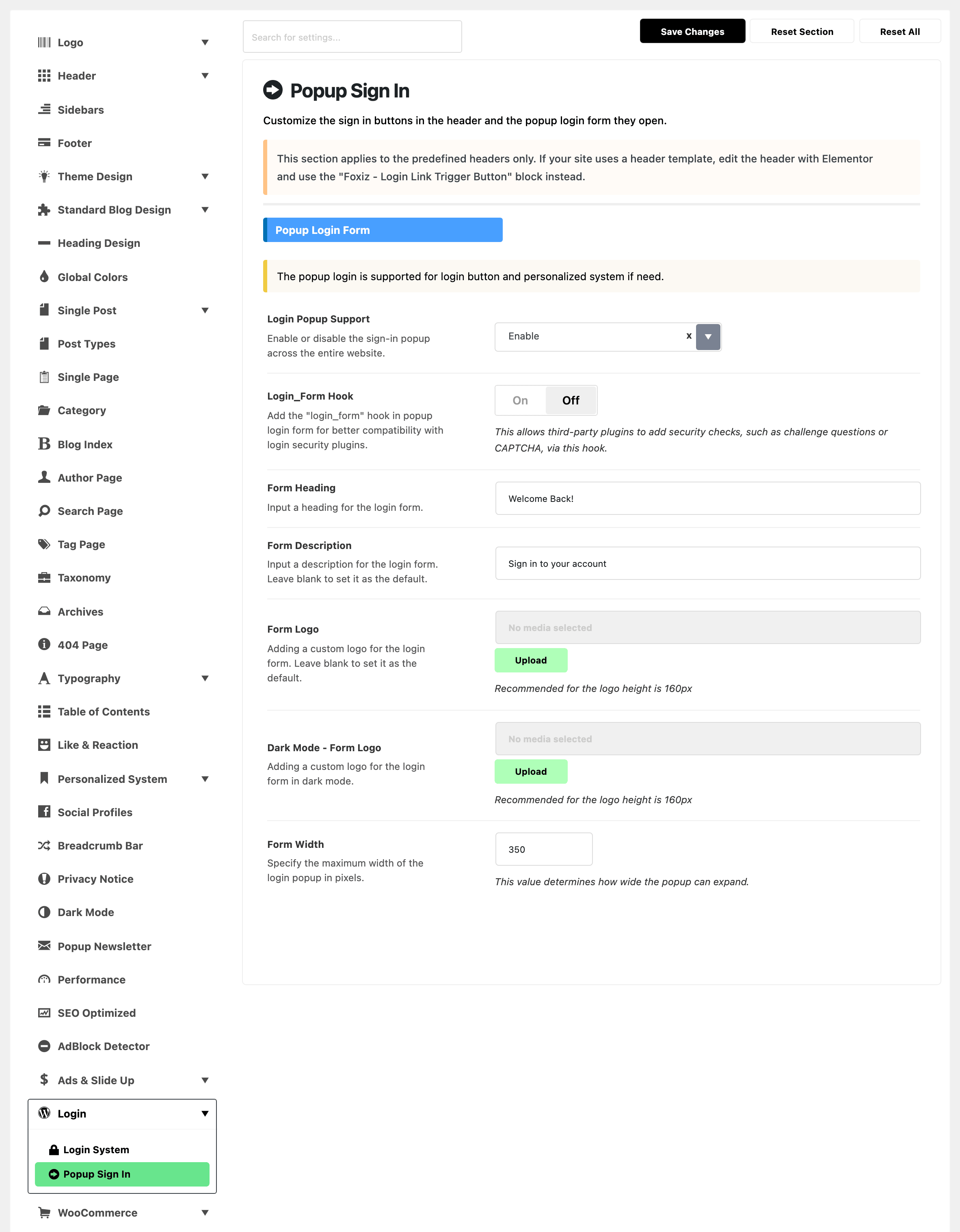
Go to Foxiz > Theme Options > Login > Popup Sign In, group Popup Login Form.
-
Set the fields:
- Form Heading: "Welcome Back!" by default.
- Form Description: "Sign in to your account" by default. It is set in the font of Theme Options > Typography > Entry Meta, so on a demo whose meta font capitalises every word it reads "Sign In To Your Account", as in the picture above.
- Form Logo: an image above the heading. A height of 160 px is recommended.
- Dark Mode - Form Logo: the logo for dark mode. It only shows when Form Logo is set too.
- Form Width: the popup's largest width in pixels. 350 by default.
-
Click Save Changes.
An empty Form Heading, Form Description or Form Logo is hidden. The panel says an empty field falls back to a default; it does not.
Where it sends the reader
- After signing in: back to the page they were on. Logged-In Redirect URL does not apply to the popup.
- After a wrong password: to your login page with the error, if you set Custom Login Page URL; otherwise to
wp-login.php. - "Lost your password?": to the lost password form on your login page, if you set one; otherwise to the WordPress one.
- "Sign Up": to your registration page, if you set one.
"The page they were on" is its address without the part after ?. A reader who signs in from a search results page lands on the home page.
Use a login plugin's captcha or security check
Turnstile works in the popup with nothing to turn on.
For another security plugin's captcha or question, turn on Login_Form Hook. It lets such plugins add their field to the popup. If the captcha then shows twice, turn it off again.
Turn it off
Set Login Popup Support to Disable. Every sign in link then opens your login page, or wp-login.php if you have none. The other fields of the group hide.
Turn it off when you want every reader to sign in on one designed page, or when a membership or shop plugin has its own login.
The popup never appears on AMP pages; links there always open the login page.
Did this answer your question?