Guide to Creating a Registration Page
Build one Elementor page with the Foxiz - Register Form block, publish it, and enter its address in Theme Options. The site's sign up links then open your page.
You need one only if readers sign up. Without it, the Sign Up link in the sign in popup opens the WordPress registration screen.
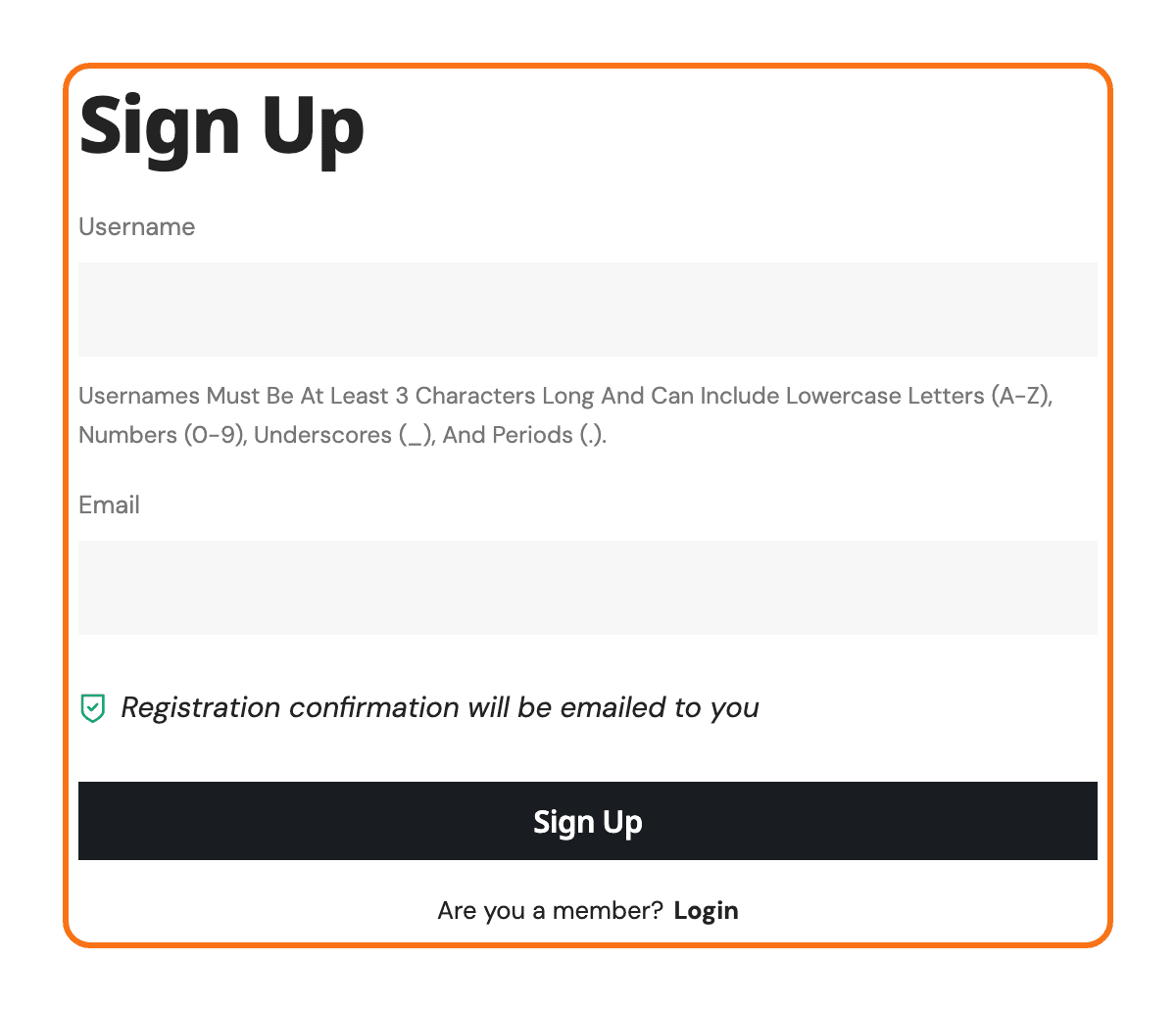
Allow visitors to register
Before anything else, turn on Settings > General > Membership > Anyone can register. With it off, the block still shows the form inside the Elementor editor, but the live page prints "Registering new users is currently not allowed." instead.

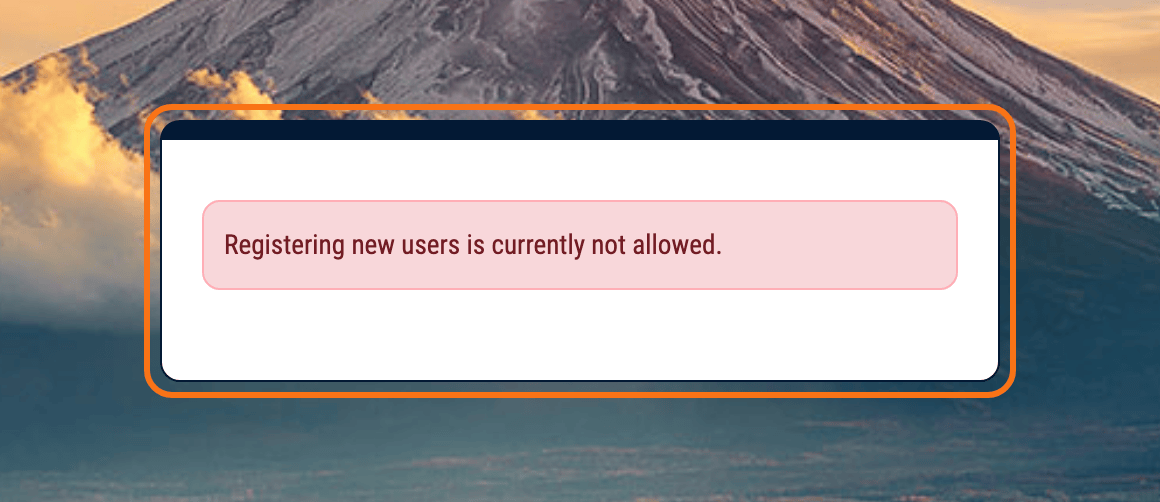
Step 1: Create the Registration Page with Elementor
-
Open Elementor: go to Pages > Add Page, give the page the title Register, and click Edit with Elementor. Once the page is published, its address ends in
/register, which Step 2 uses.For a full screen sign up page without your site header and footer, open the page settings in Elementor and set Page Layout to Elementor Canvas, Elementor's blank page template. Keep Default if readers should still see your menu.
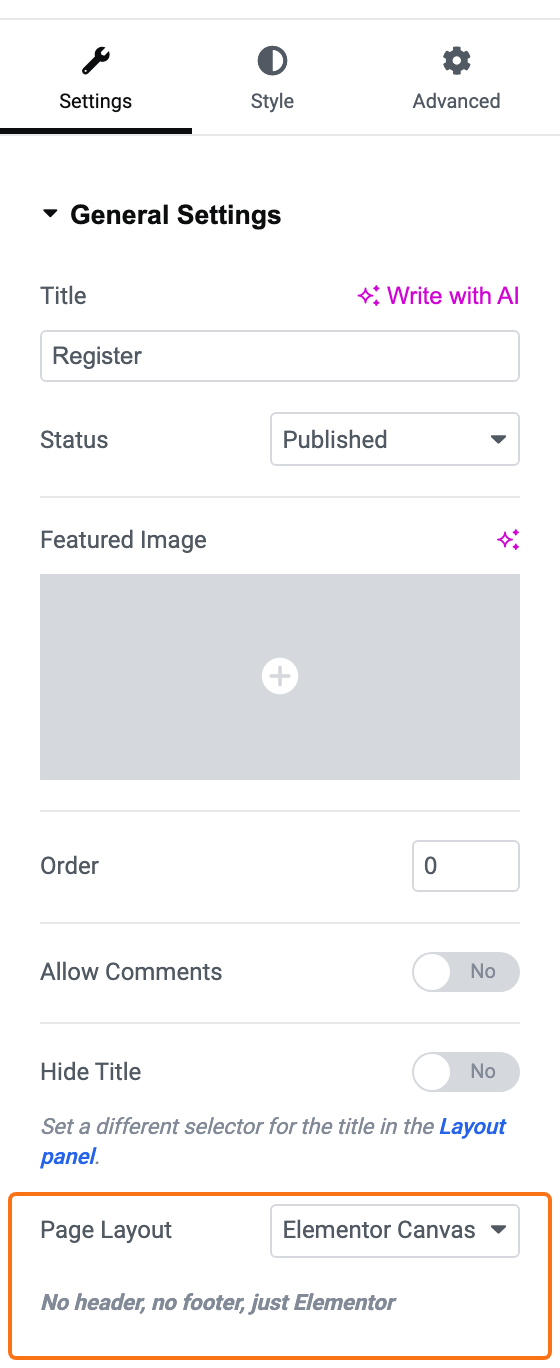
-
Search for the Registration Block: In the Elementor editor, search for a block named Foxiz - Register Form.
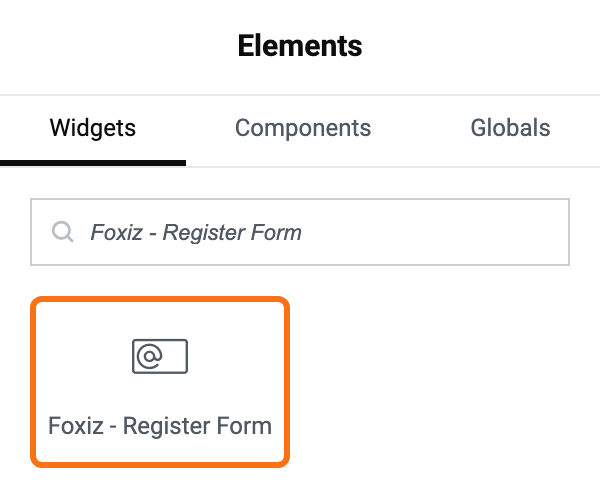
Register, not Registration: searching for the longer word does not reach it. The block sits in the Foxiz - Element category and answers to the keywords
user,login,registerandcreate. -
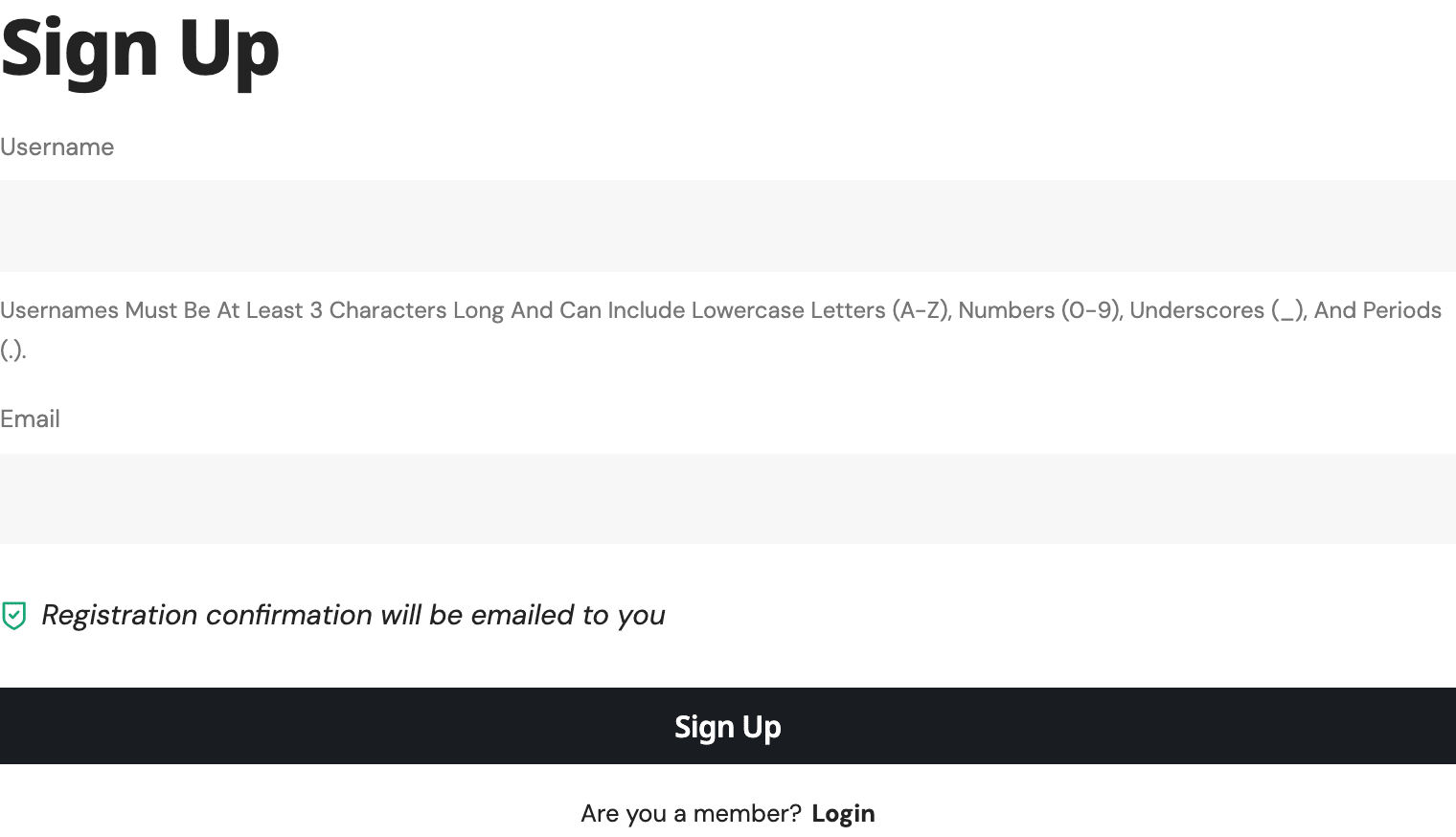
Add the Registration Block: Drag and drop the Foxiz - Register Form block into your page.
-
Set the wording: click the block and open its Content tab. Most sites can keep every default. The two fields worth changing are Register Header Content, the heading above the form (
<h1>Sign Up</h1>by default), and Registration Complete Content, the thank you message. Style the page around the block as you would any Elementor page.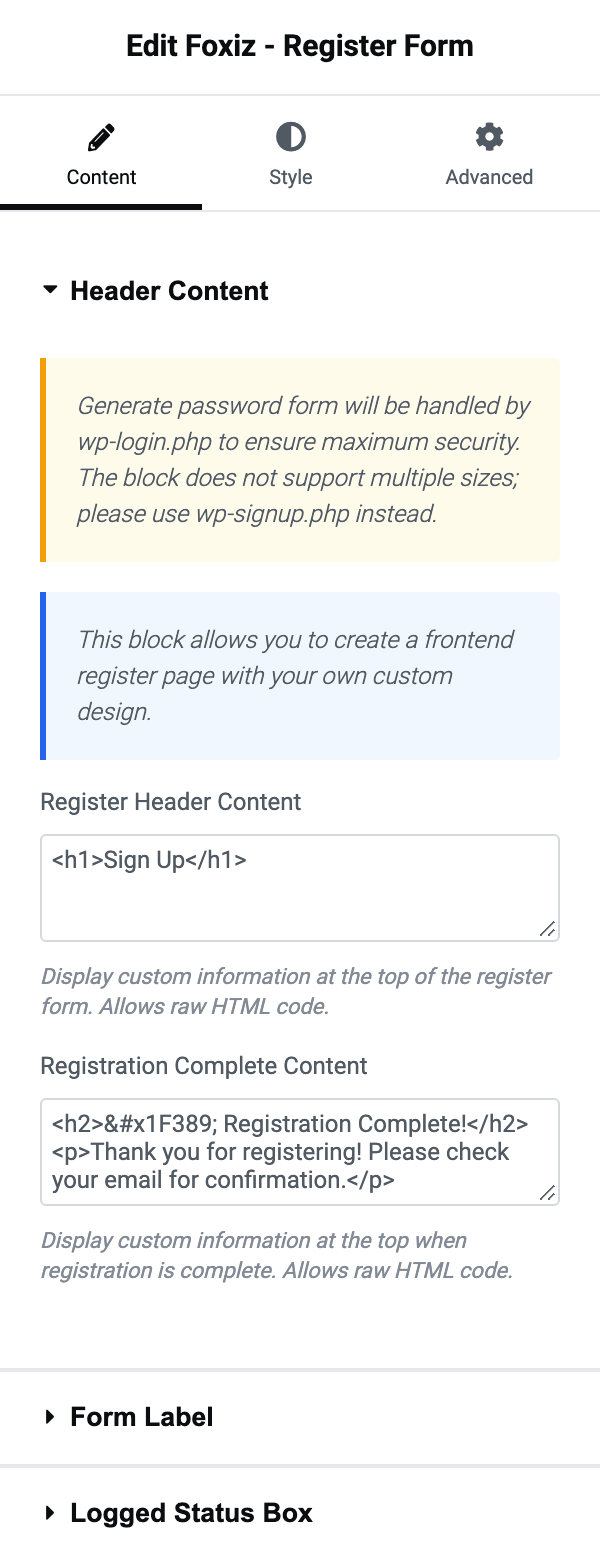
There are three sections on the Content tab. Header Content holds Register Header Content, the raw HTML above the form, and Registration Complete Content, the message that replaces the whole form once somebody signs up. Logged Status Box is what an already signed in visitor sees instead.
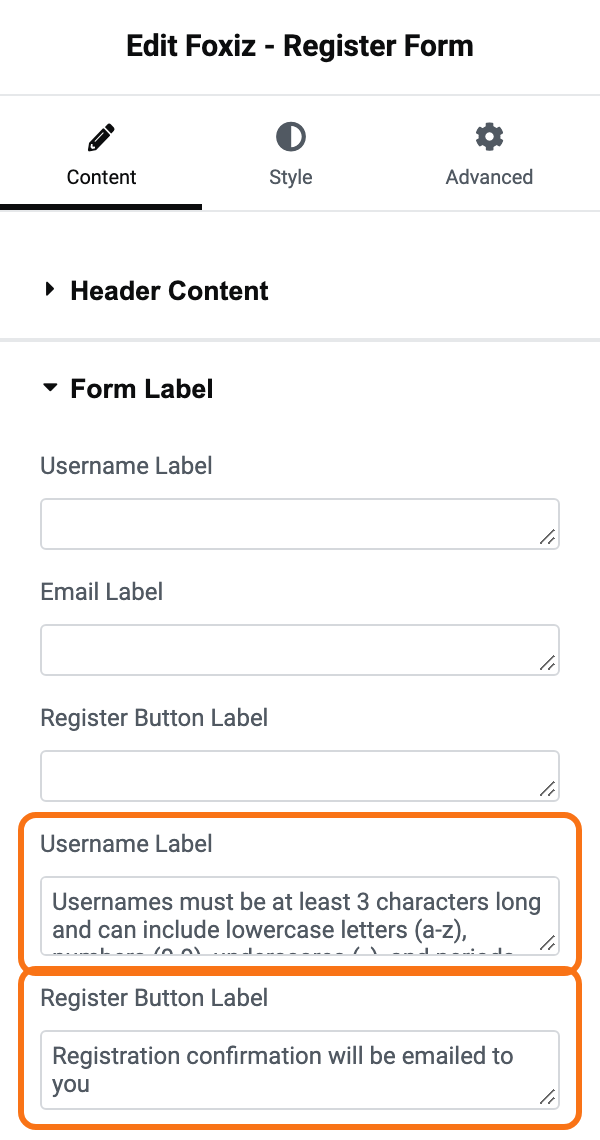
Form Label is the one to read carefully, because two of its labels appear twice. Its five fields, in order:
- Username Label: the caption of the username field. Empty shows "Username".
- Email Label: the caption of the email field. Empty shows "Email".
- Register Button Label: the button text. Empty shows "Sign Up".
- Username Label, the second one: the help line under the username box about allowed characters. Empty hides it. The note is set in the font of Theme Options > Typography > Entry Meta, so on a demo whose meta font capitalises every word, it shows in capitals too.
- Register Button Label, the second one: the "Registration confirmation will be emailed to you" note above the button. Empty shows that same note.
-
Publish the page, then copy its address. A draft's address only opens for you: signed out readers get nothing there.
Step 2: Set the Custom Registration Page
-
Open the Login settings: navigate to Foxiz > Theme Options > Login > Login System and find Custom Registration Page URL.
It is in the Frontend Login and Registration Pages section. The registration field sits directly under the login one.
-
Enter the URL: Input the URL of the custom registration page you created with Elementor.
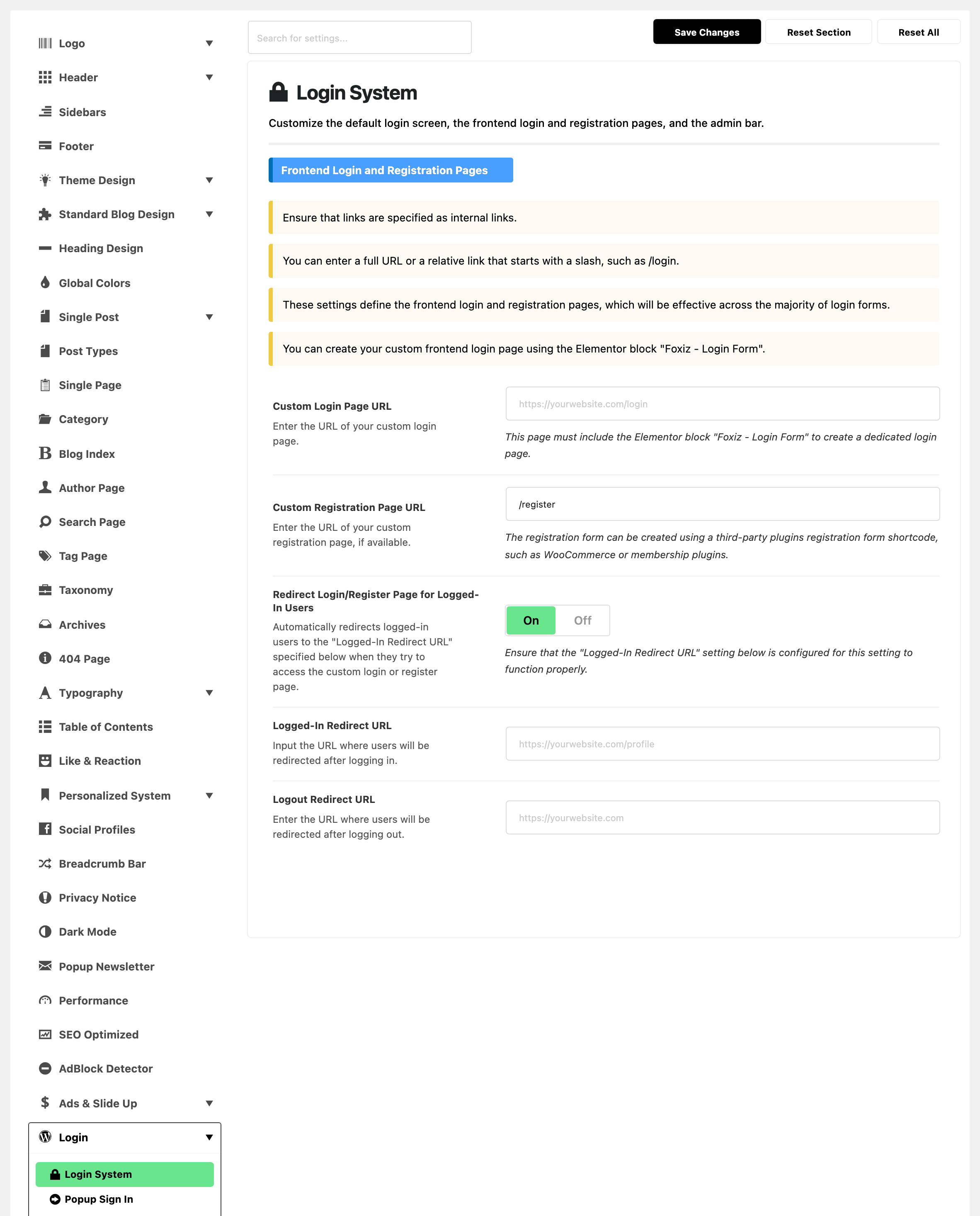
A relative link starting with a slash is accepted here too, so
/registerwill do. -
Save Changes: Confirm and save your changes to replace the default WordPress registration page with your new custom registration page.
The site's sign up links, the popup's Sign Up included, now open your page.
New readers still choose their password on
wp-login.php, from the link WordPress emails them. To make that screen match your site, see How to Restyle the WordPress Login Screen.What every other field in this panel does is in Every Setting in the Login Panel, starting with the section that holds this one.
-
Test it: open your site in a private window, where you are signed out. Click Sign Up in the sign in popup, or open
/registerdirectly, and register a test account with an email address you can read. The form is replaced by your thank you message, and WordPress emails the account a link to set its password.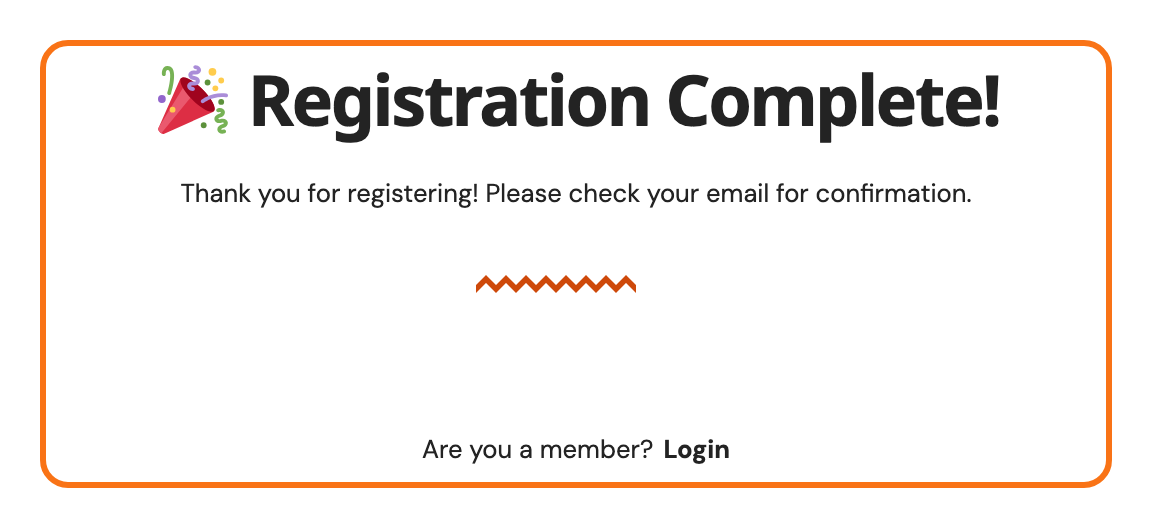
Use a private window because a signed in visitor never sees the form: Foxiz sends them to Logged-In Redirect URL when it is set, or the block shows its Logged Status Box.
Next: How to Protect Login, Registration and Comment Forms with Cloudflare Turnstile, optional.
Did this answer your question?