Adding Alert Bar into The Header
This feature is perfect for marketing promotions, alerts, increasing click throughs to other pages.

To get started, follow the steps below:
The bar is switched in two places:
- Theme Options > Header > Alert Bar turns it on for the whole site and holds its text and link.
- Header Alert Bar, in the settings box under the editor, changes one post or page. Click the Meta Boxes bar at the bottom of the editor to open that box.
The post's own choice wins. Enable shows the bar on that post even where the site wide switch is off or Homepage Only keeps it to the front page, Disable hides it, and - Default - follows Theme Options. In every case the bar uses the Alert Content and Alert URL typed in Theme Options. So fill the bar in Theme Options first, then change only the posts that should differ.
-
Navigate to Theme Options > Header > Alert Bar
-
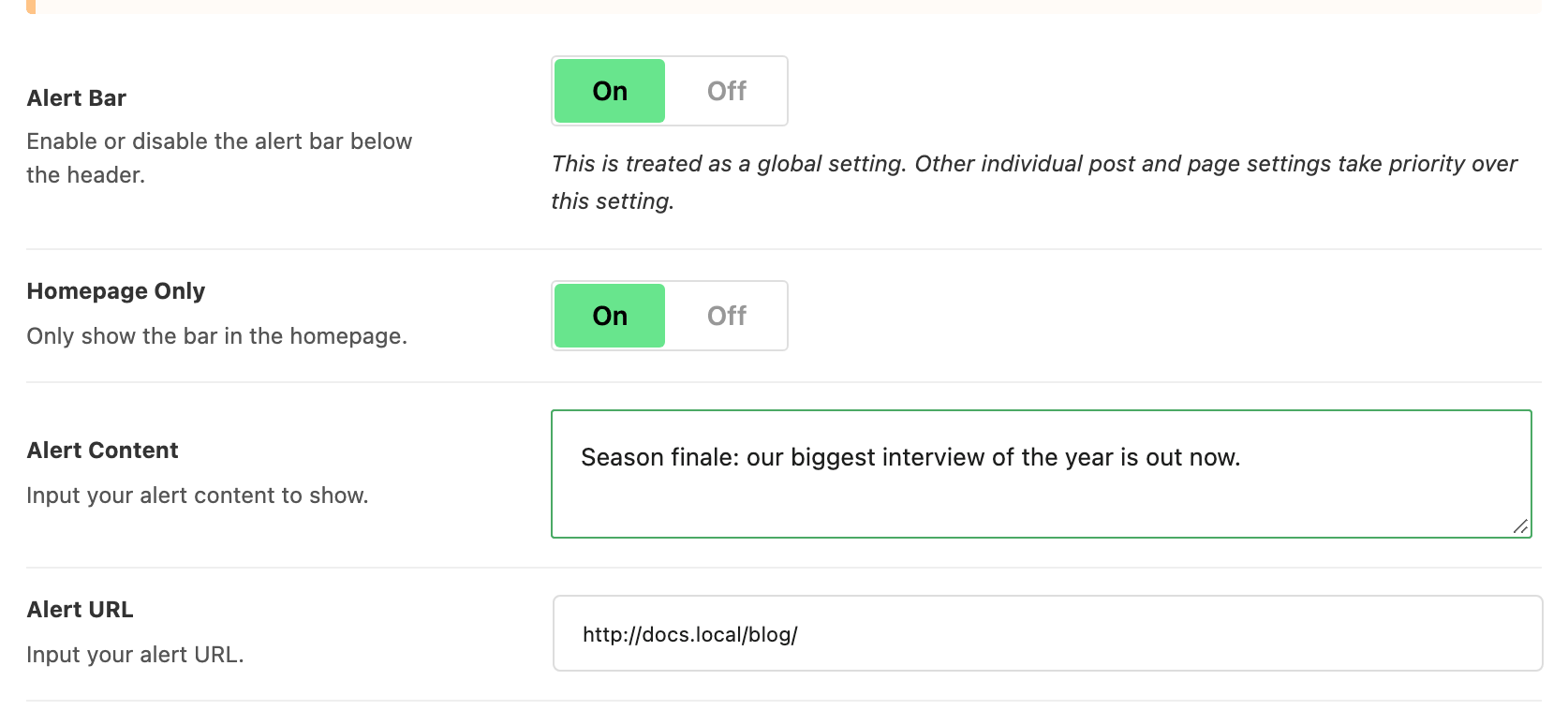
Turn the option Alert Bar on. It is off by default.
-
Then input your content and destination URL. The fields are Alert Content and Alert URL, and both are required: with either one empty the bar does not render, however the switch is set. Alert URL arrives holding
#, which counts as filled, so a bar left on the default URL draws and goes nowhere. -
Save your changes.
Homepage Only sits directly under the switch and is on by default, so out of the box the bar appears on the front page and nowhere else. If you turned the bar on and cannot find it on a post, this is why. Turn Homepage Only off to show it site wide.
The whole bar is one link. Foxiz prints it as an anchor that opens in a new tab with rel="nofollow noopener", so the content you write is the link text and there is no separate button to style.
The rest of the section is appearance. Every field below the switch only appears once the switch is on:
- Background Color and Text Color: the bar's colors.
- Dark Mode - Background Color and Dark Mode - Text Color: the same two for readers in dark mode.
- Hide when Sticky: hides the bar once the navigation sticks to the top of the screen. It is off by default.
The alert bar belongs to the theme's predefined header layouts. If your header is a Ruby template, the panel's own warning applies and the bar is not drawn at all; add the text and button to the header template instead.
The per post switch, in the box the Meta Boxes bar opens, is Single Post Settings > Widgets & Ads > Header Alert Bar on a post and Single Page Settings > Ads > Header Alert Bar on a page. Both offer - Default -, Enable and Disable. Enable is how you put the bar on one landing page without showing it everywhere.
Did this answer your question?