How to Set Up the Mobile Header
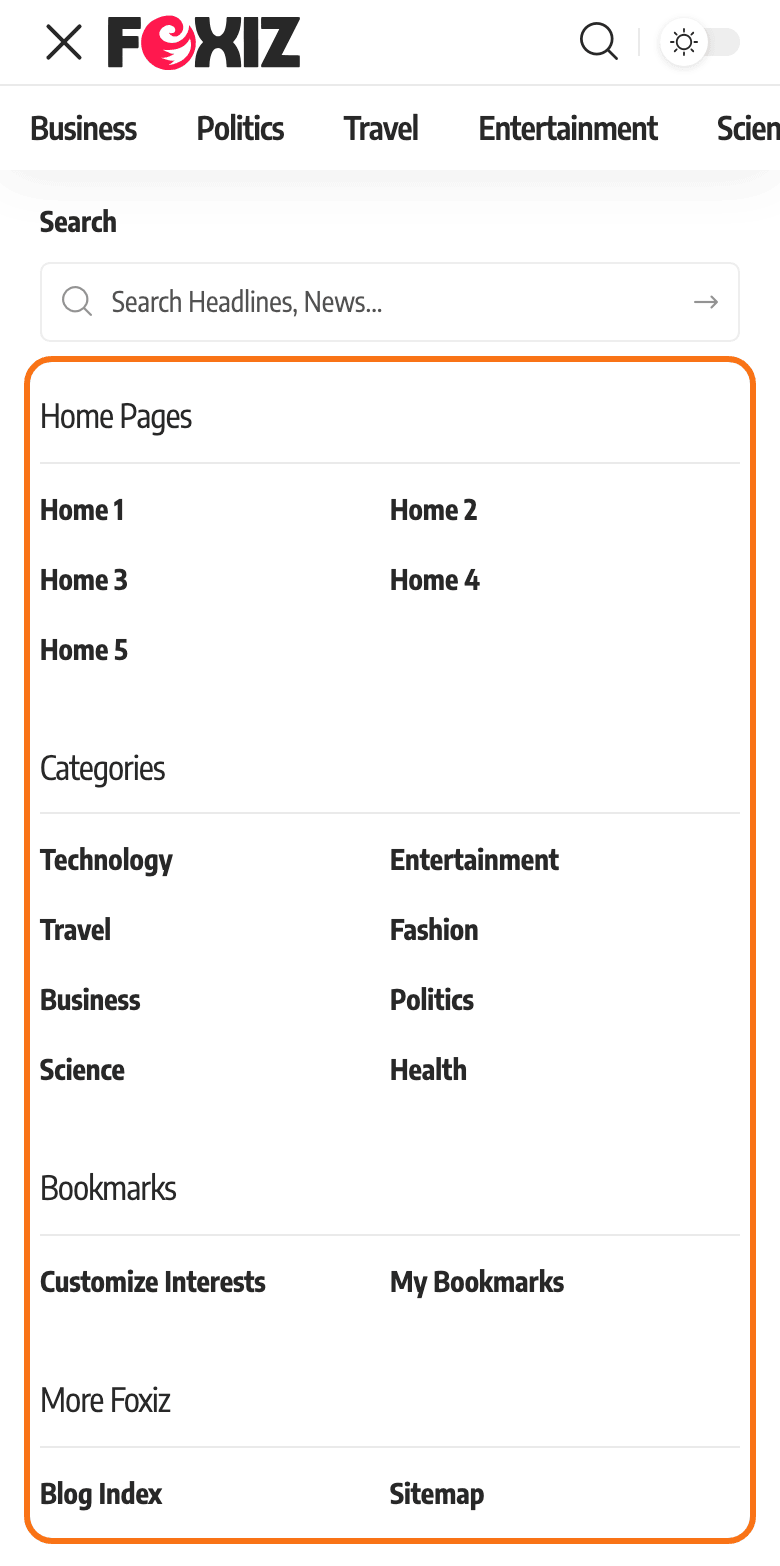
Phones and tablets, every screen 1024px wide or narrower, do not show your desktop header. They show the mobile header: a slim bar with a menu toggle, your logo and a few icons. Tapping the toggle slides open a panel with your mobile menu.

This article sets up the predefined mobile header, the one Foxiz draws for you. It works the same whichever desktop header you use. To design the bar yourself in Elementor instead, see Structuring Mobile Header Layout Using Ruby Template; steps 1, 2 and 5 below still apply then.
1. Assign the mobile menu
Do this first. The slide-open panel shows only the menu in the Mobile Menu location. It does not fall back to your main menu, so with nothing assigned, visitors open an empty panel.
- Navigate to Appearance > Menus.
- Pick the menu you want on phones, often the same one as your main menu, or a shorter one.
- Under Menu Settings, tick Mobile Menu and click Save Menu.

The panel shows two levels: top items as headings, their sub items listed under them. How to Edit or Add Menus on Mobile Devices has the details, and the second location, Mobile Quick Access, for a row of links under the bar.
2. Add the mobile logo
- Navigate to Theme Options > Logo > Mobile Logos.
- Upload your logo in Mobile Logo. Make it 84px tall, twice the height it shows at, so it stays sharp.
- If your site has dark mode, upload a light version in Dark Mode - Mobile Logo.
- Click Save Changes.
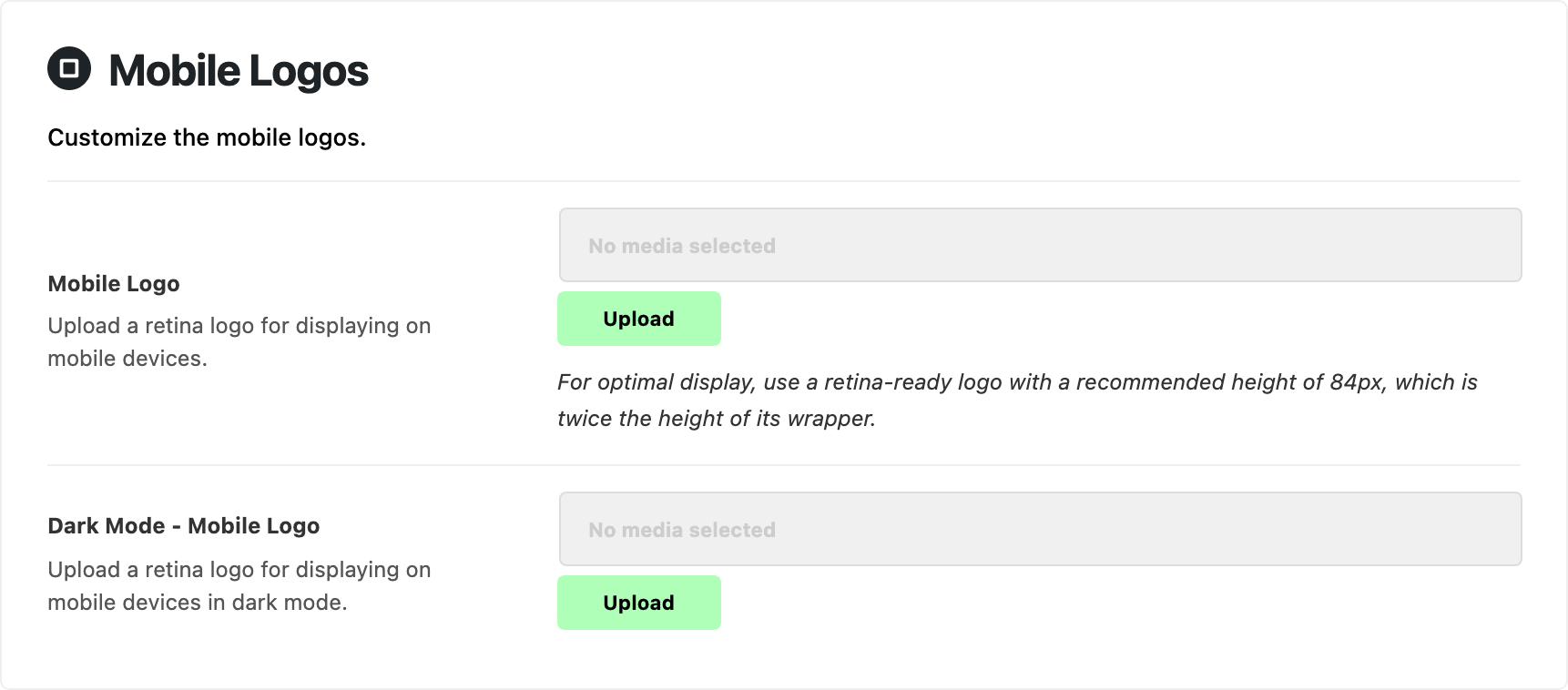
Skip this step if your main logo already fits a small bar: with Mobile Logo empty, the mobile header shows your Main Logo.
In dark mode, an empty Dark Mode - Mobile Logo borrows the desktop Dark Mode - Main Logo first, and only then the Mobile Logo. If phones show a large desktop logo in dark mode, that is why: fill in Dark Mode - Mobile Logo.
3. Pick a layout
-
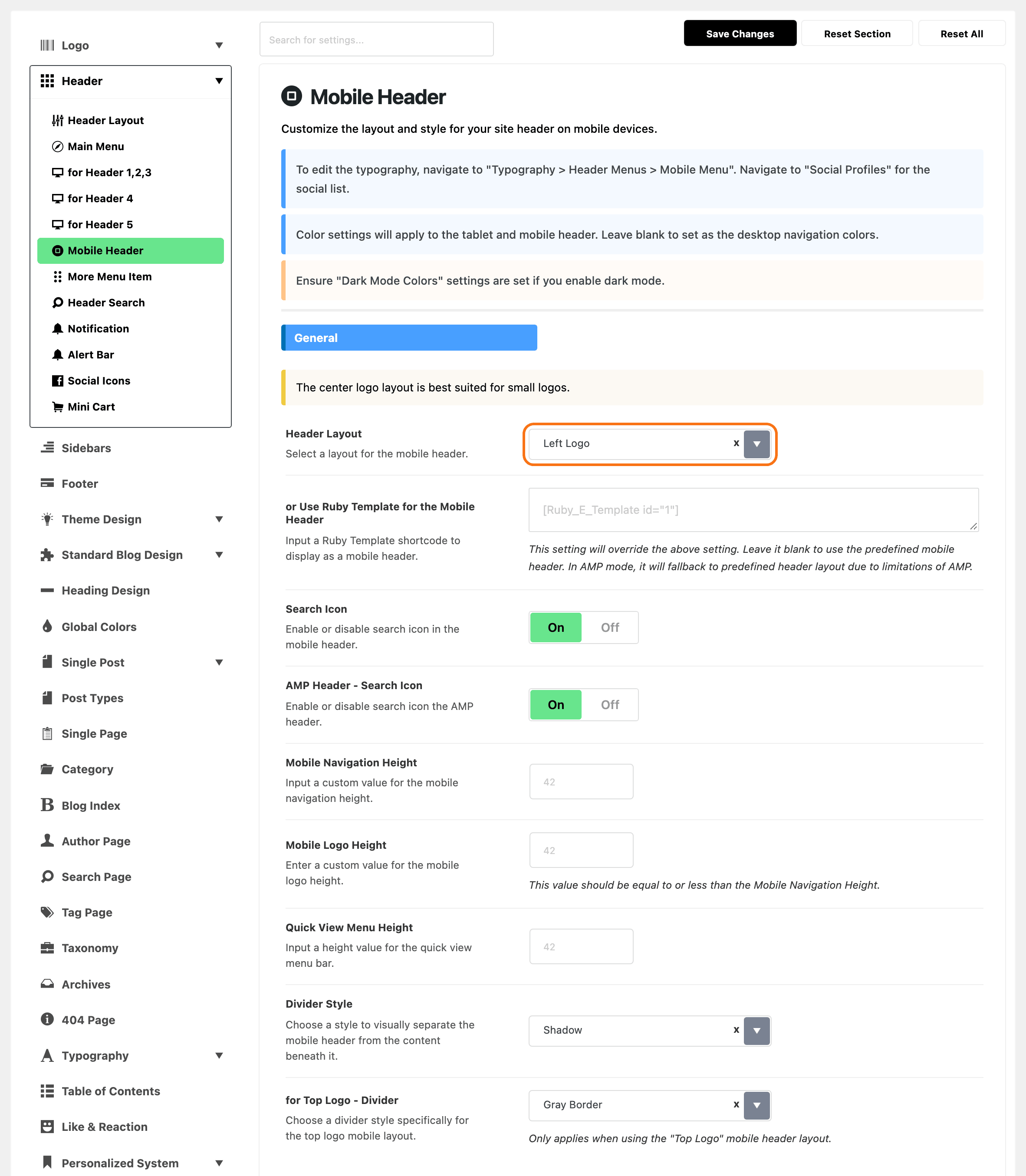
Navigate to Theme Options > Header > Mobile Header and find the General group.
-
Choose a Header Layout:
-
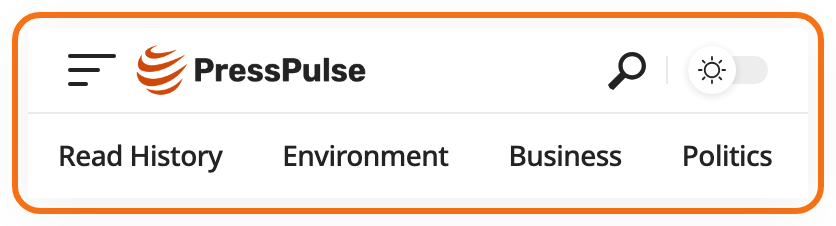
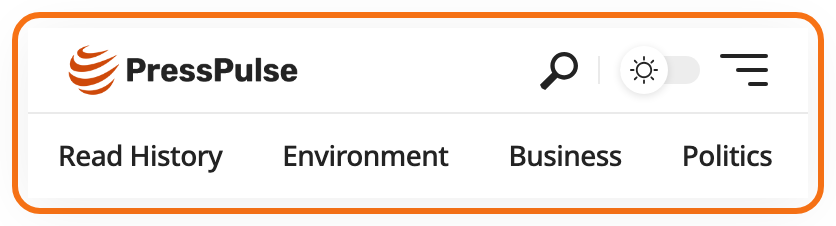
Left Logo (default): the toggle and logo on the left, the icons on the right.
-
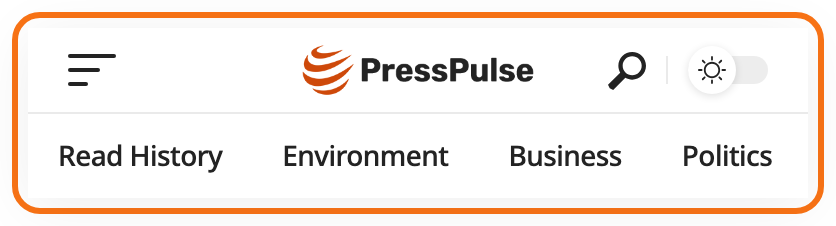
Center Logo: the toggle on the left, the logo in the middle, the icons on the right. The panel's own note says it suits small logos.
-
Left Logo 2: the logo on the left, the icons and then the toggle on the right.
-
Top Logo: the logo on a row of its own, with the toggle and icons on a row below it.
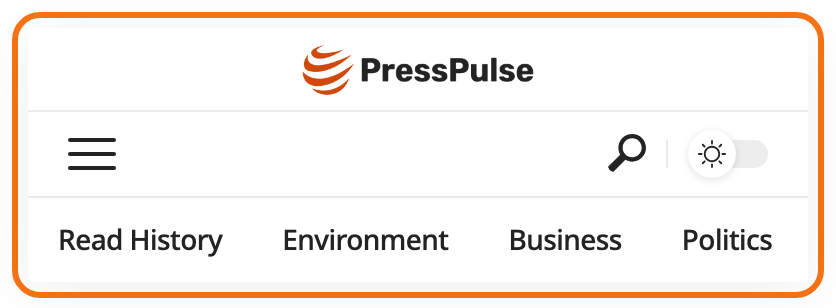
The pictures also show the Mobile Quick Access row under the bar, there because a menu is assigned to that location, and the dark mode switch, there because Dark Mode is on Light/Dark Switchable.
For most sites, keep Left Logo.
-
-
Optional, in the same group:
- Mobile Navigation Height and Mobile Logo Height set the bar and logo height in px. Both are 42 when empty, and the logo should be no taller than the bar.
- Divider Style sets the line under the bar: Shadow by default, or a border, or none.
-
Click Save Changes.
4. Choose the icons on the bar
Each icon on the bar has its own switch, and most of them live somewhere else:
| Icon | Shows when | Where to switch it |
|---|---|---|
| Search | Search Icon is on (the default). Tapping it opens the slide-open panel with the cursor in its search box. | Header > Mobile Header > General |
| Dark mode | Dark Mode is set to Light/Dark Switchable | Theme Options > Dark Mode |
| Cart | WooCommerce is active and Mobile Header - Mini Cart is on (off by default) | Header > Mini Cart |
| Text size (Aa) | on single posts, while Reading Font Resizer is on (the default) | Single Post > Site Header |
5. Fill the slide-open panel
-
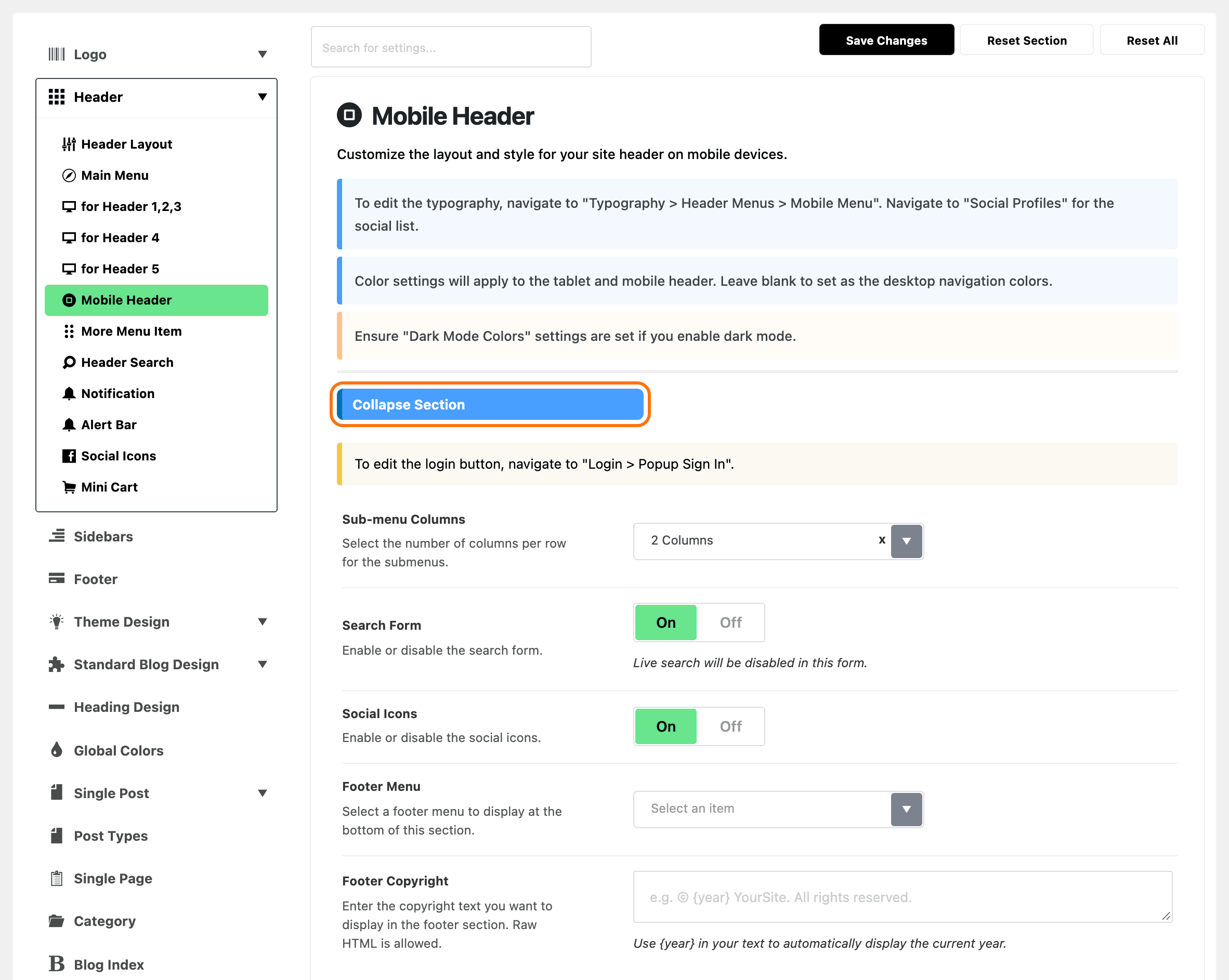
In Theme Options > Header > Mobile Header, find the Collapse Section group.
-
Check what the panel should hold. Each of these is optional:
- Sub-menu Columns: sub items in 2 Columns (default) or 1 Column.
- Search Form: a search box at the top. On by default.
- Social Icons: your social icons, from Theme Options > Social Profiles. On by default.
- Footer Menu and Footer Copyright: a small menu and a copyright line at the bottom.
{year}prints the current year.
-
Click Save Changes.
A sign in link in the panel is switched on elsewhere: Mobile Header - Sign In at Theme Options > Login > Popup Sign In, off by default.
To add your own content to the panel, such as a list of posts under the menu, see How to Build the Mobile Collapse Section with a Ruby Template.
6. Colours (optional)
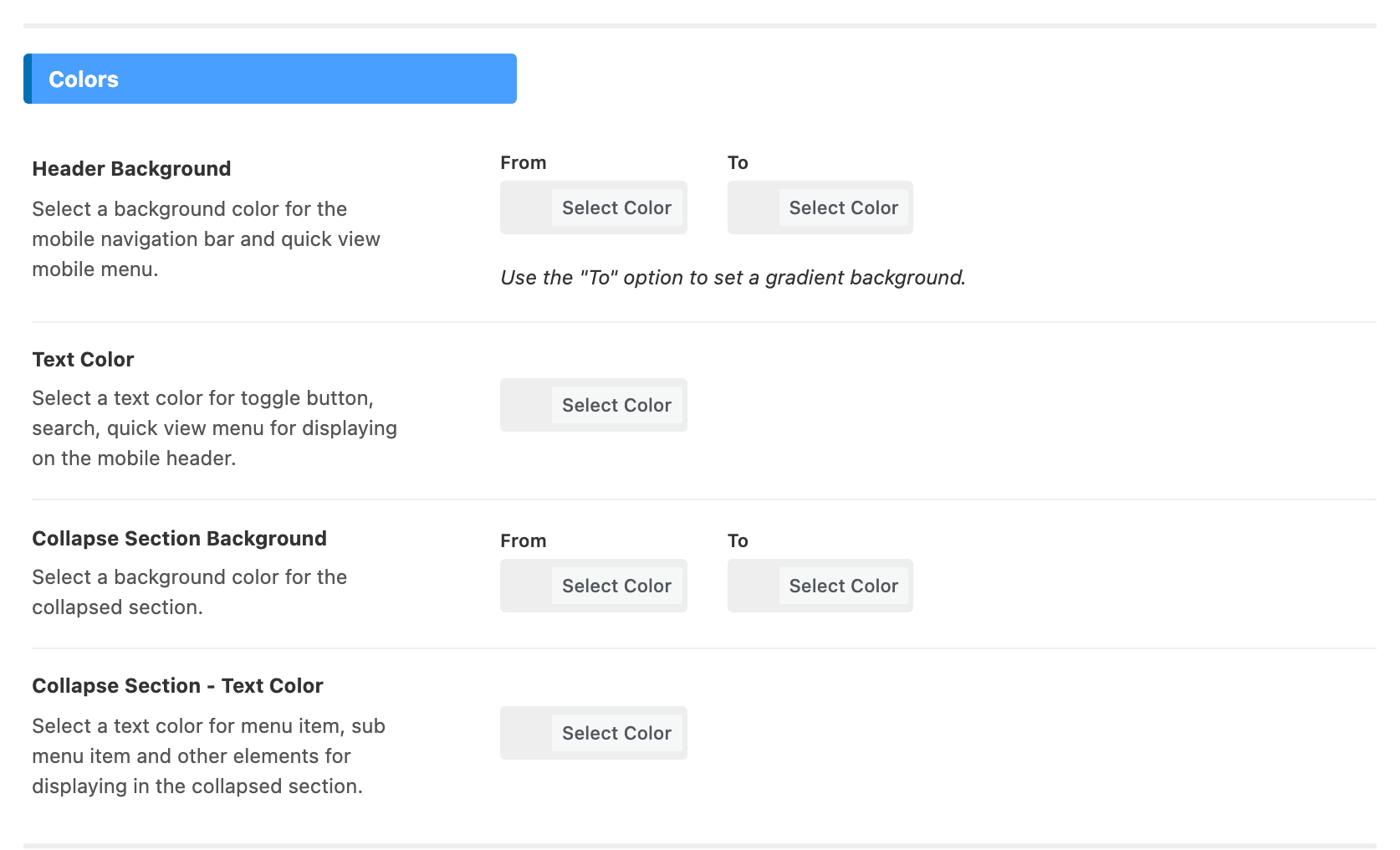
The Colors group sets the bar's background and text, and the panel's background and text. Leave them empty and the mobile header uses your desktop navigation colours, which suits most sites. If you set them and your site has dark mode, fill the Dark Mode Colors group too.
Check it
Open your site on a phone, or make your browser window narrower than 1024px. The mobile header takes over from the desktop one.
Want the bar to stay on screen while readers scroll? There is no mobile switch for it: Sticky Main Menu in Theme Options > Header > Main Menu makes both headers sticky. See How to Enable the Menu Sticky.
Every field in the panel, including the AMP and Top Logo options left out here: Every Setting in the Mobile Header Panel.
Did this answer your question?