How to Enable Dark Mode Feature
Dark mode gives your site a dark colour scheme. You turn it on in Theme Options > Dark Mode, choose whether readers switch it themselves, then give it a dark logo and dark colours.

To get started, follow the steps below:
-
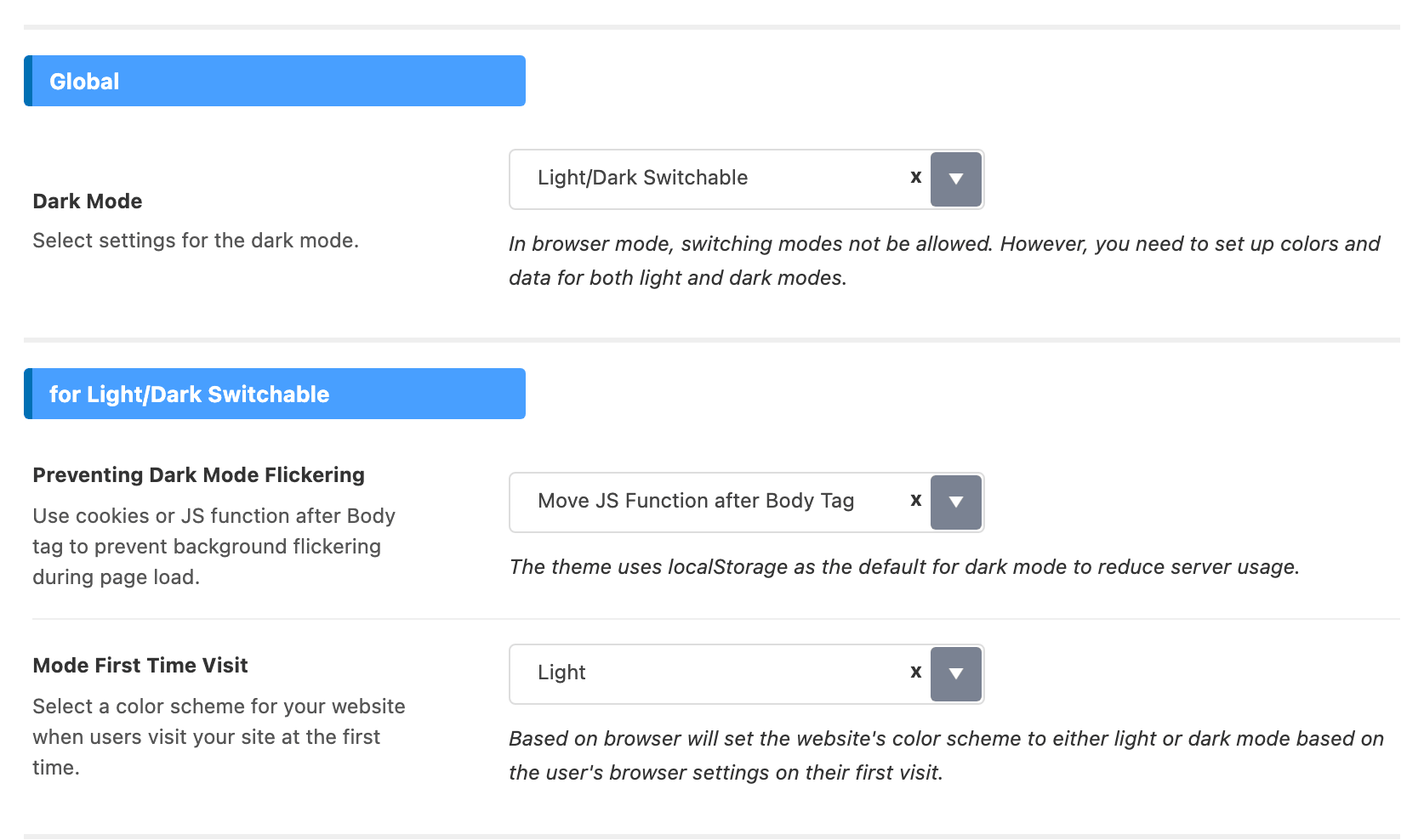
Navigate to Theme Options > Dark Mode
-
Set the Dark Mode option, in the Global group at the top of the panel. Its default is Disable Dark Mode, so nothing below has any effect until you change it:
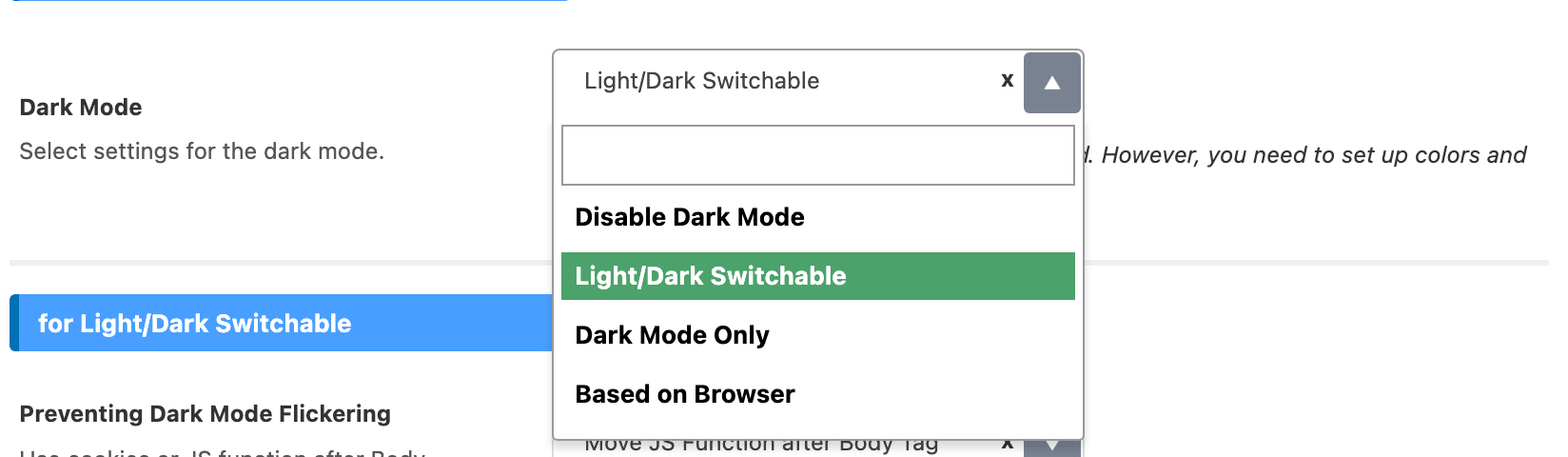
- Disable Dark Mode: select this if you want to turn off the Dark Mode feature on the website.
- Light/Dark Switchable: this option will enable the Light/Dark toggle button in the header. On the five predefined layouts the toggle is the last icon on the right of the navigation bar, and it also appears in the mobile header. In a Ruby Template header it is the Foxiz - Dark Mode Toggle block, which you have to place yourself.
- Dark Mode Only: this option will allow the website to always be in dark mode.
- Based on Browser: the option allows the website to switch between Light and Dark modes based on the default display mode of the user's browser. Ex: if a user's browser is set to Dark Mode by default, the website will automatically display in Dark Mode when the user visits it.
The toggle button is drawn only for Light/Dark Switchable. Under Dark Mode Only and Based on Browser there is no switcher, by design, and placing the block in a header template does not produce one.
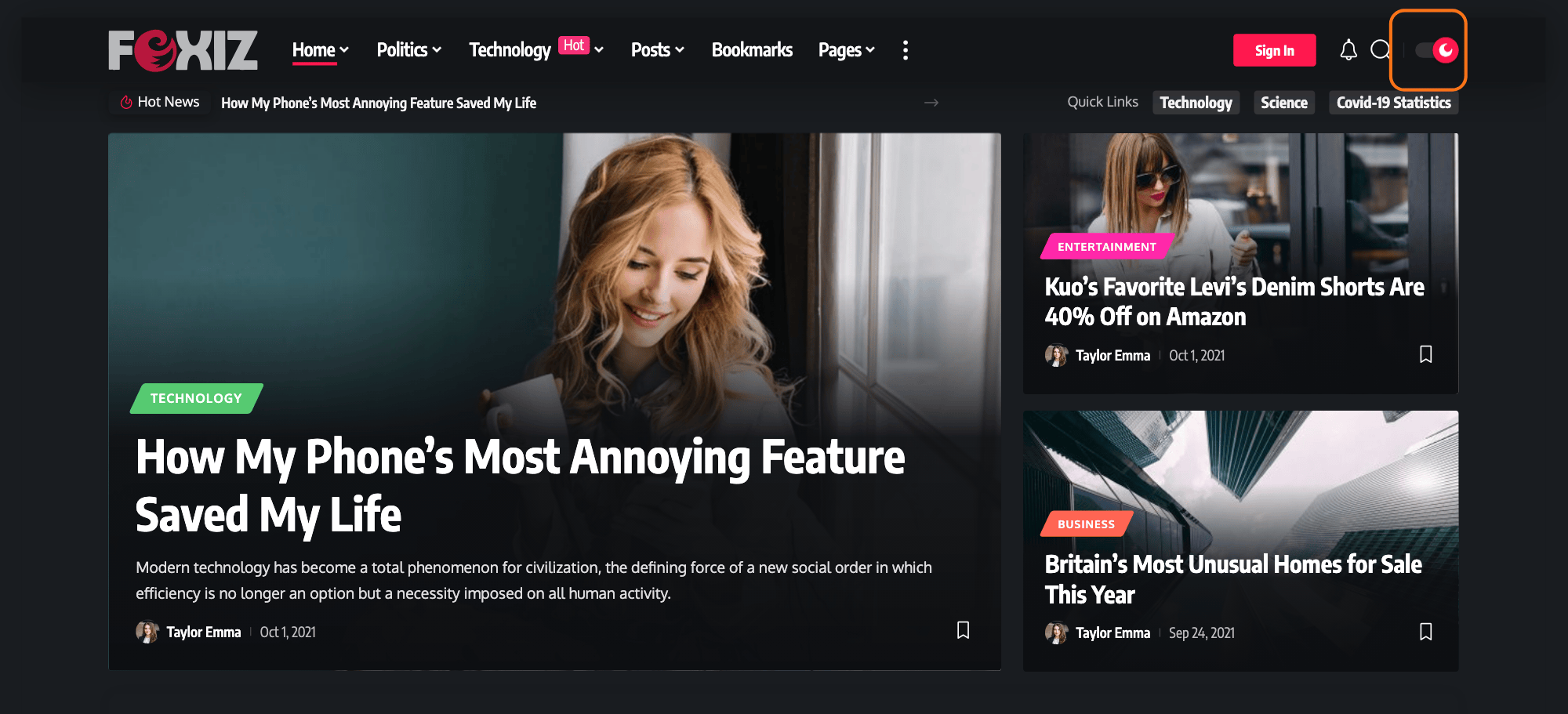
For most sites, pick Light/Dark Switchable: readers choose for themselves, and it is the only value that puts a toggle in the header.
-
Preventing Dark Mode Flickering option: Utilize cookies or a JavaScript function positioned after the Body tag to avoid abrupt background flickering while the page is loading. It sits in the for Light/Dark Switchable group with three values: Default (Footer Script), Move JS Function after Body Tag and Use Cookies Method.
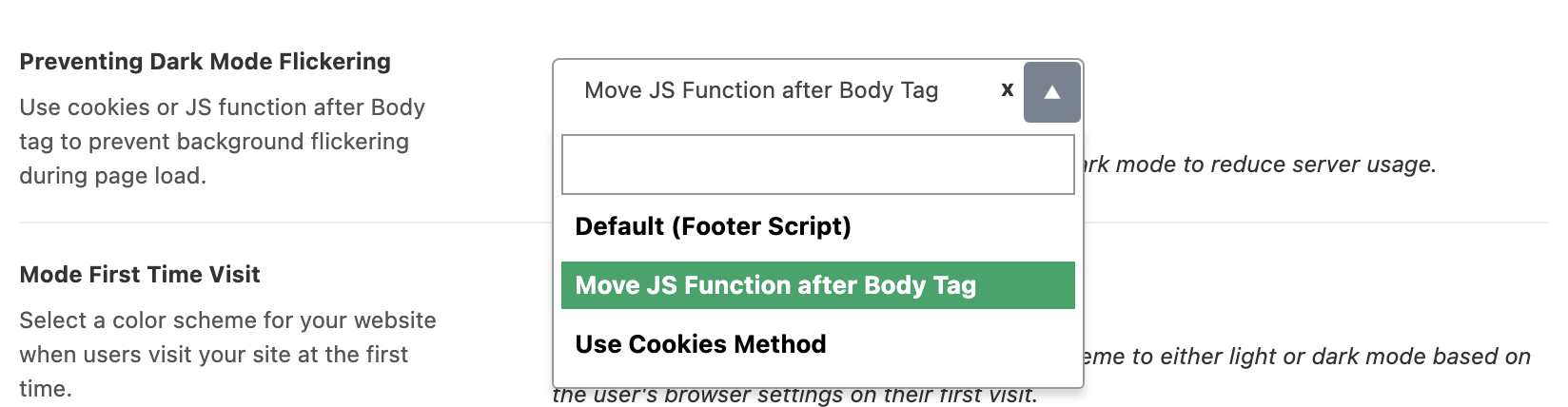
Leave it on Move JS Function after Body Tag. That is the default, even though the first value in the list is labelled Default (Footer Script). We recommend it as it has been thoroughly tested and proven to be the most stable choice. It ensures a smoother user experience by preventing background flickering during page loading. Importantly, it does not adversely impact website speed and performance.
-
Mode First Time Visit: Customize the color scheme of your website for users when they visit your site for the first time. This feature only takes effect when Dark Mode is set to Light/Dark Switchable, the value that shows the Dark/Light button in the header. It anticipates the user's browser settings and automatically adjusts the website's color scheme to either light or dark mode during their initial visit. Three values, Light, Dark and Based on Browser. Its default is Light.
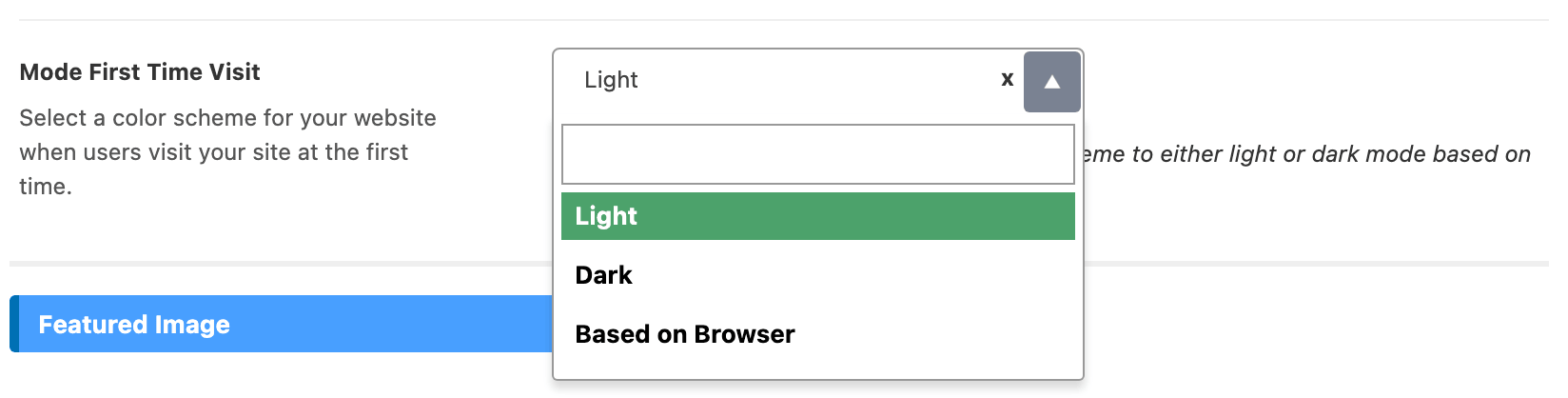
Once a visitor uses the toggle, their choice is stored in the browser and this setting no longer applies to them. It decides the very first page view and nothing after it.
-
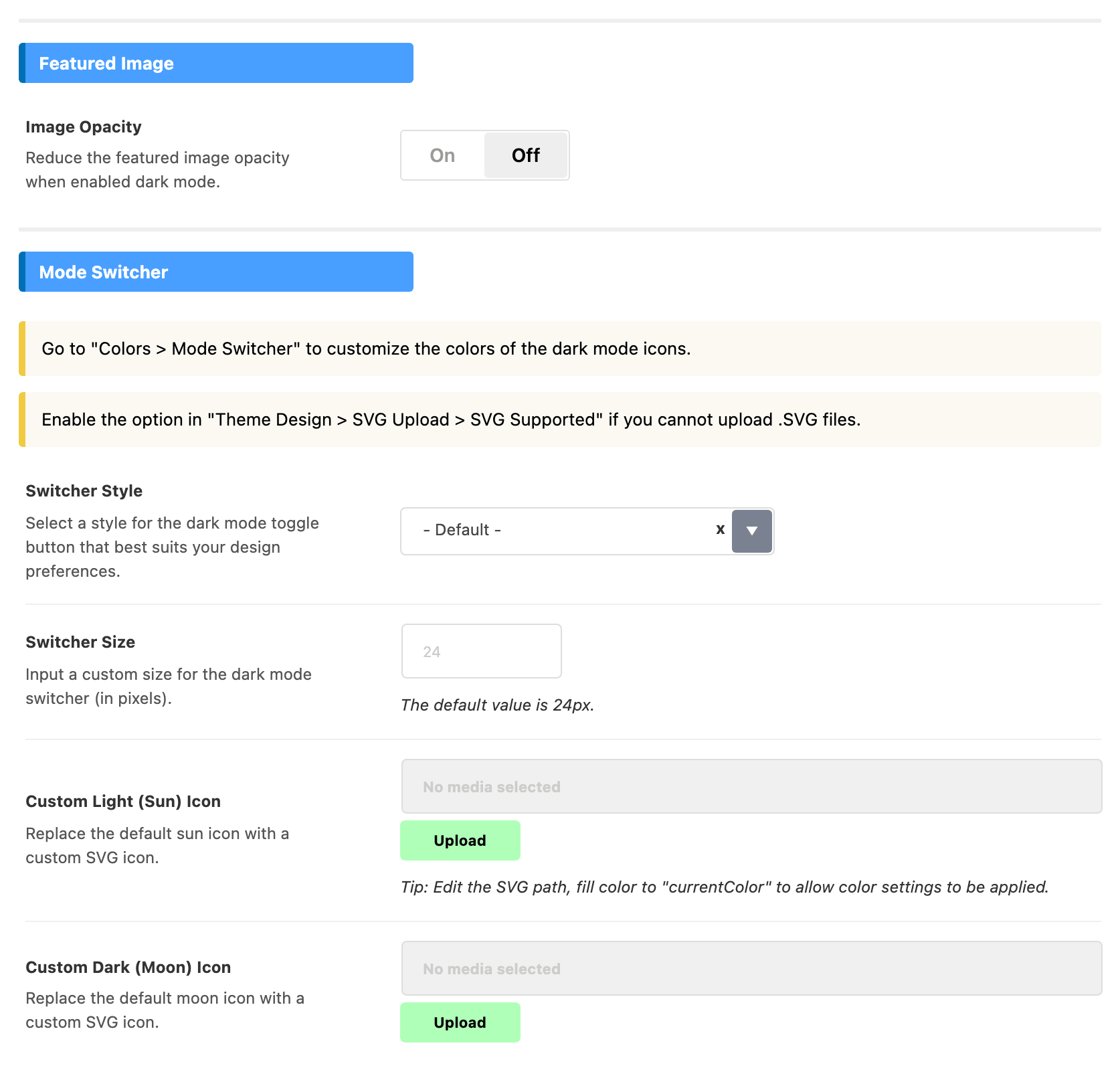
The rest of the panel is two more groups. Featured Image holds one switch, Image Opacity, which dims featured images in dark mode and is off by default. Mode Switcher holds four:
- Switcher Style, with - Default - and Minimalistic.
- Switcher Size, an empty text box whose own description gives 24px as the value it falls back to.
- Custom Light (Sun) Icon and Custom Dark (Moon) Icon, for replacing the two glyphs with your own SVG.
-
Click Save Changes.
-
Fill in the dark twins before you announce the feature. Dark mode does not derive colours from your light ones: every dark field that you leave empty keeps the light value, and a light mode logo left on a dark header is how sites end up with a black logo on a black bar. The panel says as much in its own warning, "Consider providing dark logos, colors, and background settings if you use dark mode."
At minimum set:
- Dark Mode - Main Logo, at Theme Options > Logo > Default Logos.
- The Dark Mode - Menu group, in the for Header x panel your layout uses.
- Dark Mode - Sub-Level Menus, under Header > Main Menu.
- Dark Mode Colors, under Header > Mobile Header.
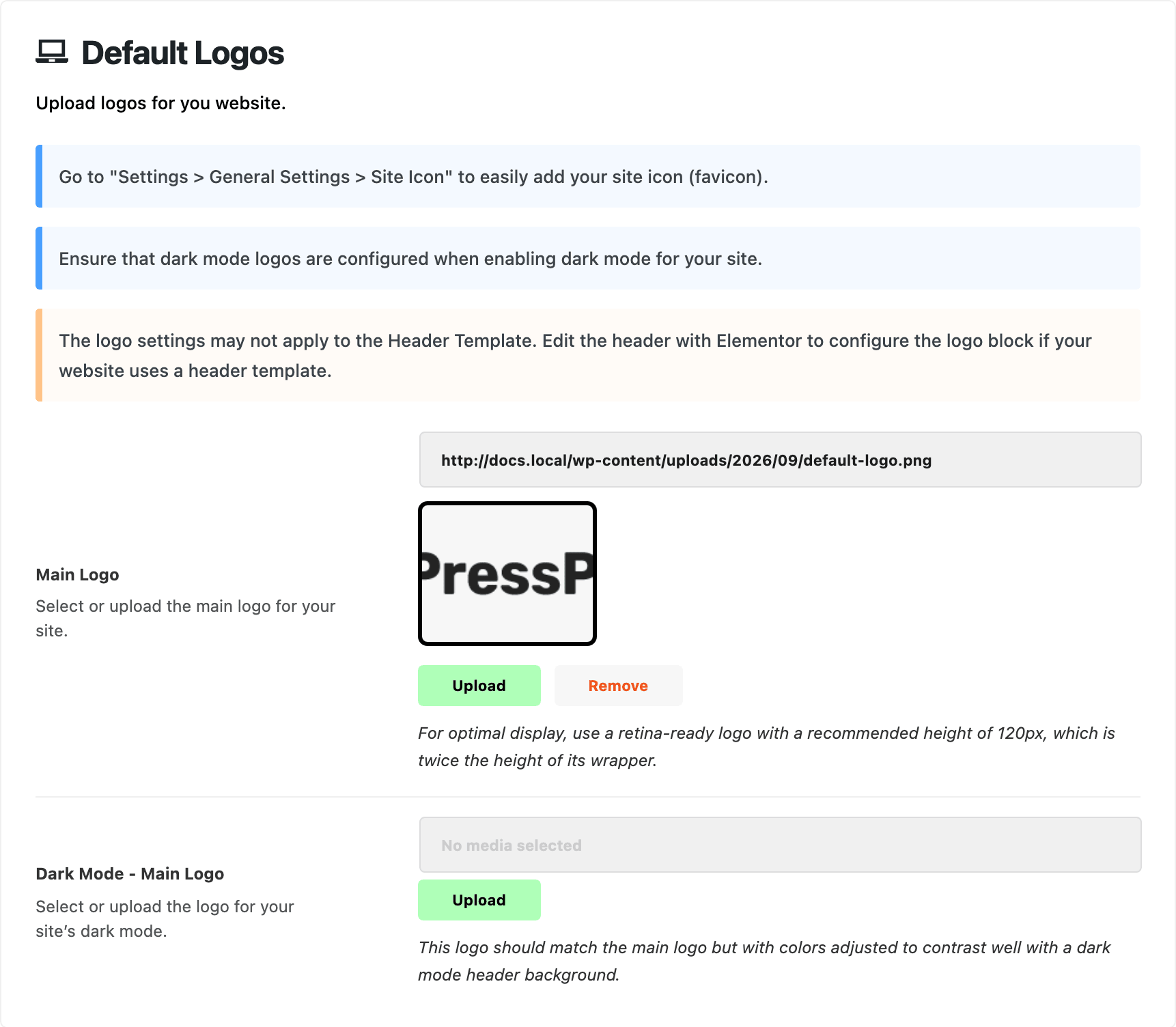
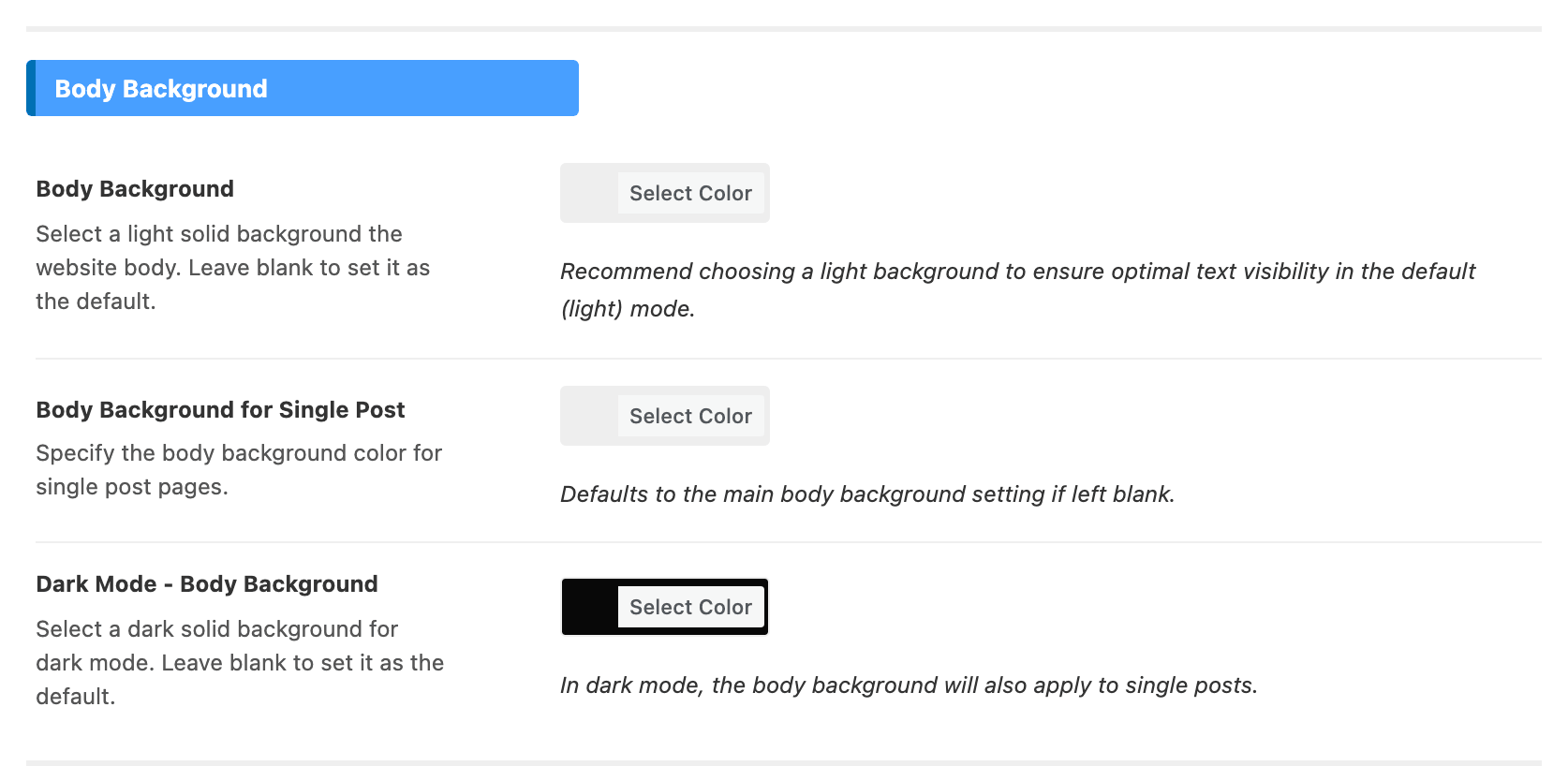
The site's dark background itself is not in this panel, as its first notice says. The field is at Theme Options > Global Colors, in the Body Background group, and it is called Dark Mode - Body Background.
Did this answer your question?