How to Enable the Menu Sticky
Turn on the sticky menu
To enable the sticky menu, follow these steps:
-
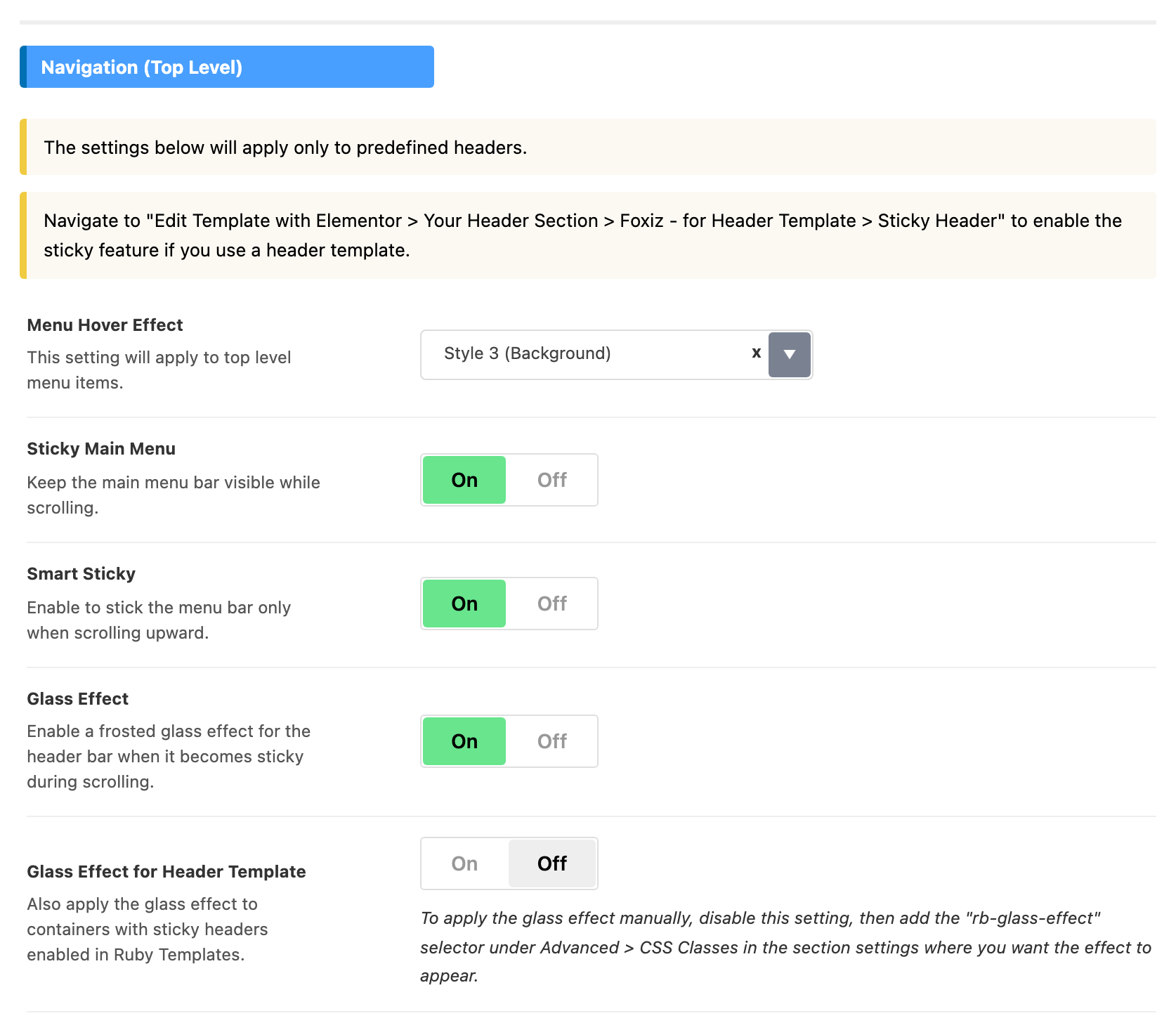
Navigate to Theme Options > Header > Main Menu, and find the Navigation (Top Level) group at the top of the panel.
-
Enable the Sticky Main Menu option. It is off out of the box, and it is the switch that used to be called Sticky Menu.
-
If you would like the menu to show only when scrolling up, turn on the "Smart Sticky" option. With it off, the menu always sticks. Smart Sticky is hidden until Sticky Main Menu is on, so turn that on and save before looking for it.
-
Two more switches appear alongside it. Glass Effect gives the bar a frosted look once it sticks, and it also needs Sticky Main Menu on. Glass Effect for Header Template then extends the same treatment to a Ruby Template header, and only appears once Glass Effect is on. Both are off by default.
-
Click Save Changes.

Sticky for a header template
These settings apply to the five predefined header layouts. They do nothing for a header built as a Ruby Template, and the panel says so in the group's own notice.
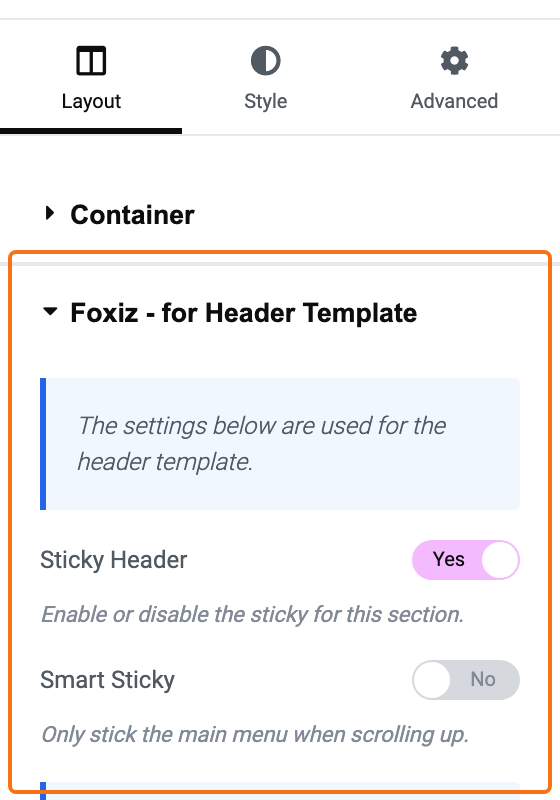
For a header template, sticky is set on the container (or, on an older template, the section) that holds your menu. Both switches below are off by default, and the panel only exists while you are editing a Ruby Template:
-
Go to Ruby Templates, hover over your header template and click Edit with Elementor.
-
Right click the top level container that holds the menu and choose Edit Container. Pick the outer one: the Foxiz panel is not shown on a container nested inside another.
-
On the Layout tab, open the Foxiz - for Header Template panel and turn on Sticky Header. Turn on Smart Sticky too if the menu should show only when scrolling up; it appears once Sticky Header is on.
-
Click "Publish".
What changes once it sticks
Two things that catch people out once it is on:
- The mobile header has no sticky switch of its own. It renders inside the same sticky holder as the desktop bar, so Sticky Main Menu governs both.
- A transparent header stops being transparent as soon as it sticks. The transparent logo and the transparent text colours are all scoped to a page that has not scrolled far enough to engage the sticky bar, so the normal logo and normal colours come back at that point.
If Alert Bar is on, decide what it does while the header is stuck. Hide when Sticky, in Theme Options > Header > Alert Bar, hides it, though it keeps its height rather than collapsing, so the gap stays.
Did this answer your question?