How to Build your Homepage with Elementor Builder?
Foxiz works best with Elementor, and every Foxiz layout can be built with it. The integration is built on the free version of Elementor, so you don’t need to buy Elementor Pro.
You need the free Elementor plugin. Install it from Dashboard > Foxiz, where Elementor is the first entry under Essential Plugins, with an Install button. Elementor Builder explains what Elementor is and the one time setup to do first. It is also on https://wordpress.org/plugins/elementor/.
Creating a page to use the "Elementor"
To get started, follow the steps below:
-
Navigate to Pages > Add Page.
-
Add the title of the page ie: Home.
-
Click on the "Edit With Elementor" button to switch to the builder.

-
The website will redirect to another URL and the panel will appear on the page.
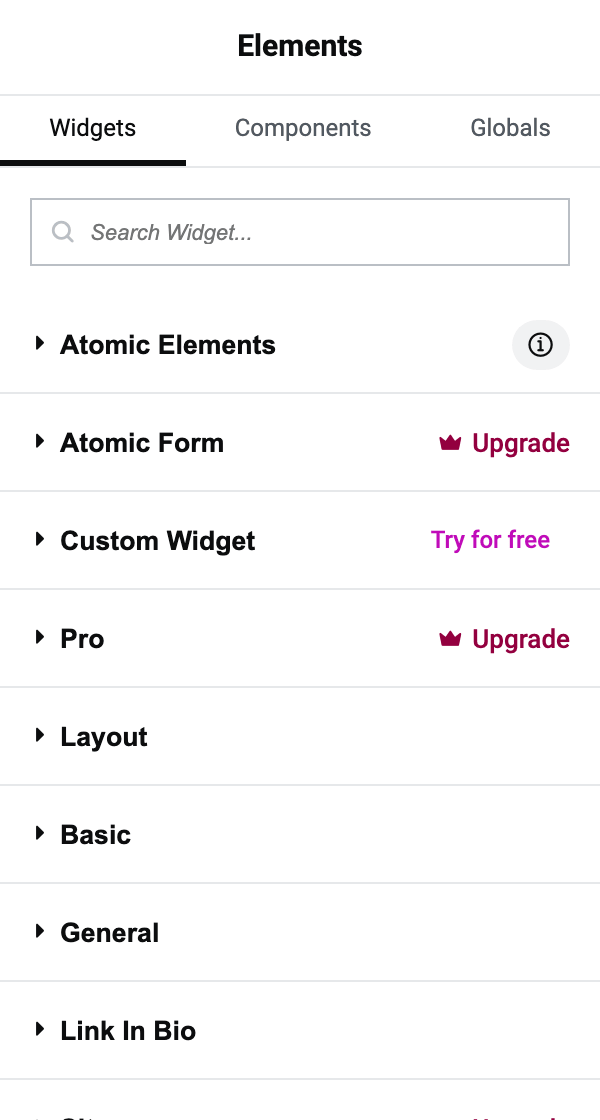
Important Step: Setup the global layout
Set Elementor's Content Width to 1280 before you add blocks. That is the width of the Foxiz header and footer, 20px of padding at each edge included, so your blocks line up with them. Elementor starts at 1140, which makes the page look narrower than the header.
Set up the page layout with this article before you start adding blocks:
Global Layout Settings for Elementor
Elementor Blocks
Foxiz adds many block layouts to Elementor. You can find all of them in six categories whose names all begin with Foxiz:
- Foxiz - Flex and Foxiz - Standard: where the post listings live.
- Foxiz - Element: the building blocks around your listings, such as Foxiz - Heading and Foxiz - Image.
- Foxiz Header: the pieces you use when building a header template rather than a homepage.
- Foxiz Podcast: the podcast listings, Foxiz - Podcast Flex Grid, Foxiz - Podcast Flex List and Foxiz - Podcast Flex Overlay.
- Foxiz Single: the pieces you use when building a single post template rather than a homepage.

To find the block you need, type foxiz into the search bar. To narrow the list, type a keyword instead, such as grid, heading, list, plan, overlay or small.
Every Foxiz block's name starts with Foxiz - , so searching foxiz lists all 91 of them and a word narrows it down: grid reaches Foxiz - Grid 1 and Foxiz - Small Grid, overlay reaches Foxiz - Overlay, plan reaches Foxiz - Plan Subscription.
Creating your section
Elementor builds a page out of containers. A container is a box that holds your blocks, stacked or side by side, and a container can hold other containers.
-
Click the + button in the middle of the page, Add New Container. You can add as many containers as you need, one under another.
 note
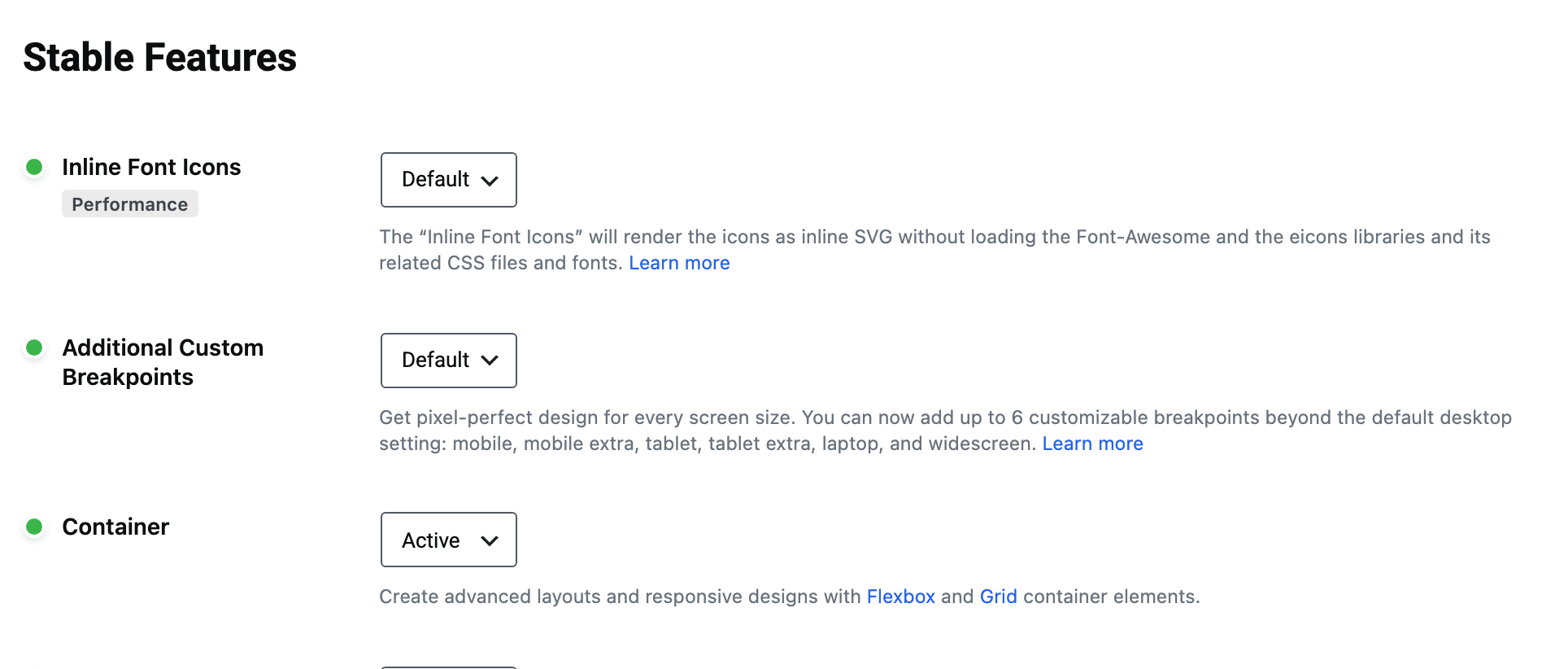
noteIf the button reads Add New Section, Elementor's Container feature is off on your site. It is on by default for new installs, so this happens on a site that has run Elementor for years. Turn it on before you follow this article:
- Go to Elementor > Settings and open the Features tab.
- Set Container to Active and click Save Changes.
The sections already on your pages keep working; Elementor still loads them alongside containers.
-
Elementor asks Which layout would you like to use? Pick Flexbox: every layout in this article is built with it.

-
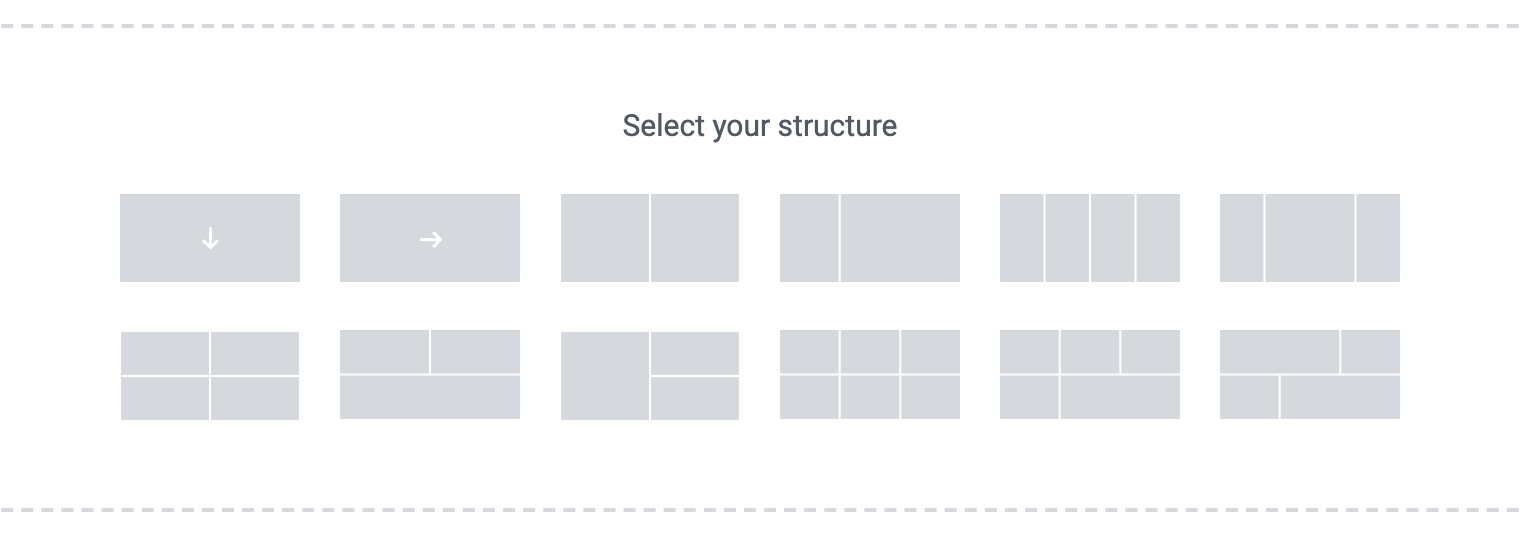
Under Select your structure, choose a structure for your container. The first one is a single container across the content width; the others split it into columns, such as two halves or a one third and two thirds pair.
 If the container panel shows General, Style and Interactions tabs
That is Elementor's Atomic Editor (Editor V4), on by default for sites installed with Elementor 4.0 or later. Its containers have no Content Width, Gaps or CSS Classes, which the steps below and the Foxiz sidebar classes need. Turn it off before you build: go to Elementor > Settings, open the Atomic Editor tab and click Deactivate. Deactivating removes only Atomic elements, classes and variables you made with it; on a new site there are none, and containers stay on.
-
After you create a container you can drag and drop blocks into it.
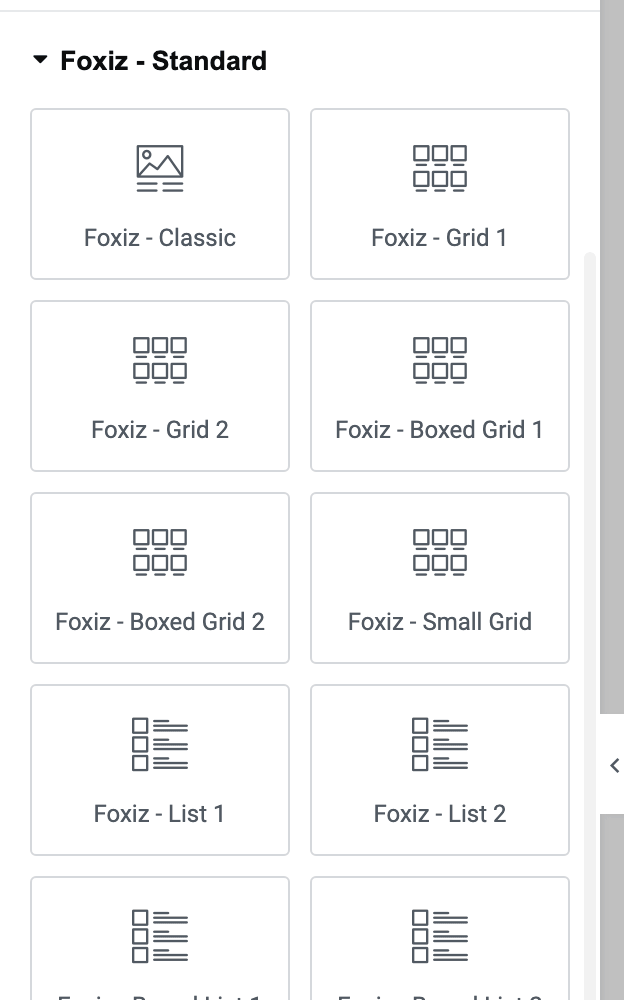
A block arrives empty until you tell it what to list. Every post listing block opens a Query Settings panel when you drop it, and the three controls that fill it are Category Filter, Number of Posts and Order By. How to Set Up Query Filters in Elementor Blocks walks every one of them.
Create a Full Width Section (without Nested Inner Sections):
-
Under Select your structure, choose the first structure, a single container.
-
Click the container to open its settings, on the Layout tab.
-
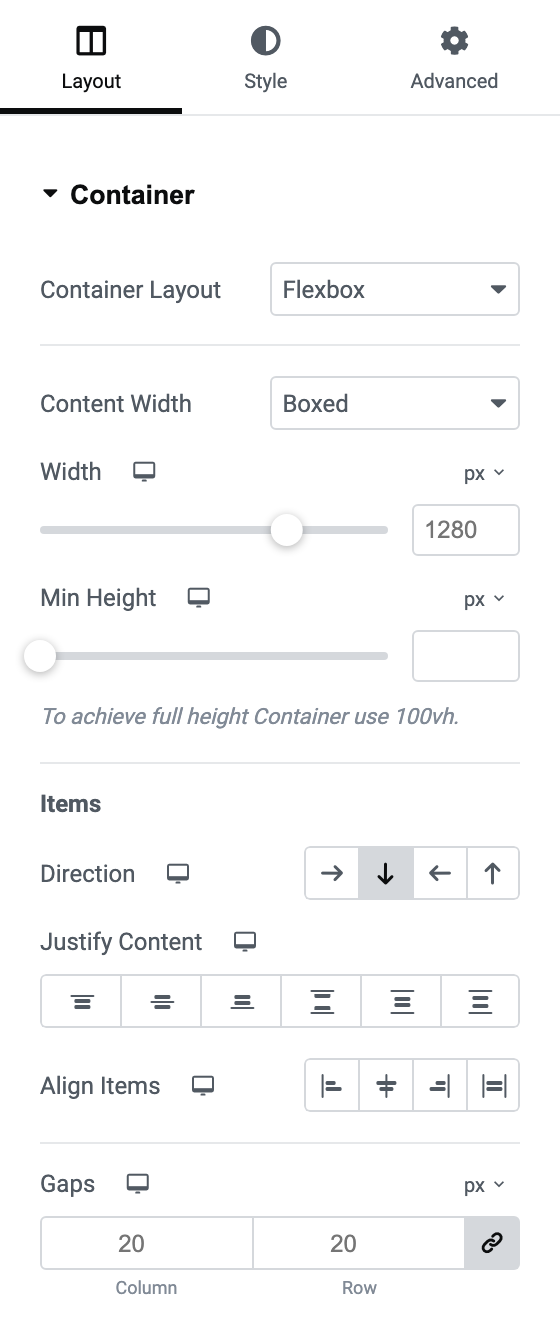
Leave Content Width on Boxed, its default. A boxed container keeps your blocks to the Content Width you set in Site Settings, 1280, in line with the header. Full Width stretches it to the edges of the screen.
Gaps, lower in the same panel, is the space between the blocks inside the container. It already reads 20 from Site Settings, so there is nothing to change.
-
After you create a container, you can drag and drop blocks into it.
Create a Section with Inner Section:
Columns inside a row come from containers inside a container. Elementor hides the old Inner Section block from the panel while containers are on, and a nested container does the same job.
-
Under Select your structure, choose a structure with columns, such as two halves. Elementor builds an outer container with one inner container per column.

-
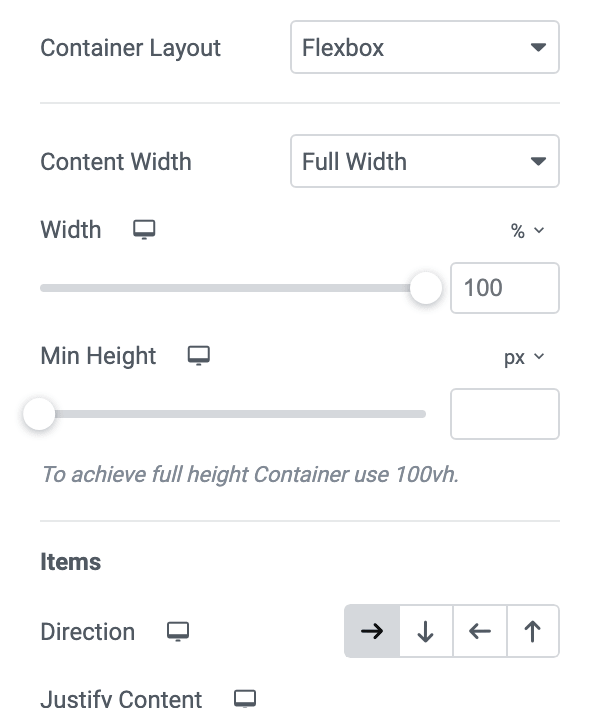
Click an inner container to see its Layout tab. Its Content Width is Full Width and its Width is a percentage of the row. Change Width to make a column wider or narrower.
-
For a column split again, drag a Container from the Layout category of the widget panel into that column.
-
After you create the columns, you can drag and drop blocks into them.
The structure picker sets the outer container's Gaps to 0, and each inner container keeps Elementor's default padding of 10px, so blocks in neighbouring columns sit 20px apart. Leave the outer Gaps at 0 to avoid large spacing in your layout.
Create a section has a sidebar:
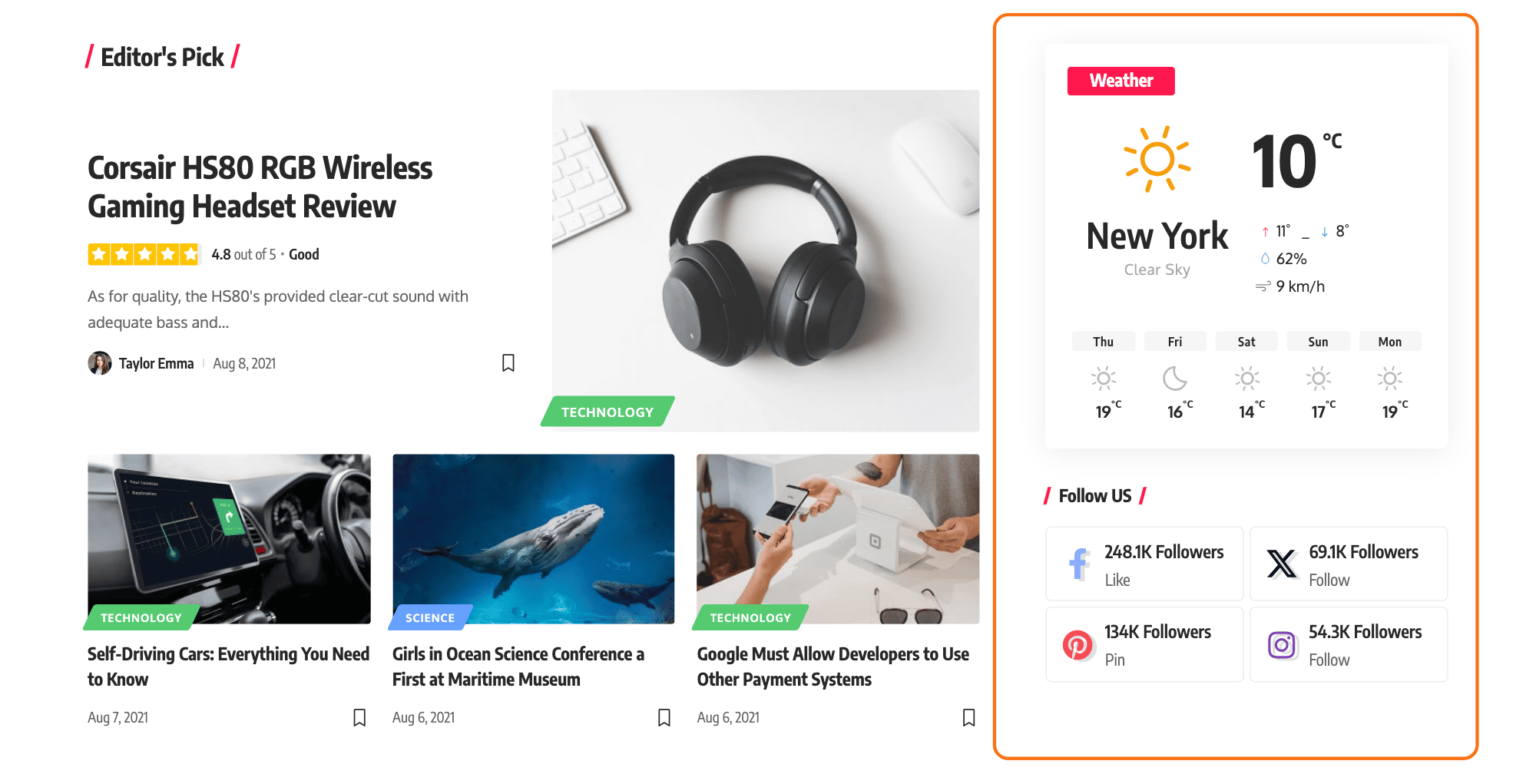
This section will show any sidebar at the left or right of content: 66.7% width of content + 33.3% width of the sidebar.
-
Under Select your structure, choose two halves.
-
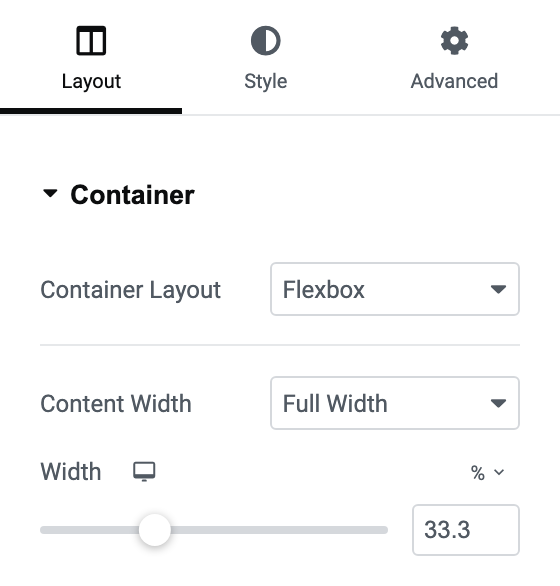
Click the content column and set its Width to 66.7 (%). Click the sidebar column and set its Width to 33.3. The sidebar is whichever column you make narrow, left or right.
-
On the sidebar column, open the Advanced tab.
-
Input is-sidebar into the CSS Classes field, and rb-sticky to make it sticky. Please read this article for further information
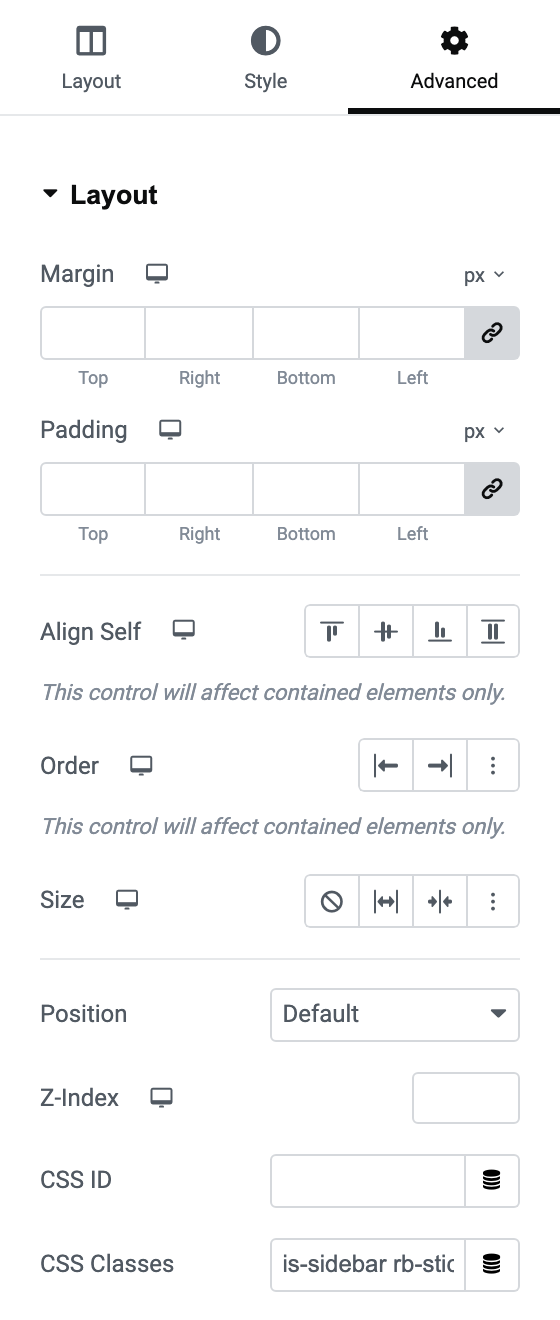
Both classes go in the same CSS Classes field, separated by a space:
is-sidebar rb-sticky.is-sidebardoes one specific thing: between 768px and 1024px wide, which is tablet, it caps the sidebar at 420px and centres it. It changes nothing on desktop, where the widths from step 2 are already doing the work. -
The two columns already sit 20px apart, because each keeps Elementor's 10px default padding. For more room, raise the sidebar column's left Padding, in the Layout section of the same Advanced tab, to 20 or more, depending on your design.
-
After you create the columns, you can drag and drop blocks into them.
If you raised the sidebar's left padding, set it back on tablet and mobile devices.
The Padding field in step 5 is responsive: switch the editor to the tablet and mobile views with the device icons and set it there. is-sidebar handles the width on tablet but it does not touch your padding.
Displaying a page build with Elementor as the Homepage (Front page):
To set up the homepage to show the page you created, follow this article.
Did this answer your question?