The Foxiz Call to Action Block in Elementor
Foxiz - Call to Action is a promotional panel: an image, a heading, a paragraph and up to two buttons, with the image placed on any of the four sides of the text. It sits in the Foxiz - Element category of the Elementor panel, and searching for "call", "action" or "button" finds it.
It is a different thing from Call to Actions - Ruby, which is a block for the WordPress post editor rather than for Elementor. This article is about the Elementor one.
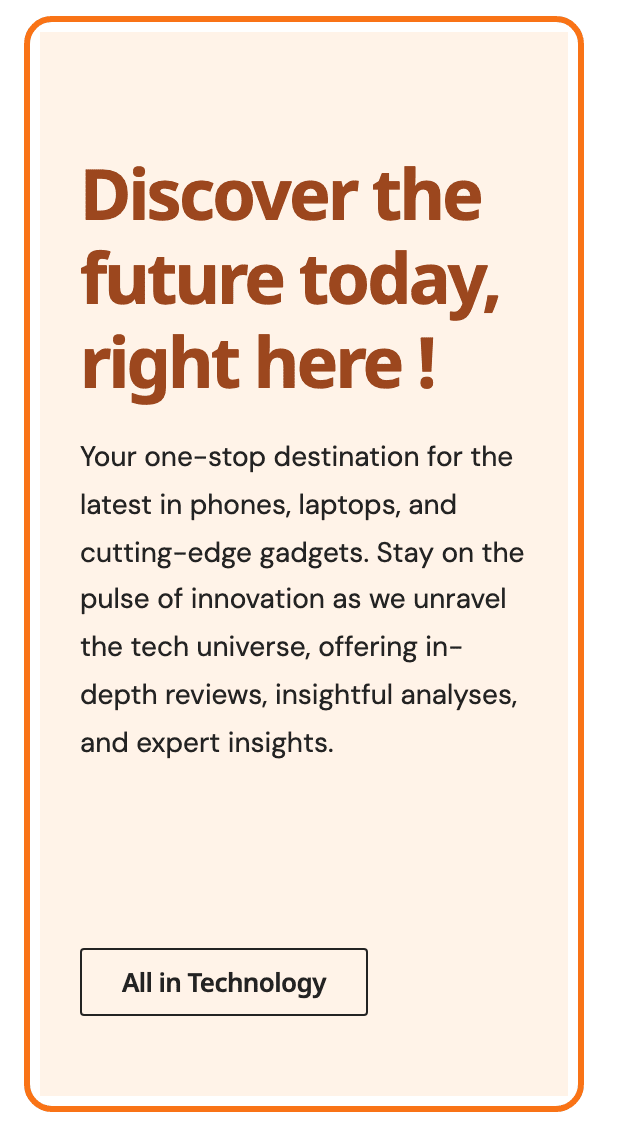
Two things to expect from a block you have just dragged in:
- The heading and paragraph arrive holding placeholder text, so there is something on screen at once.
- No image is drawn until you choose one. The Choose Image field arrives holding Elementor's grey placeholder, which is not an item in your media library, and the block only draws a picture it can find there.
Putting one on a page
- Open the page with Edit with Elementor.
- Search the panel for Call to Action, or scroll to the Foxiz - Element category.
- Drag it onto the canvas and replace Heading and Description.
- Open the Image section and pick a real picture in Choose Image.
- Open the Buttons section and fill in a Label and a Link for at least one button.
- Set Image Position on the Style tab, then Publish.
Content tab: Content
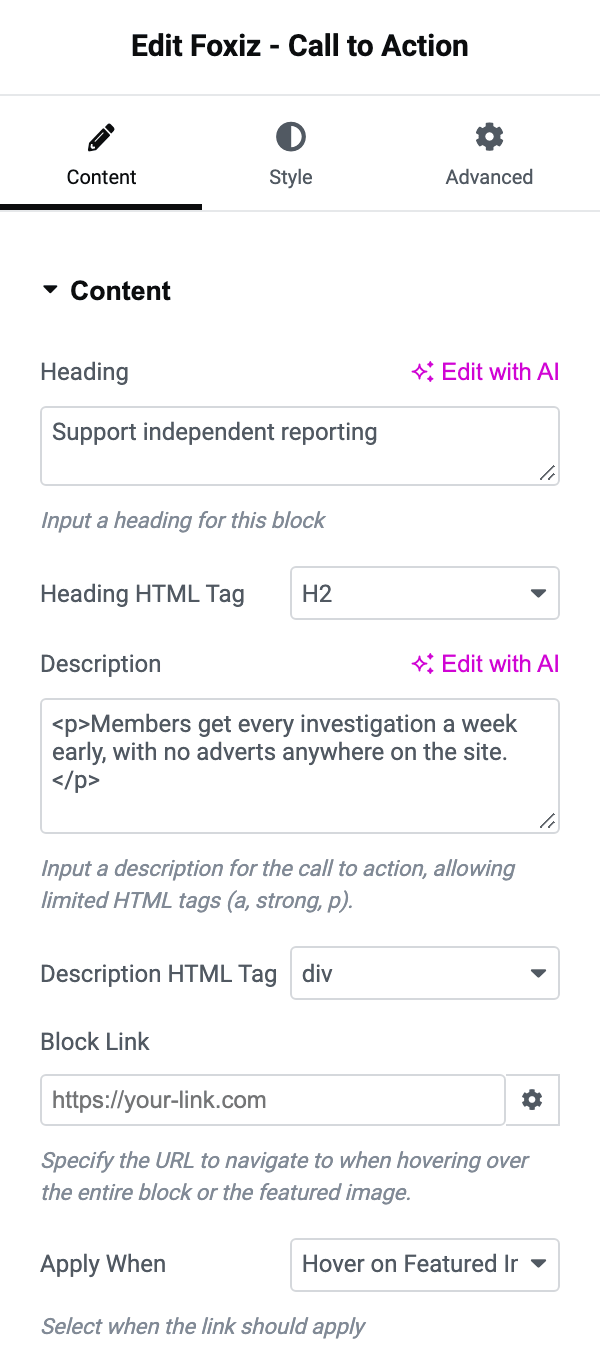
- Heading holds "Add Your Heading Text Here" by default. Inline HTML survives, so bold, italic, a link or an icon tag inside the heading all work.
- Heading HTML Tag runs from H1 to H6 and then the
span,divandptags. Its default is H2. There is no - Default - entry. - Description holds a paragraph of filler by default. The panel's hint names links, bold text and paragraphs; lists and subheadings are kept too, so a short bulleted list of benefits works here. Clear the field and no paragraph is drawn.
- Description HTML Tag offers the same list. Its default is
div. Usedivwhen the description holds paragraphs or a list of its own. - Block Link is a destination for the panel as a whole, separate from the buttons. It is empty by default.
- Apply When decides how far that link reaches, offering Hover on Featured Image and Hover over the Entire Block. It opens on Hover on Featured Image, which links the picture only. On Hover over the Entire Block an invisible link covers the whole panel and the picture stops being a link of its own.
Content tab: Image
- Choose Image is the picture. It arrives holding Elementor's placeholder and draws nothing until you pick something from your media library.
- Dark Mode - Choose Image is a second picture for readers in dark mode, and it arrives holding the same placeholder. Choose one and both images are put on the page, with the browser showing whichever matches the reader's mode; leave it as it arrived and the one picture serves both, so unlike Foxiz - Image there is nothing to clear here. This is the field for a logo or a diagram that needs inverting.
- Image Size lists your registered crops with their dimensions, then the four WordPress core sizes. Its default is - Default -, which uses the full upload. On a panel where the picture is a third of the width, a registered crop is the cheaper choice.
Content tab: Buttons
The section holds two groups under headings, Secondary Button first and Primary Button second, with the same two fields in each:
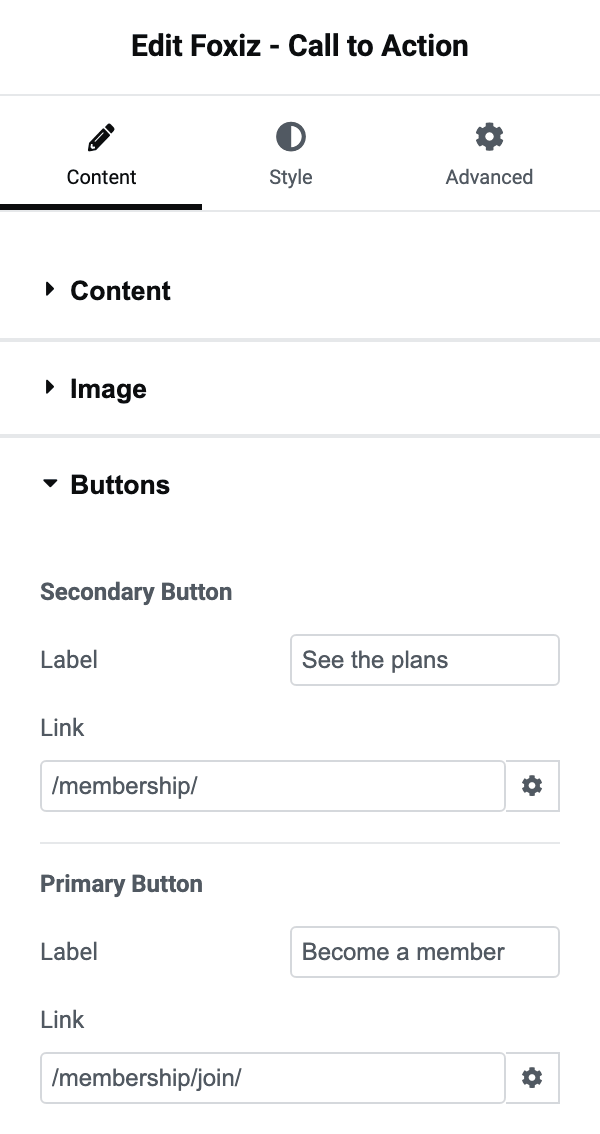
- Label is the text on the button. Both are empty by default.
- Link is where it goes, and it is the field that decides whether a button exists. Both are empty by default.
With both Link fields empty no buttons are drawn at all, whatever the labels say. A Label filled in while its own Link is empty comes out as plain text rather than a button, so fill in the pair or neither.
The secondary button is printed first and the primary second, so on the page the primary is the one on the right. If you only want one button, use Primary Button.
Style tab: Content
The section opens with three fields for the text block as a whole:
- Alignment offers Left, Center and Right, per device.
- Vertical Align offers Top, Middle and Bottom. It is where the text sits against a tall picture. It only does anything while Image Position is Left or Right.
- Max Width caps the text column in pixels, per device. It is how you stop a long paragraph running the full width of a wide section.
Then a Heading group:
- Typography is the full font group for the heading.
- Color and Dark Mode Color are the heading's colour in each mode. Both are empty by default.
- Spacing (px) is the gap under the heading. Its default is 10.
Then a Description group with Typography, Color and Dark Mode Color for the paragraph.
Style tab: Image
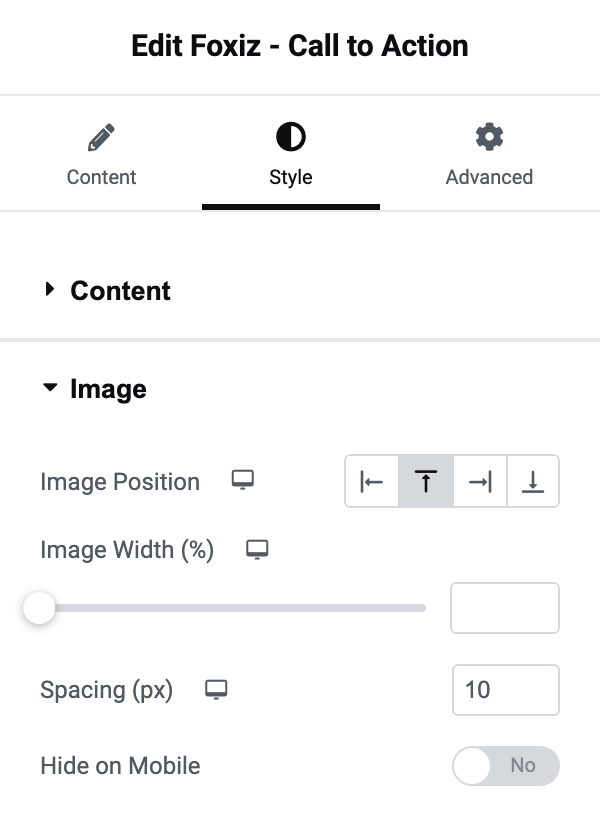
- Image Position offers Left, Top, Right and Bottom, defaults to Top, and can be set per device: picture beside the text on desktop, above it on mobile.
- Image Width (%) is a slider from 5 to 100 percent, per device, and it is how much of the panel the picture takes.
- Spacing (px) is the gap between the picture and the text, per device. Its default is 10.
- Hide on Mobile is a switch that drops the picture on phones and leaves the text full width.
Then a Normal and a Hover tab:
- Opacity appears on both tabs, running from 0.1 to 1. Setting the normal one below 1 and the hover one to 1 gives a picture that brightens when the reader points at it.
- CSS Filters appears on both tabs too, holding Blur, Brightness, Contrast, Saturation and Hue. A common pairing is a saturation of 0 on Normal and 100 on Hover, which makes a grey picture turn colour under the pointer.
- Transition Duration, on the Hover tab, is how long that change takes, in seconds or milliseconds. Without it the change is instant.
- Hover Animation, also on the Hover tab, is Elementor's own list of movements: grow, shrink, float and the rest.
Three more fields close the section, under the two tabs:
- Border Type, Border Width and Border Color put a frame round the picture.
- Border Radius rounds its corners, in pixels, percent or ems, per device. At 50 percent on a square picture you get a circle.
- Box Shadow drops a shadow behind it.
Style tab: Buttons
This section is about the pair together.
- Button Group Width offers Inline (side by side) and Stacked (full width). Its default is Inline (side by side). Stacked (full width) is the one to pick for a narrow panel or a sidebar.
- Min Button Width (px) appears only on Inline (side by side) and gives both buttons the same minimum width, which is what stops a short label producing a tiny button beside a wide one.
- Spacing (px) is the gap between the paragraph above and the buttons, per device. Its default is 10.
- Gap is the space between the two buttons, per device. Its default is 5.
- Border Radius rounds both buttons, in pixels, percent or ems, per device.
Style tab: for Secondary Button and for Primary Button
Two sections, for Secondary Button and for Primary Button, with identical contents. Style one and copy your values across.
Three fields sit above the tabs:
- Typography for the label.
- Border Type, Border Width and Border Color for the button's own frame. This is where the light mode border colour lives; the tabs below only carry a border colour for dark mode and for hover.
- Button Padding, with a value per side, in pixels, percent or ems, per device.
Then a Normal tab and a Hover tab, each split into a Default Mode group and a Dark Mode group.
On the Normal tab:
- Default Mode holds Color for the label, a Background Type and a Box Shadow. Background Type offers Classic and Gradient. Its default is Classic.
- Dark Mode holds Color, Border Color and its own Background Type.
On the Hover tab:
- Default Mode holds Color, Border Color, a Background Type and a Box Shadow.
- Dark Mode holds Color, Border Color and a Background Type.
- Transition Duration and Hover Animation close the tab, and they apply to this button only, not to the picture.
Set a hover colour on both tabs of the pair you use. A button with a Default Mode colour and no Hover colour keeps its normal colour under the pointer, which reads as an unresponsive button.
When something does not appear
- No picture. Choose Image is still holding its default placeholder; pick one from your media library.
- No buttons. Both Link fields are empty. Labels alone are not enough.
- A button label showing as plain text. That Label has no Link.
- Vertical Align doing nothing. Image Position is Top or Bottom; the setting only applies beside a picture.
- The picture is no longer clickable after you set Apply When to Hover over the Entire Block. That is the setting's job: the link moved to the whole panel.
Did this answer your question?