Demo Importer
Turns your site into a copy of one of the Foxiz demo websites: its pages, posts, menus, widgets and Theme Options. You then replace the demo content with your own.
Where: Foxiz > Demo Importer.
The page needs an active license. Without one it is not in the menu, and an import is refused with "An active Foxiz license is required to import demo content." An expired subscription cannot import either.
For the walk through, step by step, see Install Demo Content.
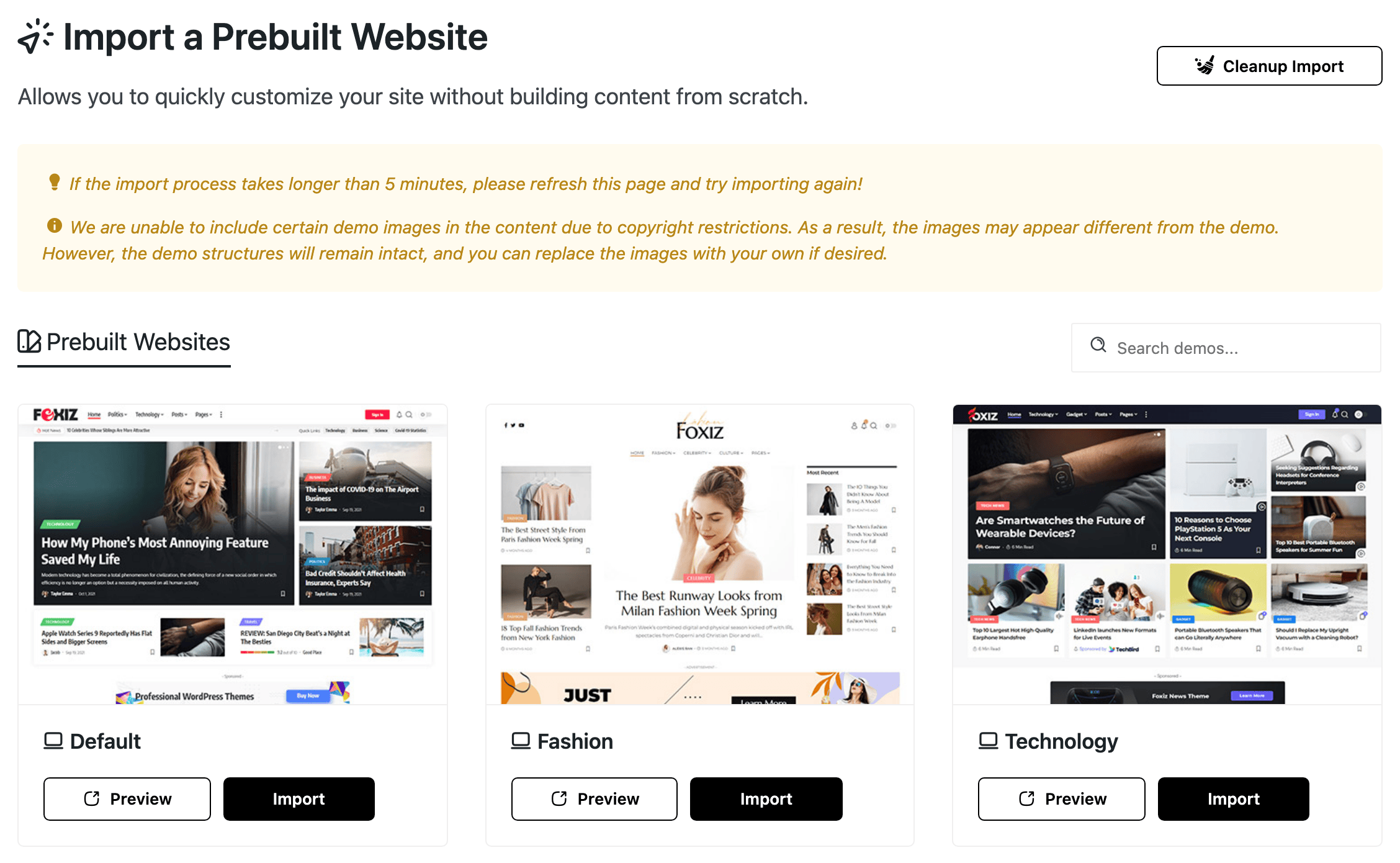
The top of the page
Cleanup Import, at the top next to Import a Prebuilt Website, removes what earlier imports added. See Cleanup Import below.
Before you import
- Your pictures will not all match the demo. Some demo photos are copyrighted, so they are left out of the import. You get the same layouts and blocks, and you replace those pictures with your own.
- An import that seems stuck. Most imports finish in a few minutes. If yours is still running after 5 minutes, refresh the page and start the import again.
Prebuilt Websites
Each website is a card with two buttons:
- Preview: opens the live demo in a new tab.
- Import: opens the import dialog for this website.
A website you have already imported is marked Imported.
Type in Search demos... to filter the cards by name.
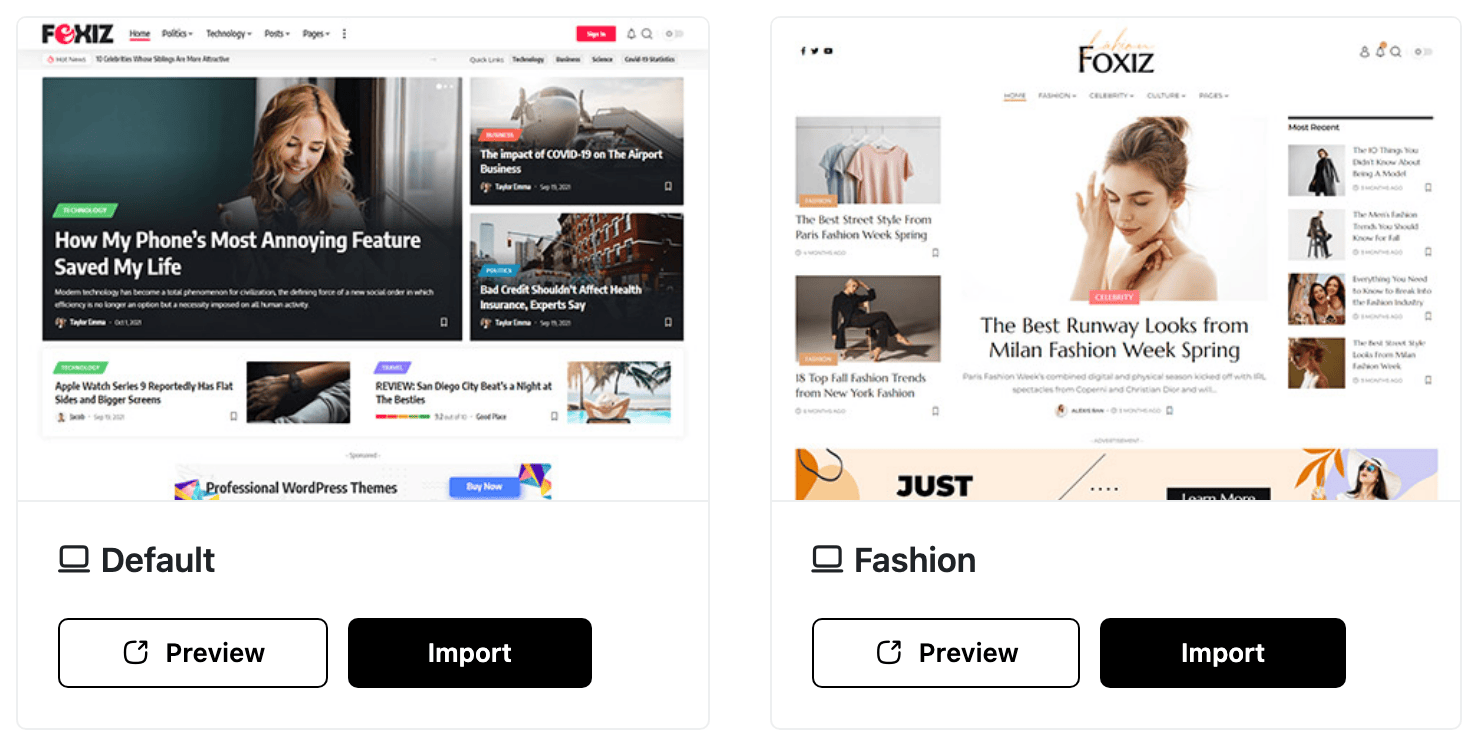
A new demo not there yet? The list comes from the Foxiz store and updates once a day. To fetch it now, click the round refresh button at the right of the tab bar and confirm.
If the grid is empty and says "Something went wrong", click that same refresh button. If it stays empty, contact support.
The prebuilt websites
There are over 60 prebuilt websites, from news and magazines to food, travel, gaming and podcasts. Preview any of them before you import. New ones are added over time.
The import dialog
Click Import on a card. The dialog has two steps, then shows the progress.
Step 1: Import Content
Choose what to bring in. Everything except Pure Installation is ticked when the dialog opens.
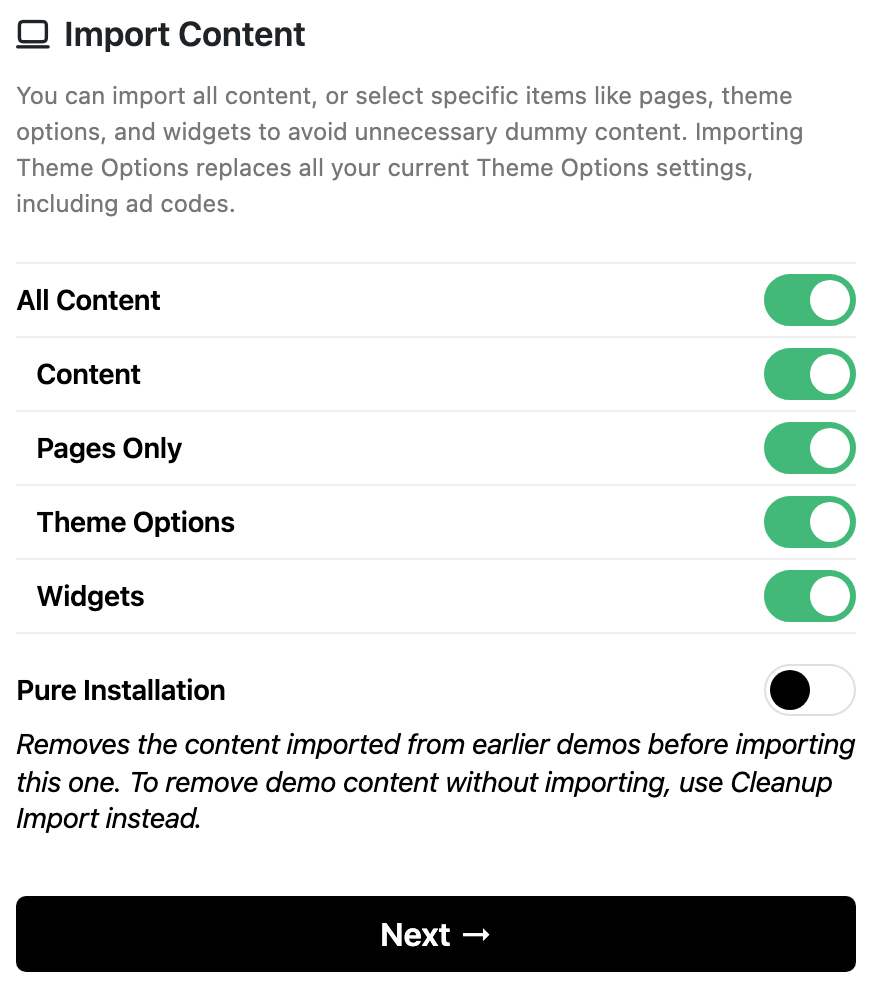
What to pick:
- A new site: keep the defaults.
- A site with your own posts: untick Content and keep Pages Only, so you get the layouts without the demo's posts.
- A second demo over one you imported before: also tick Pure Installation. It deletes the first demo's posts, pages, media, comments, categories, tags and menus, which would otherwise stay beside the new ones.
- All Content: everything below. Switching it off switches all four off; switch the ones you want back on.
- Content: the demo's posts, pages, menus, categories and media. It includes the pages, so Pages Only has no extra effect while this is on.
- Pages Only: only the demo's pages and templates, without the posts. Use it to get the layouts on a site that already has its own posts.
- Theme Options: the demo's Theme Options. They replace all your current Theme Options, ad codes included. Back yours up first if you want them later.
- Widgets: the demo's sidebar and footer widgets. It empties every sidebar first, so widgets you placed yourself are removed, in any sidebar. Untick it on a site whose sidebars you have already set up.
- Pure Installation: deletes what earlier Foxiz imports added before importing this one. Your own posts and pages are not touched. To remove demo content without importing, use Cleanup Import instead. Off by default.
Next stays greyed out until at least one item is ticked.
Step 2: Required Plugins
The plugins this website was built with. Each carries a tag:
- Required: needed for the website to look and work like the demo. Ticked.
- Recommended: used by some parts of the demo. Ticked.
- Optional: can be skipped. Not ticked.
A plugin that is already active shows Activated, and its switch is locked on.
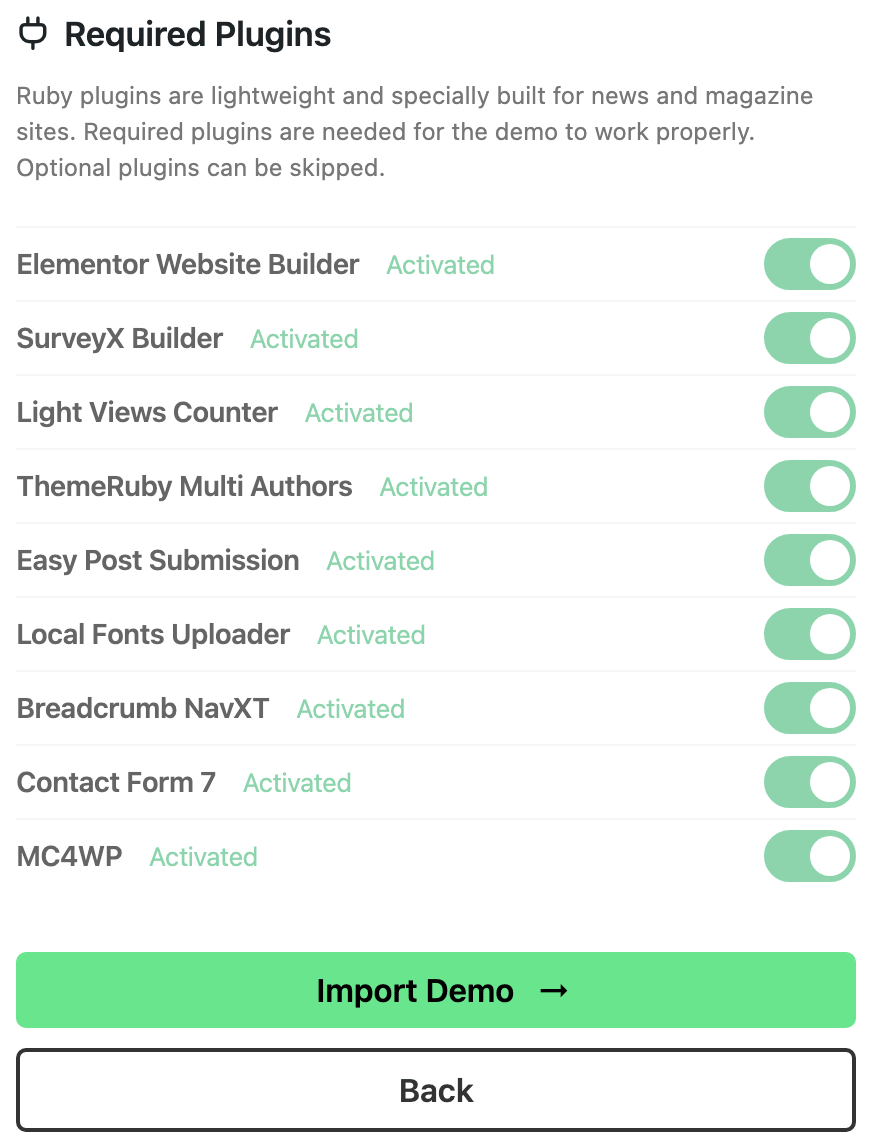
- Import Demo: installs and activates the ticked plugins, then imports.
- Back: returns to step 1.
Building the website
Wait for the progress bar to finish. An import usually takes 1 to 5 minutes, depending on your server, and the dialog stays open until it is done.
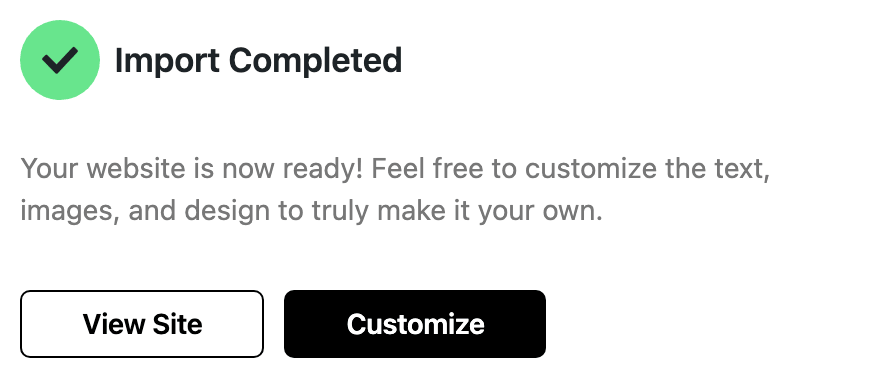
When it finishes, Import Completed offers two buttons:
- View Site: opens your home page in a new tab.
- Customize: opens Theme Options.
If it fails, the dialog shows Error! with two buttons:
- Try Fixing Import: refreshes the site's connection to the store and runs the same import again.
- Reload: reloads the Demo Importer.
For timeouts and other failures, see Install Demo Content.
What an import changes besides the content
When Content or Pages Only is ticked, the import also sets up the site around it:
- Your home page becomes the demo's home page. A page named Blog becomes the posts page. A demo without a home page sets the front page back to your latest posts.
- Your menu locations get the demo's main menu, mobile menu and mobile quick access menu.
- WooCommerce pages are created when WooCommerce is active.
Every import also switches on two Elementor features the layouts need: Container and Optimized Markup.
Your own settings changed, or the site got slow after the import? See My Settings Changed After a Demo Import and Site Is Slow After Importing a Demo.
Cleanup Import
Click Cleanup Import at the top of the page. The Clear Importer Content dialog offers two buttons.
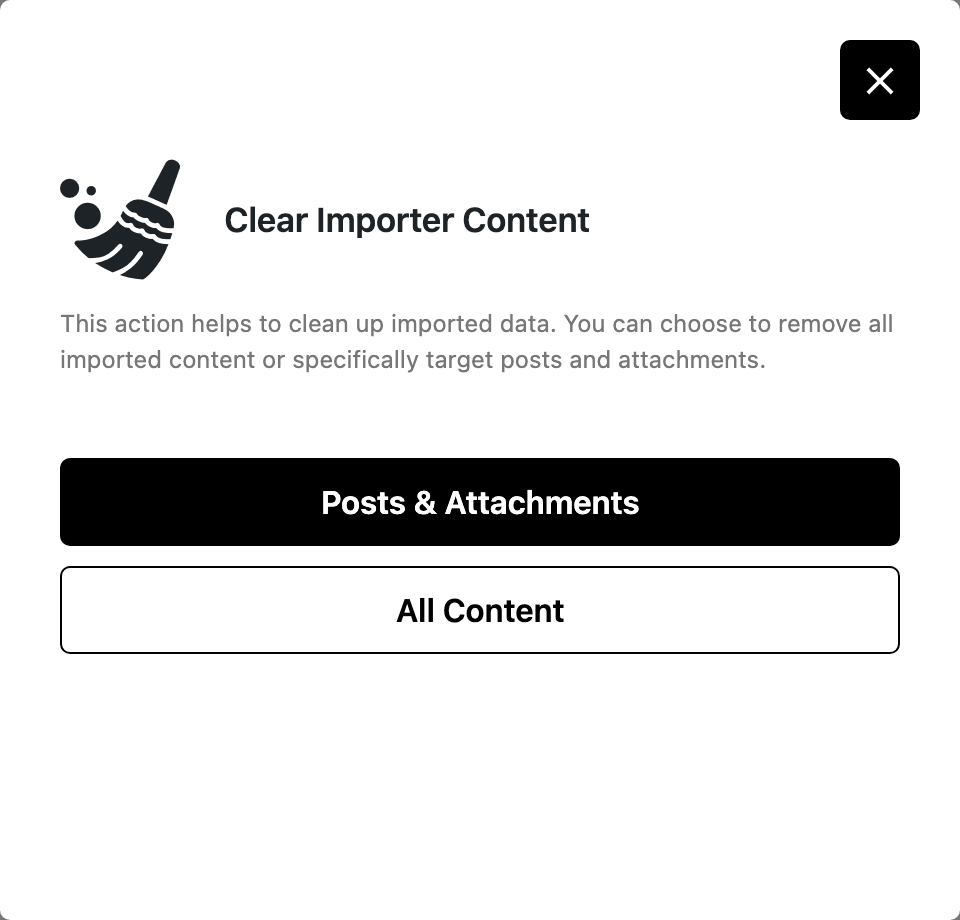
- Posts & Attachments: deletes the imported posts and images, with the imported categories, tags and comments. The imported pages and menus stay.
- All Content: deletes everything the imports created, pages and menus included. A demo menu you added your own items to is kept. A deleted menu is taken out of its menu location.
Both delete only what a Foxiz import created. Your own posts, pages and menus are never on that list.
Neither button undoes the imported Theme Options or widgets.
When it is done, Import Data Cleanup Finished offers View Site.
Related
- Install Demo Content: the import, step by step, and what to do when it fails.
- Install Default Plugins
- Dashboard: the refresh button and the plugin lists.
Did this answer your question?