The Foxiz Search Taxonomies Block in Elementor
Foxiz - Search Taxonomies is a search field that looks for taxonomy terms rather than posts. It sits in the Foxiz - Element category of the Elementor panel, and searching for "search", "form", "category", "taxonomy" or "follow" finds it.
The visitor types a letter, and a panel opens under the field holding the matching terms: each term's featured image, its name as a link to its archive, a line under the name, and a follow control if you have asked for one. It is not a form that goes anywhere. There is no submit button, and the results only ever appear in that panel, so this is the block for a "browse by topic" page rather than a replacement for your site search.
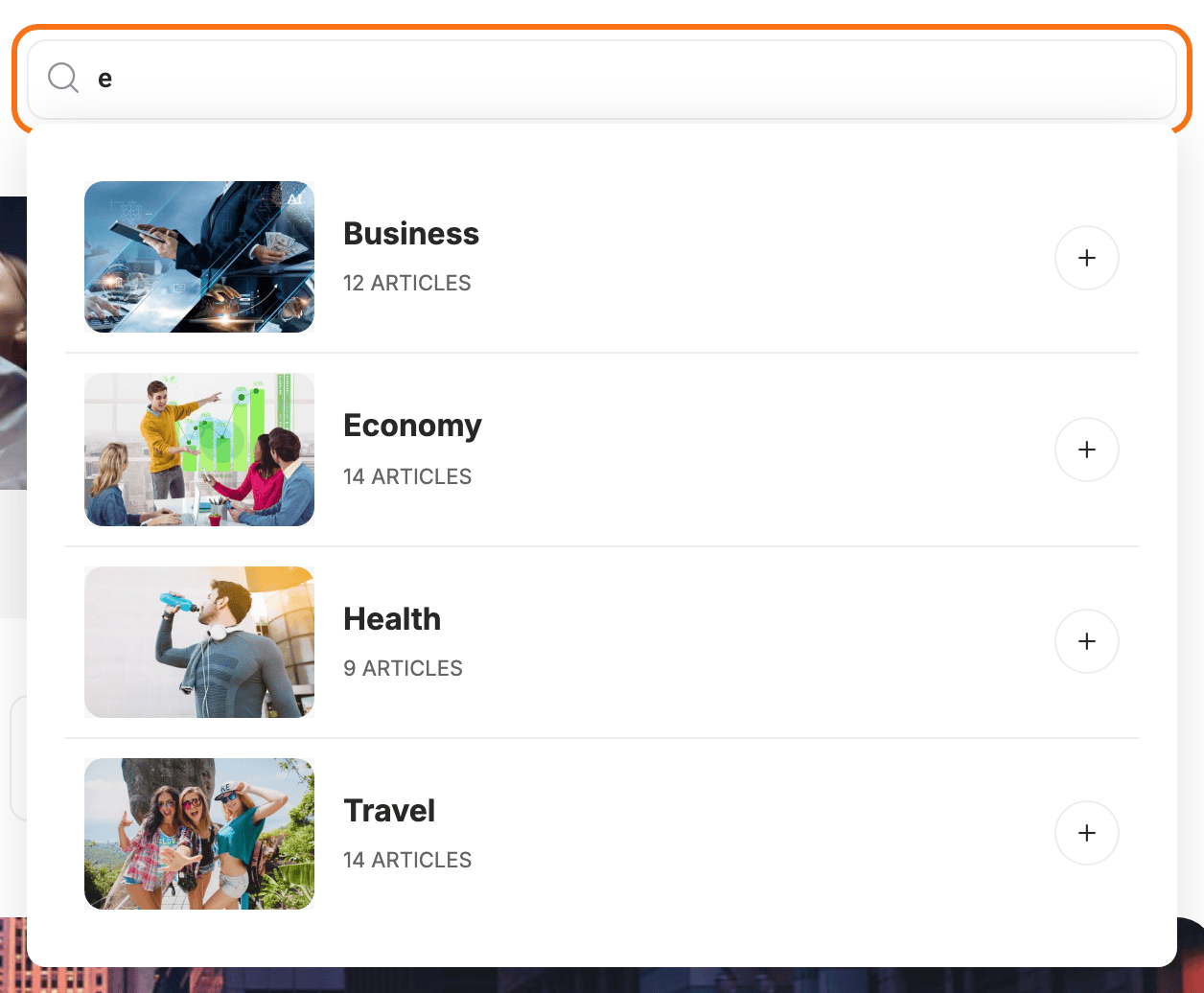
One typed character is enough to start a search. The request goes out about a third of a second after the last key, and clearing the field closes the panel again.
Putting one on a page
- Open the page with Edit with Elementor.
- Search the panel for Search Taxonomies, or scroll to the Foxiz - Element category.
- Drag it onto the canvas. It works straight away, searching your categories.
- To search anything other than categories, fill in Search by Taxonomy Keys on the Content tab.
- Adjust the four Style sections if you need to, then Publish.
Content tab
The block's one Content section is General:
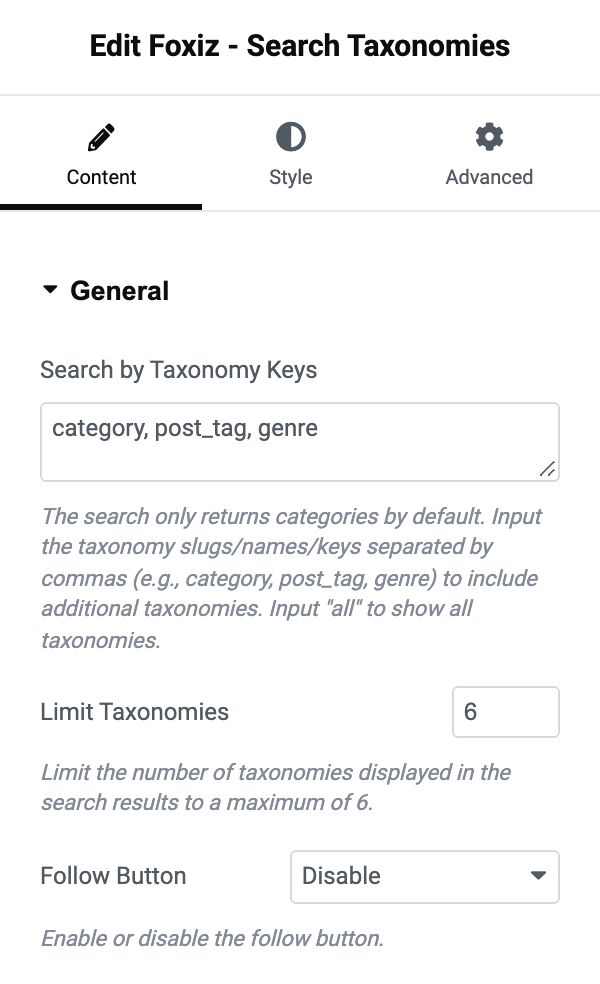
- Search by Taxonomy Keys decides what the search looks in. It is empty by default, which searches your categories and nothing else. Type taxonomy keys separated by commas to widen it,
category, post_tag, genrefor example, or the single wordallto search every public taxonomy on the site. A key is the string aftertaxonomy=in the address bar when you are on that taxonomy's term list. - Limit Taxonomies is how many results the panel shows. It is blank by default, which gives four, and six is the ceiling: type a bigger number and you still get six.
- Follow Button offers Enable and Disable. Its default is Disable. On Enable every result carries a follow control, so a visitor can search for a topic and subscribe to it without leaving the page.
Follow Button needs the Personalized System switch at Theme Options > Personalized System > Global, which is on by default, and the control is never drawn on an AMP page.
Two things this block will not return, whatever you type in Search by Taxonomy Keys: a term with no published posts in it, and a term from a taxonomy that is not public. Ask for a private taxonomy by name and the panel shows its "nothing matched your search terms" message rather than the terms.
Style tab: General
The first of four Style sections is also called General, and it holds the field itself:
- Search Form Placeholder is the grey prompt inside the empty field, and by default it holds "Search by Category..". Change it when you have widened the search past categories, because the prompt does not follow Search by Taxonomy Keys.
- Border Radius rounds the field, in pixels.
- Search Icon replaces the magnifying glass with an icon of your own. It takes the file URL of an SVG from your media library, not a class name, and the panel shows the shape of that URL as a hint.
- Icons Font Size sets the icon's size in pixels.
- Input Font is the typography group for what the visitor types.
- Text & Icons Color and Dark Mode - Text & Icons Color colour the typed text and the icon together, in each mode. Both are empty by default.
Style tab: Input Form
- Form Style offers - Default -, Underline, Bold Underline, Gray Background and None. Its default is - Default -. None strips the field's own decoration, which is what you want when the field sits inside a box you have styled yourself.
- Form Style Color and Dark Mode - Form Style Color colour whatever Form Style drew: the underline, or the background.
Style tab: Popup Section
This is the panel that opens under the field.
- Inner Padding is the padding inside the panel, per device, with a value per side.
- Background Gradient (From) and Background Gradient (To) are the two ends of the panel's background: the first is the colour at the top, the second at the bottom. Set both to the same colour for a flat background.
- Dark Mode - Background Gradient (From) and Dark Mode - Background Gradient (To) are the same pair for dark mode.
Style tab: Live Search Results
This section is about one result row.
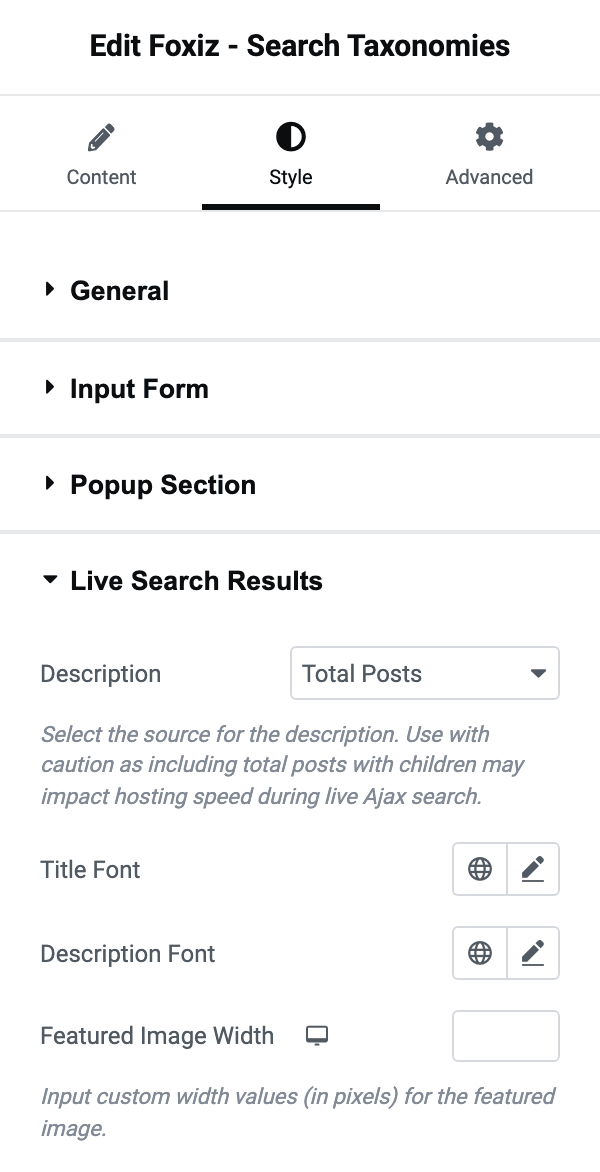
- Description is the line printed under each term's name. Its default is Total Posts. Taxonomy Description prints the term's own description instead, trimmed to 12 words. Total Posts Include Children counts the posts of child terms into the number. None prints no line at all.
- Take the panel's warning about Total Posts Include Children seriously. Every keystroke is a request, and counting children makes each one more expensive on a site with deep category trees.
- Title Font is the typography group for the term name, which is drawn as an H4.
- Description Font is the typography group for the line under it.
- Featured Image Width sets the width of each result's picture in pixels, per device. The picture is the term's own featured image, set on the term rather than here.
- Text Color Scheme offers Default (Dark Text) and Light Text. Its default is Default (Dark Text). Switch it to Light Text when you have given the popup a dark background above.
When it finds nothing
- The term has no published posts. Empty terms are never returned, so a taxonomy you have just created looks like a broken search.
- The key in Search by Taxonomy Keys is spelled differently from the real one, or names a taxonomy that is not public. Either way the panel shows its no results message.
- You are looking for a post rather than a term. This block searches terms only; a post search box is a different block.
Did this answer your question?