The Foxiz Taxonomies List Blocks in Elementor
A taxonomies list block draws a card per category, tag or custom taxonomy term: the term's featured image, its name, and the number of posts in it. There are six numbered blocks, all in the Foxiz - Element category of the Elementor panel, and this page covers all six. Foxiz - Taxonomies List 2, Foxiz - Taxonomies List 3, Foxiz - Taxonomies List 4 and Foxiz - Taxonomies List 6 are walked control by control. Foxiz - Taxonomies List 1 and Foxiz - Taxonomies List 5 have the same Content and Layout tabs, and the four bullets below give their Style differences.
Searching the panel for "category", "tag", "tax" or "follow" finds all of them, because every one carries those keywords.
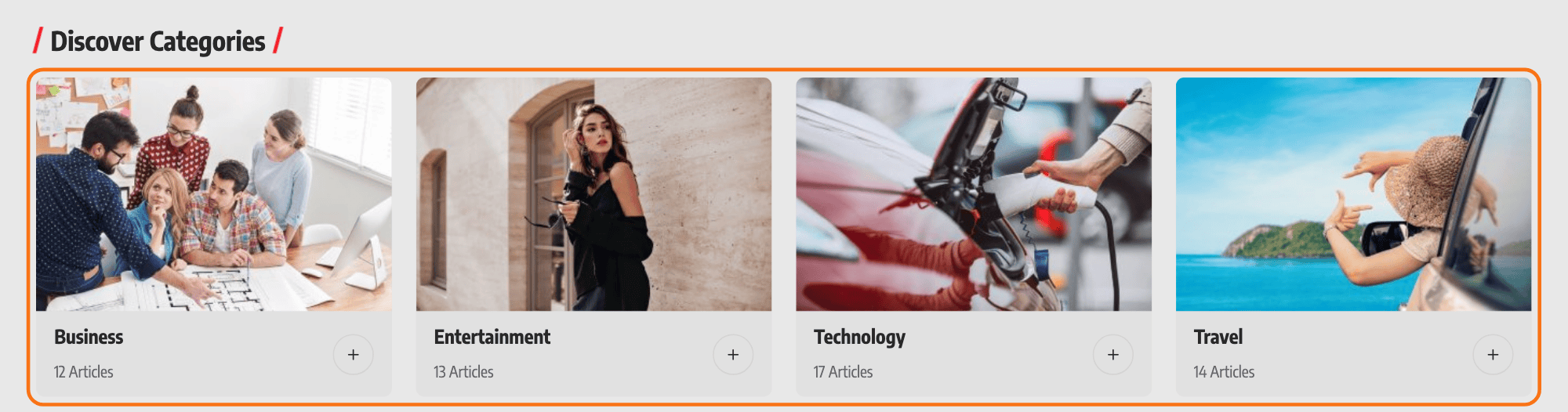
All six share one Content tab, so everything below applies to every one of them. They differ on the Style tab, and the sections below say which block has which control. On Layout the first five are the same, and Foxiz - Taxonomies List 6 has a Spacing section of its own in place of Columns. List 1 and List 5 have no sections of their own below. Here is how their Style tab compares with List 2 and List 4:
- Foxiz - Taxonomies List 2 has Colorful Gradient, the wash of colour over the image.
- Foxiz - Taxonomies List 4 has no gradient, because its text sits below the image.
- Foxiz - Taxonomies List 1 swaps the gradient for Text Color Scheme.
- Foxiz - Taxonomies List 5 takes Text Color Scheme too, and offers Image Width in place of Custom Featured Ratio, so you set a width rather than a shape. It has no Rounded Corner section.
Putting one on a page
- Open the page with Edit with Elementor.
- Search the panel for Taxonomies List, or scroll to the Foxiz - Element category.
- Drag the numbered block you want onto the canvas.
- Open the Taxonomies section on its Content tab and choose where the terms come from with Data Source.
- Adjust the Style and Layout tabs if you need to, then Publish.
Every block arrives holding one empty row in its Add Taxonomies repeater and no chosen term, so a block you have just dragged in draws nothing at all until you fill that row in or switch Data Source to Auto Load Taxonomy.
What each of the four draws
- Foxiz - Taxonomies List 2 fills the card with the featured image and prints the term name on top of it, over a gradient, with the post count under the name.
- Foxiz - Taxonomies List 3 is the same overlay card with the count above the name, and the term's own description under it, trimmed to 25 words.
- Foxiz - Taxonomies List 4 puts the featured image on top and prints the count and name below it rather than over it, with no gradient.
- Foxiz - Taxonomies List 6 draws a compact row instead of a card: a small image beside the name and count, the rows flowing across the width. It has no columns setting for that reason.
The other two look like this:
- Foxiz - Taxonomies List 1 is a card with the image, then the name and post count, with the follow button beside them.
- Foxiz - Taxonomies List 5 is an image you size by width, with the follow button placed on the image.
The image on every card is the term's own featured image, which you set on the term rather than in Elementor: open Posts > Categories, edit the term, and use the Featured Images tab of the Foxiz Category Settings box. Tags and custom taxonomy terms have the same tab in their own boxes. When a term has two images saved, these blocks use the first.
Content tab: User Followed
This section turns the block into a personalised list: instead of the terms you picked, it shows the terms this visitor has followed. It is off by default.
- Show Followed offers Categories, Tags, All Taxonomies and Disable. Its default is Disable. On any of the other three the visitor's followed terms are put in front of whatever the Taxonomies section supplies.
- or Show Followed by Taxonomy is a multi select of your public taxonomies and it wins over Show Followed whenever it holds anything. Use it when you want followed terms from one custom taxonomy only. It is empty by default.
- Follow Button offers Enable and Disable. Its default is Disable. On Enable each card gets a follow control the visitor can click.
- Display Mode offers - AJAX - and Direct. Its default is - AJAX -. On - AJAX - the cards are fetched after the page loads, which is what lets a cached page show a per visitor list. On Direct they are in the page's own HTML, and you then have to exclude that page from your cache plugin or every visitor sees the first visitor's list.
Two prerequisites, and neither is visible in Elementor:
- Show Followed, Follow Button and the follow control all need the Personalized System switch at Theme Options > Personalized System > Global. It is on by default. With it off, the follow buttons are not printed and Display Mode falls back to Direct whatever you chose.
- Display Mode only means anything while Show Followed is on. With Show Followed on Disable the block always renders directly, because there is nothing per visitor to wait for.
Content tab: Taxonomies
Data Source decides the whole section and offers three values. Its default is Manually Add:
- Manually Add uses only the rows you add below.
- Auto Load Taxonomy ignores those rows and fills the block from a whole taxonomy.
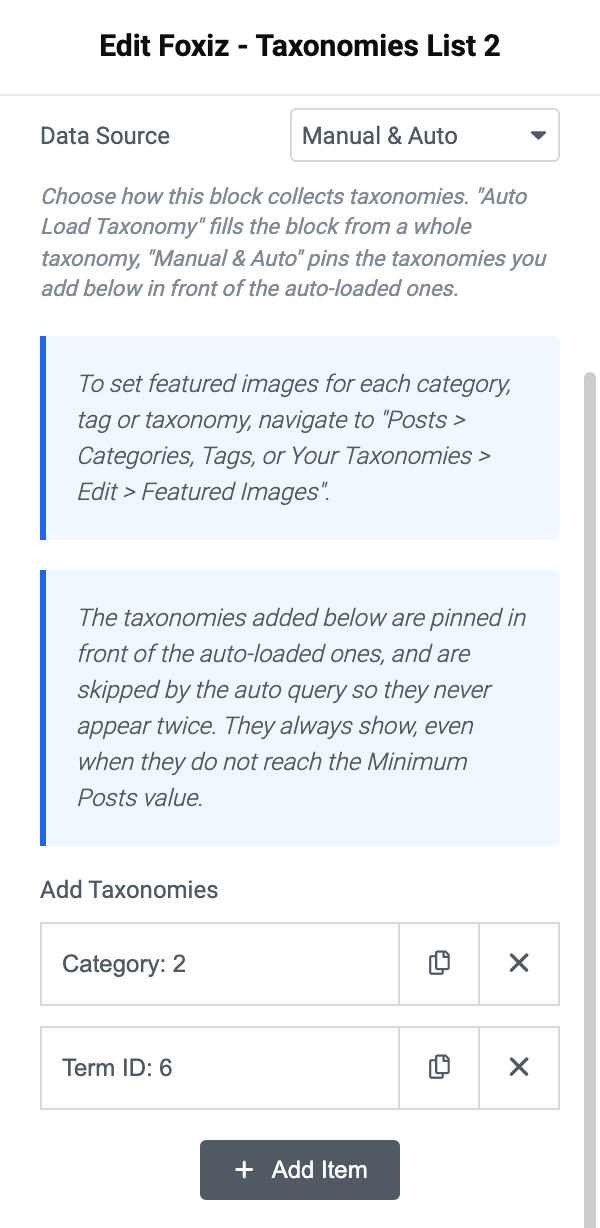
- Manual & Auto pins your rows in front and fills the rest automatically. The pinned terms are skipped by the automatic query, so none appears twice, and they show even when they do not reach Minimum Posts.
Add Taxonomies is the repeater, and it is visible on Manually Add and Manual & Auto.
Each row has three fields:
- Select a Category is a dropdown of your categories, opening on - Select a category -.
- or Term ID takes the numeric ID of any term instead, which is how you add a tag or a custom taxonomy term. A row with both filled in uses the ID. Where to find an ID shows where WordPress prints it.
- Add Custom Featured Image overrides the image saved on the term, for this block only. Leave it empty and the term's own Featured Images setting is used.
The rest of the section only appears on Auto Load Taxonomy and Manual & Auto:
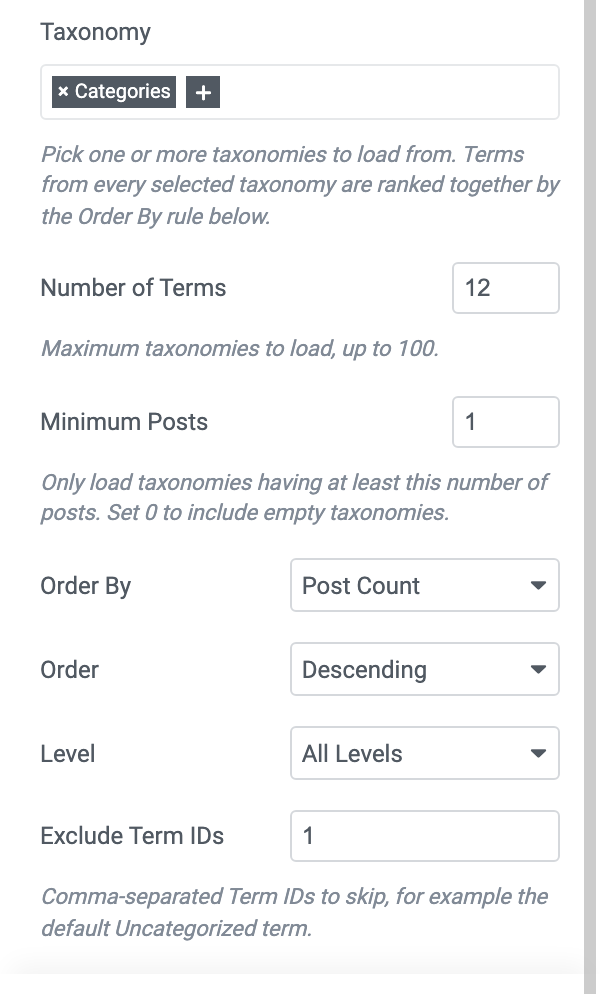
- Taxonomy is a multi select listing every public taxonomy by its own name, minus navigation menus and post formats, and by default it holds your categories. Terms from each taxonomy you pick are ranked together by Order By.
- Number of Terms defaults to 12 and accepts 1 to 100. Blank counts as 12.
- Minimum Posts defaults to 1, so empty terms are left out. Set it to 0 to include them, or higher to keep thin terms out of a homepage row.
- Order By offers Post Count, Name, Slug and Term ID. Its default is Post Count.
- Order offers Descending and Ascending. Its default is Descending, which with Post Count puts your biggest terms first.
- Level offers All Levels, Top Level Only and Direct Children of a Taxonomy. Its default is All Levels.
- Parent Term ID appears only on Direct Children of a Taxonomy and is required there: without a number in it the block loads nothing rather than falling back to the top level.
- Exclude Term IDs takes a comma separated list of IDs to skip, which is where the default Uncategorized term usually goes. The same ID lookup as or Term ID above gives you the numbers, and for Parent Term ID too.
Style tab: Block Design
Foxiz - Taxonomies List 2 carries the whole set. Foxiz - Taxonomies List 4 carries all of it except Colorful Gradient, because it prints its text below the image rather than over it.
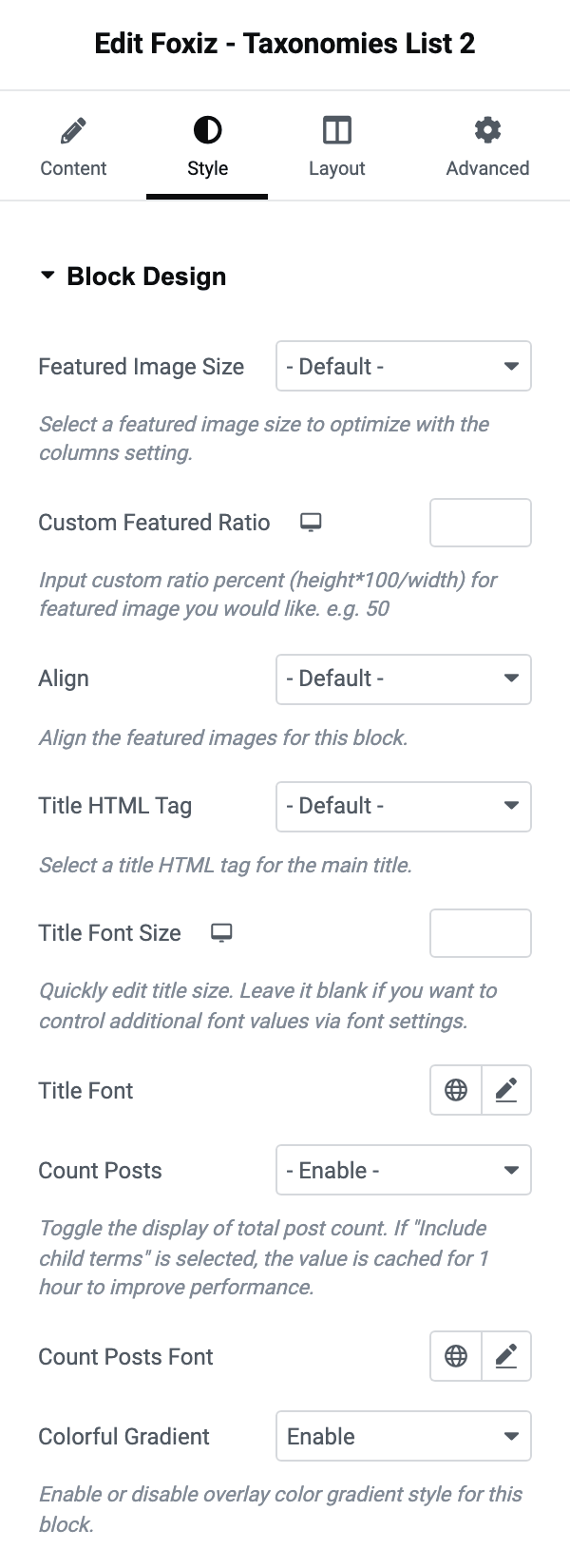
- Featured Image Size is the crop the card asks for, listing your registered sizes and then the four WordPress core sizes. Its default is - Default -.
- Custom Featured Ratio takes a percentage, height over width times 100, and can be set per device. 50 gives a card twice as wide as it is tall.
- Align offers - Default -, Top and Bottom, and decides which part of a tall photograph survives the crop. It only matters once you have set a ratio.
- Title HTML Tag runs from H1 to H6 and then the
span,divandptags. Its default is - Default -, which draws the term name as an H3. - Title Font Size sets the name's size in pixels per device, and Title Font is the full typography group for it. Leave the size blank if you want to control everything from the font group.
- Count Posts offers - Enable -, Include Children Taxonomies and Disable. Its default is - Enable -. Include Children Taxonomies adds the posts of child terms to the number and caches the result for an hour. A term whose total comes to zero prints no count at all.
- Count Posts Font is the typography group for that number.
- Colorful Gradient offers Enable and Disable. Its default is Enable. It is the wash of colour over the image that keeps the name readable, and Foxiz - Taxonomies List 4 does not have it, because it prints its text below the image.
Foxiz - Taxonomies List 3 has all of those and two more, because it is the one that prints the term description.
- Category Description offers Enable and Disable. Its default is Enable. On Enable the term's description is printed under its name, cut to 25 words; a term with an empty description prints nothing either way.
- Description Font is the typography group for it.
Foxiz - Taxonomies List 6 has a different set, because its picture is a small one beside the text rather than the card itself.
- Featured Image offers Enable and Disable. Its default is Enable. On Disable the row is name and count only.
- Featured Image Width sets that picture's width in pixels, per device.
- Align, Title HTML Tag, Title Font, Count Posts and Count Posts Font behave as above. The one difference: Title HTML Tag on - Default - draws an H4 here rather than an H3.
There is no Featured Image Size and no Colorful Gradient on Foxiz - Taxonomies List 6: its picture is always the small crop, and it has no overlay to wash.
Style tab: Rounded Corner
- Border Radius takes a number of pixels and rounds the card. Set 0 to keep the corners square.
- On Foxiz - Taxonomies List 6 the same section holds a second field, Featured Image Border Radius, for the small picture on its own.
Style tab: Text Color Scheme
Foxiz - Taxonomies List 6 has one extra Style section, Text Color Scheme, holding one field of the same name. It offers Default (Dark Text) and Light Text. Its default is Default (Dark Text). Switch it to Light Text when the block sits on a dark section.
Foxiz - Taxonomies List 2 and Foxiz - Taxonomies List 3 do not need it: their names sit on the image, in a panel that is already set to light text. Foxiz - Taxonomies List 4 has no such section either. Its name prints below the image, in the page's normal text colour.
Layout tab: Columns
The numbered blocks 2, 3 and 4 have a Columns section. Foxiz - Taxonomies List 6 has none, because its rows flow to fit.
- Columns on Desktop and Columns on Tablet run from 1 Column to 7 Columns; Columns on Mobile stops at 4 Columns. All three default to - Default -, which lays the cards out four to a row.
- Column Gap runs from No Gap through 10px to 70px and ends on Custom Value. Its default is - Default -. On - Default - the gap is 10px on the numbered blocks 2 and 3, and 20px on 4.
- 1/2 Custom Gap Value is the number Custom Value uses, per device, and the spacing you get is twice what you type.
- Column Border draws a vertical rule between columns. It offers - Disable - and seven lines. The solid ones are Gray Solid, Dark Solid and Bold Dark Solid. The others are Gray Dotted, Dark Dotted, Gray Dashed and Dark Dashed. Its default is - Disable -.
Columns are covered in more depth in How to Edit Columns for a Elementor Block.
Layout tab: Spacing
On the numbered blocks 2, 3 and 4 this section holds one field, Custom Bottom Margin: the pixels between one row of cards and the next, per device.
Foxiz - Taxonomies List 6 replaces it with three, which between them are how you size its rows.
- Inner Padding is the padding inside each row, in pixels, ems or percent, per device.
- Gap is the space between rows, in pixels, per device.
- Item Min Width is the narrowest a row may get before it wraps, in pixels, per device. It is the control that decides how many fit across.
Layout tab: Tablet/Mobile Horizontal Scroll
The numbered blocks 2, 3 and 4 can turn into a swipeable row on small screens. Foxiz - Taxonomies List 6 has no such section.
- Horizontal Scroll offers Tablet & Mobile, Tablet Only and Mobile Only. Its default is - Disable -.
- Tablet - Post Module Width and Mobile - Post Module Width are how wide one card is while scrolling, in pixels. Both show 300 as a hint.
The same two fields on every block that has them are covered in How to Enable The Horizontal Scrolling Mode on The Mobile and Tablet.
When a block draws nothing
Elementor gives no warning for any of these.
- No term resolved. An Add Taxonomies row with neither a category chosen nor a Term ID contributes nothing, and a block whose only row is empty prints no markup at all.
- Minimum Posts on 1 with terms that have no posts yet. Set it to 0 while you are building, or publish into the term.
- Level on Direct Children of a Taxonomy with Parent Term ID left empty.
- A Taxonomy selection that no longer exists on the site, for instance after a plugin that registered it was switched off.
- Show Followed on, with a visitor who has followed nothing and no manual rows to fall back on.
A block that draws cards with blank picture areas is a different problem: the terms are fine and their Featured Images are missing.
Did this answer your question?