The Foxiz Authors List 2 Block in Elementor
Foxiz - Authors List 2 draws a card per writer: avatar, job title, article count, name, biography and an optional follow button. You name the people yourself, one row at a time, so it is the block for a team page or a contributors panel rather than for an automatic list. It sits in the Foxiz - Element category and searching the panel for team or writer finds it.
Foxiz - Authors List 1 is the same block with the pieces in a different order: the name and count at the top, the avatar to the side. The controls below are the same on both.
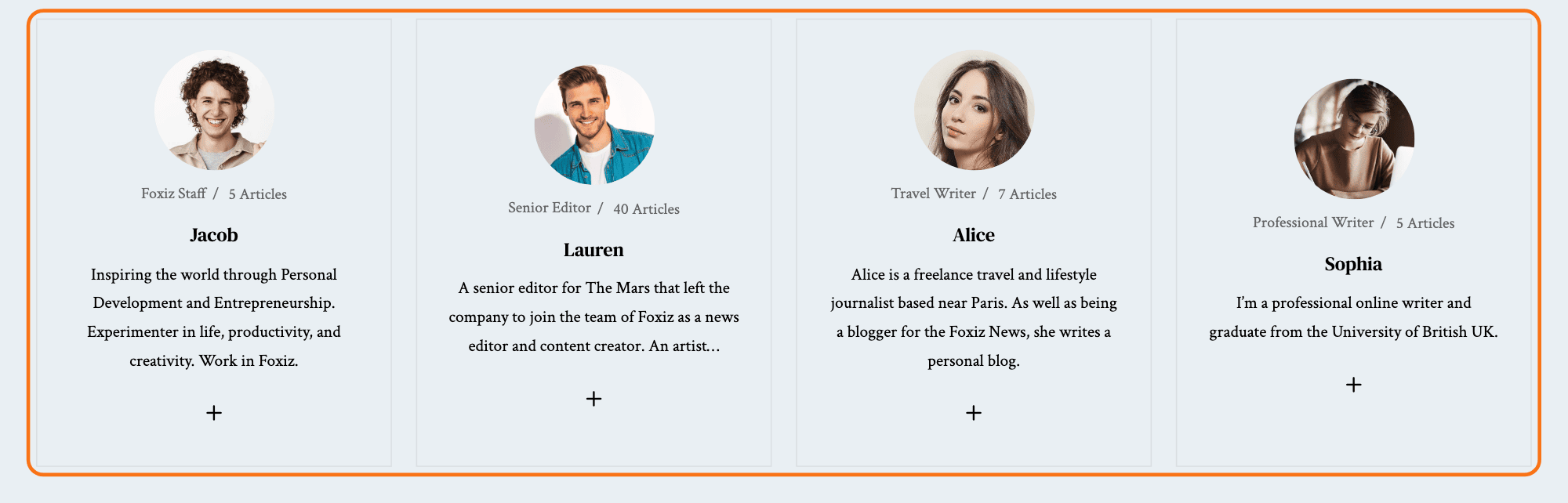
What it draws, and where each piece comes from
Everything on a card is read from that person's WordPress user profile, so the block itself has nothing to type into beyond the list of names.
- The avatar, from Users > Profile > Author Gravatar if you uploaded one there, otherwise the Gravatar registered to that person's email address.
- The job title, from Job Name on the same profile screen. Leave it empty and the line is not drawn.
- The article count, worked out for you, and shown only while Count Posts is Enable.
- The name, taken from the profile's display name, linked to that writer's archive page.
- The biography, from the profile's Biographical Info box.
A person with no biography and no job title gets a card with just an avatar, a name and a count, which looks like a mistake and is not one. Fill their profile in rather than looking for a setting here.
Putting a list on a page
- Open the page with Edit with Elementor.
- Search the panel for team, or scroll to the Foxiz - Element category, and drag Foxiz - Authors List 2 onto the canvas.
- In the Authors section, open Add Authors and pick a person in Select a Author.
- Add one row per person. The row labels in the panel read as the numeric user id, so keep the order you want rather than expecting to recognise names in the list.
- Set the columns on the Layout tab, then Publish.
The block arrives holding one empty row, and an empty row draws nothing, so a list you have just dragged in shows as a blank space until you choose somebody.
Content tab
Authors
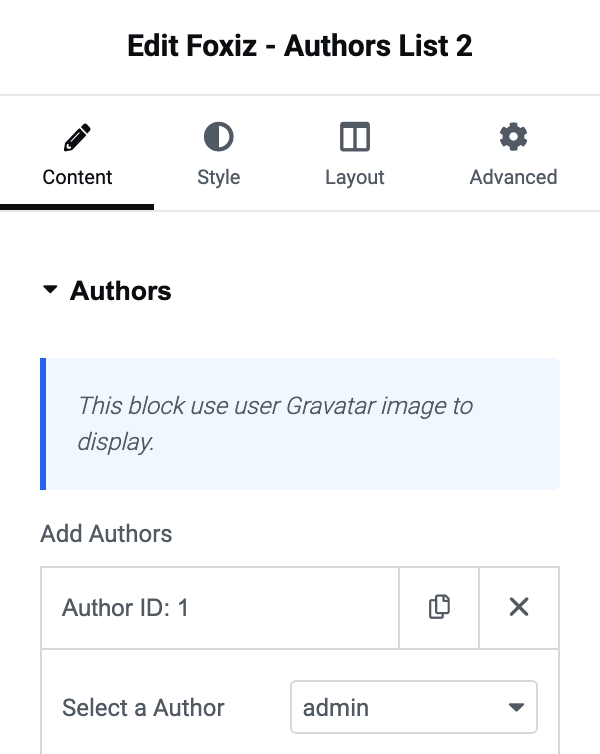
- A notice at the top of the section says the block uses the user's Gravatar. It does, with one exception worth knowing: an image uploaded to Author Gravatar on the profile screen wins over the Gravatar, which is how you put a picture on a writer whose email has no Gravatar registered.
- Add Authors is the repeater, one row per card.
- Select a Author inside a row lists every user on your site except subscribers, by display name, and is empty by default. There is no - All - entry: this block never fills itself in.
Edited inside a Ruby template, the dropdown gains a Dynamic Query entry at the top. For a card that follows whichever writer the reader is looking at, use Foxiz - Author Box in the Foxiz Single category instead: that is the block built for one author resolved from the page.
Follow
- Follow Button offers Enable and Disable. Its default is Disable. On Enable each card gets a follow control that lets a signed in reader follow that writer.
- The notice above it is the prerequisite: the button needs Theme Options > Personalized System > Global > Personalized System switched on. That setting is on by default, so this only bites on a site where somebody turned it off. With it off, Enable here draws no button.
- The button is also held back on AMP pages.
Style tab
Block Design
- Count Posts offers Enable and Disable. Its default is Enable, so the article count is on until you turn it off.
- Description Length is a maximum number of words for the biography, blank on arrival, which shows the whole thing. Set it when your writers' bios are wildly different lengths and the cards will not line up.
- Image Width is the avatar's width in pixels, and it has desktop and tablet values only, no mobile one.
- Lazy Load offers - Default -, Disable and Enable. Its default is - Default -, which follows your site's global image setting. Set it to Disable for a team list at the top of a page.
- Border Radius here rounds the avatar, in pixels, desktop and tablet only. A large number makes it a circle.
- Title Font Size and Description Font Size are quick pixel overrides for the name and the biography, per device, both blank on arrival.
Boxed
- Border Radius here rounds the card itself rather than the avatar. Set it to 0 to switch rounding off entirely.
- Box Style is the card's frame. It offers Shadow, None and six lines. The lines are Gray Solid, Dark Solid, Gray Dotted, Dark Dotted, Gray Dashed and Dark Dashed. Its default is Shadow.
Text Color Scheme
One field of the same name, offering Default (Dark Text) and Light Text. Its default is Default (Dark Text). Switch it to Light Text when the list sits on a dark section.
Layout tab
Columns
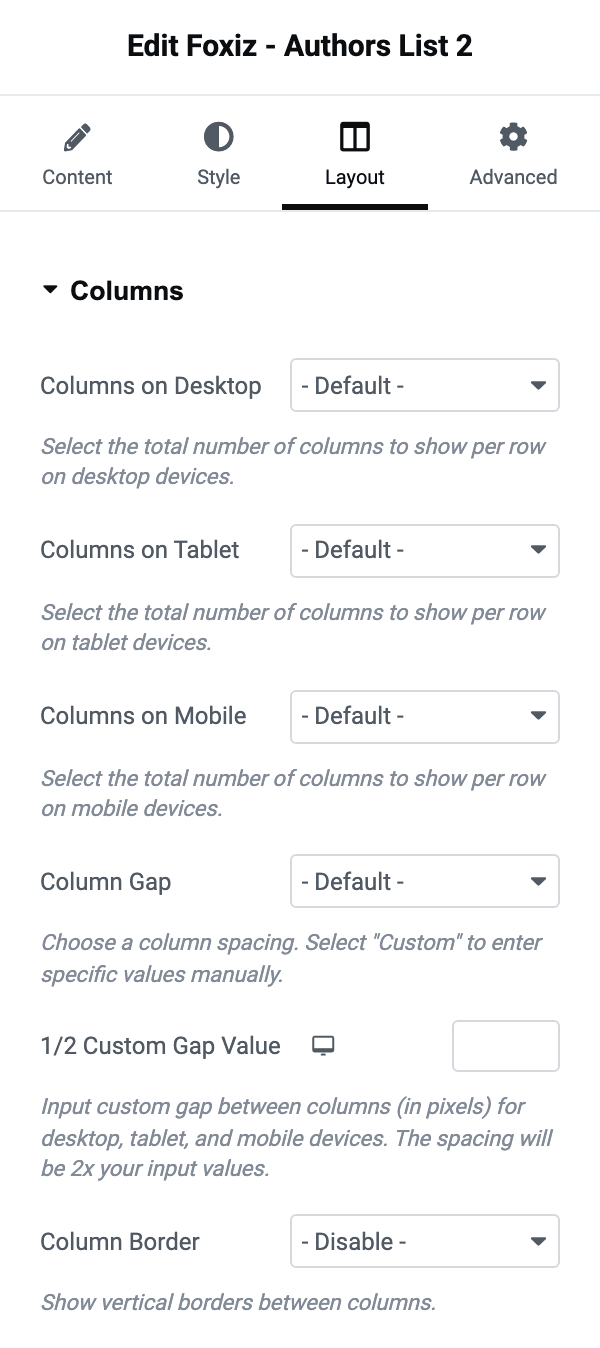
- Columns on Desktop and Columns on Tablet run from 1 Column to 7 Columns. Columns on Mobile stops at 2 Columns. All three default to - Default -, and on - Default - the list lays out in three columns with the 40px gap.
- Column Gap offers - Default -, No Gap and Custom Value. Between the last two sit eight fixed gaps from 10px to 70px: 10, 14, 20, 30, 40, 50, 60 and 70 pixels. Choosing Custom Value reveals 1/2 Custom Gap Value, which is responsive and doubles: the space between two cards is twice the number you type.
- Column Border draws a vertical line between columns. It offers - Disable - and seven lines. The solid ones are Gray Solid, Dark Solid and Bold Dark Solid. The others are Gray Dotted, Dark Dotted, Gray Dashed and Dark Dashed. Its default is - Disable -. It reads best with Box Style on None.
Spacing
- Inner Padding is the space inside a card, in pixels, one value for every device.
- Custom Bottom Margin is the gap below each card, in pixels, per device. It is what to set when a list wraps onto a second row and the rows touch.
When the block draws nothing
- A row with nobody chosen in Select a Author draws no card. A list whose rows are all still empty is an empty block.
- Subscribers are not in the dropdown, so a person you cannot find in the list needs a role that publishes.
- Follow Button on Enable still draws nothing while Theme Options > Personalized System > Global > Personalized System is off, and nothing on an AMP page.
Did this answer your question?