Local Fonts Uploader
Your own font files (a brand font, a premium font you bought), uploaded to your site and served from it. Once a font has at least one weight uploaded, you can pick it in Theme Options > Typography like any other font.
Where: Foxiz > Local Fonts Uploader. On the Foxiz dashboard it is also under Extra Features in the tab bar.
When the page is missing
The page belongs to the free Local Fonts Uploader plugin by ThemeRuby, not to Foxiz itself.
Its WordPress.org page is https://wordpress.org/plugins/local-fonts-uploader/. Its own site is https://localfonts.themeruby.com/.
- The plugin is not installed. Install it from Foxiz > Dashboard, in Essential Plugins, or from Plugins > Add Plugin.
- Foxiz Core is not active. The plugin then puts its page in the main admin menu, as Local Fonts Uploader, instead of under Foxiz.
Unlike the Foxiz pages around it, this one does not need an active Foxiz license.
The page
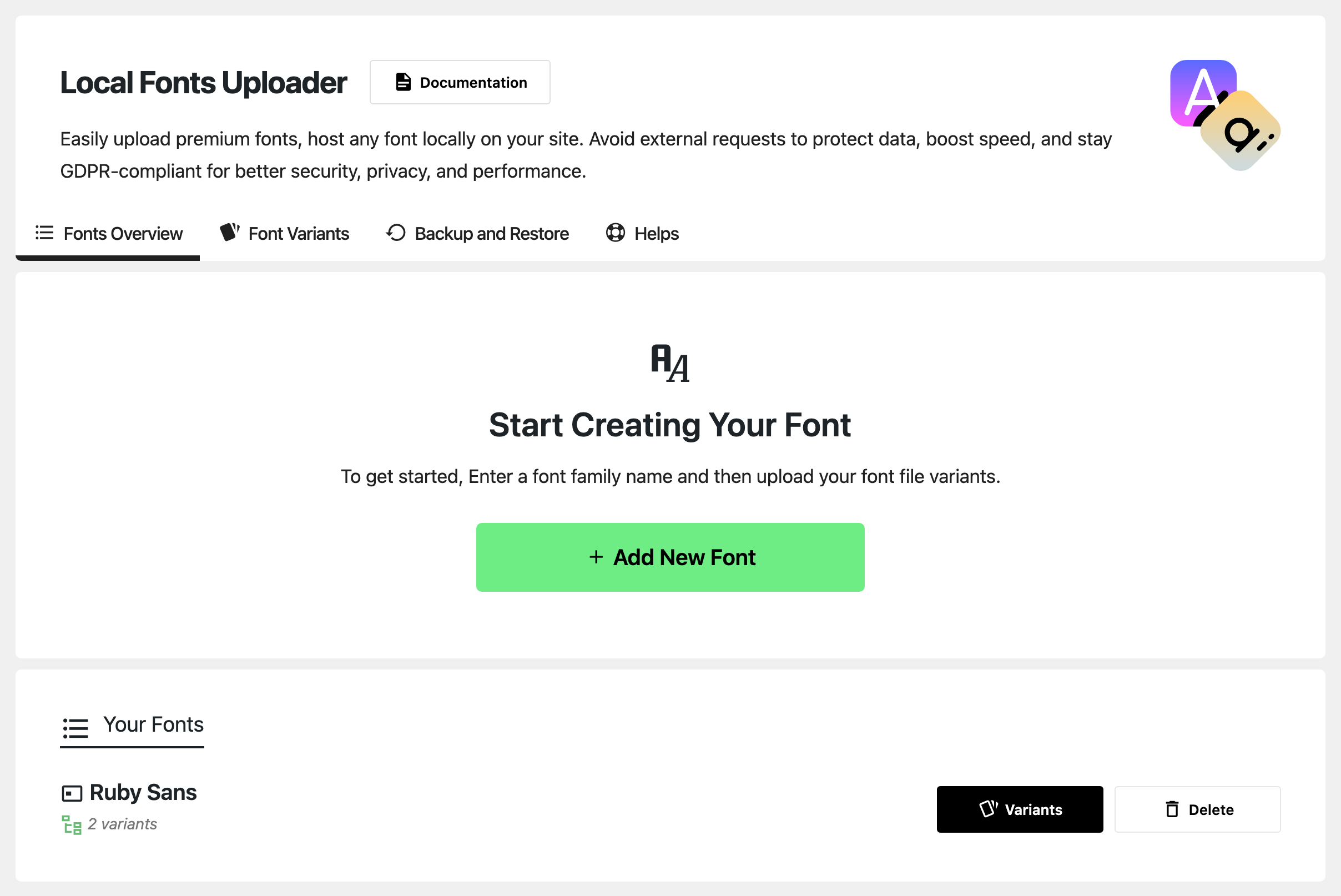
The work happens in four tabs, in this order:
- Fonts Overview: create the font.
- Font Variants: upload a file for each weight.
- Backup and Restore: move your fonts to another site.
- Helps: tips and links.
Documentation, beside the title, opens the plugin's own guide on localfonts.themeruby.com.
Fonts Overview
Start Creating Your Font
- Click Add New Font.
- Type the family name in Enter a font family name without special characters.... It is the name you will pick in Typography.
- Only letters, numbers, dashes and underscores are kept. Spaces are removed, so
My FontbecomesMyFont. - Each name can be used once. A repeat gives Duplicate Font Name.
- Only letters, numbers, dashes and underscores are kept. Spaces are removed, so
- Click Save New Font, or Cancel to close the field. The font has no files yet: add them under Font Variants.
Your Fonts
One row per font you created.
- The variant count, or No variants uploaded yet. A font with no variant does not show in Typography.
- Variants: opens the Font Variants tab for this font.
- Delete: deletes the font after a confirmation. Its font files are deleted from the media library too.
Font Variants
A variant is one weight and style of the font, in its own file: Regular (400), Bold (700), Bold Italic (700 Italic) and so on. Upload one file for each weight you use.
Open this tab from Variants on a font. If you click the tab itself, it says Selected Font Not Found: click Go to Overview and choose the font there.
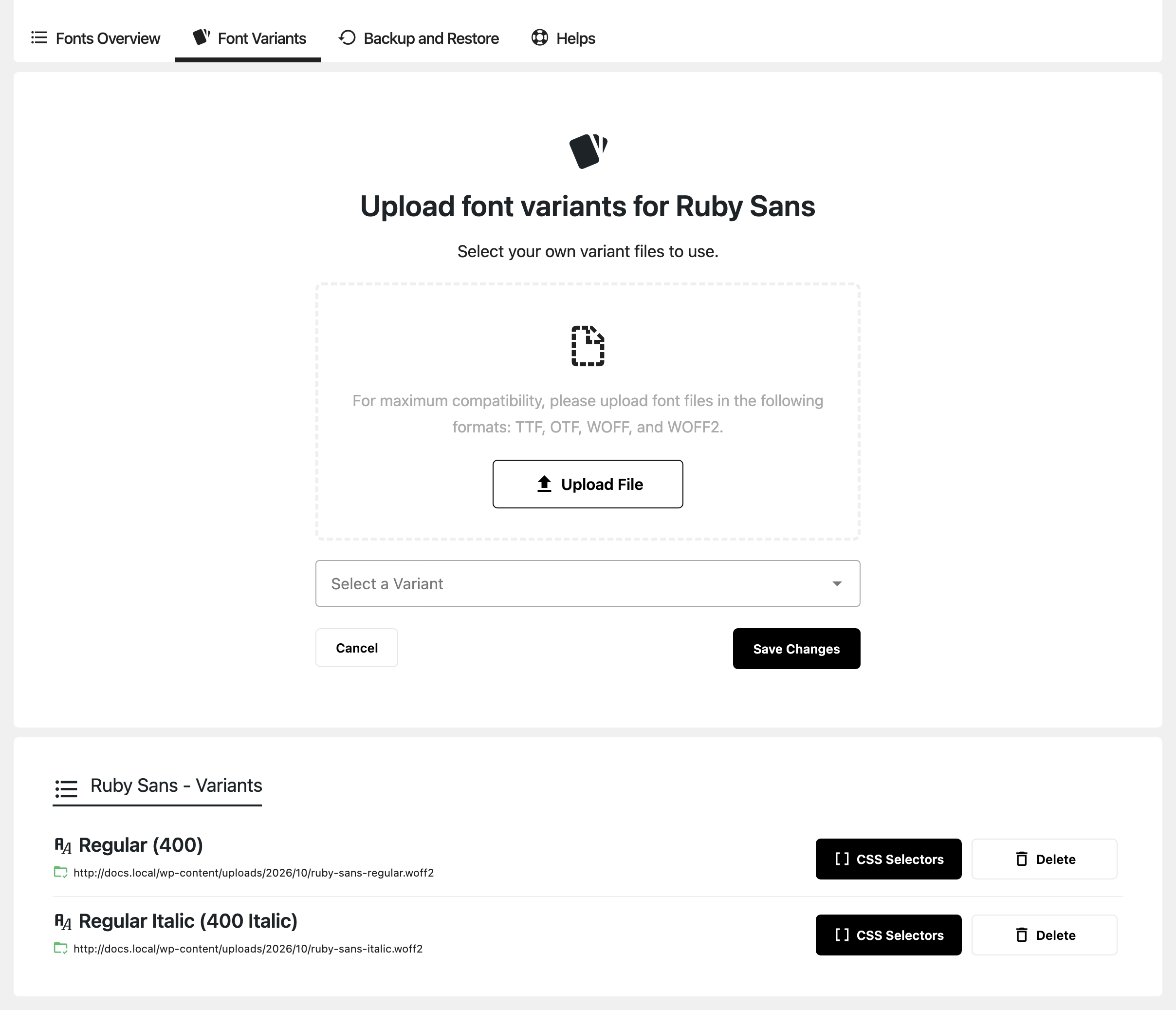
Upload font variants
- Upload File: opens the media library. Upload or choose the file, then click Use This File. Once a file is chosen, the button reads Replace File.
- Accepted:
.ttf,.otf,.woff,.woff2,.eot. Anything else gives Invalid File Type. - For the widest browser support, use TTF, OTF, WOFF or WOFF2.
- Accepted:
- Select a Variant: the weight and style this file holds, from Thin (100) to Black Italic (900 Italic). Weights you have already uploaded are left out of the list.
- Pick the weight the file really is. The file is loaded as exactly that weight and style.
- Save Changes: adds the variant. Cancel clears the form.
- Without a variant: Variant Missing. Without a file: Font File Missing.
The variant list
Each uploaded variant, with its file address and any CSS selectors it is assigned to.
- CSS Selectors: applies this variant to parts of your site that Theme Options does not reach.
- Type the selectors in the box, separated by commas, for example
.class-1, .class-2. Then click Save Changes. - A bare word is read as a class:
my-titlebecomes.my-title. HTML tags such ash2are kept as they are. - Those elements get the font, weight and style of this variant on every page.
- You do not need it for Typography. A font picked in Theme Options loads by itself.
- Type the selectors in the box, separated by commas, for example
- Delete: deletes the variant and its file, after a confirmation.
Backup and Restore
Moves your fonts to another site, or puts them back after a reset.
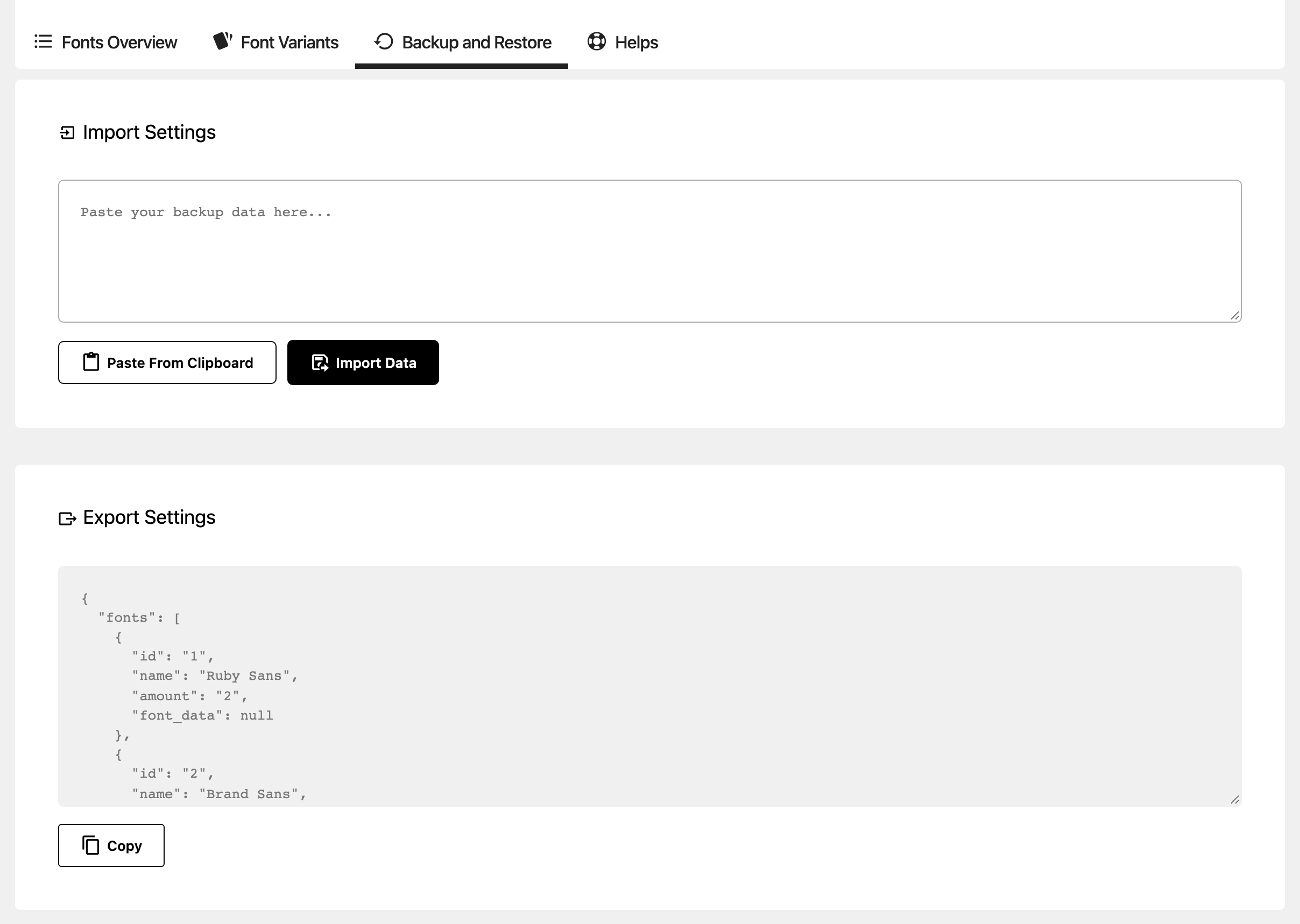
- Export Settings: the backup of every font and variant, as text. Copy puts it on your clipboard.
- Import Settings: paste a backup into the box (Paste your backup data here...), or click Paste From Clipboard. Then click Import Data.
- Fonts that already exist on this site, by name, are skipped.
- Font files from another site are downloaded into this site's media library. So the old site has to be online while you import.
- Restore Complete confirms it, and the page reloads.
Helps
A short tip (assign your font in the Typography panels, covered below), a Learn More link to the plugin's documentation, and links to other ThemeRuby products. Nothing to set here.
In Theme Options
Uploaded fonts show at the top of every Font Family list in Theme Options > Typography, in a group called Local Fonts Uploader. Only the weights you uploaded are offered.
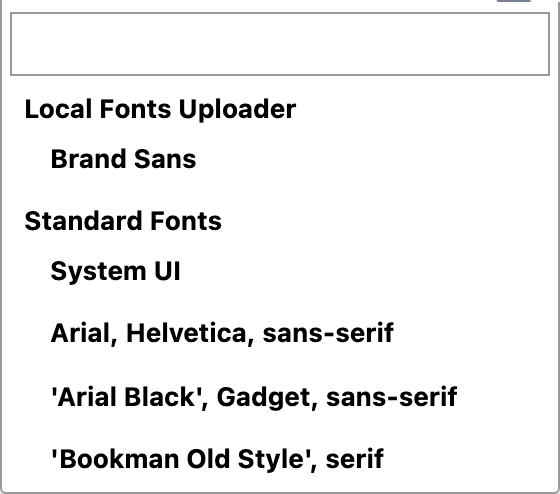
A font picked there loads from your site, never from Google.
Deactivate the plugin and the group disappears. Elements set to an uploaded font then lose it: the font file is no longer loaded.
Related
- Upload your own font with Local Fonts Uploader: the walk, from the first upload to the font on your site.
- Fonts (GDPR): Google fonts and Adobe fonts.
Did this answer your question?