Dashboard
The first page of the Foxiz menu. Come here to check your license, install the plugins Foxiz works with, and see whether your server meets what Foxiz needs.
Where: Foxiz > Dashboard.
This page changes when the license is not active:
- Never activated: the menu item reads Registration and the page shows the activation screen.
- The site moved to a new address: the menu item reads License and the page shows Reconnect Your License.
See What is the Foxiz Dashboard for the pages that disappear in both cases.
The header
Every Foxiz page opens with this header.

On the left:
- Ver: the Foxiz version you run.
- The status badge.
- Registered: the license is active on this site.
- Unregistered: the site was never activated.
- Address changed: the license belongs to another site address. Reconnect the site.
- Not connected: the license could not be verified here. Reconnect the site.
- Verification Failed: an error happened while checking. Activate again, or contact support.
On the right, four links. Each opens in a new tab.
- Themes: the Foxiz website, foxiz.io.
- Documentation: the online help.
- Open a Ticket: the support area of your store.foxiz.io account.
- What's new: the Foxiz changelog page.
Under them, the tab bar takes you to the other Foxiz pages. See What is the Foxiz Dashboard.
At the right end of the tab bar:
- The support status. How long your support or subscription lasts.
- A lifetime license: Support: reads Lifetime, or Active until: a date.
- A subscription: Subscription: reads Active until a date.
- Either reads Expired once it ends. Renew with the plan button.
- The refresh button, on this page and on Demo Importer only. Click it after you renew or upgrade, and confirm, so the support status and the demo list catch up. Clicked again too soon, it tells you how many seconds to wait.
- The plan button. The store decides its label, for example Upgrade Plan. It reads Renew once your support or subscription has expired, and My Account when the store offers no upgrade.
The license box
This site is activated confirms your license, with your plan and its status.
Moving the license to another site? Click Deactivate here first, then activate it on the new site. See How to Deactivate a Theme to Transfer a Domain.
To activate a site, see How to Activate the Theme.

Essential Plugins
Six free plugins from WordPress.org that the Foxiz demos use:
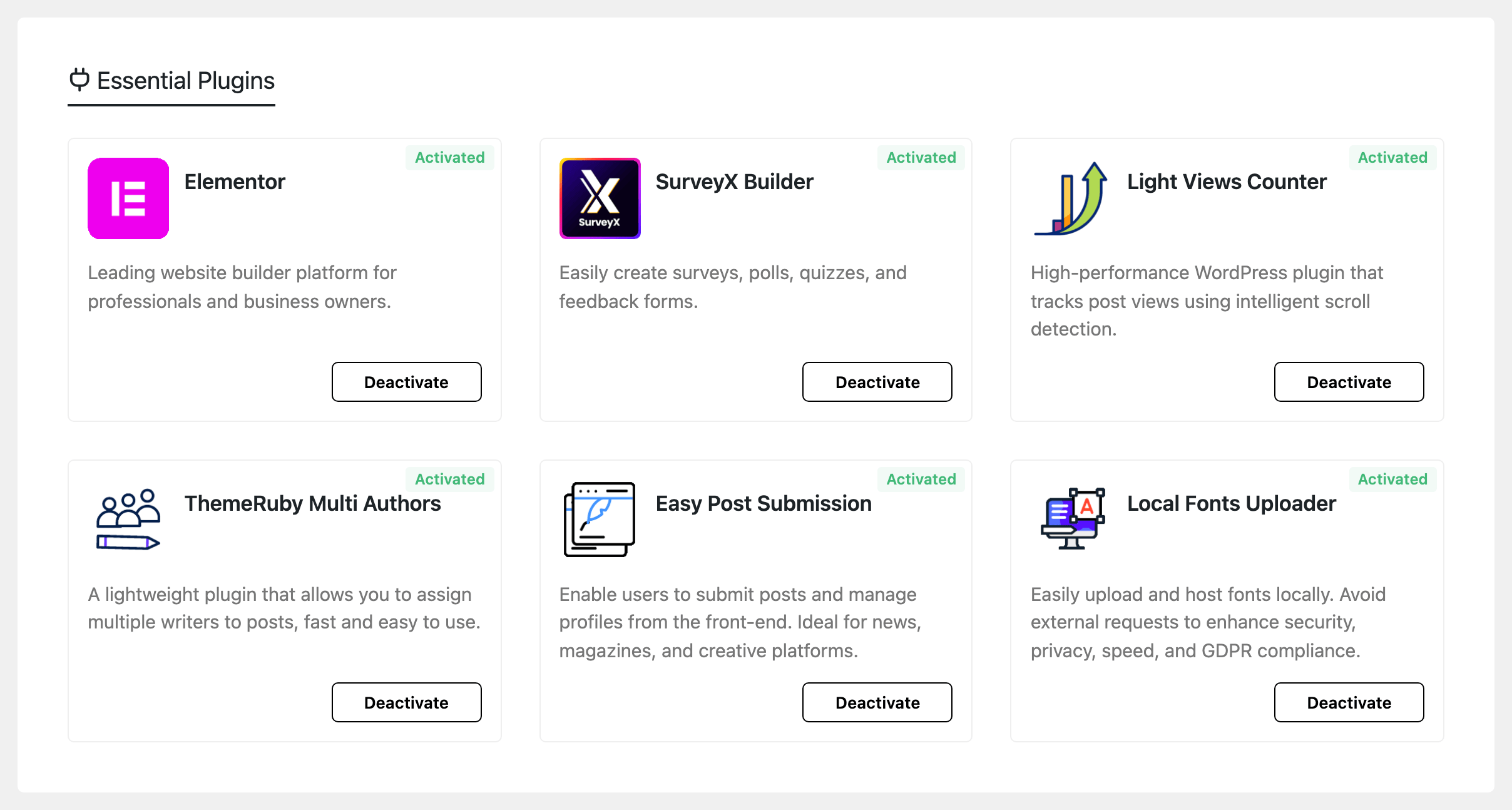
- Elementor: the page builder the Foxiz layouts use.
- SurveyX Builder: surveys, polls, quizzes and feedback forms.
- Light Views Counter: counts post views. Its settings.
- ThemeRuby Multi Authors: more than one author on a post. Its settings.
- Easy Post Submission: readers submit posts from the front end. Its settings.
- Local Fonts Uploader: upload font files and serve them from your own server. Its settings.
The buttons on a plugin card
The corner of each card shows the plugin's state, and the button does the next thing.
| State | Button | What the button does |
|---|---|---|
| Not Installed | Install | Downloads the plugin from WordPress.org. It stays inactive; the button turns to Activate. |
| Inactive | Activate | Activates the plugin. |
| Activated | Deactivate | Deactivates the plugin. Nothing is deleted. |
Click the plugin's name to open its page on WordPress.org.
Don't see the plugin lists? They show only to a user who may install plugins, and they are hidden on a site where plugin installs are switched off.
The Essential Plugins notice on other admin pages
While one of the six is missing or inactive, the admin shows a notice titled Foxiz - Essential Plugins. Its Install & Activate All button installs and activates every missing one in one go.
Close the notice with its × and it stays away until the next Foxiz Core update.
Recommended Plugins
Thirteen optional plugins. Install one only when you need its feature: fewer plugins keep your site faster. Type in Search plugins... to find one.
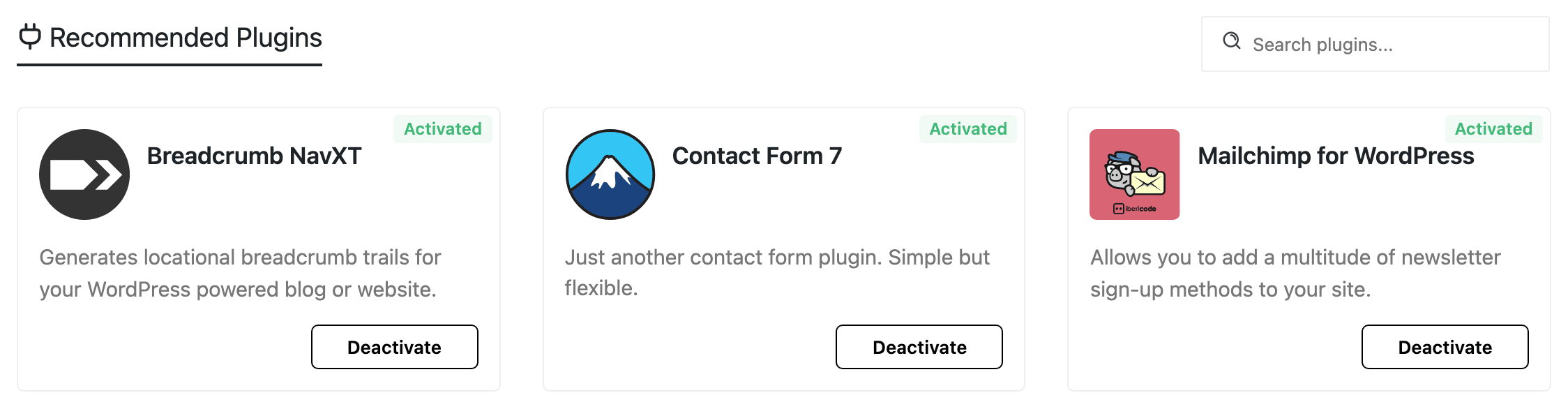
They cover contact forms, newsletters, caching, forums, membership, a shop, recipes and more. Each card says what its plugin does, and the buttons work the same as in Essential Plugins.
For forums with bbPress, see How to set up bbPress forums.
PHP Information
A quick check of your server's PHP values. A value in red needs fixing, and its warning under it says why.
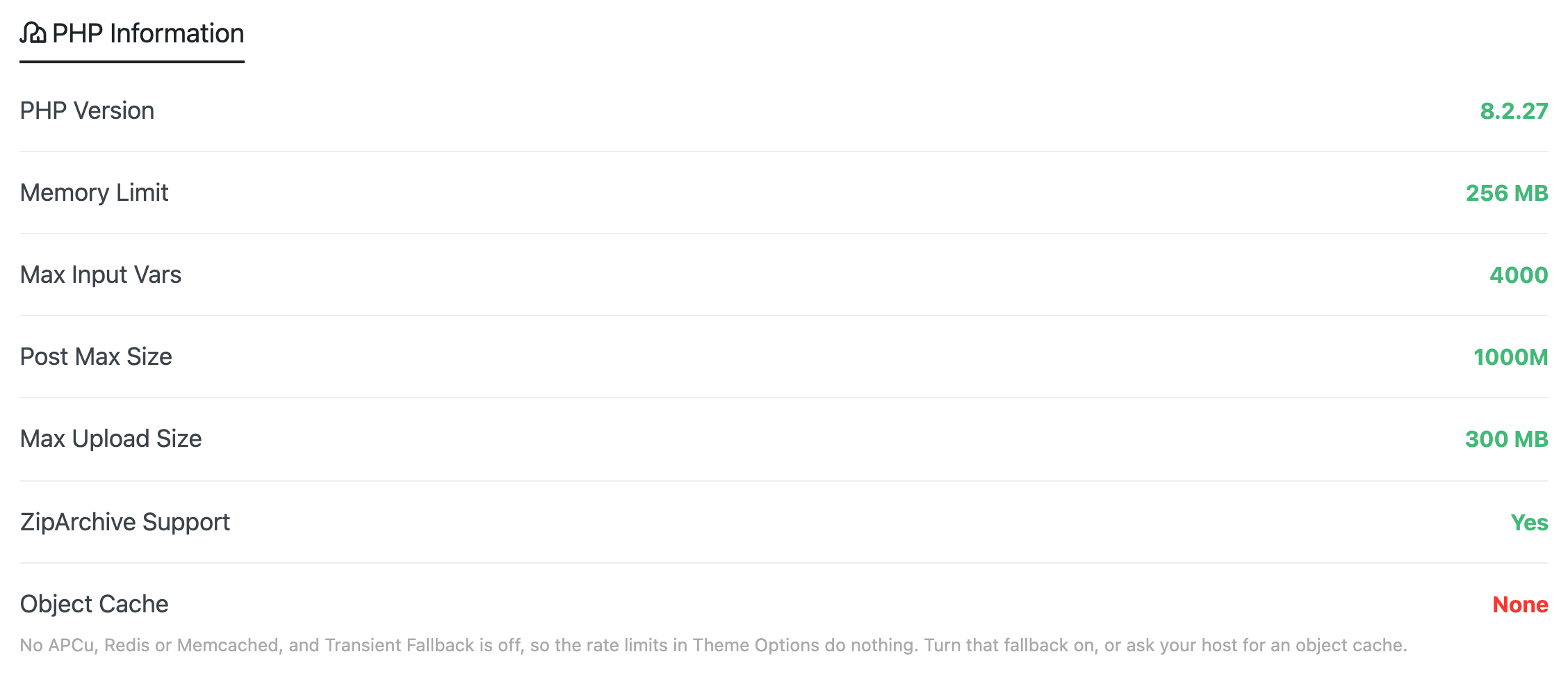
A red Object Cache does not mean your site is broken. Only the request limits that protect search, pagination and bookmarks are off, because Transient Fallback is off by default. For most sites, turn it on at Foxiz > Theme Options > Performance, in the Rate Limits group.
What each row means and how to fix a red one: System Info.
Related
Did this answer your question?