System Info
A check of your server and your WordPress setup against what Foxiz needs. Foxiz runs on nearly any server, so you only act on a row in red: the reason is written under it.
On a new site, Object Cache is the row most likely to be red, because the switch that clears it is off by default. Your site still works: see Object Cache below for the fix.
Where: Foxiz > System Info.
The page is there before the site is activated too, so you can check a server before you register.
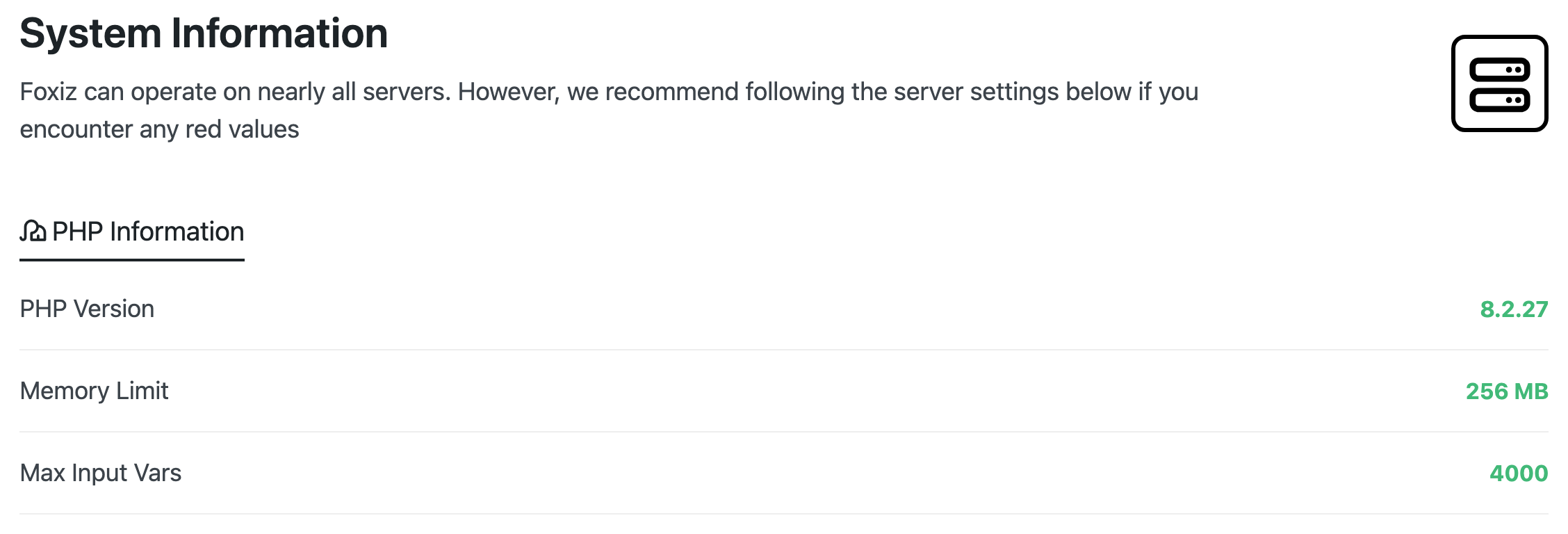
PHP Information
Your server's PHP values. A value in green is fine. A value in red has its warning under it.
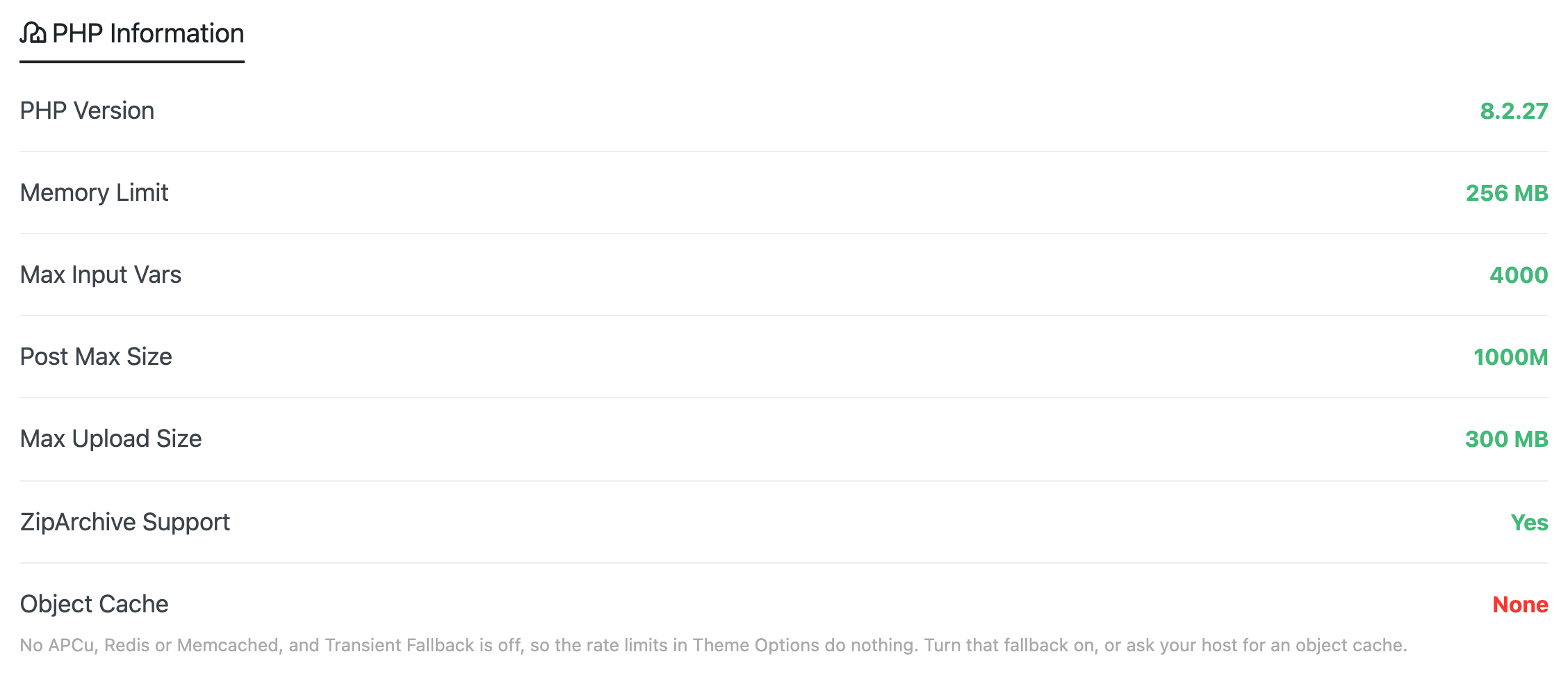
- PHP Version: the PHP version your site runs on.
- Recommended: 8.0 or newer.
- In red: Foxiz needs a newer PHP. Ask your host to upgrade it.
- Memory Limit: how much memory one PHP request may use.
- Recommended: 64 MB or more.
- In red: the theme may not work. Raise
memory_limit.
- Max Input Vars: how many fields one form may send.
- Recommended: 3000 or more. It turns red below 2000.
- In red: large Theme Options panels may not save completely. Raise
max_input_vars.
- Post Max Size: the largest form submission, uploads included.
- Recommended: 32M or more. A value of 0 means no limit, and passes.
- In red: raise
post_max_size.
- Max Upload Size: the largest file you can upload. It is the lower of
upload_max_filesizeandpost_max_size.- Recommended: 32 MB or more.
- In red: raise both values, because the lower one wins.
- ZipArchive Support: whether PHP can open zip files. Yes or No.
- Recommended: Yes.
- In red: automatic theme updates may not work. Ask your host to enable the PHP zip extension.
- Object Cache: where Foxiz counts requests for its rate limits, which cap how many requests one IP address can make per minute.
- The value is one of:
- APCu.
- Redis / Memcached.
- Database (transients): no fast cache, and Transient Fallback is on.
- None.
- In red only on None: the rate limits do nothing. Nothing else on the site depends on this row.
- For most sites: turn on Transient Fallback in Theme Options > Performance, in the Rate Limits group. It counts in the database instead, which costs a little speed. If your host offers Redis or Memcached, asking them to turn it on is the faster fix.
- The value is one of:
The same PHP rows show at the bottom of Foxiz > Dashboard.
To change a PHP value, see Configuring Server Settings. If your host does not let you, ask them.
WordPress Info
Your WordPress setup and the theme you run.
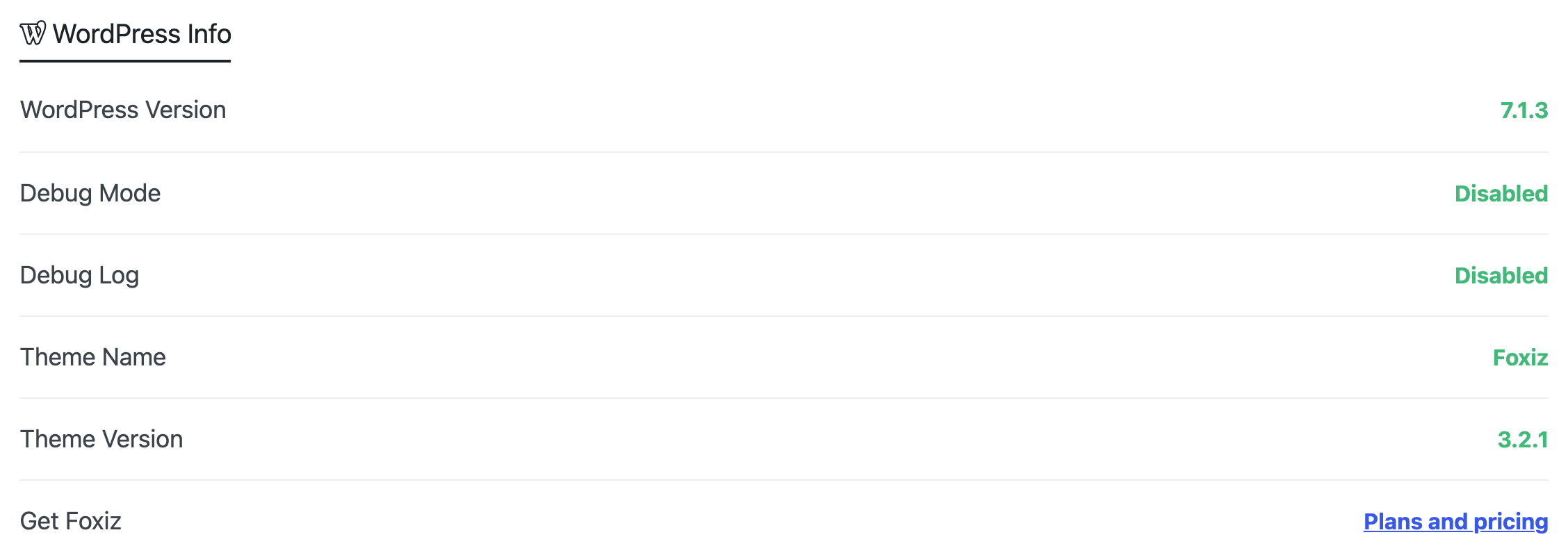
- WordPress Version: the WordPress version installed.
- Debug Mode: Enabled or Disabled.
- Recommended: Disabled on a live site.
- In red: PHP error details may show to your visitors. Set
WP_DEBUGtofalseinwp-config.phpwhen you finish testing.
- Debug Log: whether WordPress writes errors to a log file. Enabled or Disabled. It never turns red.
- Theme Name: the theme your site runs. With a child theme it still reads Foxiz, the parent.
- Theme Version: the Foxiz version installed.
Related
- Checking Server Requirements: what each value is for, and how to read them before you install.
- Configuring Server Settings: raising PHP values in
php.ini,.user.inior.htaccess. - Optimize Your Site Speed with Performance Options: the rate limits and Transient Fallback.
- Dashboard
Did this answer your question?