Turnstile
Cloudflare Turnstile checks that a login, registration, password reset or comment comes from a person, not a bot. It is free. Set to invisible, most visitors never see it.
Where: Foxiz > Turnstile. On the Foxiz dashboard it is under Extra Features in the tab bar. The page itself is titled Cloudflare Turnstile.
When the page is there
Turnstile is the one Foxiz page that does not need an active license once it is set up, because it keeps protecting your forms either way.
- License active: the page is always in the menu.
- License not active: the page is in the menu only if both keys are already saved. Before that it protects nothing, so it stays hidden until you activate.
- The Foxiz theme not active: the page moves to Settings > Turnstile, and keeps working.
Before you start
Use one captcha per form. If you also run another captcha plugin, visitors can get two widgets on the same form. Foxiz warns you at the top of this page when one of these is active:
- reCaptcha by BestWebSoft
- reCaptcha for Contact Form 7
- Advanced noCaptcha & invisible Captcha
- hCaptcha for WP
- Simple Cloudflare Turnstile
The keys
You get both keys from your Cloudflare dashboard, under Turnstile, when you add a widget for your domain.
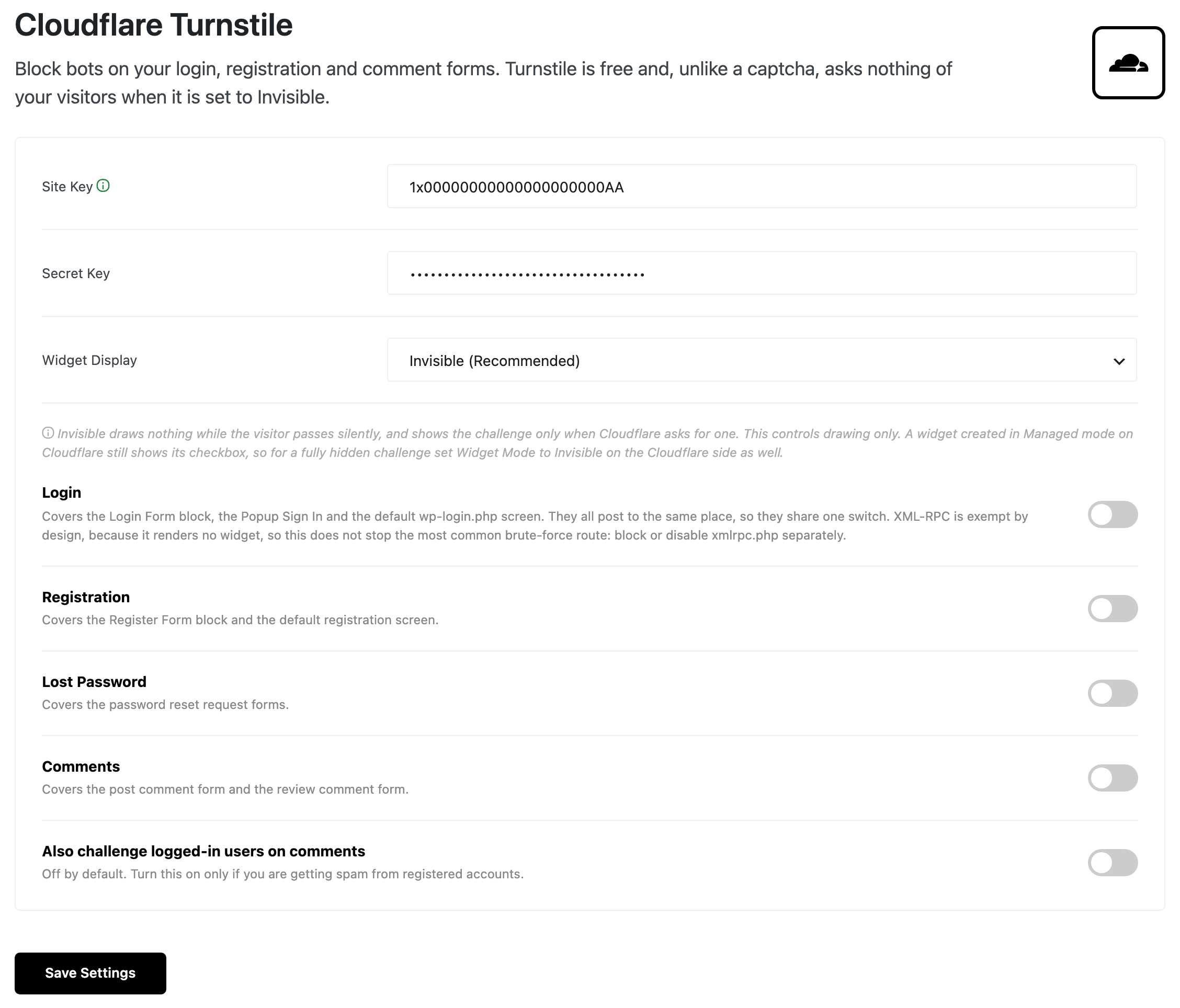
- Site Key: the public key. It starts with a digit and an
x, like0x4AAAAAAA…. Default: empty. If what you paste does not look like a site key, the page warns you. Most often it is the secret key in the wrong field. With a protection switch on, saving also asks you to confirm. - Secret Key: the private key. It is stored on your server and never shown again in full. Default: empty. Once saved, leave the field blank to keep the current key.
Nothing is protected until both keys are saved, whatever the switches below say.
Once the keys are saved
After you save, the two fields are replaced by your Site Key and the last four characters of your Secret Key. To change them, use Change Keys below.
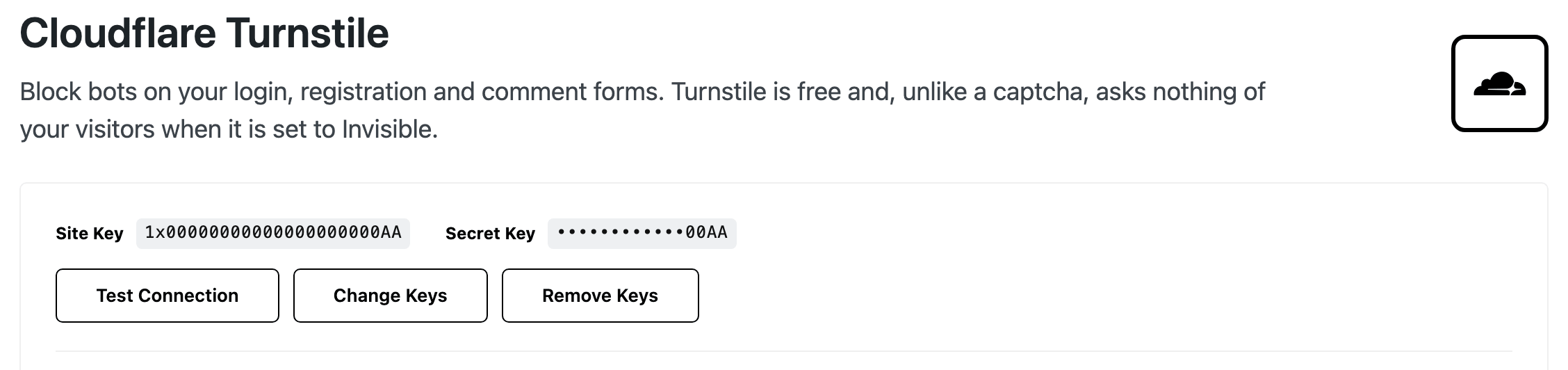
- Test Connection: asks Cloudflare whether it accepts your secret key.
- Connection works and the secret key is accepted. All good.
- Cloudflare rejected the secret key. You probably copied the site key into the secret field.
- This server could not reach Cloudflare: followed by the error. Ask your host.
- It checks the secret key only. A wrong site key is caught by the warning above, not by this test.
- Change Keys: unfolds the two fields so you can paste new keys. Then click Save Settings.
- Remove Keys: deletes the keys and every setting on this page, and turns the protection off.
Widget Display
- Widget Display: how the widget is drawn on your forms. Default: Invisible (Recommended).
- Invisible (Recommended): nothing shows while the visitor passes. The challenge appears only when Cloudflare asks for one.
- Always visible: the widget always shows on the form.
Invisible (Recommended) gives your visitors the smoothest forms. Most of them pass without seeing anything; the challenge appears only when Cloudflare asks for one. Choose Always visible only if you want every visitor to see that the form is checked.
This setting only controls drawing. If you created the widget in Managed mode on Cloudflare, it still shows its checkbox. For a fully hidden challenge, also set Widget Mode to Invisible on the Cloudflare side.
The forms it protects
One switch per form. All are off by default.
- Login: the Login Form block, the Popup Sign In and the default
wp-login.phpscreen. They share one switch.- XML-RPC is not covered, because it has no form to show a widget on. Block or disable
xmlrpc.phpseparately if bots try passwords there.
- XML-RPC is not covered, because it has no form to show a widget on. Block or disable
- Registration: the Register Form block and the default registration screen.
- Lost Password: the password reset request forms.
- Comments: the post comment form and the review comment form.
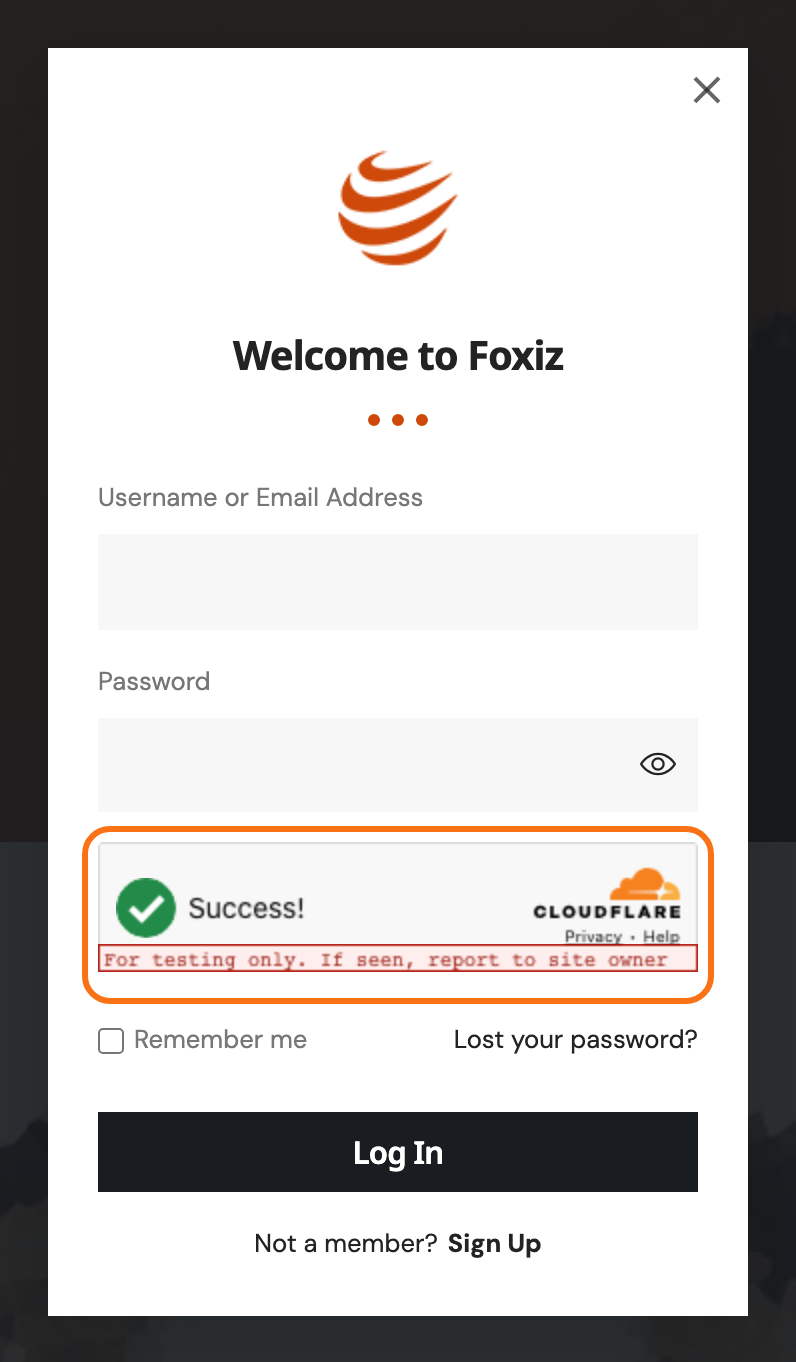
- The widget sits just above the submit button.
- Also challenge logged-in users on comments: also checks visitors who are logged in when they comment. Off by default. Turn it on only if registered accounts send you spam. It only matters while Comments is on.
Save Settings saves the keys, the display and the switches together. Turnstile settings saved. confirms it, and the page reloads.
What visitors see when a check fails
- Please complete the security check and try again. The form was sent before the check finished.
- This security check has expired. Please reload the page and try again.
- The security check failed. Please try again.
If Cloudflare cannot be reached, or rejects your own secret key, the form goes through anyway. Your visitors are not blocked for a problem on your side.
Where it does not run
- AMP pages. They cannot load the Turnstile script, so forms on AMP pages are not protected.
- The Elementor editor. The widget is not drawn there.
If a wrong key locks you out
Add this line to wp-config.php. It switches the protection off without touching your settings, so you can log in and fix the keys.
define( 'FOXIZ_TURNSTILE_DISABLE', true );
Remove the line once the keys are right.
Related
- How to Protect Login, Registration and Comment Forms with Cloudflare Turnstile: getting the keys from Cloudflare, setting it up and testing it.
- Every Setting in the Login Panel: the Popup Sign In, which the Login switch covers.
- Guide to Creating a Login Page and Guide to Creating a Registration Page: the Login Form and Register Form blocks.
- How to Enable or Disable Comments?
Did this answer your question?