Fonts (GDPR)
Two things you can do with fonts here:
- Local Google Fonts: load the Google fonts your site uses from your own server instead of from Google.
- Adobe Fonts: connect an Adobe Fonts (Typekit) project, so you can pick its fonts in Typography.
Where: Foxiz > Fonts (GDPR). On the Foxiz dashboard it is under Extra Features in the tab bar.
The page needs an active license. If it is missing, see When a page is missing.
Local Google Fonts
Self hosting helps with GDPR compliance and makes pages load faster. The font files are downloaded once into wp-content/uploads/foxiz-fonts, and your pages load them from there instead of from fonts.googleapis.com.
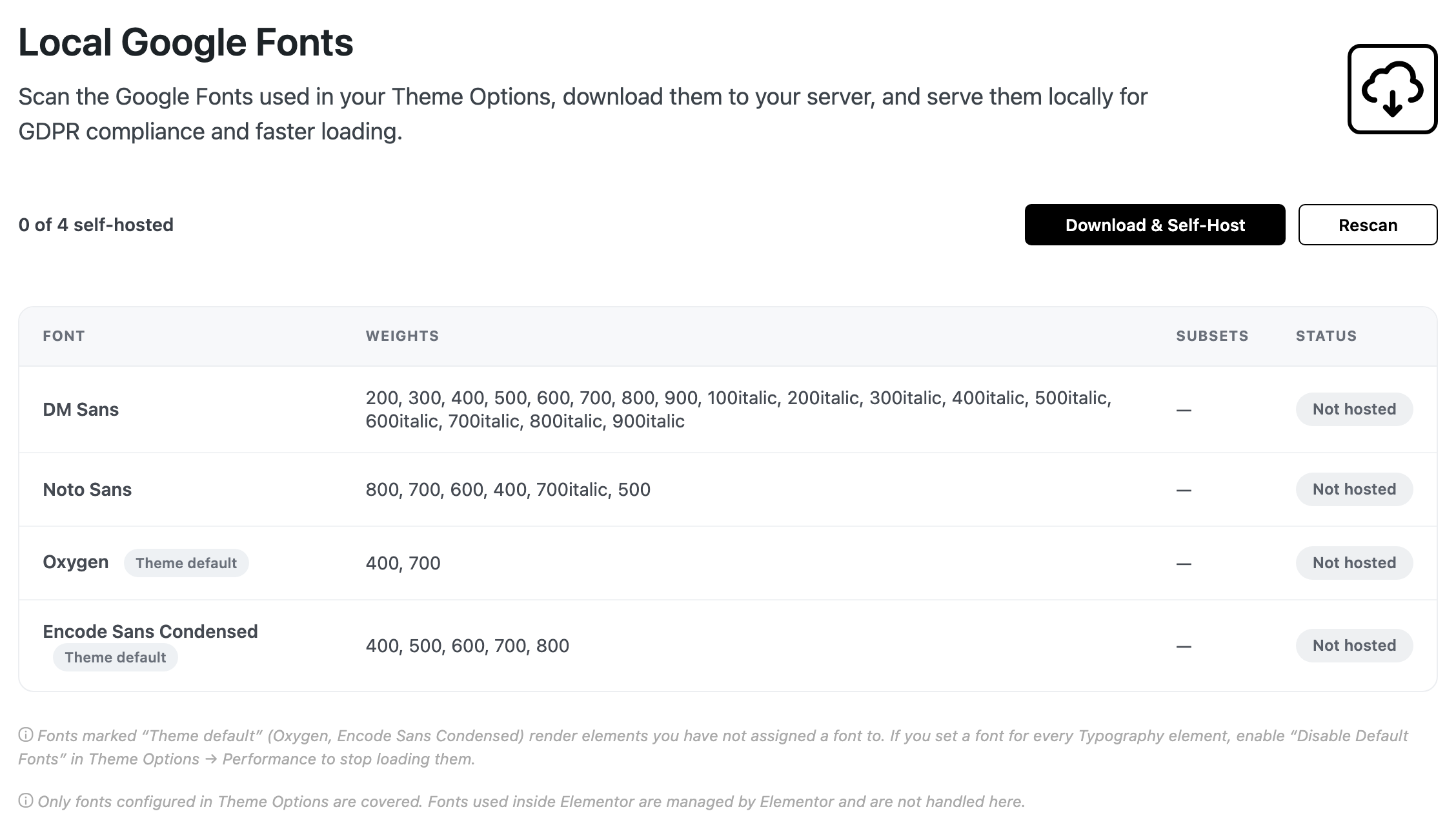
The table lists every Google font your Theme Options use, with the weights and subsets they ask for.
- Status tells you where each font loads from.
- Hosted: served from your server.
- Not hosted: still loaded from Google.
- Outdated: hosted, but you have since changed its weights or subsets in Theme Options. Download again.
- Theme default beside a name: Oxygen or Encode Sans Condensed. The theme uses them for any text you have not given a font, so they are listed even if you never picked them.
- Download & Self-Host: downloads every font that is not Hosted. It only shows while there is something left to download.
- When it finishes: All fonts are now self-hosted.
- If some fail, the page says how many and asks you to try again. Those fonts keep loading from Google meanwhile.
- Rescan: checks Theme Options again. Use it after you change a font.
- Remove Local Fonts: deletes the downloaded files after a confirmation. The fonts load from Google again. It only shows once at least one font is hosted.
When you change a font later
Change a font in Theme Options > Typography and the local copy no longer matches.
- This page shows Your Theme Options fonts changed. Download again to keep them self-hosted.
- Theme Options shows a warning with an Update local fonts link back here.
- Until you click Download & Self-Host again, the new font loads from Google.
What it does not cover
- Fonts set inside Elementor. Elementor loads those itself.
- The two theme default fonts, once you no longer need them. If every Typography element has its own font, turn on Disable Default Fonts in Theme Options > Performance to stop loading them at all.
If no Google font is set anywhere in Theme Options, the page says there is nothing to self host.
Fonts you have already hosted keep loading from your server even if the license later lapses and this page disappears.
Adobe Fonts
Connects one Adobe Fonts project (Adobe calls it a web project; it used to be Typekit). Its fonts then show up in the font lists of Theme Options > Typography.
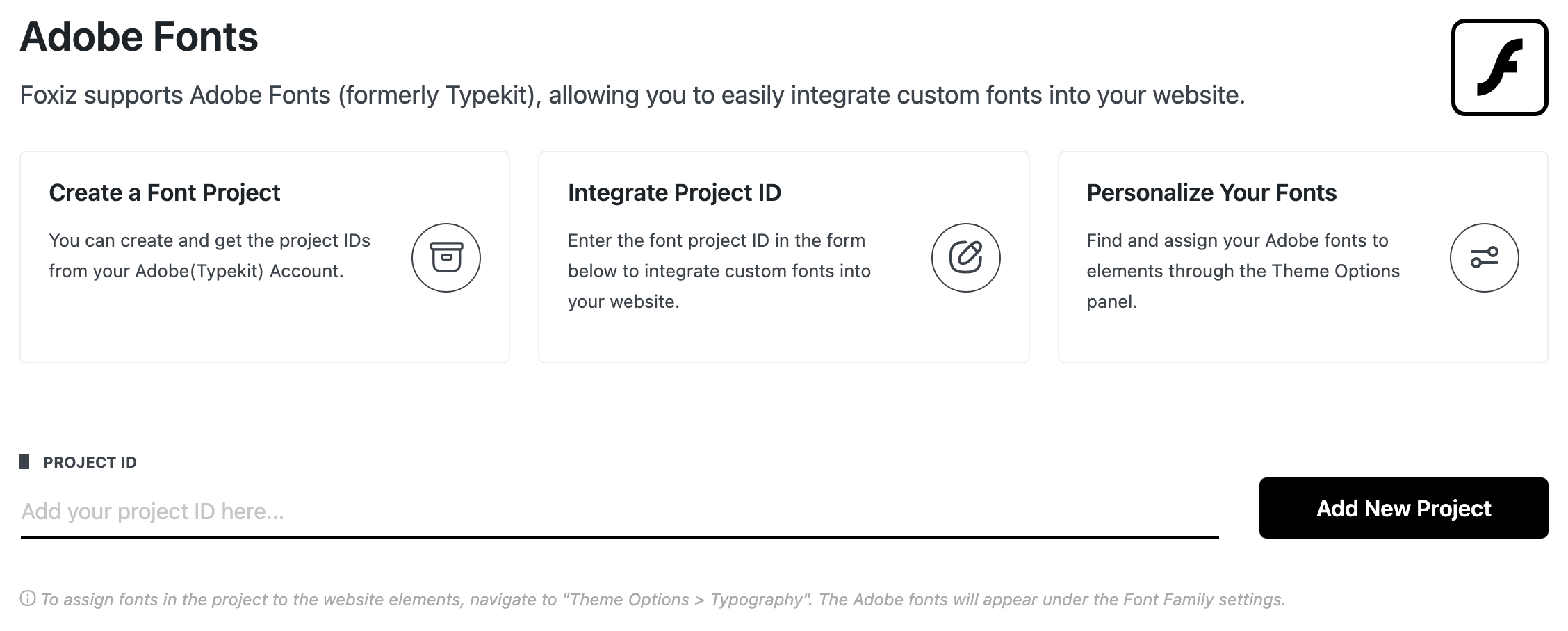
In short:
- Create a web project on fonts.adobe.com and add fonts to it. The Create a Font Project card opens your projects there.
- Paste the project ID into Project ID below and click Add New Project.
- Pick the fonts in Theme Options > Typography.
For the full walk, see How to Use Adobe Fonts (Typekit).
With no project connected
- Project ID: paste the ID of your web project, as Adobe shows it. Default: empty.
- Add New Project: checks the ID with Adobe and saves the project's font list.
- A wrong ID gives Project ID is invalid. Please check again!
- A project with no fonts gives Project is empty. Please add some fonts to your project.
With a project connected
- Font Details: the project's fonts. Look for the Font Name: it is the name you pick in Typography. Under Weight & Style, a weight ending in
iis italic. - Edit Project ID: unlocks the Project ID field and shows Save Changes.
- Delete Project (under Delete Font Project?): disconnects the project after a confirmation. Its fonts stop loading on the site.
The font list is read from Adobe only when you save. So after you add a font to the project on fonts.adobe.com, click Edit Project ID and then Save Changes, or the new font will not be in Typography.
While a project is connected, its fonts load from Adobe on every page, except AMP pages.
Related
- How to Host Google Font Locally: the Local Google Fonts walk.
- How to Use Adobe Fonts (Typekit): from the Adobe project to a font in Typography.
- Local Fonts Uploader: your own font files, uploaded.
Did this answer your question?