Upload your own font with Local Fonts Uploader
The free Local Fonts Uploader plugin lets you upload your own font files, such as your brand's font, and pick them in the Foxiz Typography panel like any other font. Its own documentation is at Local Fonts Uploader.
The plugin is one of the Foxiz Essential Plugins, so you do not need to download it: open Foxiz > Dashboard, find Local Fonts Uploader in the plugin cards, and install it from there.
Once it is active it adds its own page at Foxiz > Local Fonts Uploader, which is where the uploading happens.
Upload Your Font
-
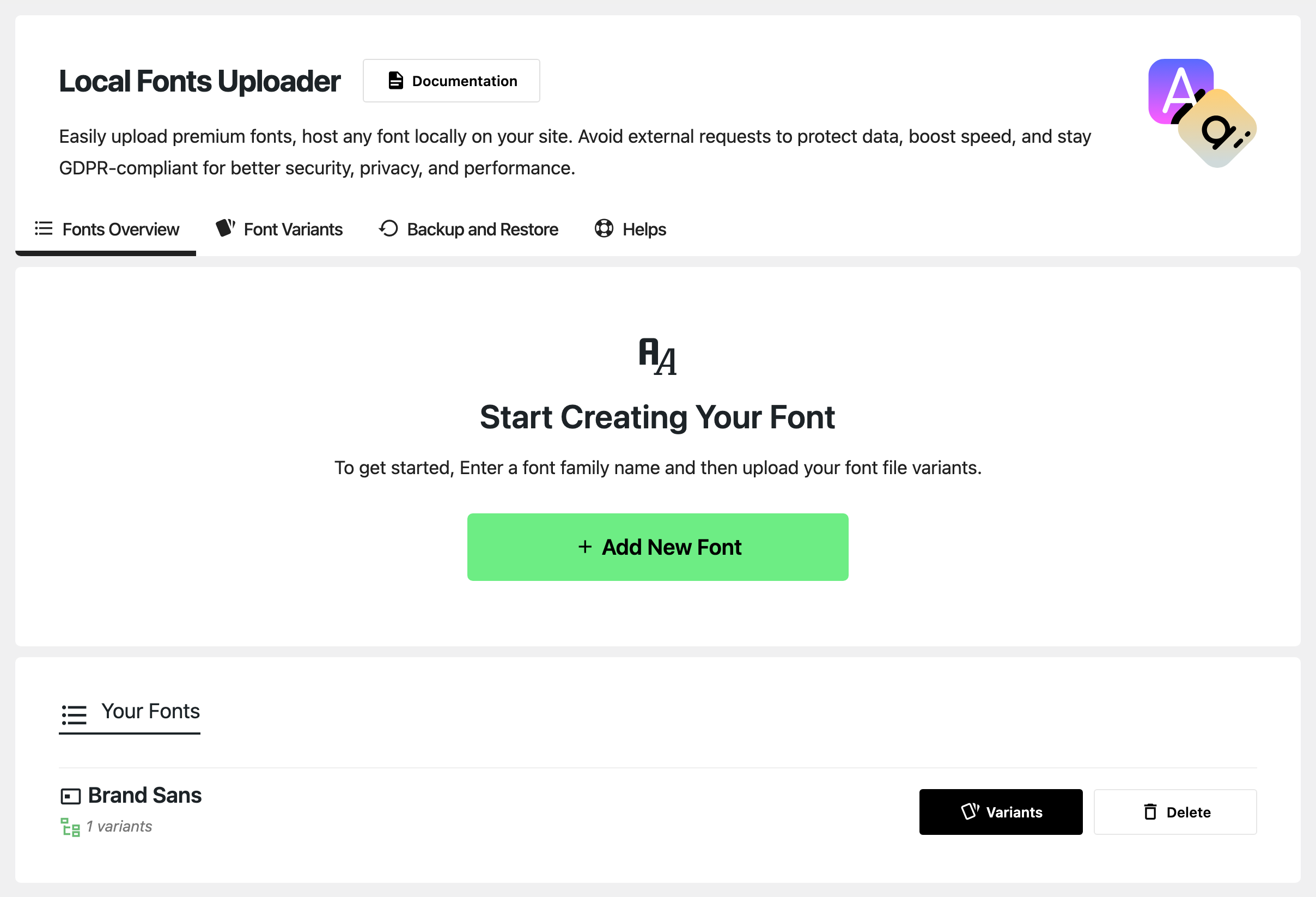
Open Foxiz > Local Fonts Uploader. It opens on the Fonts Overview tab.
-
Click Add New Font, type the family name in the box that appears, and click Save New Font. Use letters, numbers, dashes and underscores only: anything else, spaces included, is stripped from the name.
-
Under Your Fonts, click Variants on the font you just added. The Font Variants tab opens.
-
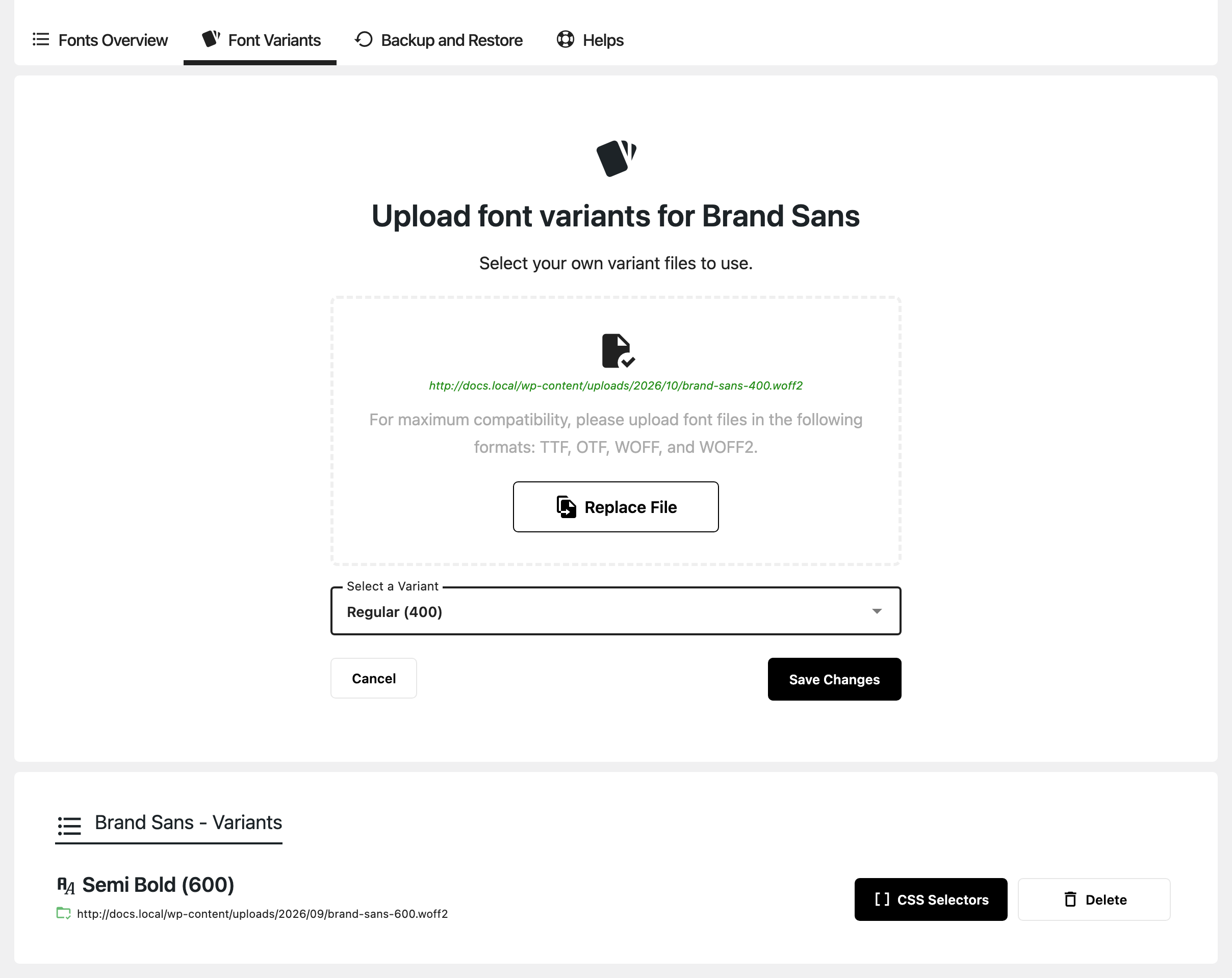
Click Upload File, choose or upload the font file in the media window, and click Use This File. The plugin accepts .ttf, .otf, .woff, .woff2 and .eot files.
-
In Select a Variant, pick the weight that file holds, 100 to 900, each with an italic version, and click Save Changes.
-
Repeat steps 4 and 5 for every weight you want to use, for example 400 for body text and 700 for bold.
Apply the Custom Font to the Foxiz Theme
Once you've uploaded your custom fonts and any necessary font variants, follow these steps to apply them to the Foxiz theme:
-
Navigate to the Theme Options:
- Go to Foxiz > Theme Options in your WordPress dashboard.
- Select Typography.
-
Select the Element to Apply the Custom Font:
- Choose the element where you want to apply the custom font. Each subsection holds one or more typography controls, and each control is set independently.
- Look for that element's typography control and locate the Font Family option. There is no control called Typography Settings; each control is named after what it styles, such as Body Font.
-
Apply the Custom Font:
-
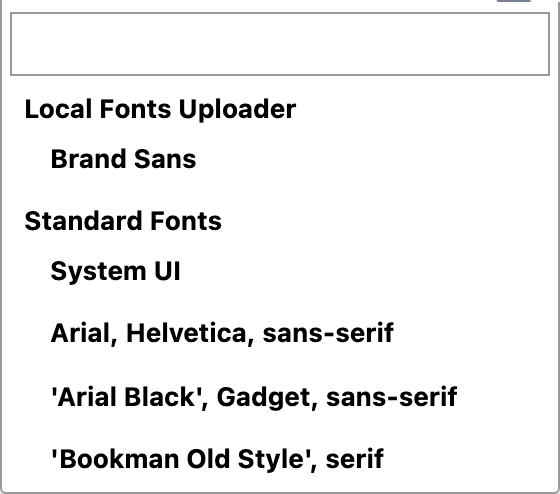
Open the dropdown. A new Local Fonts Uploader group appears at the very top of it, above Standard Fonts and above the Google list, holding all the fonts you have uploaded.
-
Select the font you wish to use from the list, and it will be applied to the chosen element.
-
-
Pick the Weight:
- In Font Weight & Style, pick one of the weights you uploaded. Only those are listed for a local font.
-
Save:
- Click Save Changes.
That's it! Your custom fonts should now be applied to the selected elements in the Foxiz theme.
Three things to know about uploaded fonts.
The Local Fonts Uploader group only exists while the plugin is active. Deactivate it and the group disappears from every dropdown, while the font name stays saved in Theme Options and quietly stops resolving.
A font you have created but not given a variant to is skipped. Foxiz lists a font only when it has at least one uploaded weight, so a family added with no font file behind it never reaches the dropdown.
A local font is never requested from Google. The theme drops every family that came from the uploader before it builds the Google Fonts URL, so switching an element to a local font removes it from that request as well.
Did this answer your question?