Quick Translation
A table of the front end strings Foxiz prints (Log In, Sign Up, Read More and the like), where you type your own wording for each one. No PO file and no translation plugin needed.
Where: Foxiz > Quick Translation. On the Foxiz dashboard it is under Extra Features in the tab bar.
When the page is missing
- The license is not active. The page needs an active license. See When a page is missing.
- WPML is active. The page opens, but shows a notice instead of the table. WPML needs PO files, one set per language, so use Loco Translate instead.
- The page says POT files not found. The string list could not be read, so there is no table to fill.
The string table
The table holds a fixed set of front end strings, not every string in the theme. Anything outside it needs a language file (see How to Translate the Theme?).
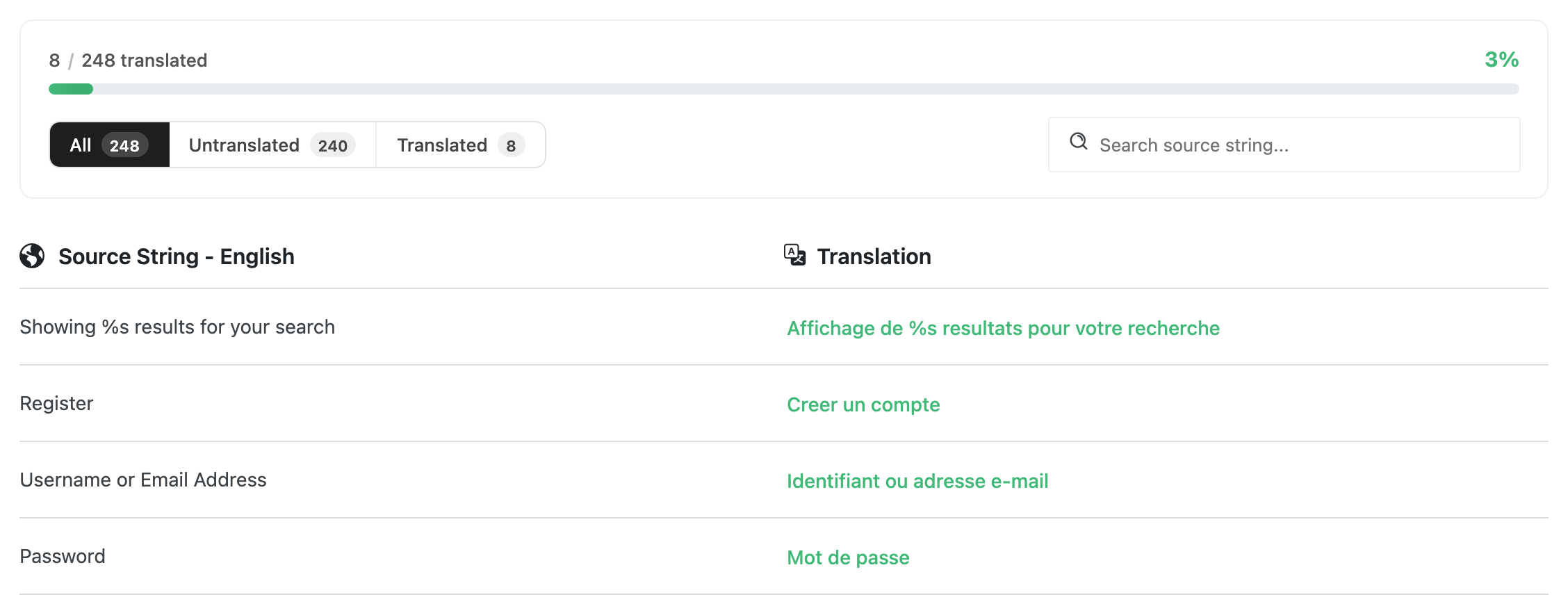
- The translated bar at the top shows how far along you are.
- All, Untranslated, Translated: filter tabs. Each shows its count. Untranslated is the quickest way to find what is left. Default: All.
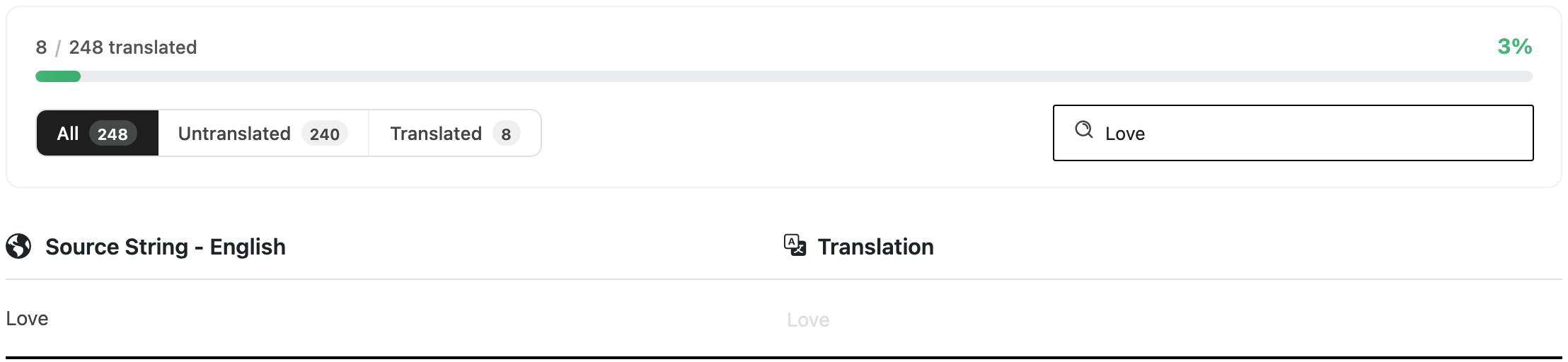
- Search source string...: filters the rows as you type. It matches the English text only, not your translations.
- It searches inside the tab you are on. If you see No strings match your search or filter., switch to All.
- Source String - English: the original string, as the theme prints it.
- Translation: your wording. Leave a field empty to keep the original.
- Up to 600 characters.
- Press Enter to jump to the next field.
Placeholders such as %s
Some strings hold a placeholder, like %s in "Showing %s results for your search". The theme puts a number or a name there. Keep every placeholder in your translation, anywhere in the sentence.
If one is missing, the field turns red with Keep the placeholder(s) %s exactly as in the source string., and the page refuses to save until you fix it.
Saving
- Save Changes, at the bottom of the screen, saves the whole table. Changes saved. confirms it.
- Ctrl+S (or Cmd+S on a Mac) does the same.
- Leaving with unsaved edits asks you to confirm first.
- Your typing is kept as a draft in this browser. If you come back without having saved, a bar offers Restore or Discard.
Your translations are not stored in a theme file, so theme and plugin updates do not touch them. To move them to another site, use Export Data below.
Quick Tools
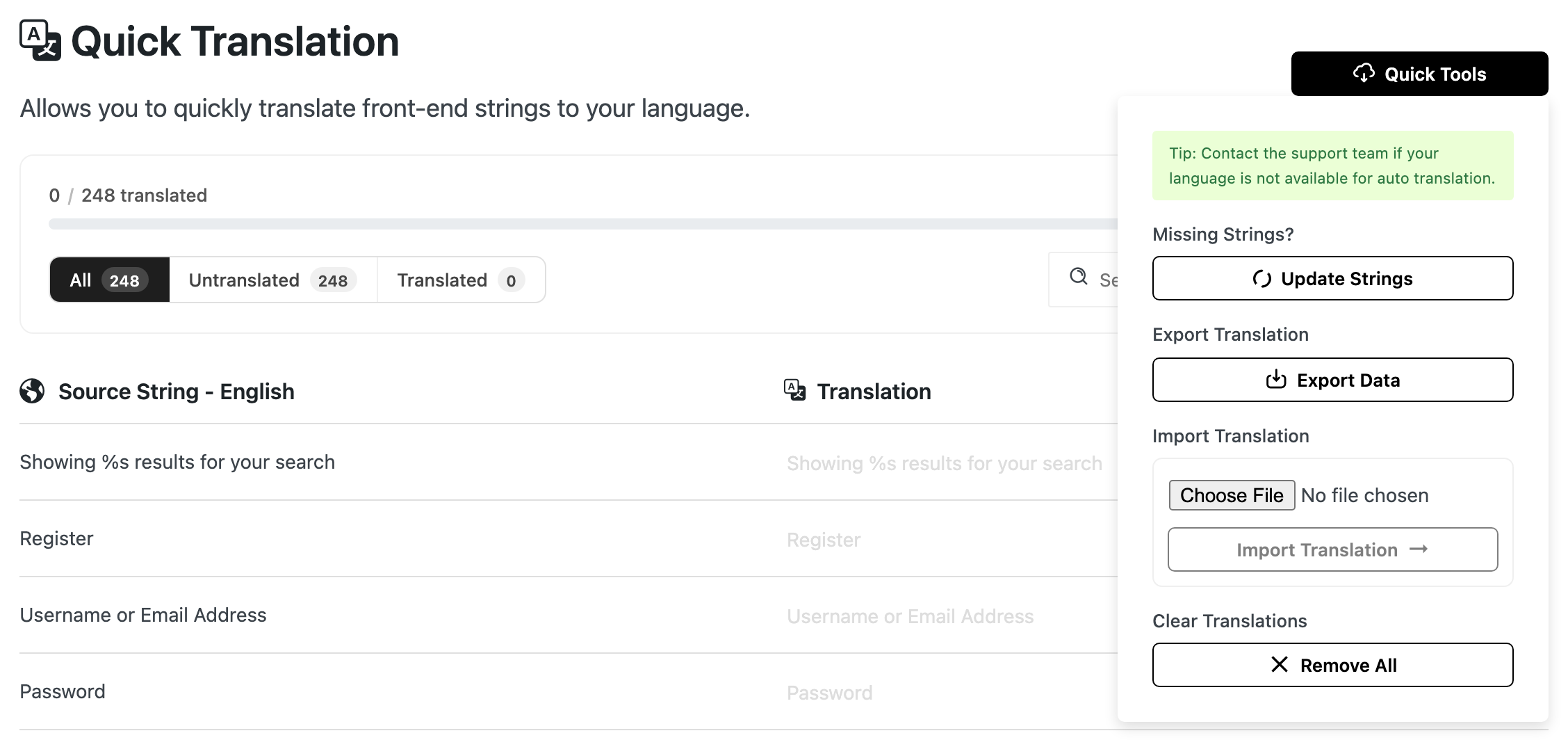
The Quick Tools button, top right, opens a menu.
- Auto Translation: loads a ready made translation for your site language from the Foxiz store, then reloads the page.
- Only shown when the site language is not English (Settings > General > Site Language).
- It writes over the strings it covers. Review the result afterwards.
- If your language has none, it says No translation is currently available for your language. Contact support to ask for one.
- Update Strings (under Missing Strings?): after a Foxiz update, click it when a string you expect is not in the table. Your translations are kept.
- Export Data (under Export Translation): downloads your translations as a
.jsonfile namedtranslation-export-plus the date. - Import Translation: choose a
.jsonfile exported from this page, then click the Import Translation button.- Each string in the file replaces the one on the page. Strings the file does not hold are left alone.
- Remove All (under Clear Translations): deletes every translation on this page, after a confirmation. The original English strings come back.
The "translation is available" banner
If a ready made translation exists for your site language, a banner above the table offers it.
- Load translation does the same as Auto Translation.
- With a lapsed license, renew through Upgrade plan to load it.
Quick Translation, language files and WPML
Quick Translation keeps one translation per string, for the whole site. It cannot hold a second language, so on a multilingual site it would show the same wording in every language.
Translate the theme with .po and .mo language files instead, one set per language, made with Loco Translate or WPML String Translation. See How to Translate the Theme?.
Translated here before adding WPML? Click Remove All under Quick Tools first. With WPML active, the menu is gone and those entries would still show in every language.
- A Quick Translation entry wins. For a string in this table, what you type here is shown, even if a PO file from Loco Translate or Poedit translates the same string.
- An empty field falls back. The string then comes from your language file, if you have one, or stays in English.
- Strings outside the table only come from language files.
A saved translation shows on the front end on the next page load.
Related
- Quickly Translate Theme: the steps, start to finish.
- How to Translate the Theme?: Quick Translation beside Loco Translate and Poedit.
Did this answer your question?