Displaying Price Ticker & Coins List on Header with Cryptocurrency Widgets Plugin
Foxiz can display a cryptocurrency price ticker and coins list through the Cryptocurrency Widgets plugin. You can see them on the coin demo: https://foxiz.io/coin/

Support here means the plugin is one Foxiz recommends and installs for you; there is no crypto setting in Theme Options. The plugin draws the ticker, and steps 5 and 6 are how it gets into the header.
To get started, follow the steps below:
-
Install & activate plugin Cryptocurrency Widgets: https://wordpress.org/plugins/cryptocurrency-price-ticker-widget/
You do not have to leave the admin for this. Cryptocurrency Widgets is in the Recommended Plugins list on the Foxiz dashboard, with an install button beside it.
-
After installing and activating the plugin, you will find a Crypto Plugins tab in the sidebar of your WP admin dashboard.
Before you build a widget, give the plugin a price source. Until you do, the widget shows "Please enter CoinGecko Free Api Key to get this plugin works." where the prices should be. Open Crypto Plugins > API Settings. Select API offers CoinGecko API, Coinpaprika API, CoinMarketCap API and CoinCap API. Coinpaprika API works without a key. For the other three, paste your free key into the field that appears under it, for example Enter CoinGecko API Key, and save.
-
Click on Crypto Plugins > Crypto Widgets > Add New Widget
-
Here, you'll discover various settings to create a crypto price widget. Simply choose the type of widget you want to create and select the coins you wish to display.
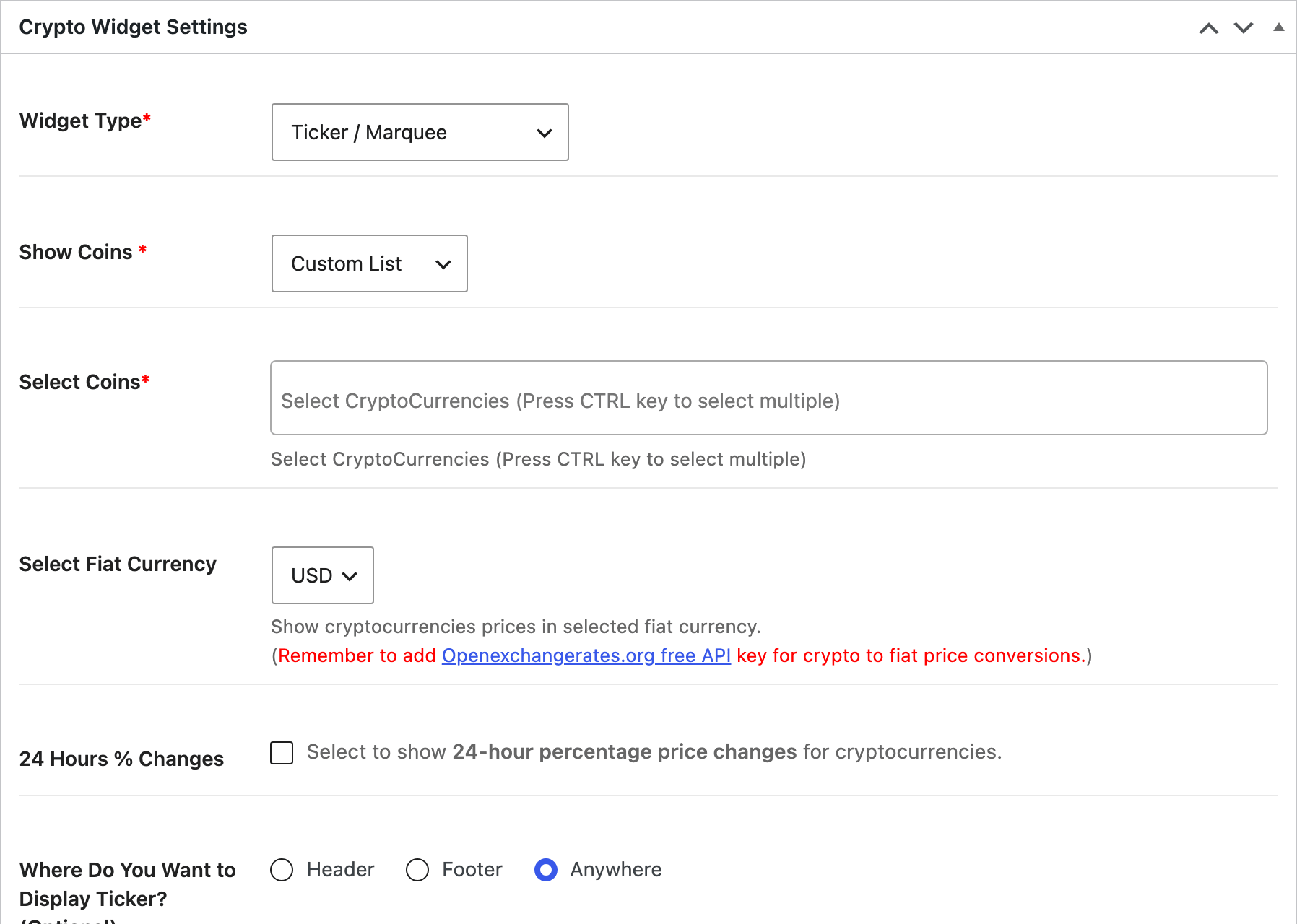
- Widget Type starts on Advanced Table. Choose Ticker / Marquee for the scrolling price ticker, or Simple List for a coins list. The types marked (Pro) belong to the paid version of the plugin.
- Show Coins starts on Top 10. Choose Custom List to pick the coins yourself in Select Coins, which appears underneath.
- For a ticker, leave Where Do You Want to Display Ticker? (Optional) on Anywhere, its default. Header and Footer pin the ticker to the top or bottom of the browser window as a fixed bar that sits on top of the page, Foxiz header included, instead of inside it, and the plugin asks you not to also add the shortcode to a page while one of them is selected.
- Click Publish. A widget shows nothing on the site until it is published. Its shortcode is then in the Crypto Widget Shortcode box beside the settings, in the form
[ccpw id="123"]with your widget's own number, and in the Shortcode column of Crypto Plugins > All Widgets.
-
Switch the site header to a Ruby Template, because none of the five built in header layouts has a slot for a third party widget. Go to Theme Options > Header > Header Layout, set Header Layout to Use Ruby Template, and paste your header template's shortcode into Template Shortcode, the field that appears underneath it.
If Header Layout already reads Use Ruby Template, as on an imported demo built with one, you have a header template: skip to step 6. If you do not have one yet, build it first: How to Create Header Templates and Assign It to Your Website. The template replaces the whole predefined header, so it needs your logo and menu as well as the ticker.
-
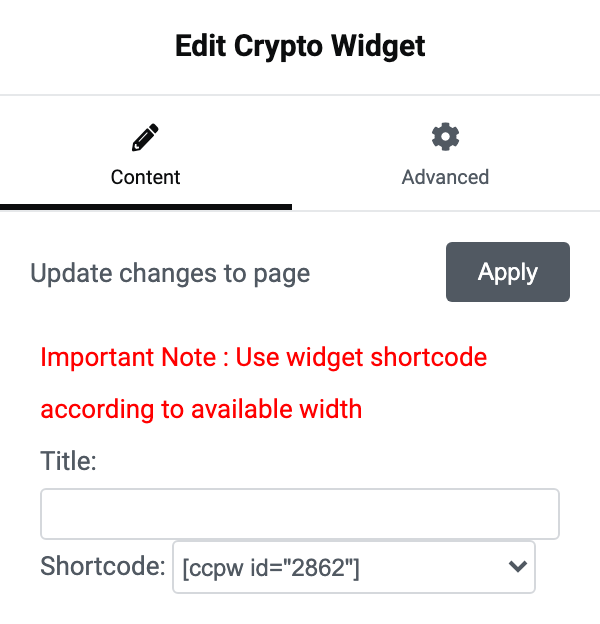
Edit that header template in Elementor and put the crypto widget into it. The plugin adds a WordPress widget called Crypto Widget. Elementor keeps WordPress widgets out of its category list, so type Crypto Widget into the search box at the top of the Elementor panel to find it, then choose your widget in its Shortcode dropdown. If you would rather paste the shortcode from step 4, Elementor's Shortcode widget takes it. Click Publish to save the template.
One thing to check before you save: the Alert Bar under Theme Options > Header is not an alternative here. Its Alert Content is stripped of tags on output, so a shortcode pasted in there prints as text.
Did this answer your question?