How to Build the Mobile Collapse Section with a Ruby Template
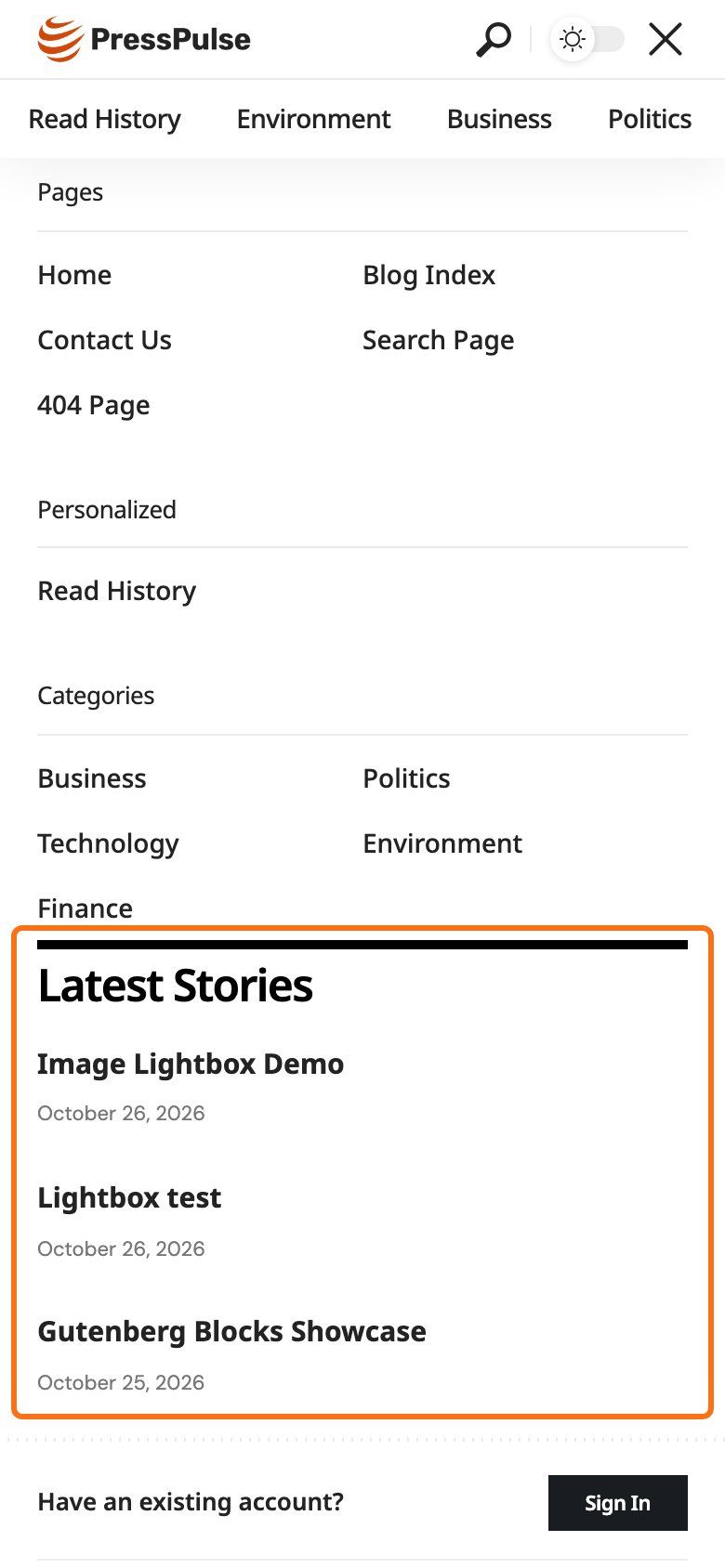
On phones and tablets, the menu icon in the header opens a panel: the collapse section. By default it holds a search form, the mobile menu, your social icons and a footer line. With a Ruby Template (a section you design once in Elementor, then place with its shortcode; see Ruby Templates) you can add your own content to that panel: a list of posts, a newsletter form, a banner, anything a page can hold.
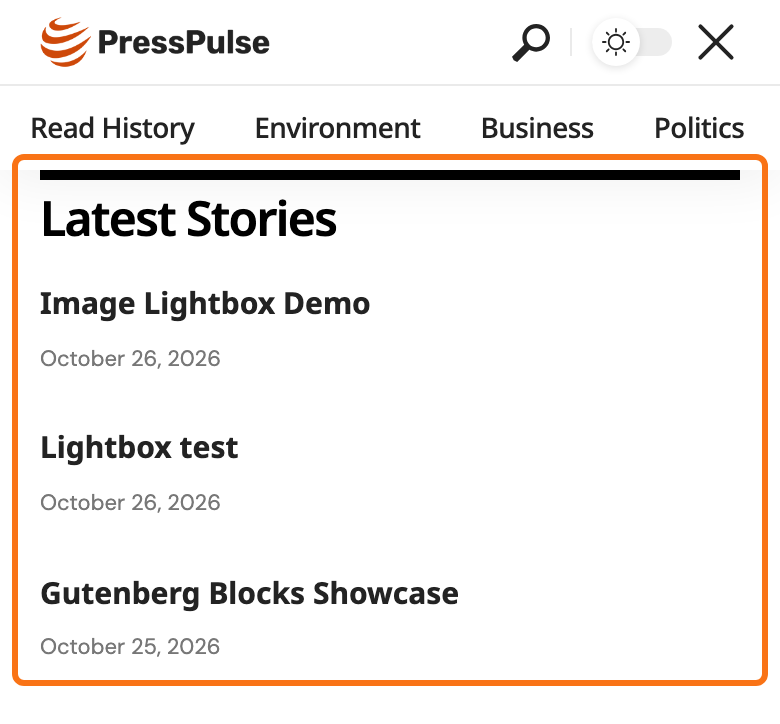
This walkthrough adds a Latest Stories list with three posts under the mobile menu. Follow it once with the same blocks, then change the content to suit your site.
You need Elementor and Foxiz Core active. The panel is the same whichever mobile header you use, a predefined layout or a template of your own, so this works with both.
1. Create the template
- Go to Ruby Templates > Add New Template.
- Type a title you will recognise in the list, such as Mobile Panel.
- Click Edit with Elementor.

2. Build the content in Elementor
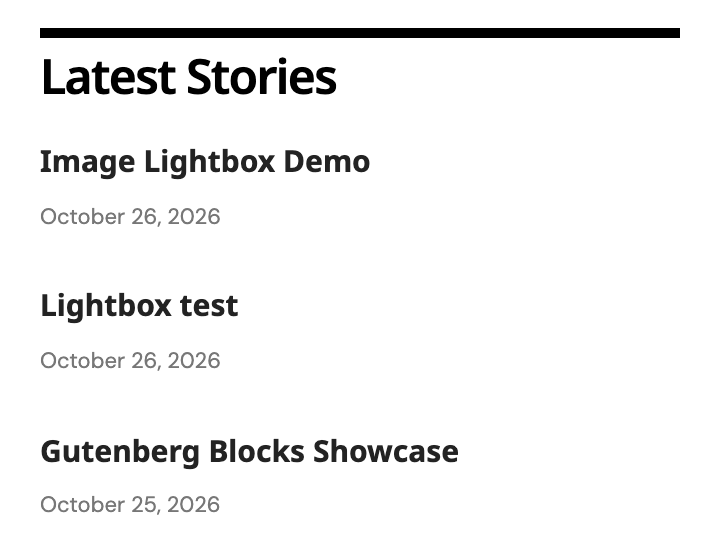
The finished template looks like this in the Elementor canvas: one container, a heading, and three posts.
-
Click the + in the middle of the canvas to add a container. When Elementor asks Which layout would you like to use?, pick Flexbox, then the first structure, a single container. The containers are explained in How to Build your Homepage with Elementor Builder?.

-
From the Foxiz - Element group of the widget panel, drag Foxiz - Heading into the container. In its Heading field, type Latest Stories.

-
From the Foxiz - Standard group, drag Foxiz - Small List 1 under the heading.
-
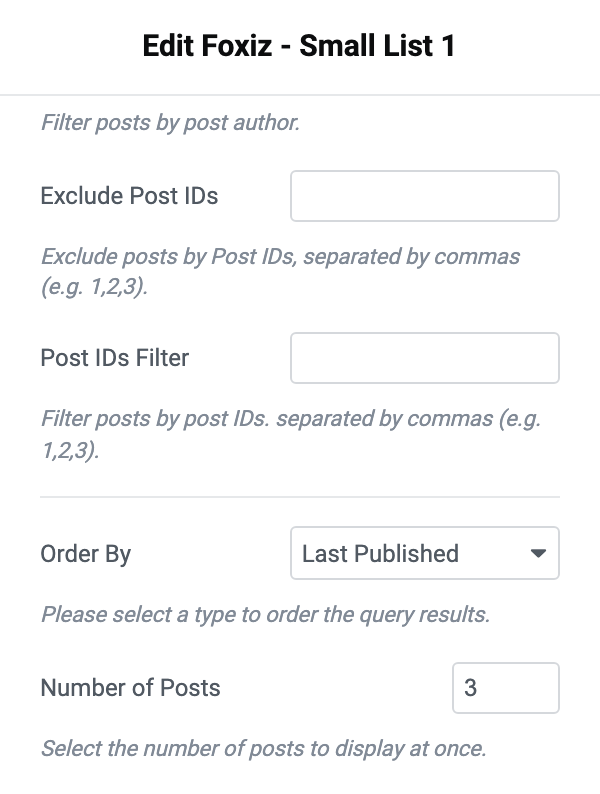
With the list selected, open Content > Query Settings and set Number of Posts to 3. It is 5 by default, which makes a long panel on a small screen. Category Filter can narrow the list to one category.
-
Select the container, open its Advanced tab and give it some left and right Padding, such as 20px, so the list lines up with the menu above it.
-
Click Publish.
Design it at phone width. The panel is only shown on phones and tablets, so switch Elementor's preview to Mobile at the bottom of the panel and check the template there.
3. Copy the template's shortcode
Go to Ruby Templates > All Templates. The Template Shortcode column holds the shortcode for Mobile Panel, ready to copy.

4. Add the shortcode to the mobile header
-
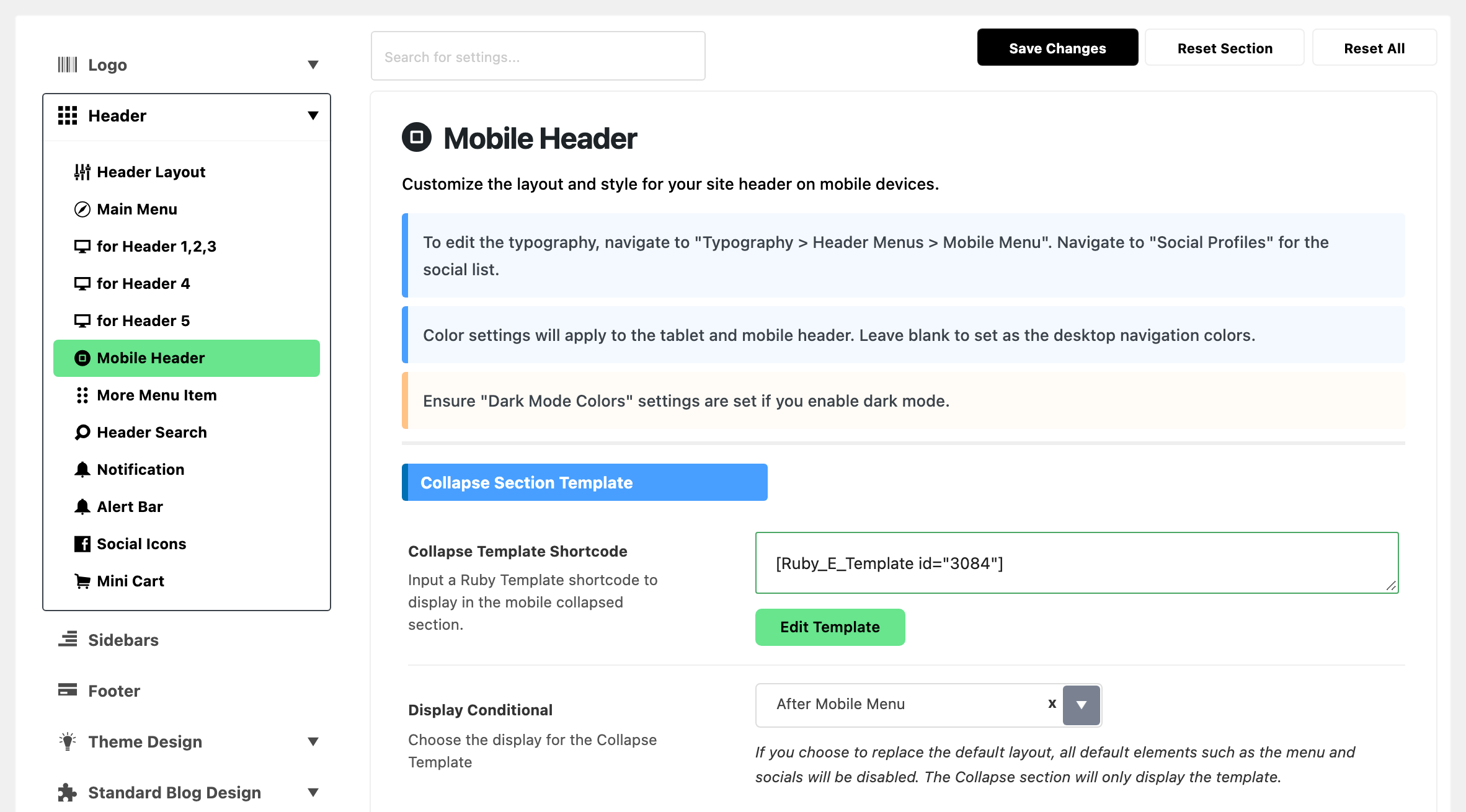
Go to Theme Options > Header > Mobile Header and scroll to the Collapse Section Template group.
-
Paste the shortcode into Collapse Template Shortcode.
-
Display Conditional appears under it. Leave it on After Mobile Menu, the default, which suits most sites: the panel keeps the search form, menu and social icons, and shows your template under the menu.
-
Click Save Changes.
5. Check it on your phone
Open your site on a phone, or narrow your browser window to 1024px or less, and tap the menu icon. The panel opens with your template under the menu, as in the picture at the top of this article.
The template sits above the sign in link, the social icons and the footer menu, when those are switched on.
Changes are made in the template from now on. Edit Mobile Panel in Elementor, publish, and the panel shows the new version; Theme Options does not need saving again.
Replace the whole panel with your template
Replace Default Layout in Display Conditional shows your template and nothing else. Everything the theme puts in the panel goes: the search form, the mobile menu, the sign in link, the social icons and the footer menu and copyright line. Choose it only when your template carries all the panel needs.
When you replace the panel, add these to your template:
- A menu. Drag Foxiz - Sidebar Menu from the Foxiz - Element group and pick your mobile menu in its Assign Menu field. Without it, readers on phones have no menu at all.
- A background, if your panel is coloured. A replaced panel takes no colour from Collapse Section Background, so it shows your site's page colour. To keep a coloured panel, select the template's container and set a Background on its Style tab.
- Social icons, if you want them: Foxiz - Social List shows the profiles from Theme Options > Social Profiles.
The search icon on the mobile bar also opens this panel, and it puts the cursor in the panel's search box. With the panel replaced there is no search box, so the icon only opens your template. Turn Search Icon off in the General group of the same Theme Options panel, unless your template has a search form.
Tips
Keep it short
The panel scrolls, but readers open it to find the menu. A short block under the menu, such as three posts or one banner, is read; a long one pushes the social icons and footer line out of sight.
AMP pages skip the template
If you run the AMP plugin, the AMP version of your pages shows the default panel without your template, whichever Display Conditional you chose.
One template per language
With WPML, Collapse Template Shortcode can be translated, so each language can show its own template.
The panel's colours
Collapse Section Background and Collapse Section - Text Color in the Colors group of the same Theme Options panel colour the default panel, and your template sits on that background when it shows under the menu. See Every Setting in the Mobile Header Panel.
To change the rest of the panel, the search form, social icons and footer line, see step 5 of How to Set Up the Mobile Header.
Did this answer your question?