Structuring Mobile Header Layout Using Ruby Template
The Foxiz theme supports building a mobile header from a Ruby Template, which makes your website's layout easier to customize.

To get started, follow the steps below:
-
Create your template: navigate to Ruby Templates > Add Template, give it a title such as "Mobile header", and click Edit with Elementor. To learn more about templates, you can refer to this documentation: Ruby Templates
-
In the Elementor control panel, search for “mobile”. All three blocks carry
mobileas a keyword, so the search finds them wherever they sit in the list. They are in the Foxiz Header category if you would rather scroll.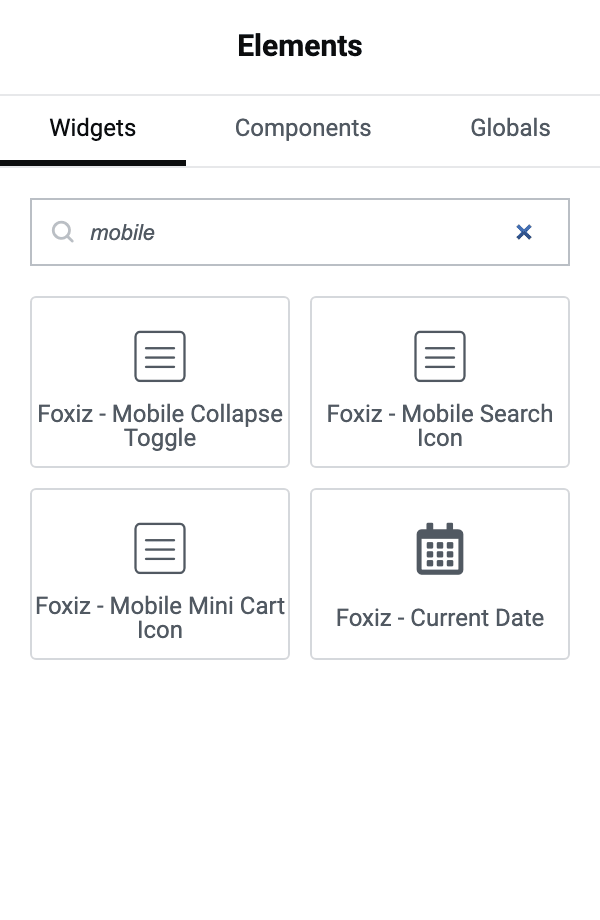 note
noteFoxiz - Mobile Collapse Toggle block, Foxiz - Mobile Search Icon block, Foxiz - Mobile Mini Cart Icon block: Those blocks are designed specifically for the Header template on mobile/tablet devices. Avoid using them in other areas, so they work as intended.
-
Drag the blocks the search found into your template. Two of them depend on a Theme Options switch, and print nothing in the template while it is off:
- Foxiz - Mobile Search Icon needs Search Icon on, in Theme Options > Header > Mobile Header > General. It is on by default. Tapping it opens the slide-open panel with the cursor in its search box.
- Foxiz - Mobile Mini Cart Icon needs WooCommerce and Mobile Header - Mini Cart on, in Theme Options > Header > Mini Cart. It is off by default.
Add Foxiz - Site Logo as well (search for "logo"), since a header needs your logo.
-
You can rearrange the placement of those blocks to create your own custom header layout

-
Click "Publish".
Your template replaces the mobile bar itself and nothing else. The Mobile Quick Access menu strip under it and the collapse panel that the toggle opens are both rendered outside the template, so they keep coming from Theme Options > Header > Mobile Header and from Appearance > Menus. That is why Foxiz - Mobile Collapse Toggle is worth placing: without it there is nothing to open the panel with. Set up that panel and the mobile menu first, as for the predefined bar: steps 1 and 5 of How to Set Up the Mobile Header.
To add a template, follow the steps below:
-
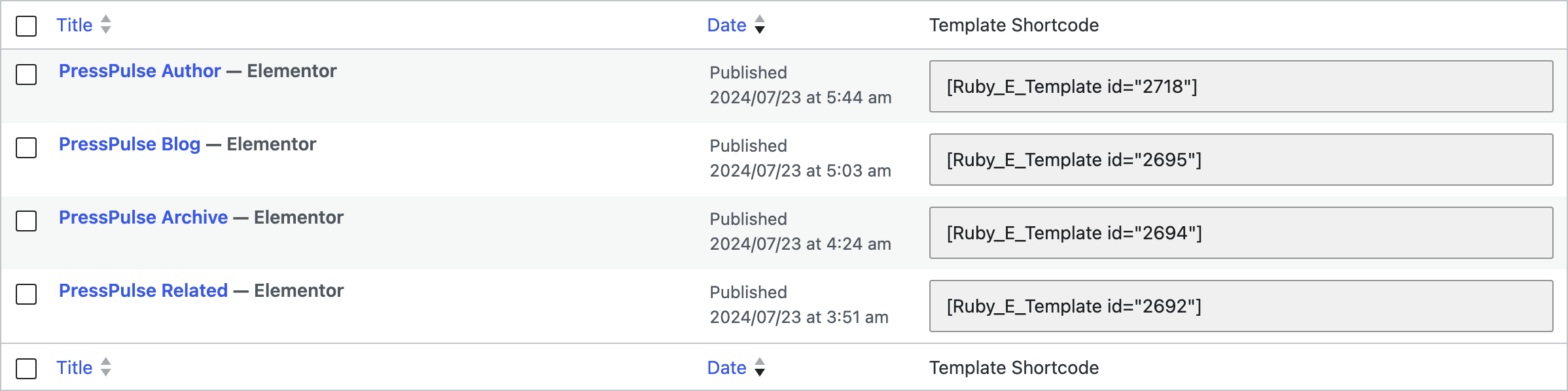
Copy the template's shortcode: navigate to Ruby Templates. The list has a Template Shortcode column holding it ready to copy; it looks like
[Ruby_E_Template id="123"], with your template's number. -
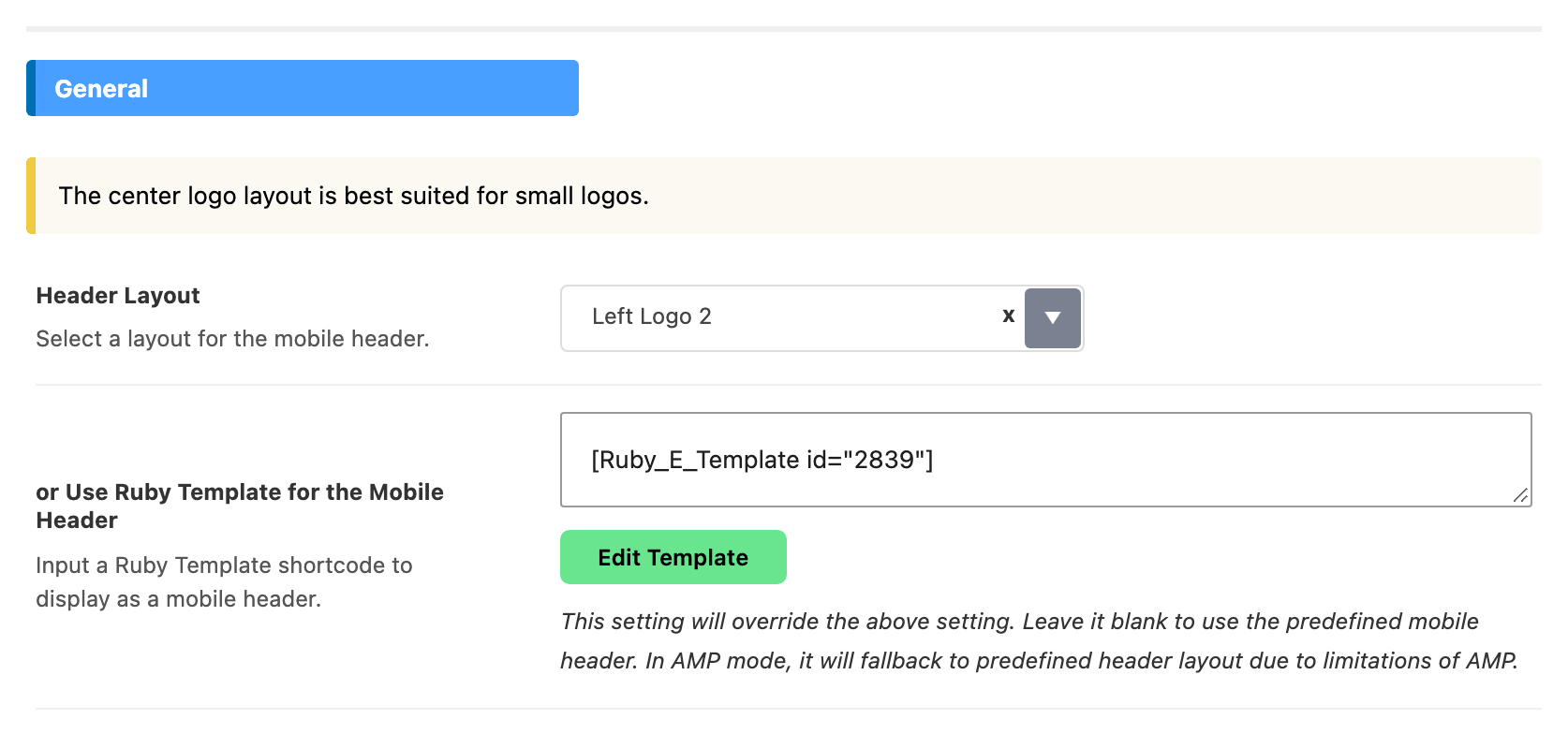
Navigate to Foxiz > Theme Options > Header > Mobile Header > General
-
Input the shortcode into the or Use Ruby Template for the Mobile Header option, the textarea directly under Header Layout. Filling it overrides Header Layout; emptying it puts the predefined mobile header back.
-
Click "Save Changes"
Under AMP the template is skipped and the predefined mobile layout renders instead, a limitation of AMP that the field's own description states. Pick a Header Layout value you are happy with even when you are using a template, because that is what AMP visitors get.
A single page can use a different mobile header from the rest of the site. Its Single Page Settings box has or Use Ruby Template for Mobile Header in the Site Header tab, and it beats the Theme Options setting for that page. The field is on pages only; posts and terms do not have it.
Did this answer your question?