How to Add the Logo on the Header Template

Foxiz supports the Site Logo block in Elementor, allowing you to directly add a logo within Elementor without needing to upload the logo through the theme's options
To get started, follow the steps below:
-
Create your header template, please navigate to Dashboard > Ruby Templates. To create a header template, you can refer to this documentation: Header Templates
-
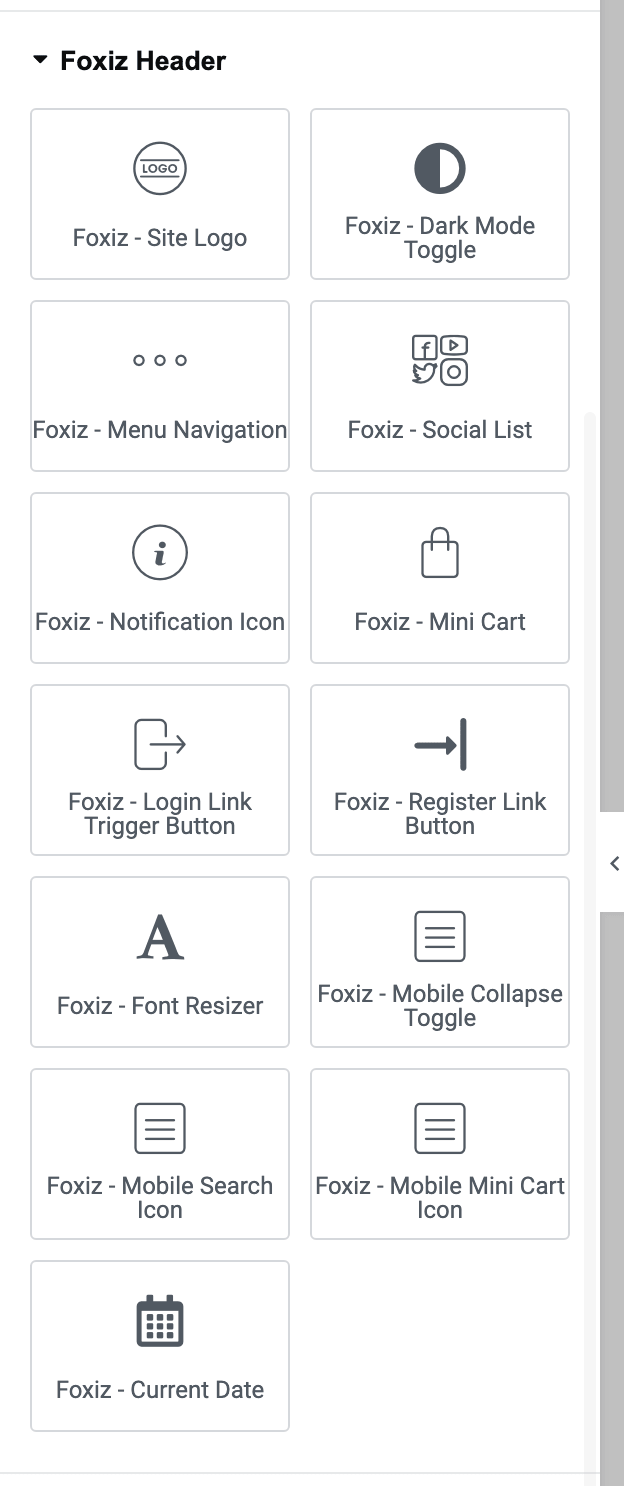
In the Elementor panel on the left, scroll down to the “Foxiz Header” section.
-
After scrolling down to the 'Foxiz Header' section, you will see the Foxiz - Site Logo block, and you can simply drag and drop this block inside.
-
Leave Logo Image empty to use the logo you already set in Theme Options > Logo: one place to change it, for every header. Upload a logo here only if this header needs a different one.
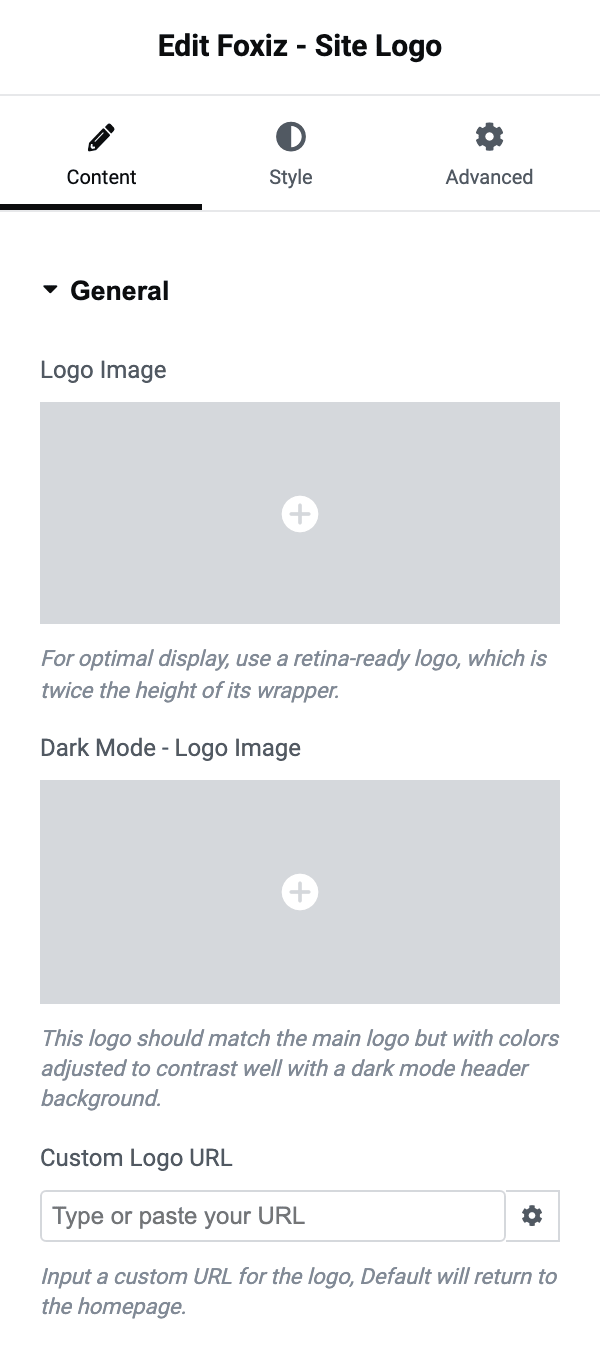
The field is Logo Image, the first one in the block's General section on the Content tab. If you upload one, give it a retina file: the block asks for a logo twice the height of its wrapper, and the height the theme recommends for its own header is 120px against a 60px wrapper.
Three more fields sit under it. Dark Mode - Logo Image is the version drawn when a visitor switches the site to dark mode; leave it empty and your one logo is used in both modes, colours and all. Custom Logo URL changes where the logo links to, and defaults to the homepage. Site Title Included is the hidden H1, covered in the next section.
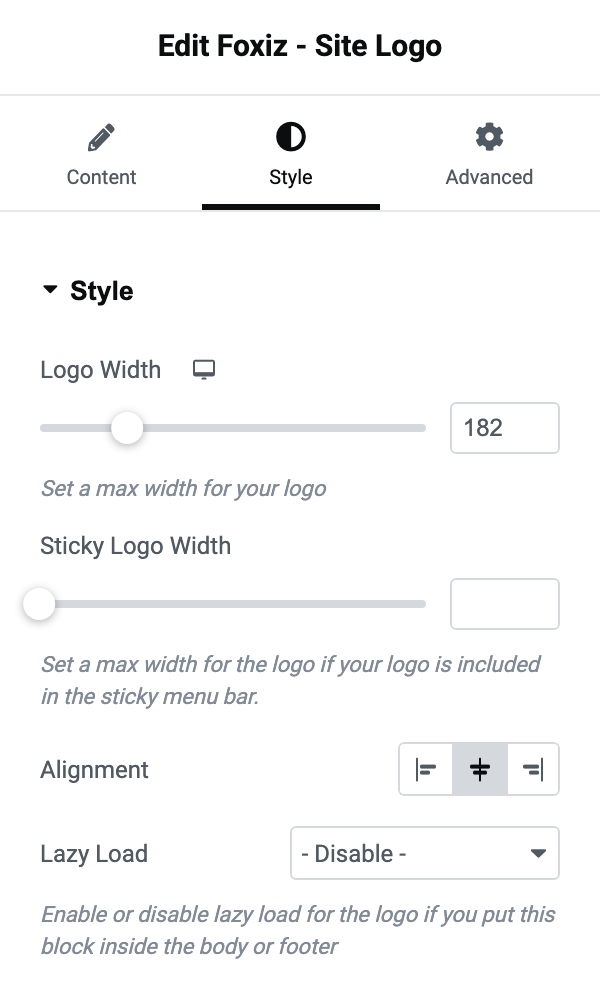
The size of the logo is on the Style tab, not this one:
- Logo Width caps it, and can be set per device.
- Sticky Logo Width caps it again for when the header is stuck.
- Alignment places it in its column.
- Lazy Load is off by default, because a header logo should load immediately. Turn it on only if you have put this block in the body or the footer.
You do not have to fill Logo Image in at all. Left empty, the block reads Theme Options > Logo > Default Logos > Main Logo instead, and its dark twin the same way, which is how one template can serve a site whose logo is managed from Theme Options. What it cannot do is show nothing gracefully: with both that field and Main Logo empty, the block renders no markup at all, so a header with a missing logo and no gap where it should be usually means neither was set.
The block only supplies the logo your template draws, which is the desktop header. Phones and tablets get the mobile bar, which Foxiz renders separately and which still takes its image from Theme Options > Logo > Mobile Logos, falling back to Main Logo when that is empty.
How to Remove the H1 Tag When Using the Site Logo Block
-
Navigate to Dashboard > Ruby Templates > Template with the logo block > Click "Edit with Elementor.
-
Click on the Site Logo block, and its settings will be displayed on the left side of the screen.
-
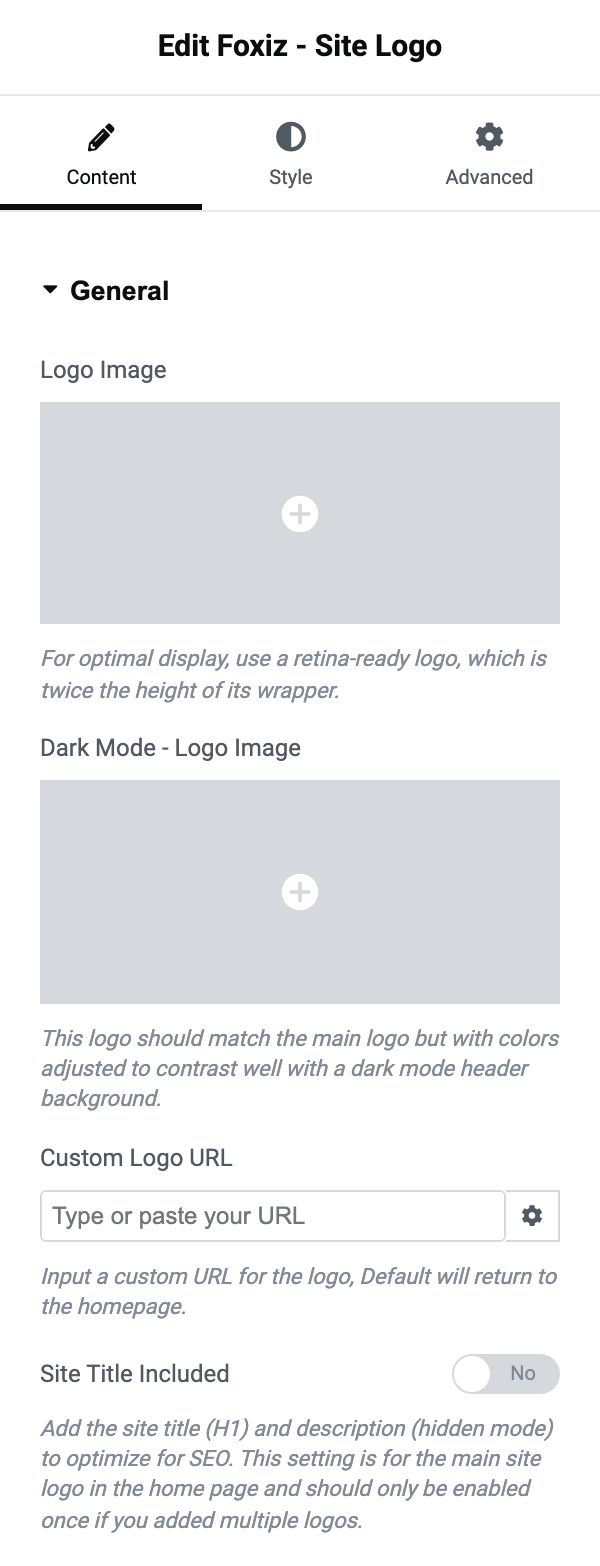
You will see the "Site Title Included" option. It is the last control in the block's General section, and it is off by default, so a template you built yourself is not printing an H1 unless you turned this on. Turn it on in the logo of your main header template, unless your homepage already has an H1 of its own: it gives the front page the hidden site title H1 that the ready-made headers print.
-
Please ensure there is only one H1 tag on the website. If multiple Site Logo blocks are used on the website, you need to disable the "Site Title Included" option and enable it for only one block.
That last rule is now enforced for you, and it is worth knowing before you go hunting. Only the first logo on the page prints the hidden H1, so a second Foxiz - Site Logo in a footer template cannot add a second H1. The mobile logo never prints one either.
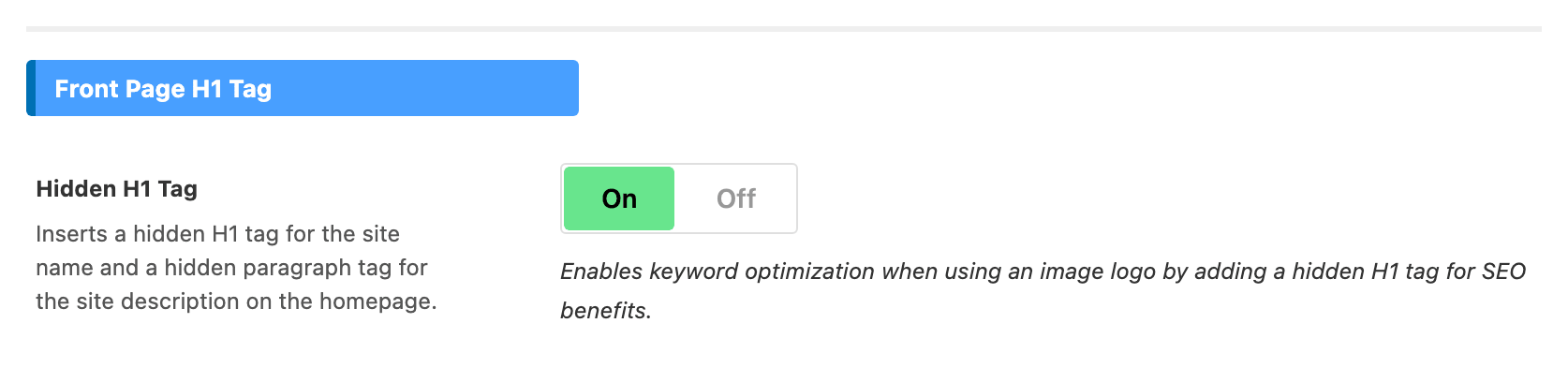
Two other conditions have to hold before the tag is printed at all, which is why turning this switch on sometimes changes nothing. It is the front page only, and it needs Hidden H1 Tag on, in the Front Page H1 Tag group of Theme Options > SEO Optimized. That switch is on by default, and turning it off removes the hidden H1 and the hidden site description everywhere at once, whatever each block says.
-
Click "Publish"
If you came here because a page has two H1 tags and the logo turns out not to be the cause, How to Check and Resolve Duplicate H1 Tags walks the rest of the page.
Did this answer your question?