How to Add More Button Menu to the Main Navigation
The theme supports a more button menu for the navigation section. This will allow you to add more menu items, avoiding the issue of having an excessively long main menu.
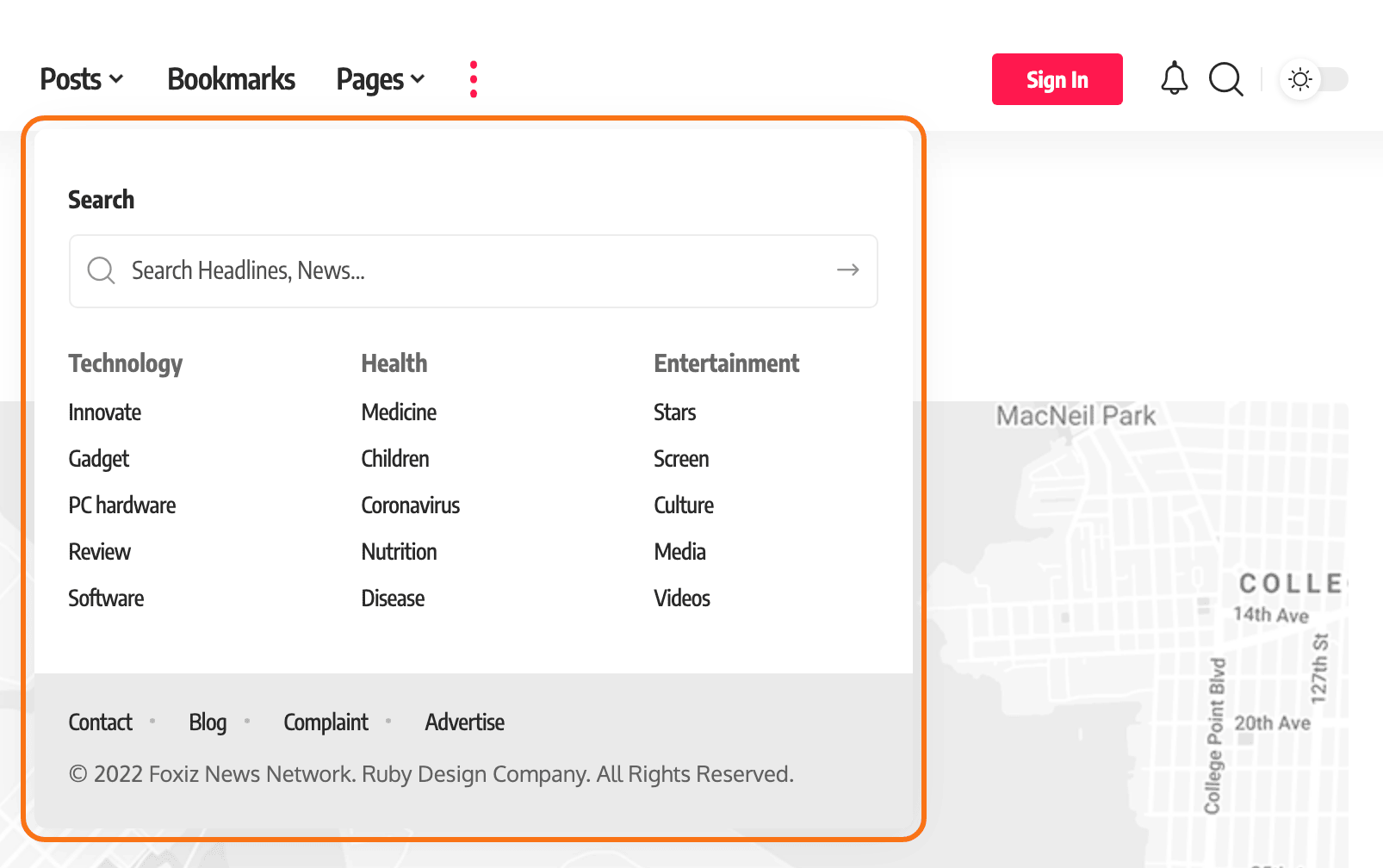
The feature is two halves that live in different places. The switch that shows the button belongs to your header layout, and the content of the dropdown comes from a widget area. Turn the switch on with the widget area empty and the dropdown opens on nothing, so do the widgets too.
The sections below start with the optional settings. Work in this order instead:
- First, turn on More Menu Button: the "for the default header" steps, or the "for the header template" steps if your header is a template.
- Then add widgets to More Menu Section: the last steps on this page.
- Last, and only if you want to, adjust columns, width and the footer line in More Menu Item: the first steps.
To manage the More Menu Item, follow the steps below:
-
Navigate to Foxiz > Theme Options > Header > More Menu Item
-
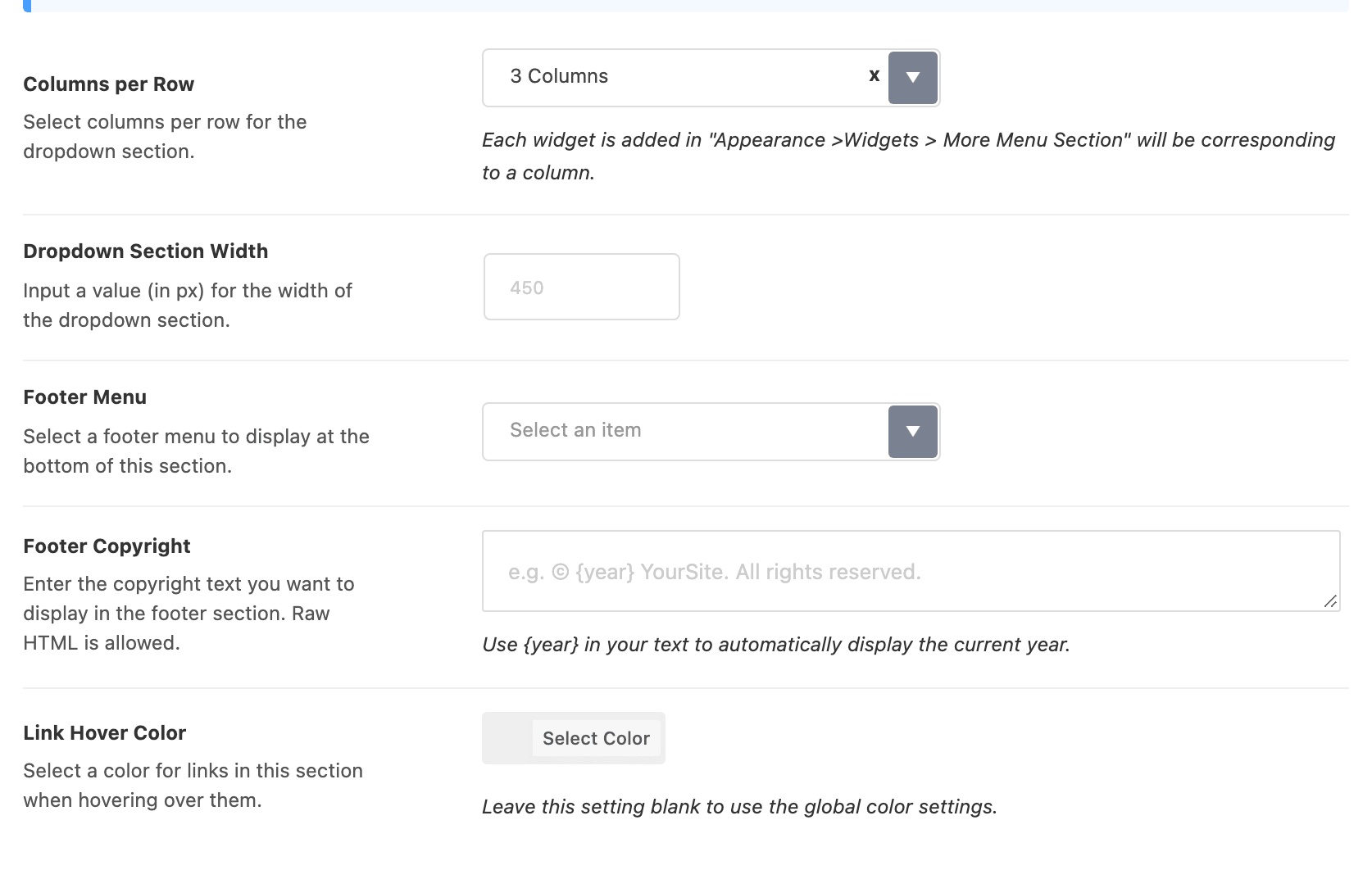
And modify the options based on your needs. There are five:
- Columns per Row sets how many columns the dropdown lays its widgets out in. Four values, 2 Columns to 5 Columns. Its default is 3 Columns.
- Dropdown Section Width is the width of the panel in px. No default; leave it blank and it falls back to 450.
- Footer Menu puts one of your WordPress menus along the bottom of the dropdown. It renders one level deep, so submenu items under a top level item are dropped.
- Footer Copyright is a line of text beside it. Raw HTML is allowed, and
{year}anywhere in the text is replaced with the current year. - Link Hover Color colours links in this section on hover. Leave it blank to use the global colour settings.
-
Click "Save Changes".
- For the default header: to enable the More button, please follow the steps below:
-
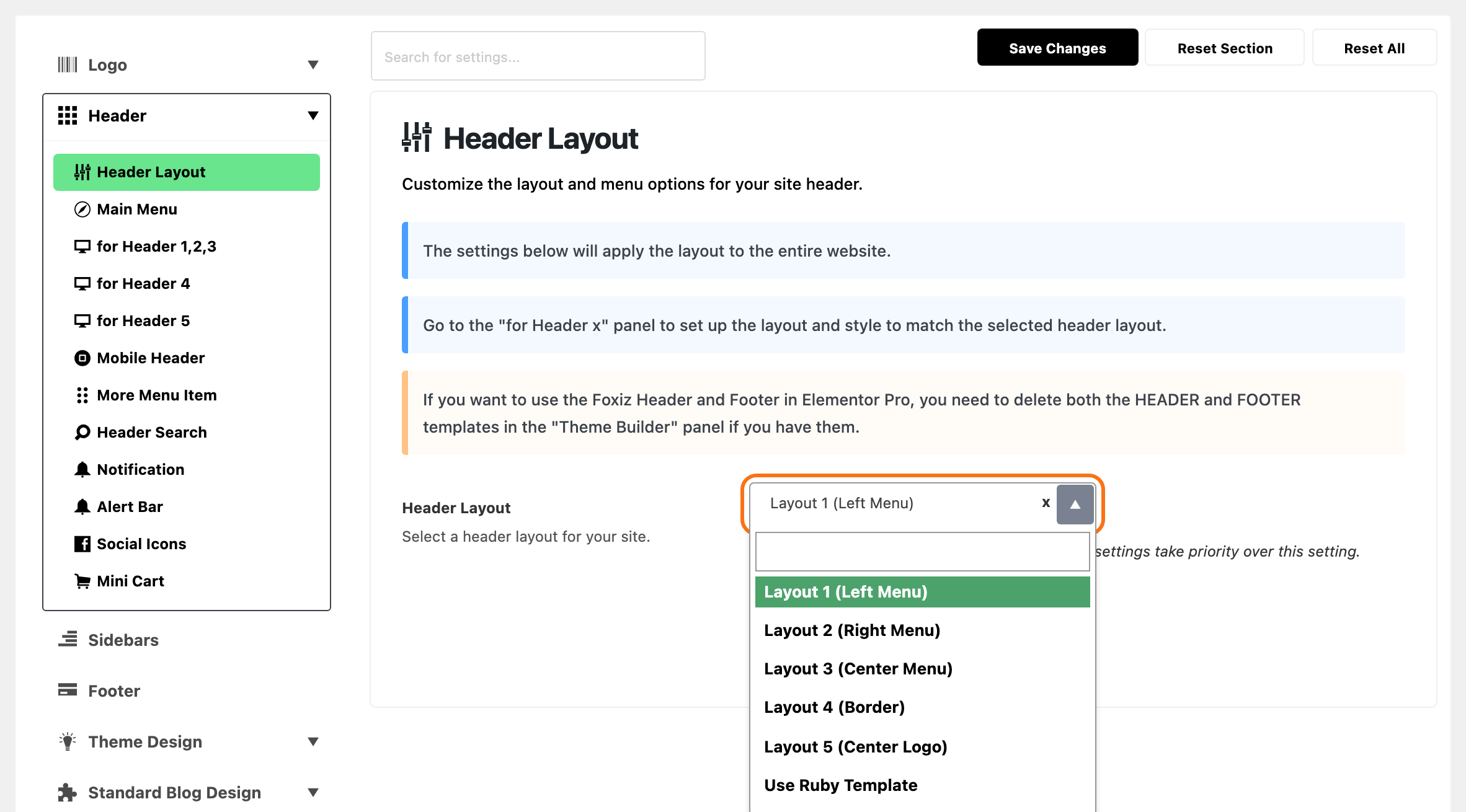
Navigate to Foxiz > Theme Options > Header > Header Layout > Header Layout
-
Here, the theme has 5 default header layouts that you can refer to and see which one your website is currently using: Layout 1 (Left Menu), Layout 2 (Right Menu), Layout 3 (Center Menu), Layout 4 (Border) and Layout 5 (Center Logo). Its default is Layout 1 (Left Menu).
-
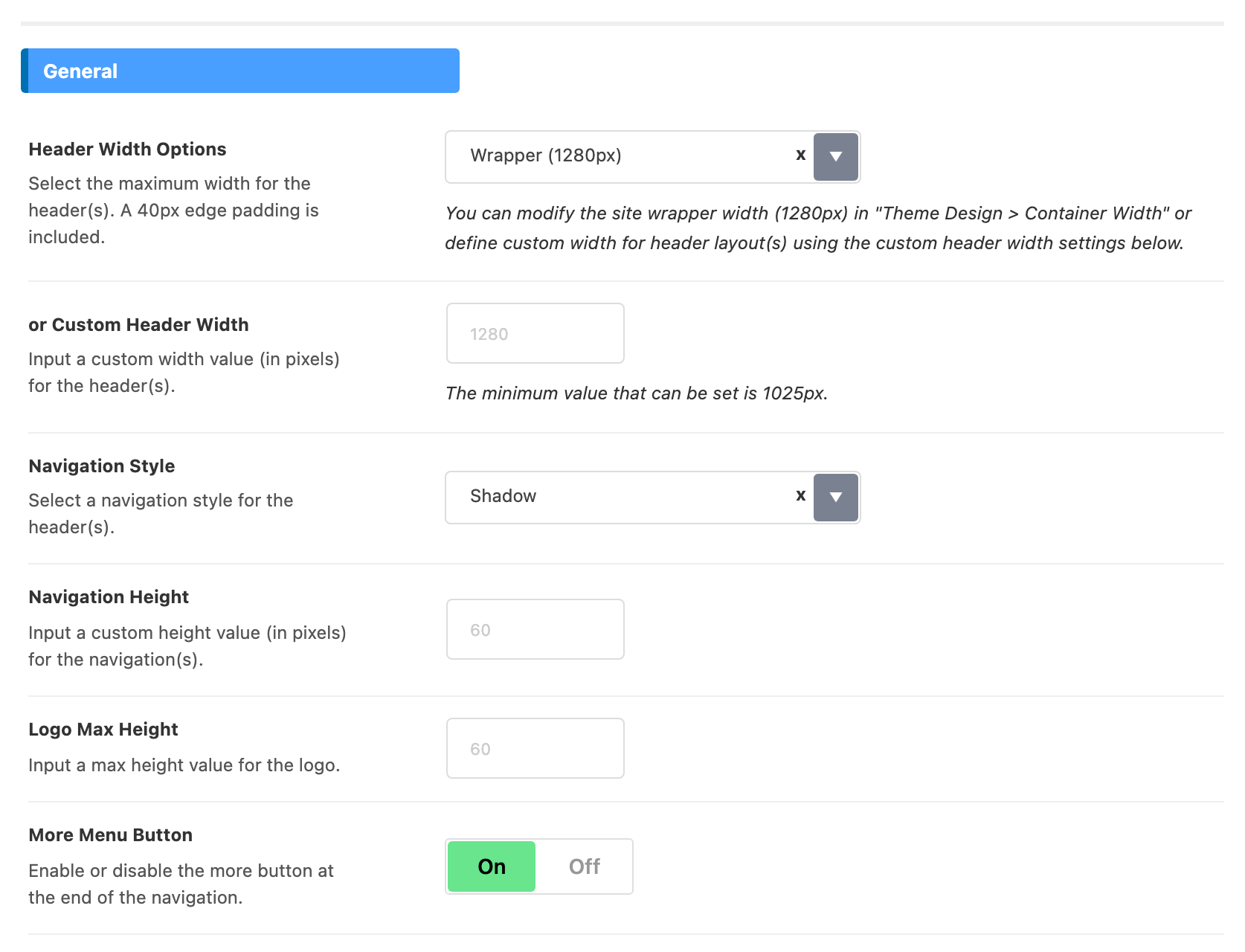
Then open the panel for that layout and turn on More Menu Button, in its General section. There are three such panels, not five:
- Layouts 1, 2 and 3: for Header 1,2,3
- Layout 4: for Header 4
- Layout 5: for Header 5
The switch is off in all three. Setting it in the wrong panel changes nothing, which is the usual reason the button does not appear.
-
Click "Save Changes"
- For the header template: to enable the More button, please follow the steps below:
-
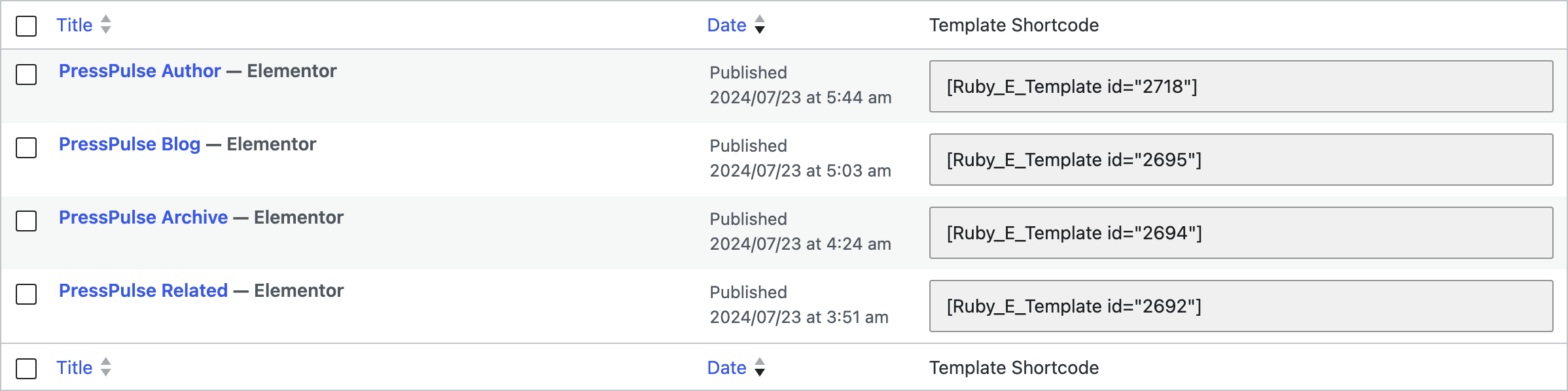
Navigate to Ruby Templates > Header template
-
Click on "Edit with Elementor" to edit the header.
-
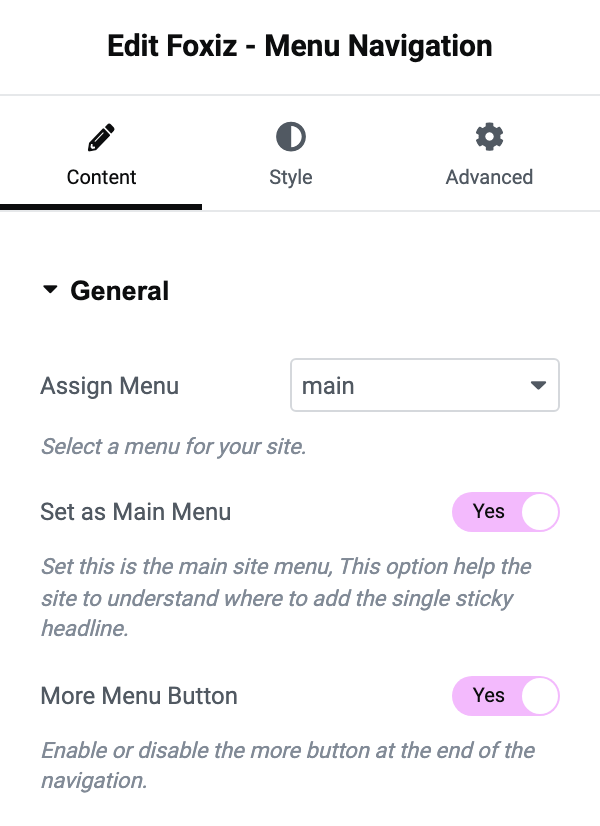
Click the Foxiz - Menu Navigation block.
-
Open its Content tab, then the General section.
-
Turn on More Menu Button. It is off by default here too.
-
Click "Publish"
To add content for the dropdown section, please follow the steps below:
-
Navigate to Appearance > Widgets and find the More Menu Section area. Drag the widgets you want into it.

-
Each widget you add becomes one column in the dropdown section, whatever kind of widget it is. A Navigation Menu widget is the usual choice because the panel is a menu, but an image, a text block or a Foxiz post listing all work the same way. How many of those columns sit on a row is Columns per Row, above.
-
Fill in each widget and click its Save button.
The dropdown body is the More Menu Section widget area and nothing else. If that area is empty, the panel renders with only its search form and its footer line, or with nothing at all when both of those are off as well.
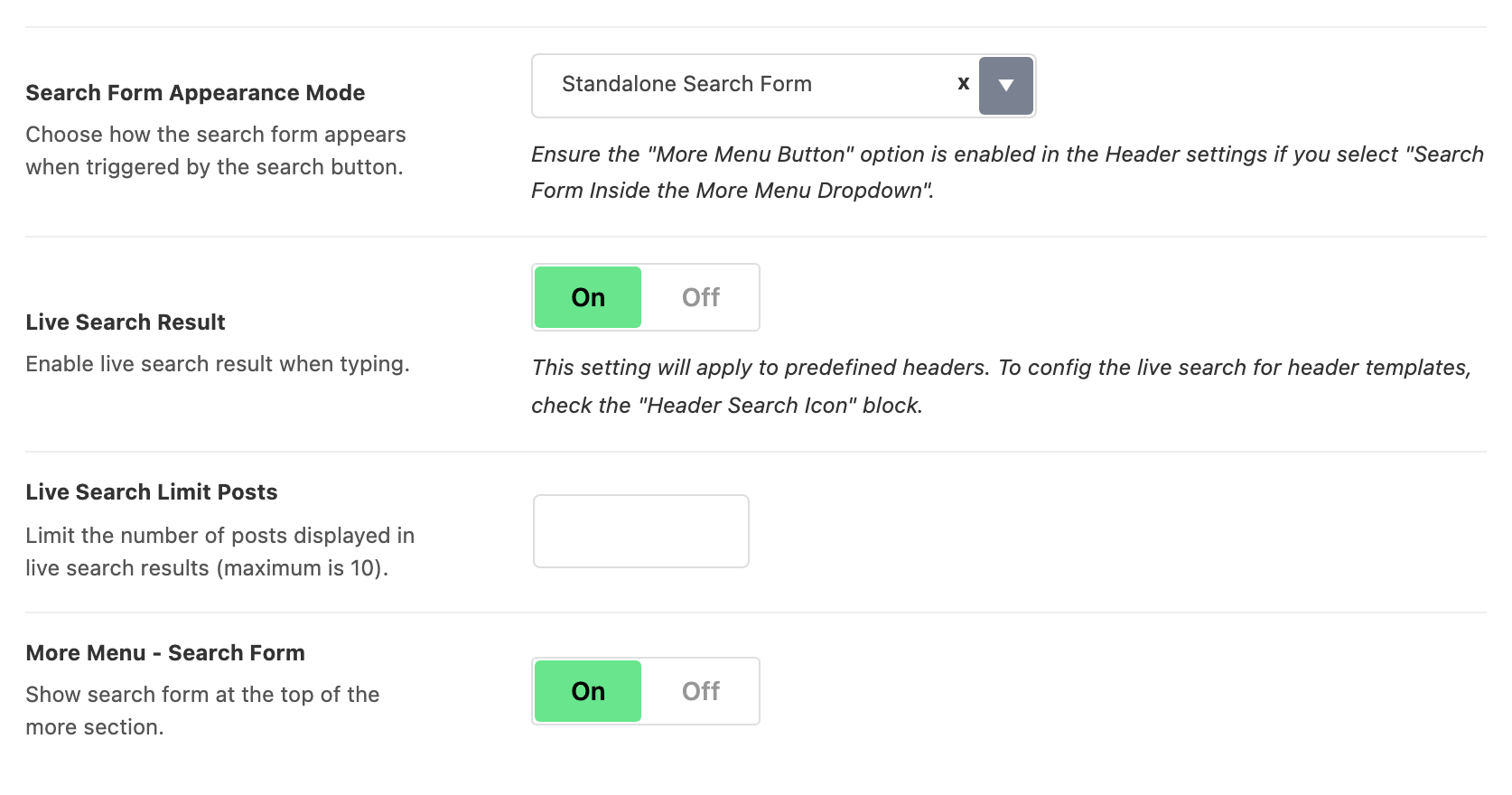
The search form at the top of the panel is its own switch, More Menu - Search Form, at Theme Options > Header > Header Search, and it is on by default. The same panel's Search Form Appearance Mode can send the header's search icon into this dropdown instead of opening its own; that choice needs More Menu Button on or the click goes nowhere.
Did this answer your question?