How to Build a Mega Menu with a Ruby Template
A mega menu is a wide panel that opens under a main menu item when the reader hovers it. With a Ruby Template you design that panel in Elementor, so it can hold anything a page can: a heading, a row of posts, images, buttons.
The picture below shows a Ruby Template mega menu on the Times demo. Its Technology item opens a row of the latest Technology posts.
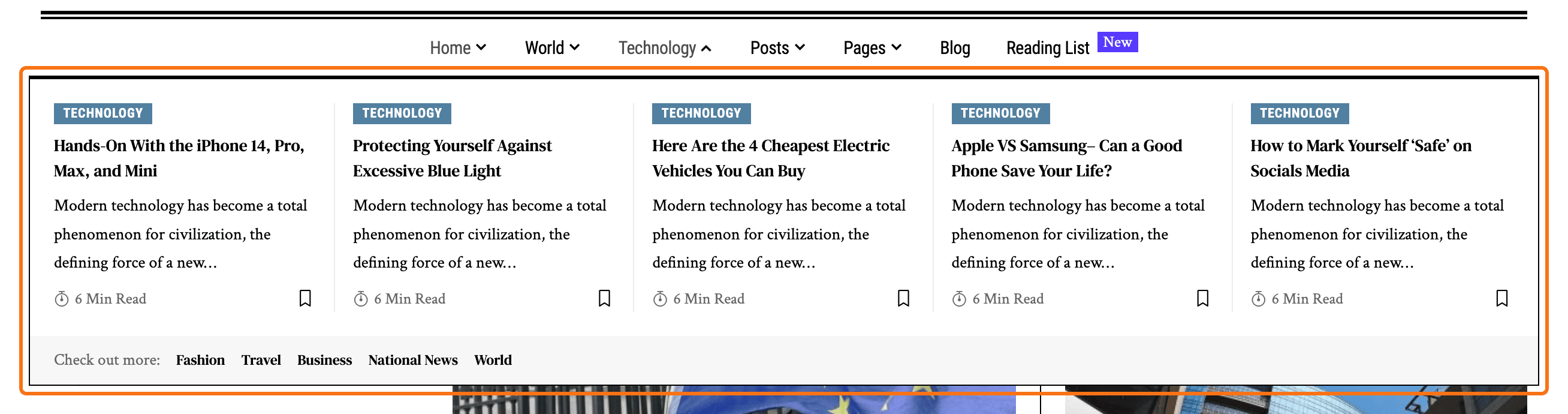
This walkthrough builds a simpler panel from start to finish. A Tech item in the main menu opens it, with a heading and the four latest Technology posts. Follow it once with the same blocks, then change the content to suit your site.
You need Elementor and Foxiz Core active. Without either one, the panel stays empty and no error is shown. The short reference version of these steps is How to Create Mega Menu Using Ruby Template.
1. Create the template
- Go to Ruby Templates > Add New Template.
- Type a title you will recognise in the list, such as Tech Mega Menu.
- Click Edit with Elementor.
2. Build the panel in Elementor
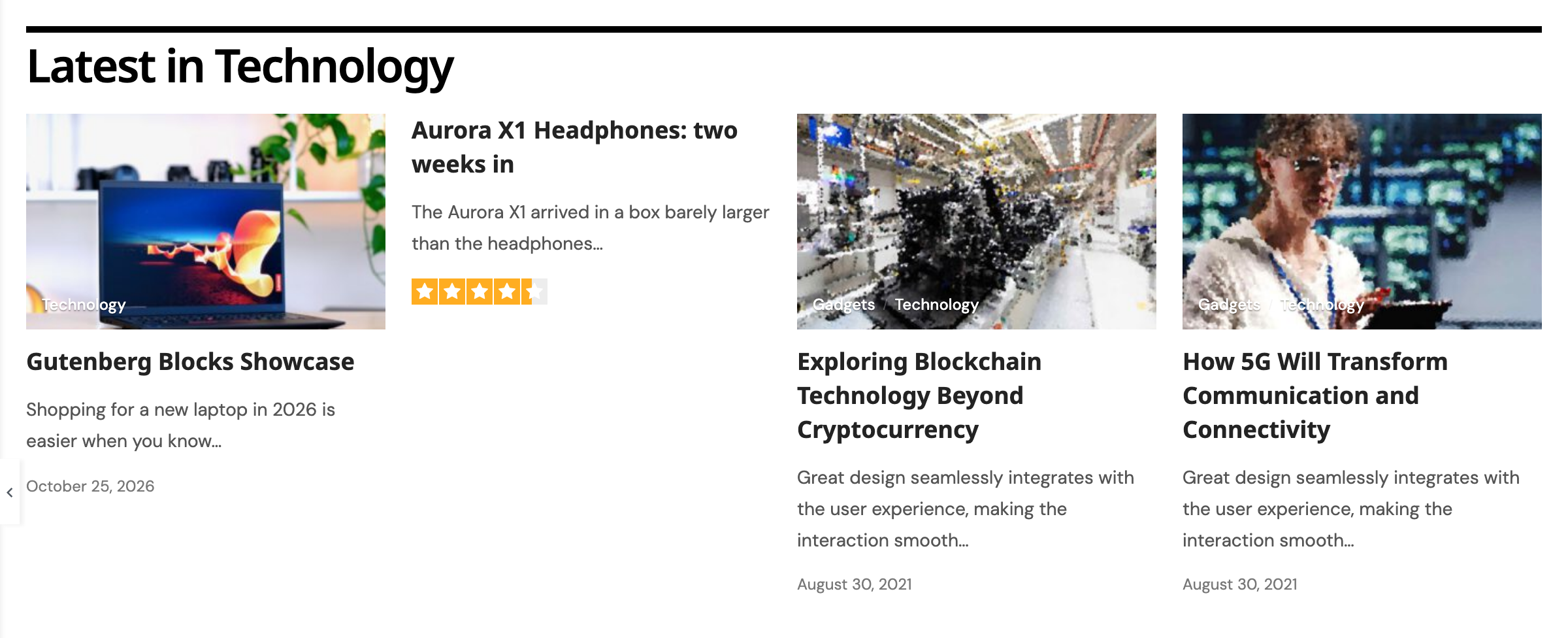
The finished template looks like this in the Elementor canvas: one container, a heading, and a row of four posts.
-
Click the + in the middle of the canvas to add a container.

-
From the Foxiz - Element group of the widget panel, drag Foxiz - Heading into the container. In its Heading field, type Latest in Technology.

-
From the Foxiz - Standard group, drag Foxiz - Small Grid under the heading.

-
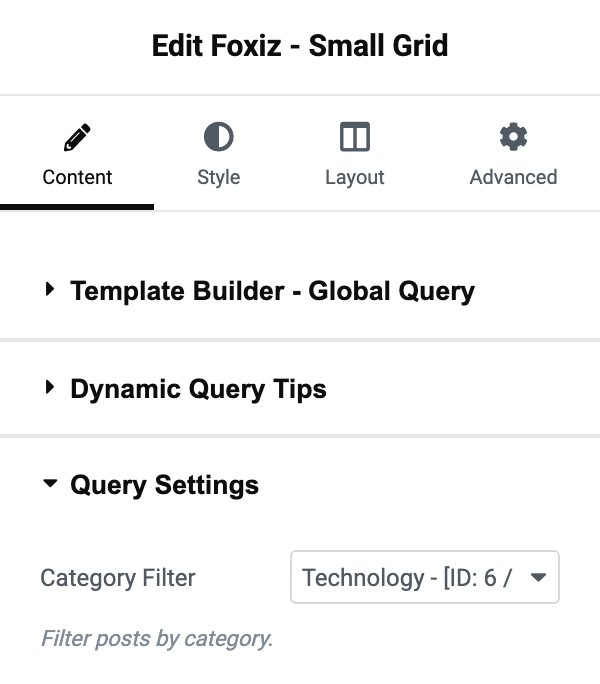
With the grid selected, open Content > Query Settings and set Category Filter to Technology. Number of Posts is 4 by default, which fills one row.
-
Open the Layout tab and set Columns on Desktop to 4 Columns, so the four posts sit side by side.
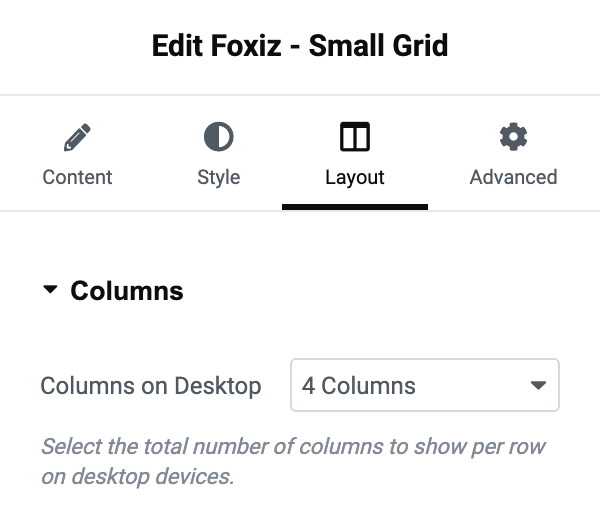
Any other blocks work the same way. A second container beside the first can hold an image or a list of links; open the outer container's Layout tab and set Direction to Row - horizontal to put them side by side.
3. Give the panel a background
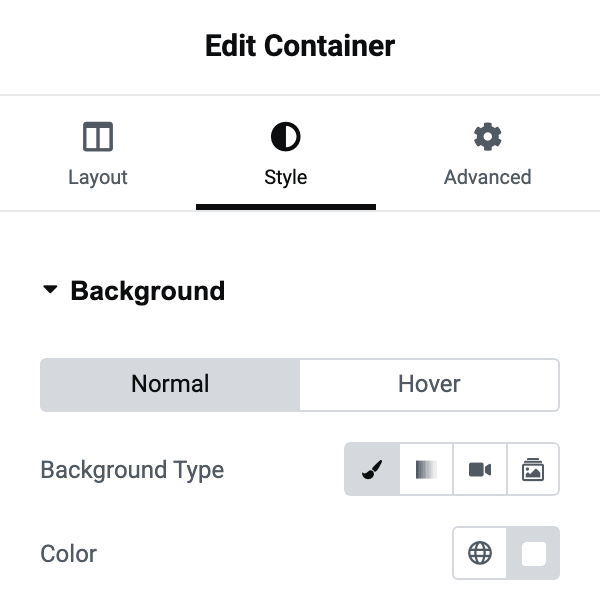
This step is easy to miss. Foxiz paints a background behind its other mega menus, but not behind a template: the panel is exactly as solid as your template. Without a background of its own, the page under the menu shows through the panel.
-
Click the container's handle to select the container itself.
-
Open the Style tab. Under Background, set Background Type to Classic (the brush) and Color to white, or to your site's menu colour.
-
Open the Advanced tab and give the container some Padding, such as 20px, so the posts do not touch the edges of the panel.
-
Click Publish.
4. Copy the template's shortcode
Go to Ruby Templates > All Templates. The Template Shortcode column holds the shortcode for Tech Mega Menu, ready to copy.

5. Add a menu item for the panel
- Go to Appearance > Menus and select the menu your header uses.
- Open the Custom Links box on the left.
- Type
#in URL, so the item opens the panel without linking anywhere, and Tech in Link Text. - Click Add to Menu.
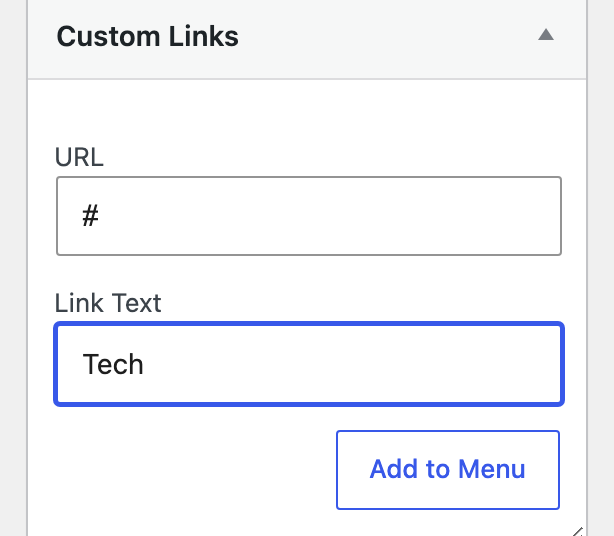
It has to be a Custom Link, and it has to stay at the top level of the menu. A page, post or category item has no field for a template, and neither has a Custom Link nested under another item.
6. Paste the shortcode into the menu item
- Click the new Tech item to open its settings.
- Under or Ruby Templates Shortcode, paste the shortcode into Template Shortcode.
- Leave Section Width empty, so the panel spans the full width of the header.
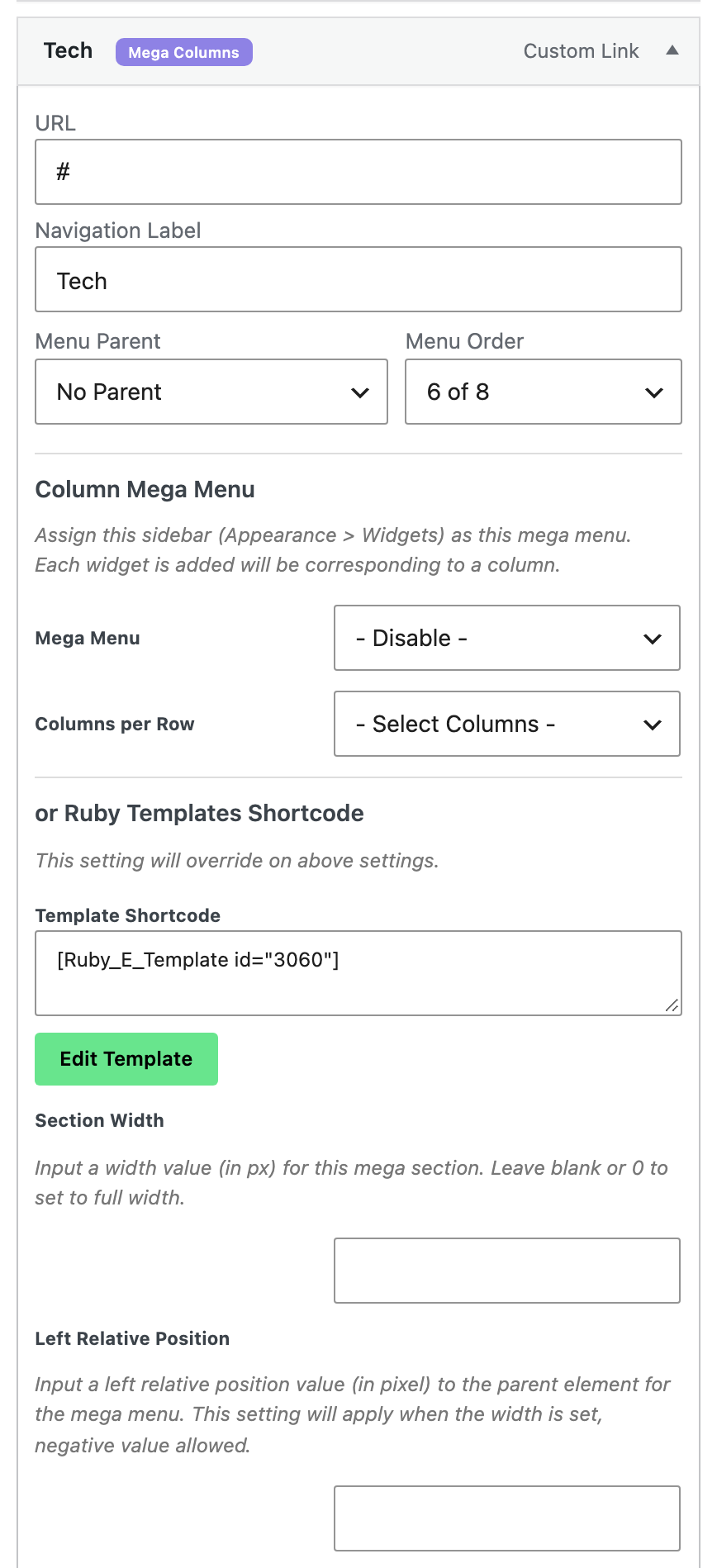
The item's title bar now shows a Mega Columns badge. It shows for a template too, so you have not picked the wrong option.
7. Check the menu location and save
At the foot of the page, under Menu Settings > Menu location, make sure Main Menu is ticked. Foxiz draws mega menus only in the menu assigned to Main Menu.

Click Save Menu.
8. Check it on your site
Open your site and hover Tech. The panel opens under the menu, the way the Times demo's does in the picture at the top of this article, with your heading and four posts.
Changes to the panel are made in the template from now on. Edit Tech Mega Menu in Elementor, publish, and the menu shows the new version; the menu item does not need saving again.
Tips
A narrower panel
For a panel that is not full width, type a width in pixels in Section Width, such as 800. Left Relative Position then moves the panel sideways from the menu item, in pixels, and accepts a negative value to move it left. It is ignored while Section Width is empty.
Do not drag the item under another one
Nest the Tech item under another menu item and its mega menu fields disappear from the box. Save the menu like that, and the shortcode is deleted; moving the item back to the top level will not bring it back.
The template wins over Column Mega Menu
The same box has a Column Mega Menu group above the shortcode field. When both are filled, the template is shown and the columns are ignored, as the note "This setting will override on above settings" says.
Phones show the mobile menu
On phones the header shows the menu assigned to Mobile Menu, which has no mega panels. Add a plain link there for readers on phones, such as the Technology category. See How to Edit or Add Menus on Mobile Devices.
Did this answer your question?