How to Add Icon to Menu Items
The theme supports the option to add an icon for each label item. It allows you to add a custom font icon or an attached image/SVG icon.
The fields are on every menu item, at every level, whatever the item points at.

To add an icon, follow the steps below:
-
Navigate to Appearance > Menus > Edit Menus.
-
At the "Select a menu to edit" option, you can choose an existing menu or "create a new menu" one to which you want to add an icon.

-
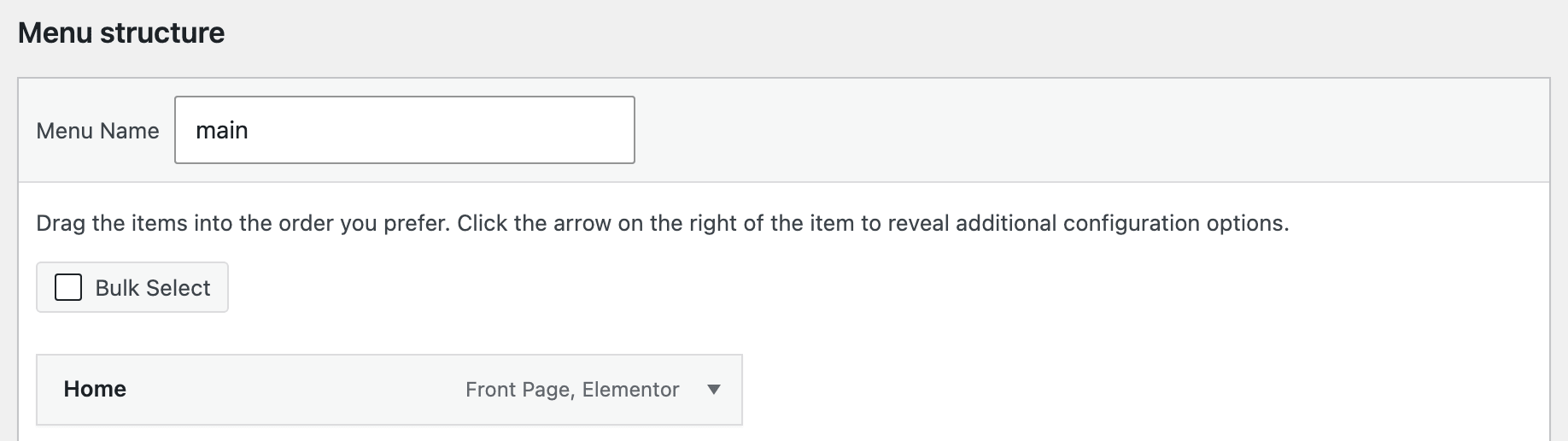
In the "Edit Menu" section, navigate to the item to which you want to add an icon, and click on the dropdown icon in the top-right corner to reveal the menu item options.
-
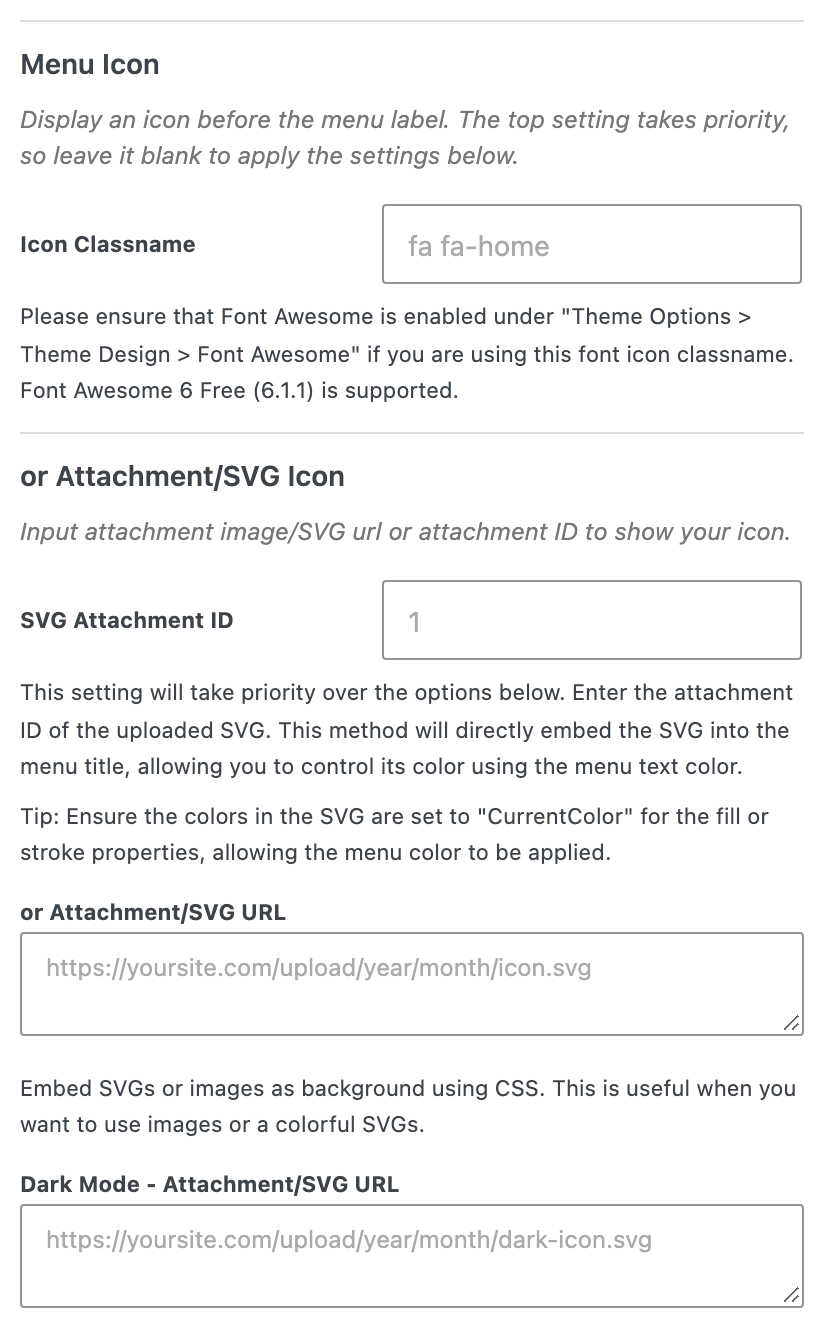
Then scroll down to the "Menu Icon" section, where you will find options to add an icon.
-
Icon Classname: this option supports displaying font icons and provides two font options: Foxiz Icons and Font Awesome.
- If you want to display Font Foxiz Icons, simply enter the class name. Foxiz icon class names take the form
rbi rbi-name, for examplerbi rbi-cright, and 173 of them are included in the theme stylesheet. The Foxiz icon font always loads, so nothing has to be switched on for these. To find icons based on your preferences, you can refer to this documentation Ruby Icon ClassName - If you want to display Font Awesome Icons, make sure that Font Awesome is enabled in "Theme Options > Theme Design > Font Awesome" if you are using the class names of this font icon. The bundled library is Font Awesome Free 6.1.1, and only its free icons are present. The panel's own example is the version 6 form,
fa-solid fa-house; the field'sfa fa-homeplaceholder still resolves, because version 6 keeps the old names as aliases.
- If you want to display Font Foxiz Icons, simply enter the class name. Foxiz icon class names take the form
-
or Attachment/SVG Icon: this heading holds three more fields, and they are tried in order after Icon Classname.
- SVG Attachment ID: the attachment ID of an uploaded SVG. The file is embedded inline, so its
fillandstrokefollow the menu text colour when they are set tocurrentColor. - or Attachment/SVG URL: input the attached image/SVG url to display your icon. This one is drawn as an image, so its colours are fixed and the menu text colour does not reach it.
- Dark Mode - Attachment/SVG URL: This option displays the icon in dark mode. If you are not using the dark mode feature, you can leave this option blank. It is read only as a pair with the field above it: on its own, with or Attachment/SVG URL empty, it renders nothing at all.
- SVG Attachment ID: the attachment ID of an uploaded SVG. The file is embedded inline, so its
-
Click "Save Menu"
Only one icon ever renders. The fields are tried strictly in this order, and the first one with a value wins:
- Icon Classname
- SVG Attachment ID
- or Attachment/SVG URL, together with Dark Mode - Attachment/SVG URL when both are filled
The panel says the same thing in its own note, "The top setting takes priority, so leave it blank to apply the settings below." So a stray class name left in the first box is why an SVG you just uploaded does not appear.
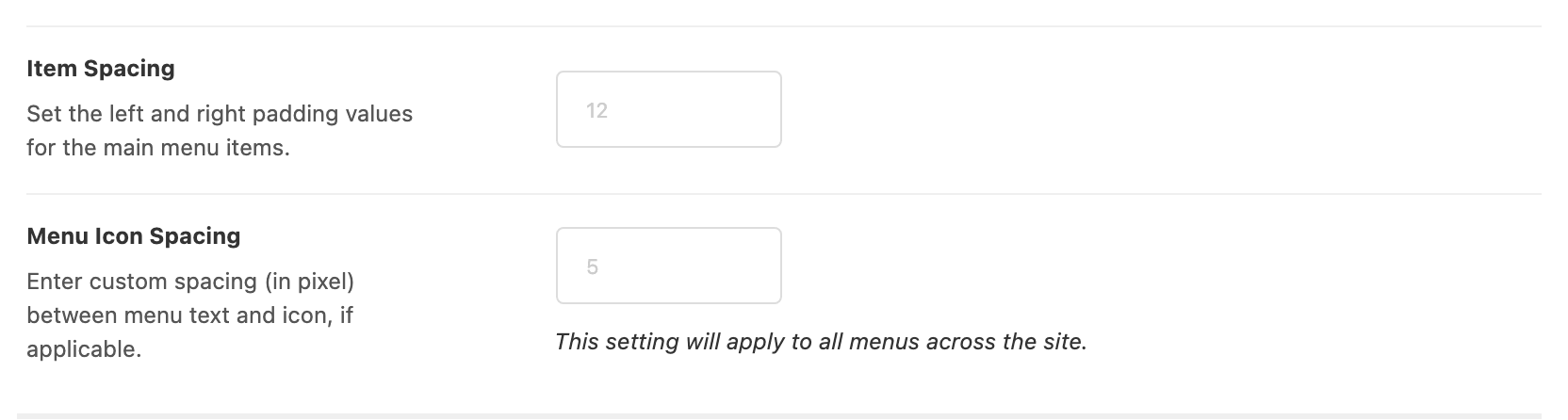
The gap between the icon and the menu text is one setting for the whole site, Menu Icon Spacing, at Theme Options > Header > Main Menu. It has no default and falls back to 5px.
Enable Font Awesome to support icon display for this font by following the steps below:
-
Navigate to Foxiz > Theme Options > Theme Design > Font Awesome
-
In this section, you will find the Font Awesome option. Simply enable it to support this font. It is off by default, and the panel warns that loading the library affects site speed, so leave it off if every icon you use is a Foxiz one.

-
Click "Save Changes"
Did this answer your question?