How to Create Mega Menu Using Ruby Template (Menu Builder)
This enables you to display various content and layouts within a visually appealing menu, enhancing the user experience and providing convenience in navigating your website.
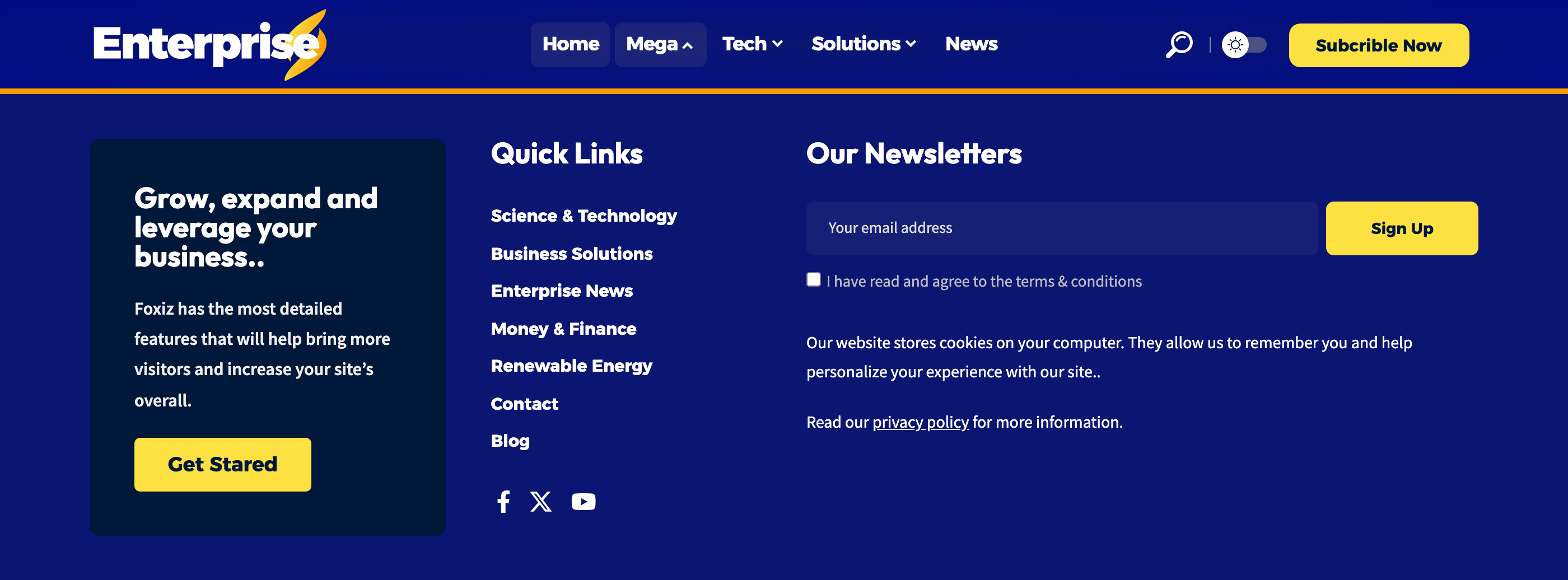
Building one for the first time? How to Build a Mega Menu with a Ruby Template walks the whole job with a picture for every step.
To get started, follow the steps below:
-
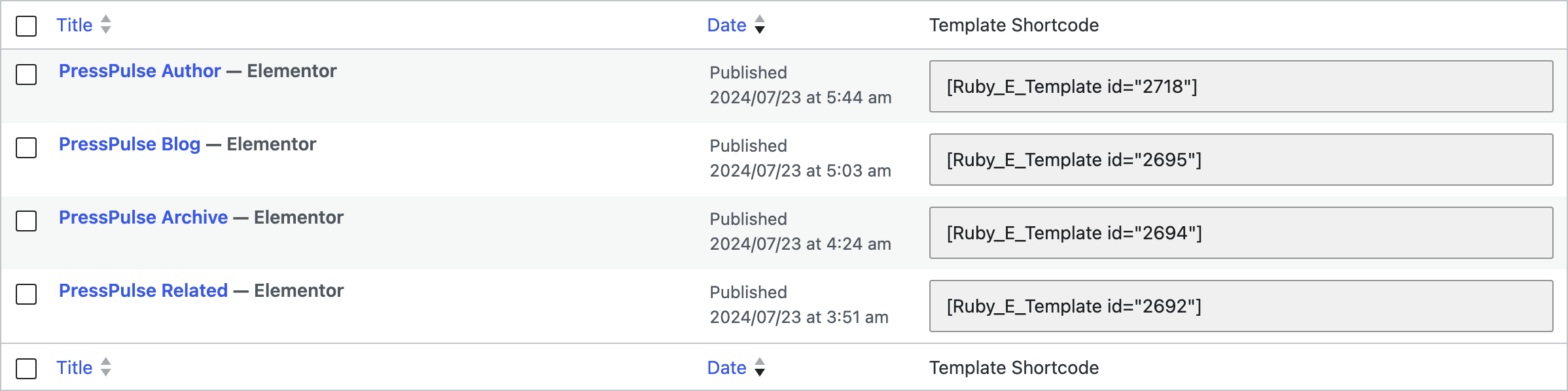
Create your template and copy its shortcode: navigate to Ruby Templates. The list has a Template Shortcode column holding it ready to copy, and the same box sits in the sidebar of the template editor. To create a template, you can refer to this documentation: Ruby Templates
The template holds whatever the dropdown shows. A simple start is one container with a post block such as Foxiz - Grid 1, and an image beside it.
-
Navigate to Appearance > Menus, then select an existing menu or create a new one. The menu has to be the one assigned to the Main Menu location, because that is the only location Foxiz renders with the walker that draws mega menus.
-
At the left column, select the "Custom Links" tab.
-
Put
#in URL, so the item opens the mega menu without linking anywhere: WordPress does not add a custom link with an empty URL. Type the label readers see in Link Text, such asMega. Then click on "Add to Menu" to include it in your menu.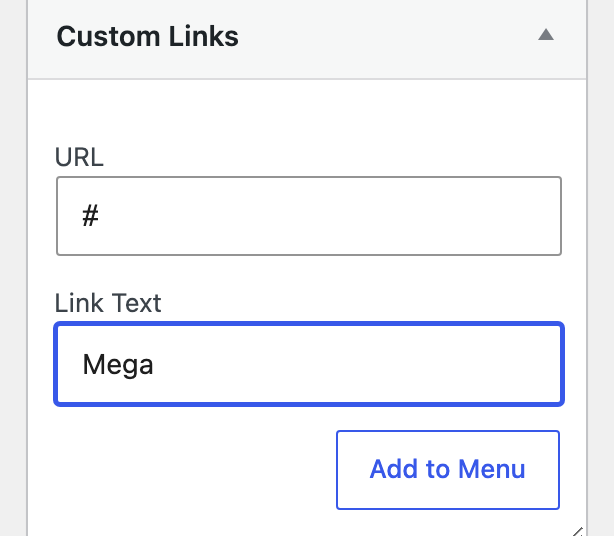
-
Click on the custom menu items to open the configuration box you've just added, and then input the shortcode into the "Template Shortcode" field, under the or Ruby Templates Shortcode heading.

-
Click on “Save Menu” to save your changes
The field only exists on a top level Custom Link. A menu item pointing at a page or a post never gets it, which is why step 3 insists on Custom Links, and the front end repeats the same top level test before it renders anything.
That cuts both ways, so drag with care. Nest the item under another one and the whole Column Mega Menu group vanishes from its box, shortcode included. Saving the menu after that writes back only the fields still on screen, so the shortcode is gone from the database as well and pulling the item back out to the top level will not bring it back.
Two fields in the same box shape the panel. Section Width takes a width in px; leave it blank or 0 and the mega menu spans the full content width. Left Relative Position nudges it sideways, negatives allowed, and it is read only when Section Width has a value.
The shortcode wins over the widget column mega menu on the same item. If you have set both Mega Menu and Template Shortcode, the template renders and the widget columns are never reached, exactly as the note above the field says: "This setting will override on above settings."
Did this answer your question?