How to Create Mega Menus?
Foxiz comes with a mega menu feature: columns of links, or the post listing of a category with ajax pagination.
- Category Mega Menu: shows the post listing of the category the menu item points at.
- Column Mega Menu: rich submenus that allow you to show many links at once.
A third type exists as well: a Template Shortcode field on the same custom link item renders a Ruby Template inside the panel, and it overrides the columns. That one has its own article, How to Create Mega Menu Using Ruby Template (Menu Builder).
Whichever type you use, the fields only appear on a first-level menu item, and the front end applies the same test again before it draws anything.
Category Mega Menu
You can easily have a category mega menu on your main navigation by enabling it on a first-level category menu item.
-
Create a Menu: Navigate to Appearance > Menus, then select an existing menu or create a new one.
-
At the left column, select the "Categories" tab.
-
Tick the categories you want to use, then click "Add to Menu" to add them to your menu.
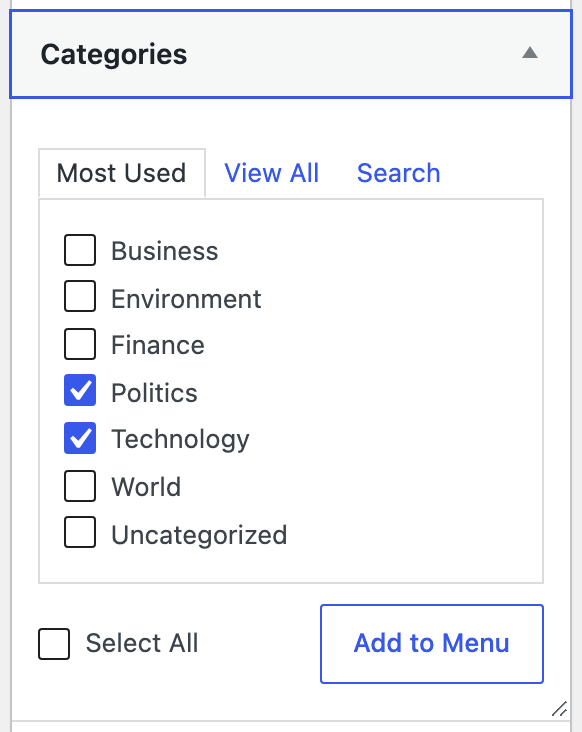
-
Click on categories menu items to open the configuration box you just added, and then set "Mega Menu" to Enable. The group is headed Category Mega Menu and the dropdown has two values, -Disable- and Enable, starting disabled.
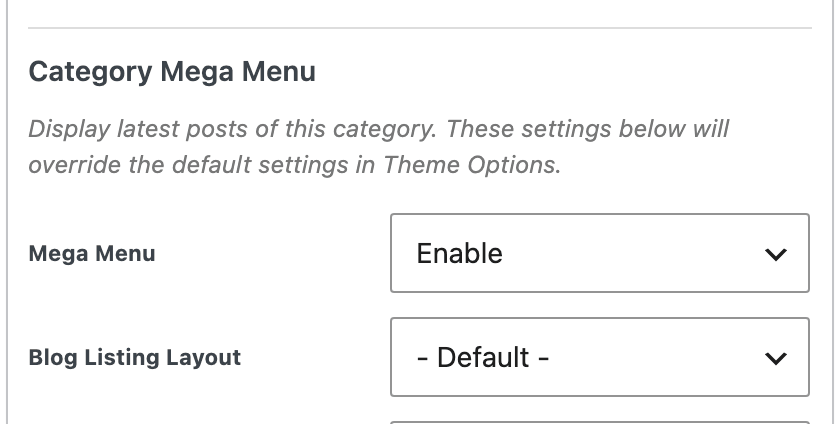
-
Click on "Save Menu" to save your changes
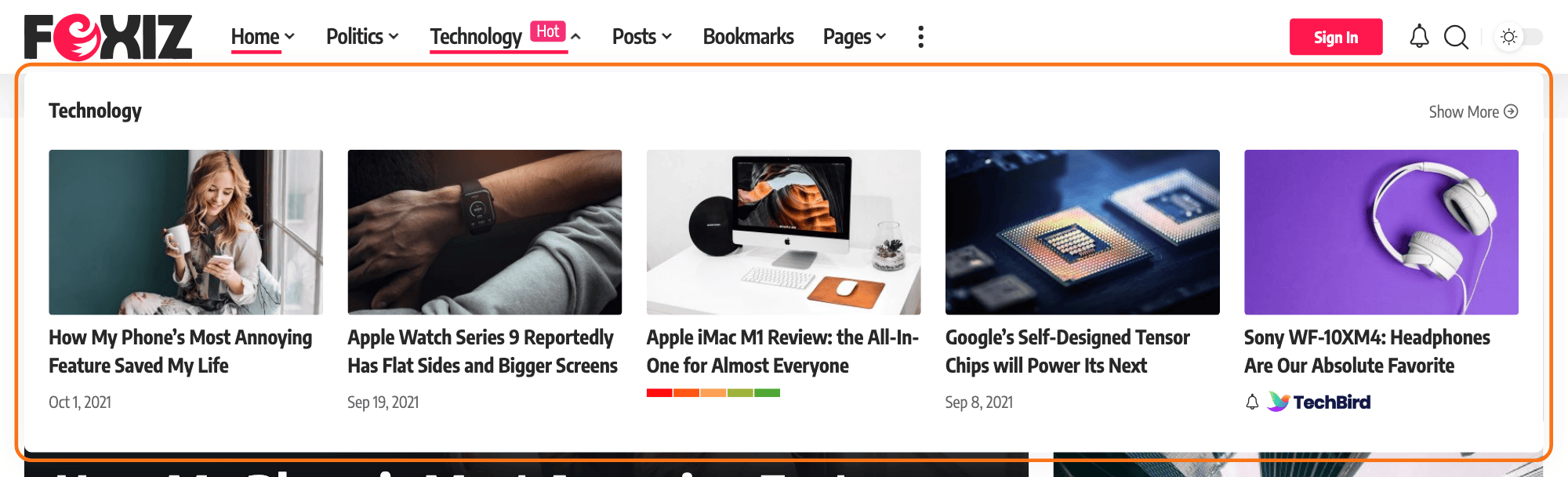
Three more fields sit in the same group and decide what the panel looks like.
- Blog Listing Layout has two values. - Default - draws a heading bar with a Show More link and then five posts in five columns. Hierarchical draws three columns instead: the category's featured image with its description trimmed to 25 words, a Top News column of three posts ordered by comment count, and a Latest News column of four.
- Text Color Scheme has three values, - Default -, Dark Text and Light Text. Only Light Text does anything on its own: it adds the light colour scheme to this one panel. - Default - inherits the site wide Mega Menu, Dropdown - Text Color Scheme from Theme Options > Header > Main Menu.
- Background sets a background colour for this panel only.
Both colour fields are light mode settings. The admin says so in the group's own note: "The Text Color Scheme and Background affect the default mode for this menu item only. Light Color Schemes will be applied in dark mode."
Column Mega Menu
The column mega menu lets you display rich submenus when you have many submenu links.
Each column is a widget. You point the menu item at a widget area, and every widget you put in that area becomes one column, so build the area first and the menu item second.
To get started, follow the steps below:
-
Create the widget area. Navigate to Theme Options > Sidebars > Unlimited Sidebars, click Click then Input ID to Create a Sidebar, type a name with no spaces or punctuation, and click Save Changes. Every sidebar you create here shows up as a choice on the menu item.
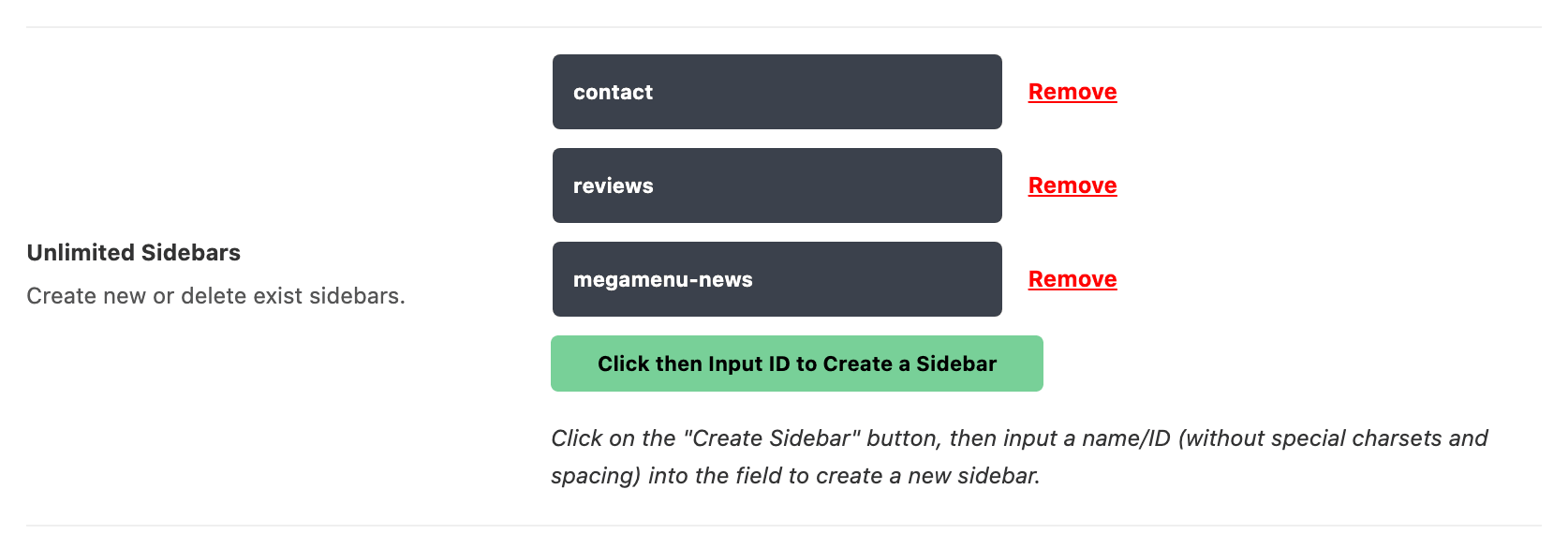
-
Fill it. Navigate to Appearance > Widgets, find the area by the name you gave it, and add one widget per column you want. A Navigation Menu widget makes a column of links; any other widget works too.
-
Create a Menu: Navigate to Appearance > Menus, then select an existing menu or create a new one.
-
Create a parent menu item with "Custom Links" type and input # to remove the click action.

-
Expand the menu item. Under the Column Mega Menu heading, set Mega Menu to the widget area you created in step 1. The dropdown starts on - Disable - and lists every registered widget area by name.
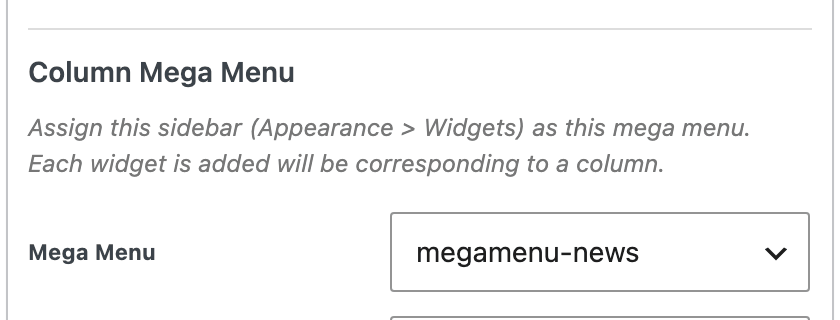
-
Set how many columns fit on a row. Columns per Row, right beside it, runs from 1 Column to 5 Columns and starts on - Select Columns -, which is no value. Leave it there and no column class is written, so the panel uses the stylesheet's own two per row.
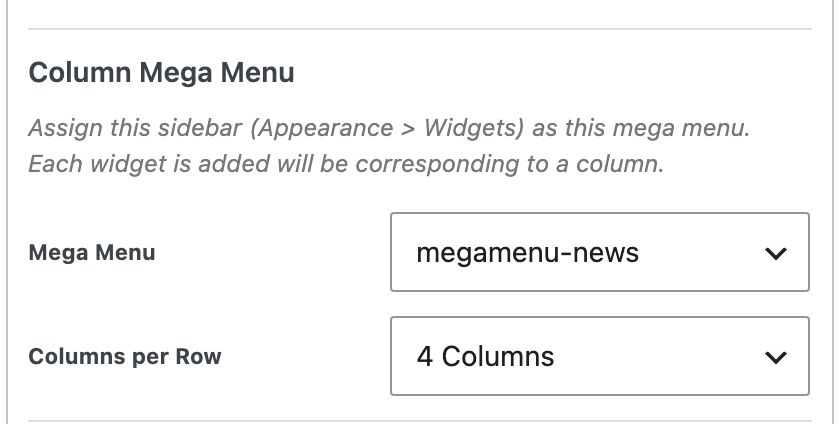
-
Set the panel width, if you want one. Section Width takes a value in px; blank or 0 gives a full width panel. Left Relative Position shifts it sideways and is read only when Section Width has a value.
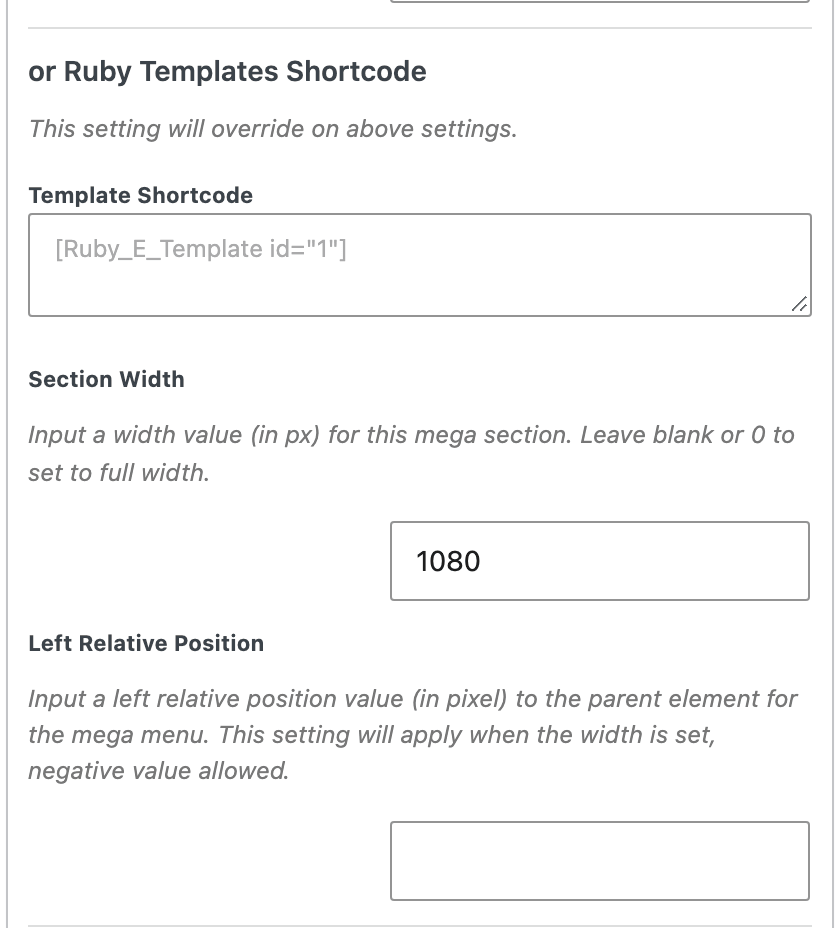
-
Click on "Save Menu" to create your menu.
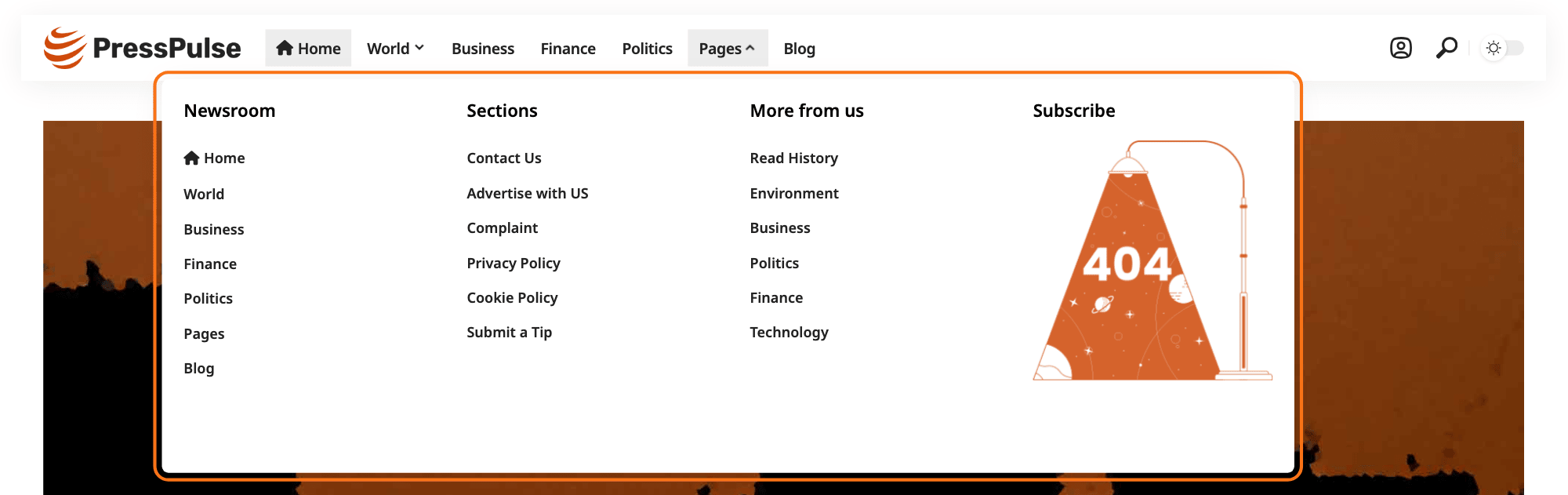
Megamenu only works if you assign it to the "Main Menu" Location in the "Manage Locations" tab. That is the only menu location Foxiz renders with the mega menu walker, so the same item in Mobile Menu or Mobile Quick Access is a plain link.
If the panel opens empty, add widgets to the area. A column mega menu draws what is in the widget area and nothing else, so submenu items under the parent are not part of it; put those links in a Navigation Menu widget and they become a column like any other.
How to add an image with destination to the mega menu?
In case you would like to display a banner in the mega menu.
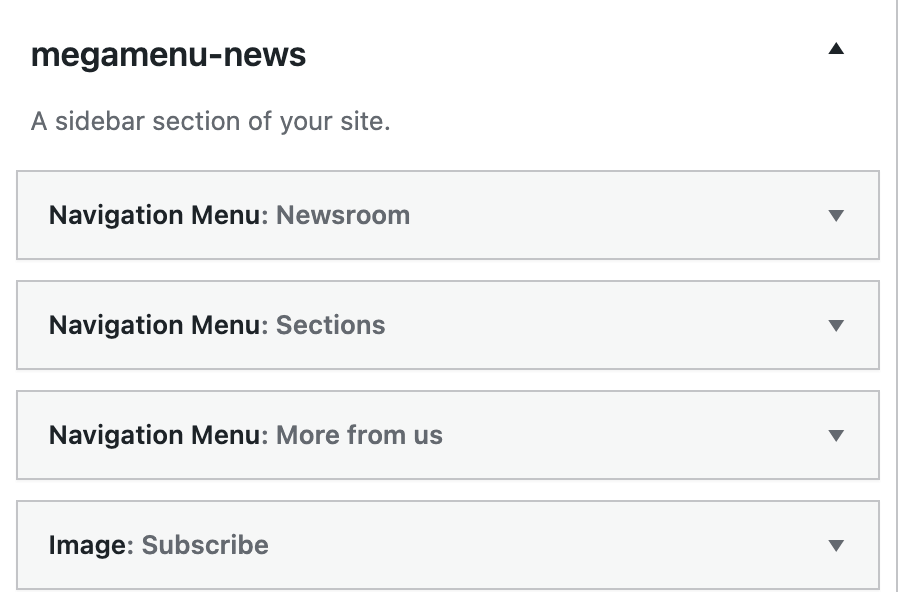
The Sub Menu Image field this section used to describe no longer exists, and neither does the reload trick that made it appear. Because a column mega menu is now a widget area, a banner is just another widget in it, and it can sit beside the link columns rather than replacing one. Follow the steps below:
-
Navigate to Appearance > Widgets and open the widget area you assigned to this mega menu in step 1 of the section above.
-
Add an Image widget, choose your image from the Media Library (or upload it there), and set its link to the destination you want. Any widget in the area becomes one column, so the banner occupies a column of its own.
-
Drag it into position among the other widgets. The order of the widgets is the order of the columns.
-
Save the widget area. There is nothing to change on the menu item, so no second Save Menu is needed.
For a banner that has to sit at a particular place inside a designed layout rather than in its own column, build the panel as a Ruby Template instead and put the image where you want it in Elementor.
Did this answer your question?