How to Edit or Add Menus on Mobile Devices
The theme supports a mobile menu. This will enable you to display a distinct menu on mobile devices.
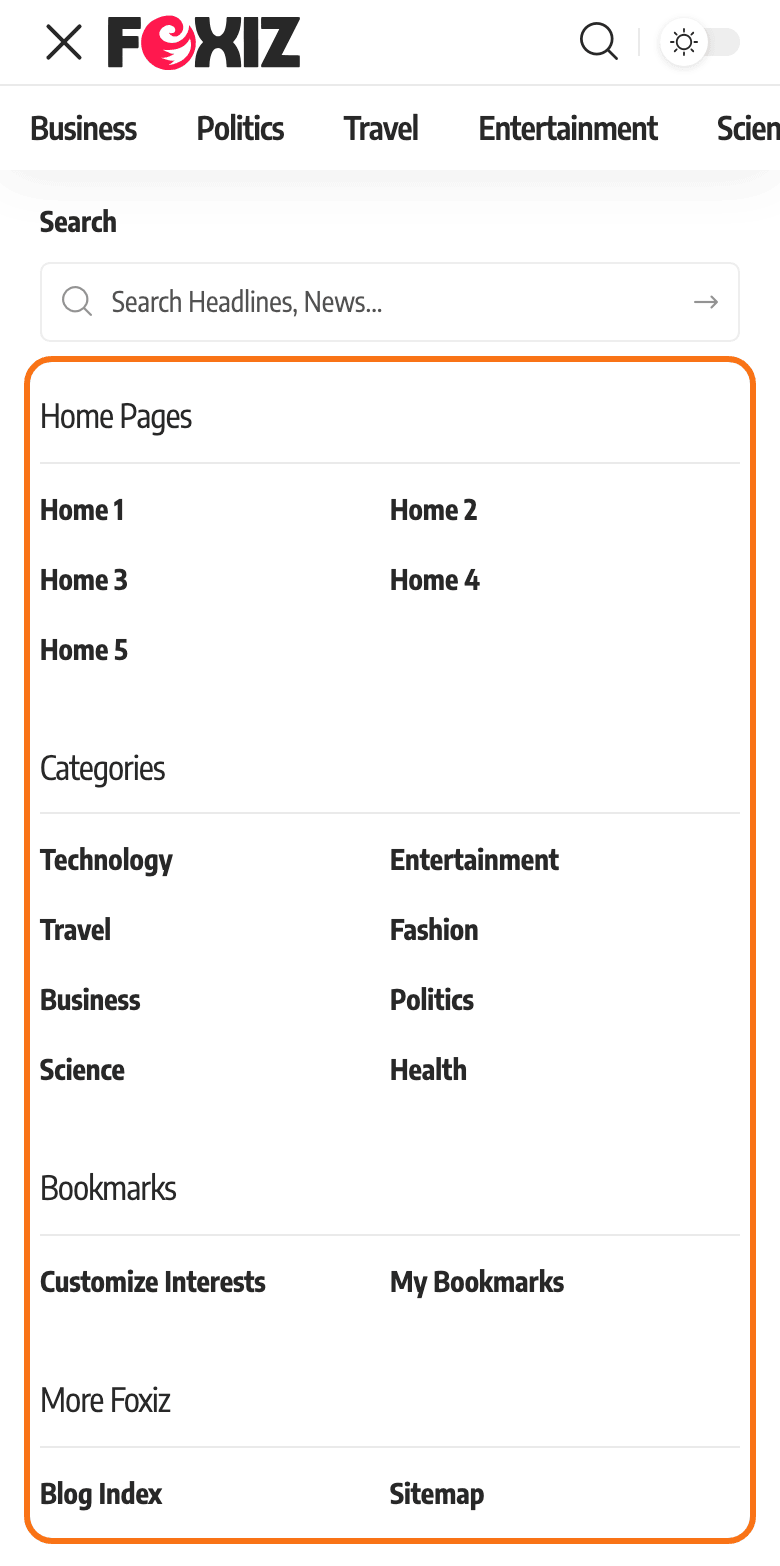
How to Assign a Mobile Menu
Imported a demo? It has already assigned a menu named mobile here. To change what phone visitors see, edit that menu: in Appearance > Menus, choose mobile in Select a menu to edit, change its items and click Save Menu.
To show a shorter, separate menu on phones on a site without one, first create a second menu (Creating a menu), then assign it here.
To get started, follow the steps below:
-
Navigate to Appearance > Menus
-
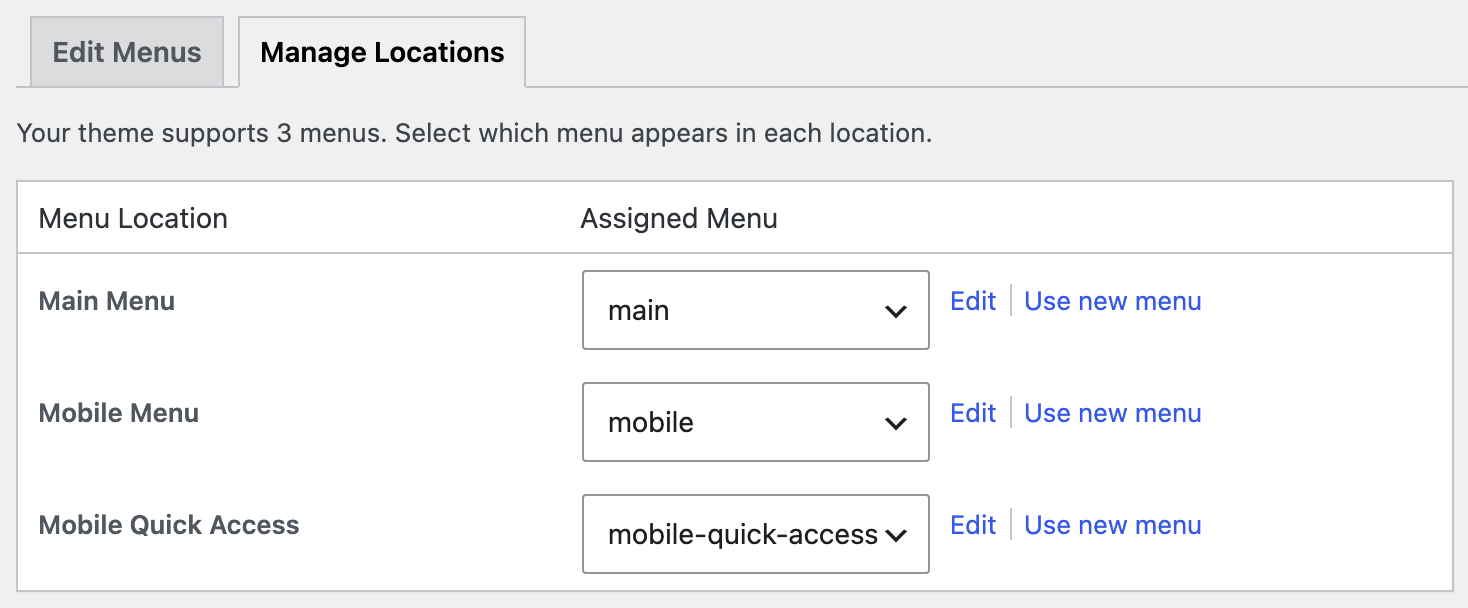
Choose the "Manage Locations tab", and in the Theme Location section, you will see Mobile Menu.
-
Then, in the Mobile Menu option, you can select a menu of your choice to display on mobile devices.
-
Click "Save Changes"
Mobile Menu fills the panel that slides open when a visitor taps the toggle button. It renders two levels deep, so a third level of submenu items is dropped, and mega menus do not work here: the mega menu walker is used for the Main Menu location only.
There is a second mobile location beside it, Mobile Quick Access. That one is the single row of links under the mobile header bar, it renders one level only, and it stays invisible until you assign a menu to it.

How to Manage Columns for Submenus on Mobile
To get started, follow the steps below:
-
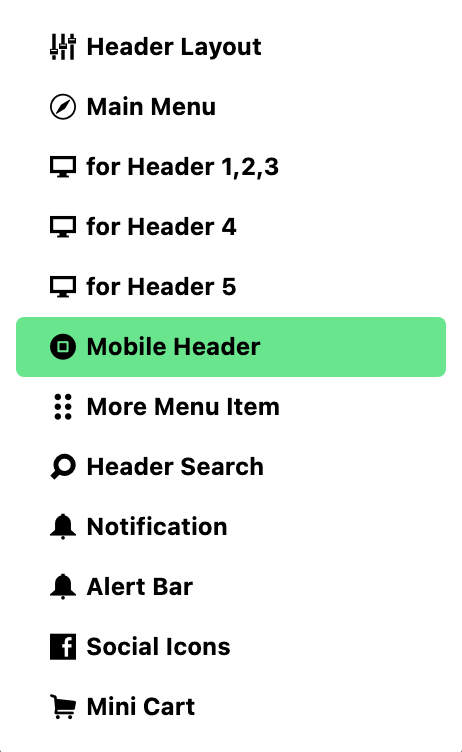
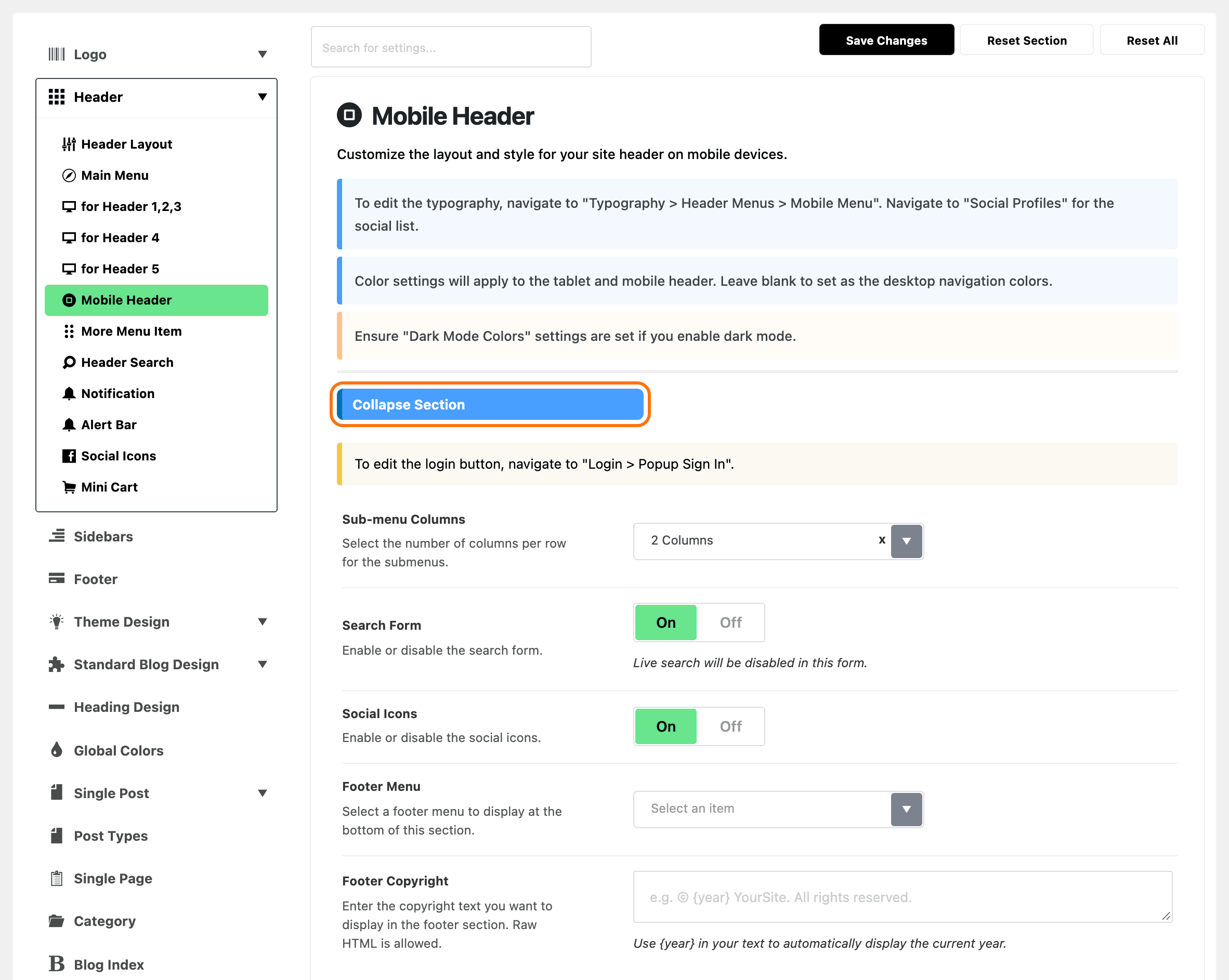
Navigate to Foxiz > Theme Options > Header > Mobile Header
-
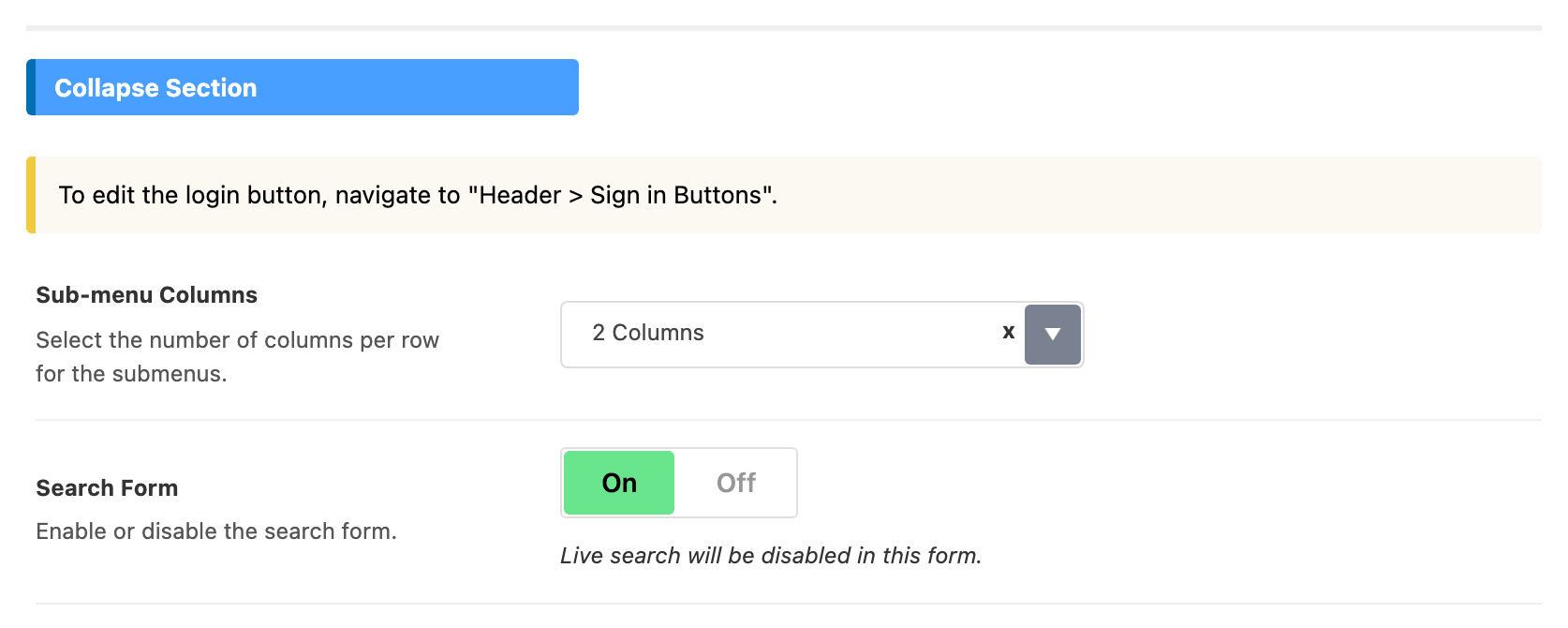
In this section, you will look for the option "Sub-menu Columns". It is in the Collapse Section group, part way down the panel, not in General at the top.
-
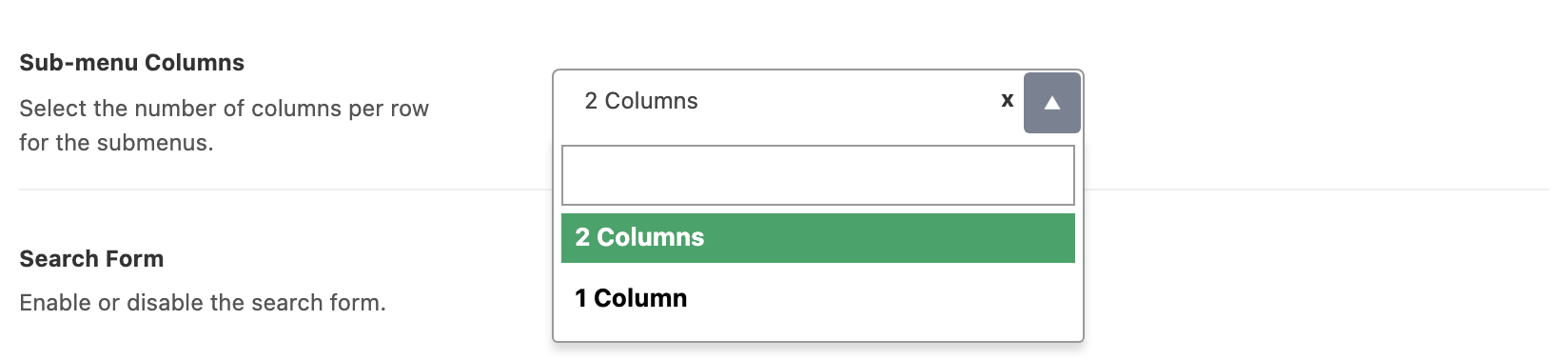
In the "Sub-menu Columns" option, you can assign either 1 Column or 2 Columns for the submenu. Its default is 2 Columns, so a site that has never touched this setting is already showing two.
-
Click "Save Changes"
The setting reaches the submenu items in the collapse panel and nothing else. Mobile Quick Access is a single row whatever you choose here, and the desktop dropdowns are unaffected.
The rest of that panel is worth knowing while you are in it. The same Collapse Section group holds Search Form, Social Icons, Footer Menu and Footer Copyright, and the first two are on by default. Fonts for the mobile menu are elsewhere again, at Theme Options > Typography > Header Menus > Mobile Menu.
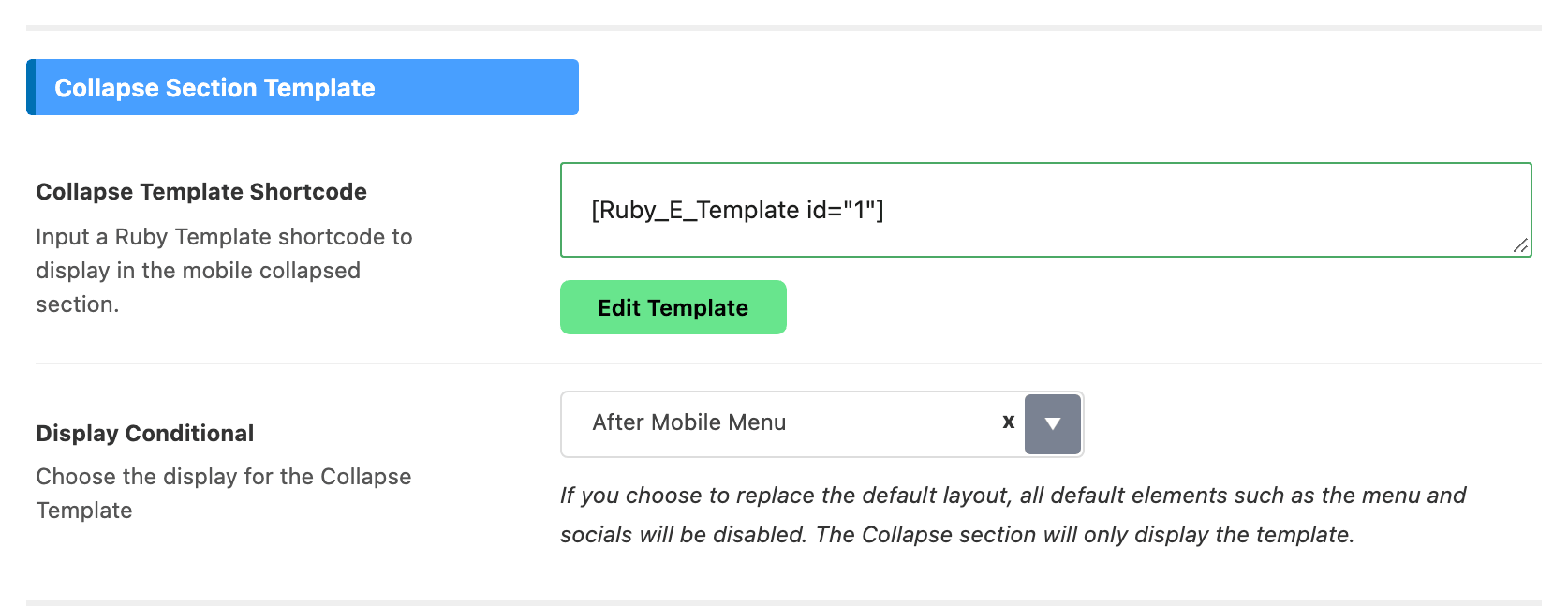
One thing will switch all of this off. Collapse Section Template, further down the same panel, takes a Ruby Template shortcode, and if you set its Display Conditional to Replace Default Layout the panel renders only your template: the mobile menu, search form, socials and footer line are all dropped. Leave it on After Mobile Menu to keep them. How to Build the Mobile Collapse Section with a Ruby Template walks both choices.
Did this answer your question?