How to Use Adobe Fonts (Typekit)
Foxiz loads fonts from an Adobe Fonts web project, the service Adobe used to call Typekit. You connect the project once at Foxiz > Fonts (GDPR) (the page is described in Fonts (GDPR)), and its fonts join the Font Family lists in Theme Options > Typography, where you assign them like any other font.
The page needs an active Foxiz license. Without one it shows a notice pointing you to activation or renewal instead.
Create a project in Adobe Fonts
- Sign in to Adobe Fonts and add the fonts you want to a web project. The Create a Font Project box on the Foxiz page links to your projects list at
fonts.adobe.com. - Copy the project's ID. It is the short code Adobe shows with the project, the same one that appears in its embed link (
use.typekit.net/<id>.css), and it is all Foxiz needs.
Enter the Project ID
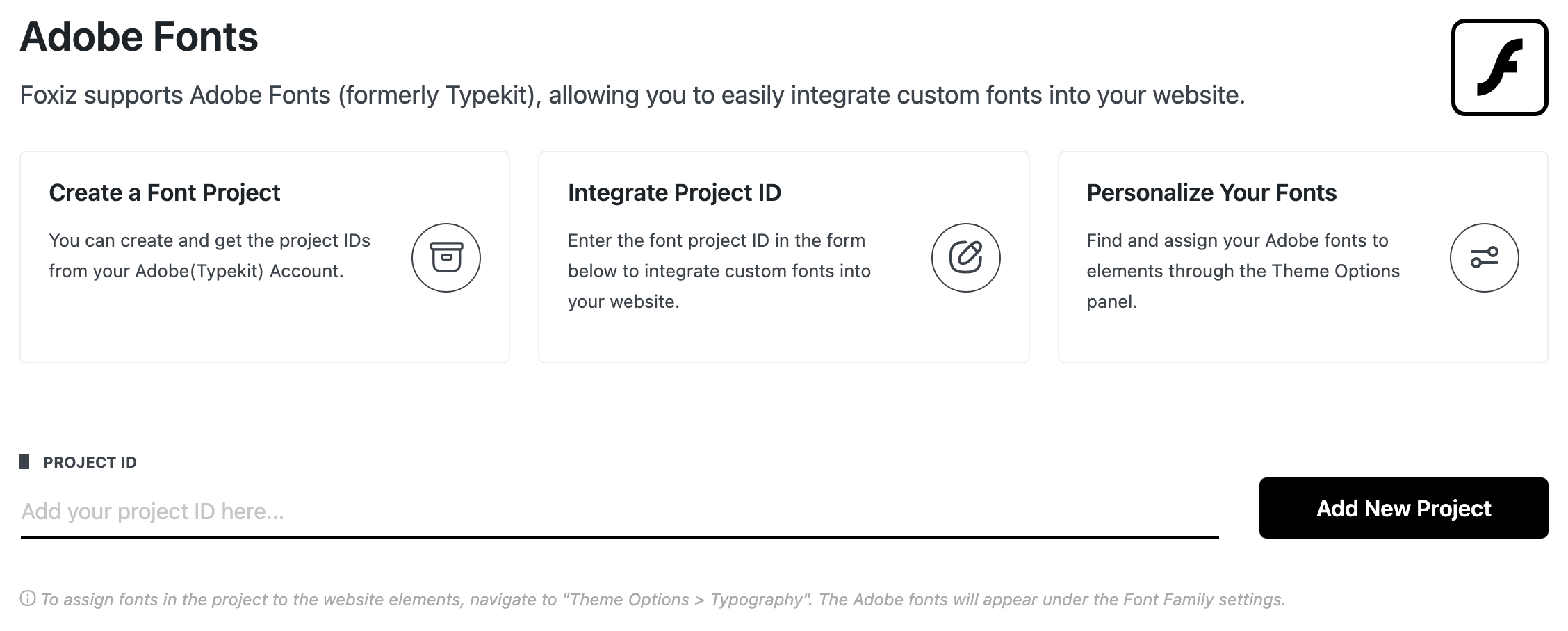
- Go to Foxiz > Fonts (GDPR) and scroll past Local Google Fonts to Adobe Fonts.
- Paste the ID into Project ID and click Add New Project.
- Foxiz asks Adobe for the project's published fonts. On success it says "Adobe Fonts have been successfully loaded." and reloads the page.
Two answers mean the project was not saved:
- "Project ID is invalid. Please check again!" Adobe did not recognise the ID, or could not be reached. Check you copied the project ID and not a font name.
- "Project is empty. Please add some fonts to your project." The project exists but holds no font yet. Add fonts to it in Adobe Fonts and try again.
What the page lists
Once a project is saved, the first step box is ticked and a table lists every font in it:
- Font Name: the font's name as Adobe gives it.
- Font Family: the CSS name and its fallbacks. The first name in it is the one you look for in the Typography font list.
- Weight & Style: the weights in the project, such as
400,700. A weight ending iniis the italic.
From then on Adobe's stylesheet for the project loads on every front end page, except AMP pages.
Assign the fonts in Theme Options > Typography
- Go to Theme Options > Typography and open the section for the element you want, such as Website Body or H1 Tag. The Personalize Your Fonts box on the Foxiz page is a shortcut that opens Theme Options at Typography.
- Open Font Family and type the font's CSS name, the first name in the Font Family column on the Fonts page (for example
proxima-nova, not "Proxima Nova"). Adobe fonts are listed in the Google Webfonts group, after the Google fonts, so typing is quicker than scrolling. - Font Subsets fills in Based on Adobe by itself. Leave it so; it is how the theme knows not to ask Google for this font.
- Pick a weight in Font Weight & Style. Only the weights in your Adobe project are offered, named the theme's way, for example Normal 400 or Bold 700 Italic.
- Save Theme Options.
The fonts are offered in the Theme Options typography controls. Foxiz does not add them to the font list inside Elementor's own typography settings.
Edit or delete the project
The font list is copied from Adobe when you save the ID, so adding a font to the project in Adobe Fonts does not reach Foxiz by itself. To refresh it, or to switch to another project:
- Click Edit Project ID under the table. The Project ID field becomes editable and a Save Changes button appears.
- Keep the ID to reload the same project, or paste a new one, then click Save Changes.
To disconnect Adobe Fonts, click Delete Project under Delete Font Project? and confirm. The stylesheet stops loading, so any element still set to an Adobe font falls back to its Backup Font Family. Pick other fonts for those elements in Theme Options > Typography first.
Did this answer your question?