How to Host Google Font Locally
Host all of your site's Google fonts on your own server when you need the site to comply fully with GDPR.
Foxiz Core does this for you, without a plugin. Foxiz > Fonts (GDPR) opens a page whose first section is Local Google Fonts: it scans the Google fonts your Theme Options use, downloads them into your uploads folder, and serves them from there.
To get started, follow the steps below
-
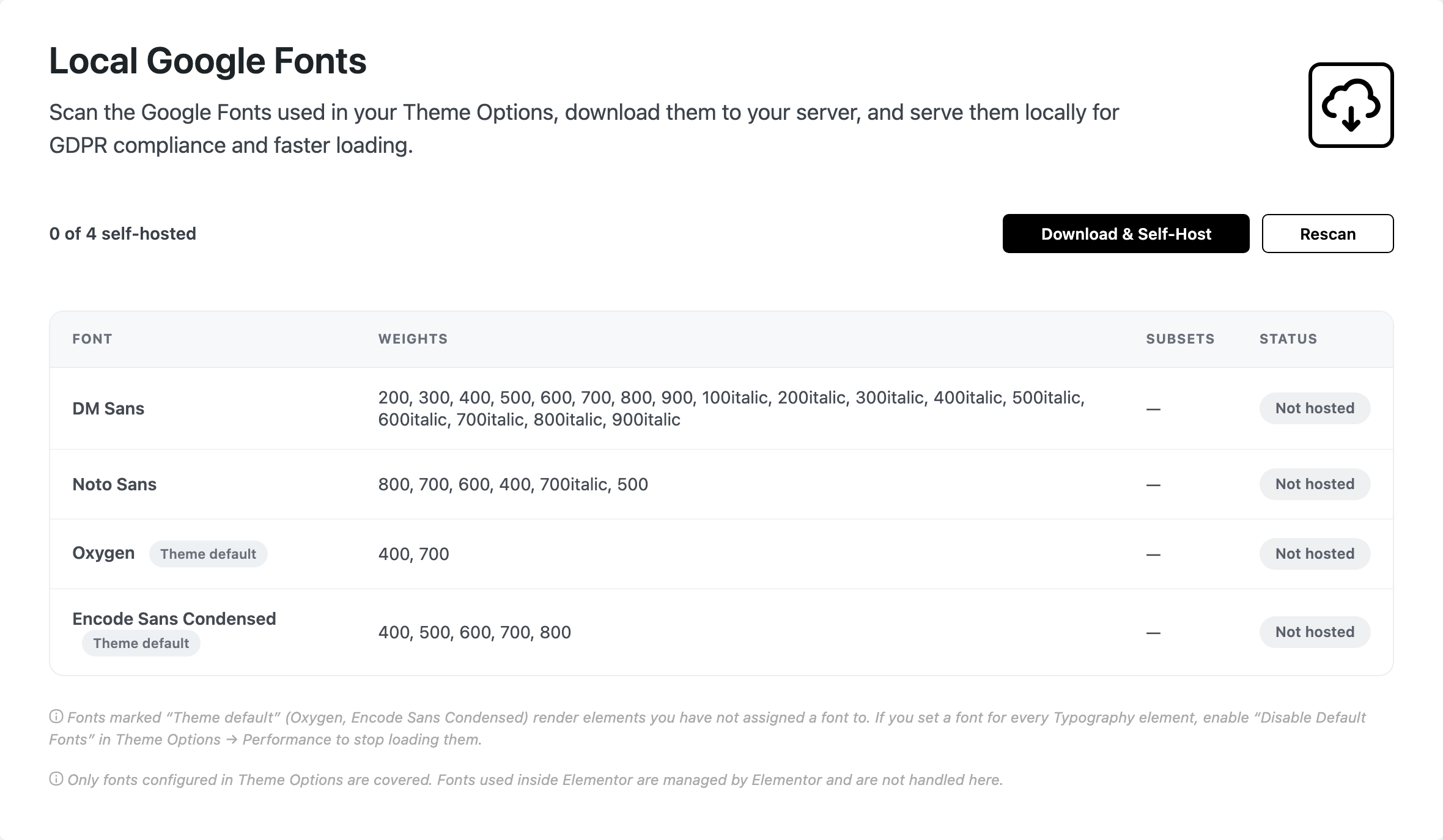
Go to Foxiz > Fonts (GDPR). The page opens with a scan, and the table lists each font with its Weights, Subsets and Status.
-
Click Download & Self-Host. The files land in
wp-content/uploads/foxiz-fonts.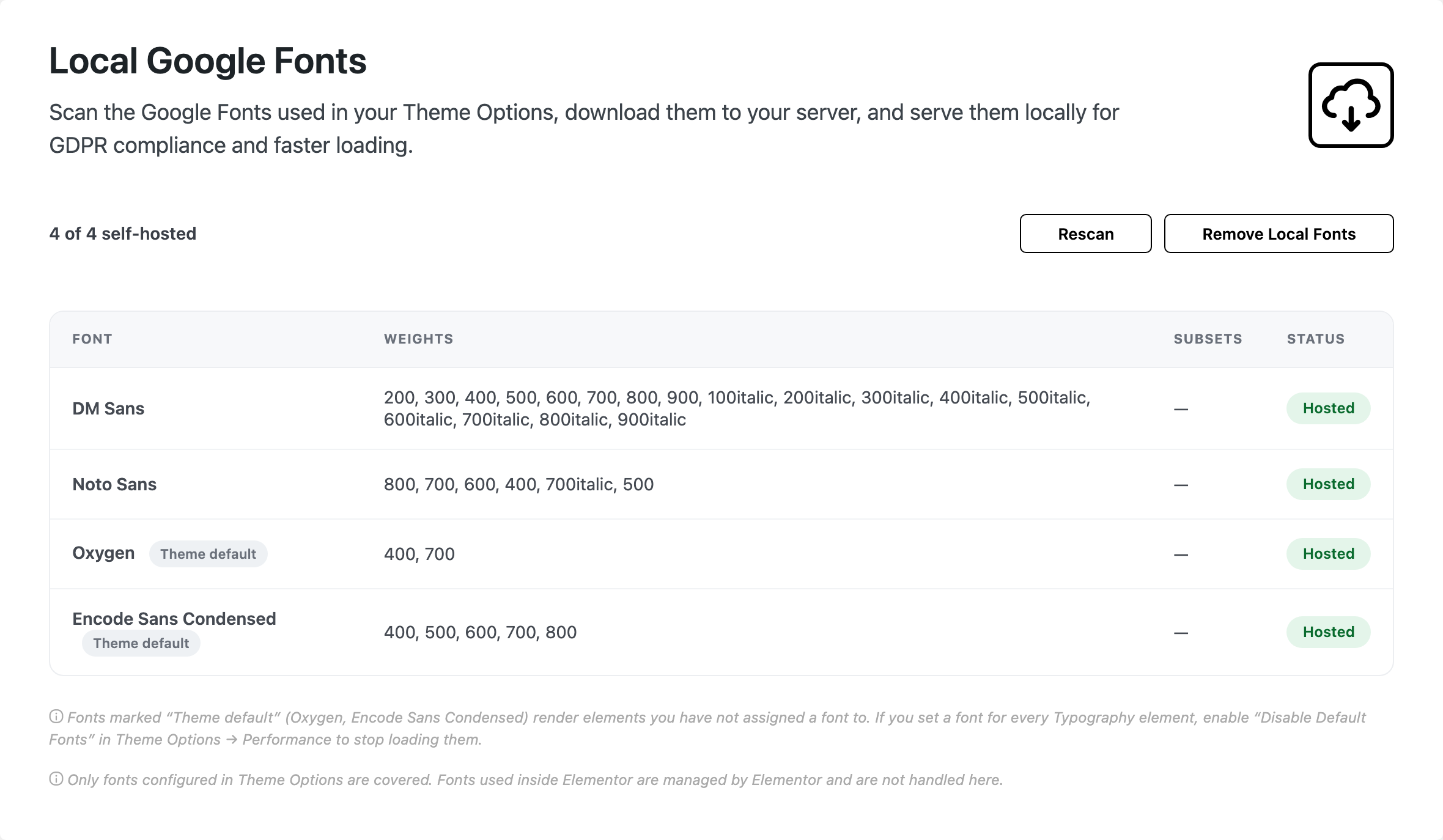
-
That is the whole job. Every family you host is removed from the theme's Google Fonts request and replaced by a stylesheet pointing at your own server, so nothing is fetched from
fonts.googleapis.comfor it.
Rescan repeats the scan, and Remove Local Fonts deletes the local copies and puts you back on Google's servers. If you change a font in Theme Options > Typography afterwards, the theme notices: a warning appears on the Theme Options screen telling you the fonts changed since they were self hosted, with an Update local fonts link back to this page. Ignore it and the new font is loaded from Google again.
Two things it does not cover, both stated on the page itself:
- Fonts used inside Elementor. Those belong to Elementor and are not touched here. Disable Google Fonts in Elementor deals with them.
- The theme's default fonts, Oxygen and Encode Sans Condensed, which render any element you have not assigned a font to. They are listed in the table as "Theme default" and are downloaded like the rest; to stop loading them at all, set a font for every element in Theme Options > Typography and turn on Theme Options > Performance > Fonts > Disable Default Fonts.
If the table comes up empty, the page says so: "No Google Fonts are configured in Theme Options. There is nothing to self-host." That is the answer on a site already using system fonts everywhere.
The same page also connects an Adobe Fonts project, in its Adobe Fonts section further down. How to Use Adobe Fonts (Typekit) covers it.
Did this answer your question?