Registration and Password Emails Do Not Arrive
A reader signs up and never gets the email to set a password. A password reset goes missing. Contact form messages never reach your inbox. All of these are the same problem: WordPress sends email, and the mail never arrives.
Foxiz does not send these emails itself. Its sign up form hands the new account to WordPress, and WordPress sends the [Your site name] Login Details email with the link to set a password. Password resets come from WordPress too, as [Your site name] Password Reset.
Why the email goes missing
By default WordPress hands every email to the web server's own mail function, sent from [email protected]. Many hosts switch that function off, and Gmail and Outlook often treat mail sent this way as spam because nothing proves your domain sent it.
The fix is to send through a real mail account with SMTP: your hosting email, Google Workspace, Microsoft 365, or a sending service such as Brevo or SendLayer.
Check the spam folder first
Ask the reader to look in their spam or junk folder, and look in yours for contact form messages. If the emails are there, they are being sent and only land in the wrong place. Setting up SMTP below still fixes that.
Send email through SMTP
WP Mail SMTP is the plugin most sites use for this, and the free version covers it. Any other SMTP plugin works the same way.
-
Go to Plugins > Add Plugin, search for WP Mail SMTP, then click Install Now and Activate.
-
Go to WP Mail SMTP > Settings, on the General tab.
-
In From Email, enter an address on your own domain, such as
[email protected]. The field starts with the site's admin email. Leave Force From Email on, as it is by default, so every plugin sends from that address.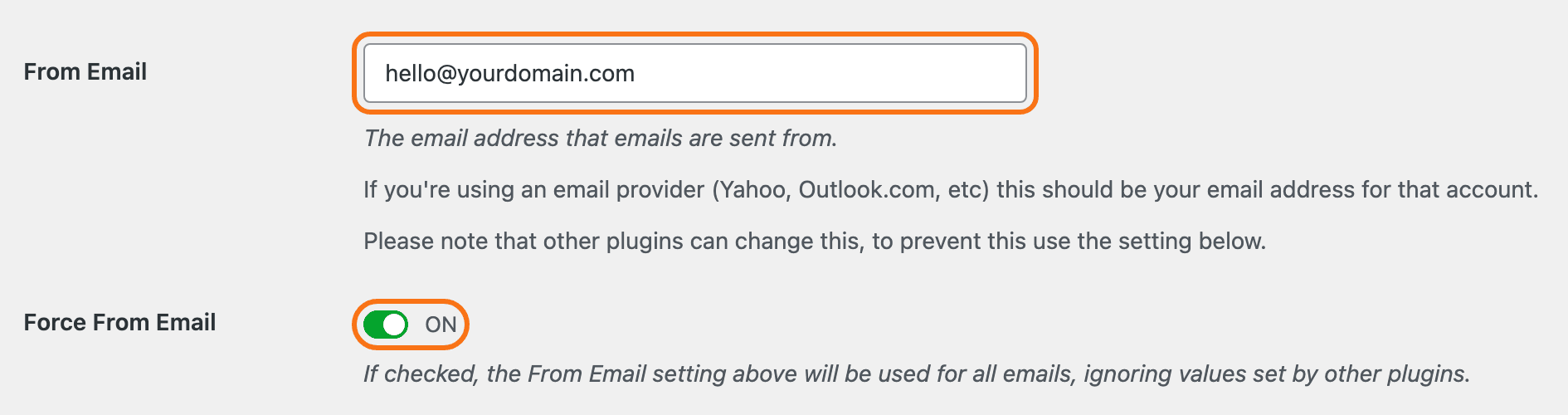
-
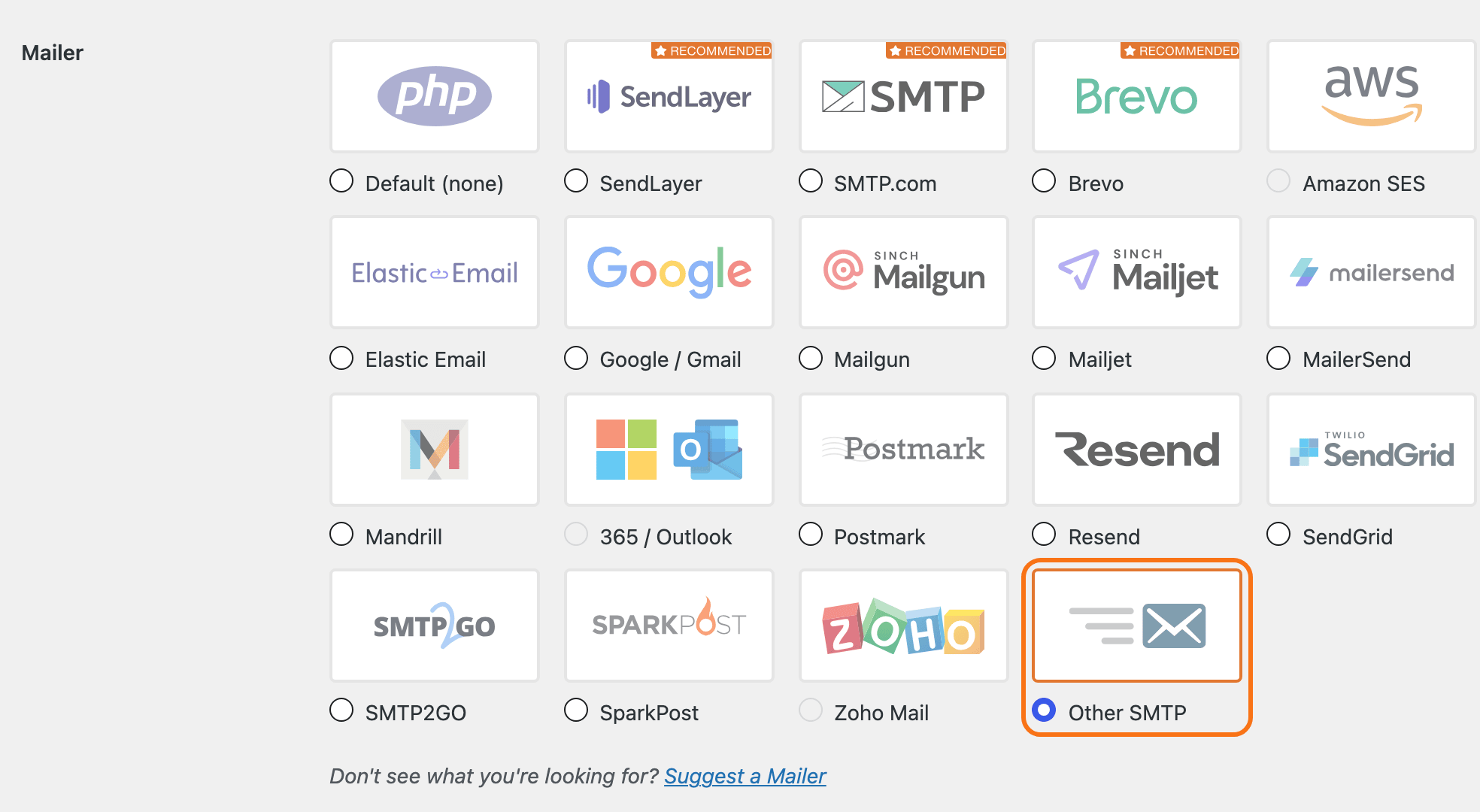
Under Mailer, pick the service your email account uses.
- Your host's email, or any account that gives you an SMTP server, user name and password: Other SMTP.
- A sending service on the list that you already use, such as Brevo or SendLayer: pick it and fill in the fields it shows.
For most small sites, Other SMTP with a mailbox from your host is the quickest choice: it costs nothing extra and you already have the details. Leave it on Default (none) and nothing changes, because that is the server mail function that is failing.
-
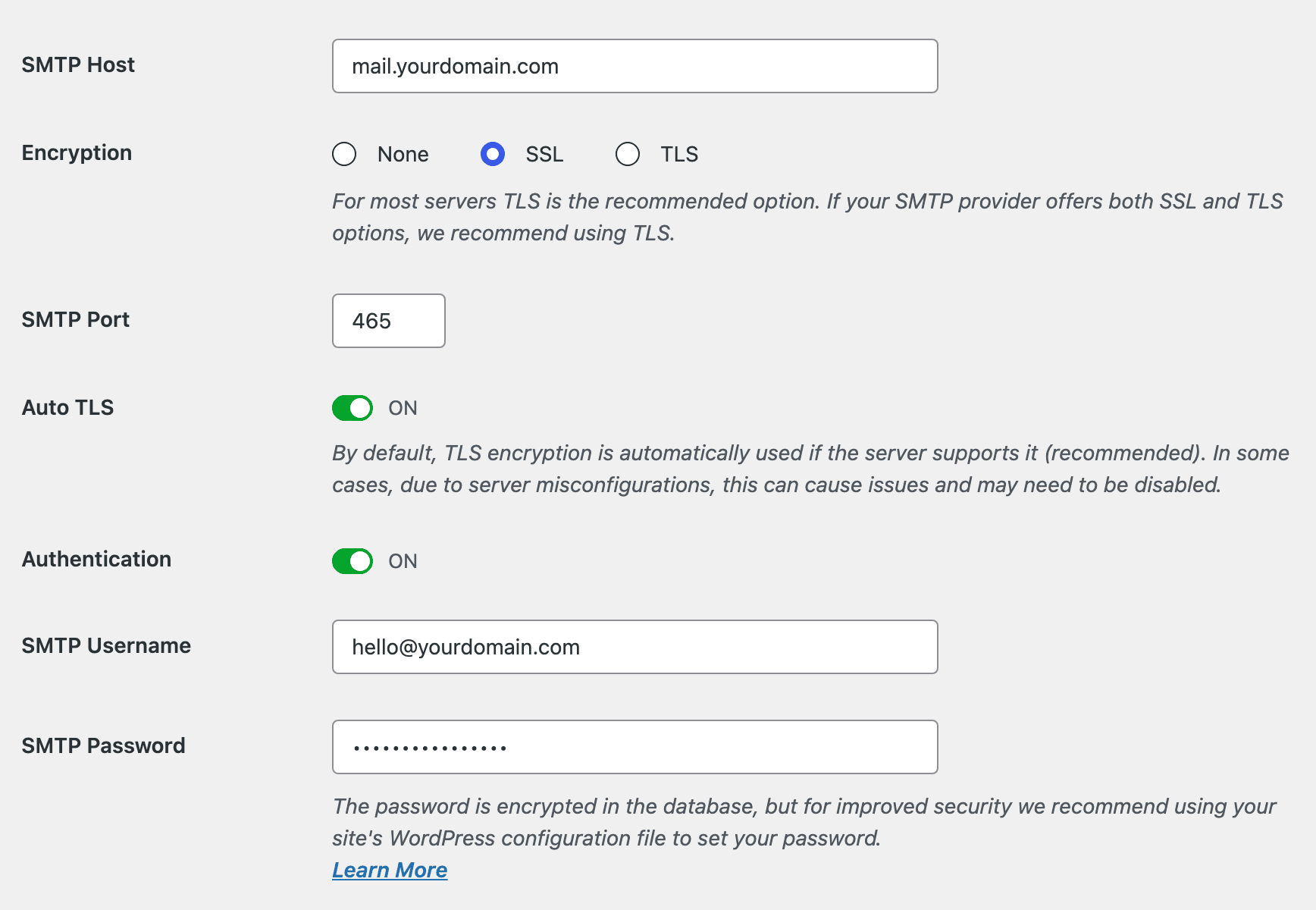
With Other SMTP picked, fill in the fields that appear below the grid, from your host's email settings page:
- SMTP Host: the outgoing mail server, often
mail.yourdomain.com. - Encryption and SMTP Port: the pair your host lists, usually SSL with 465 or TLS with 587.
- Authentication: on.
- SMTP Username: the full mailbox address.
- SMTP Password: that mailbox's password.
- SMTP Host: the outgoing mail server, often
-
Click Save Settings.
Send a test email
-
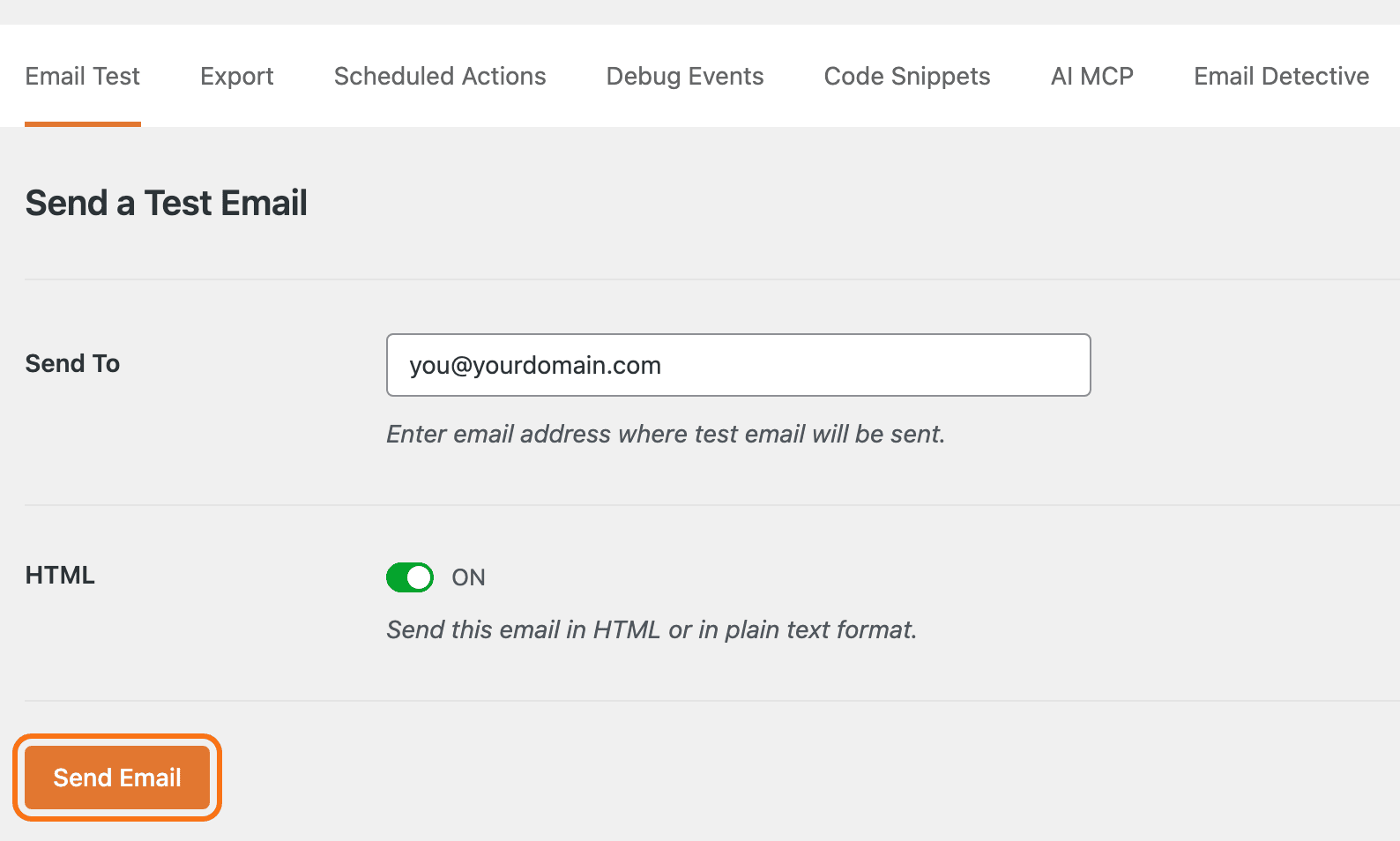
Go to WP Mail SMTP > Tools. The Email Test tab opens first.
-
Enter your own address in Send To and click Send Email.
-
Check that the email arrives in your inbox, not spam. If the test fails, the plugin says which setting it could not use.
Then sign up as a new reader in a private window, through the Foxiz sign in popup, and check that the email arrives.
Where else this matters
The same SMTP setup fixes every email the site sends:
- reader sign up and password reset, from the Foxiz login;
- contact form messages, from Contact Form 7 (How to Create a Contact Page?);
- Easy Submission notices to you and to the writer (Every Setting in the Easy Submission Panel);
- comment notices and WordPress update notices to the admin.
Still stuck? Open a ticket with the Mailer you picked and the result of the test email, word for word if it failed.
Did this answer your question?