How to Check and Resolve Duplicate H1 Tags
Keep one H1 tag per page for effective SEO. Keep your content structure clean and improve search engine visibility by addressing and rectifying any duplicate H1 tags.
How to Check <H1> Tags on Your Website Page
To check the H1 tag on a website by using "view-source" in a browser, you can follow these steps:
- Open your web browser (e.g., Chrome, Firefox, Safari) on the page you want to check.
- Right-click anywhere on the page and select "View Page Source".
- In the "View Source" window, you can use the keyboard shortcut Ctrl + F (Windows/Linux) or Command + F (Mac) to open the search tool.
- Type
<h1in the search box and press Enter
Handling Multiple H1 Tags on a Website Page
Foxiz emits an H1 in two places, and only one of them can fire per page load.
On a single post or page, the entry title is the H1. Nothing configures that away, and nothing should.
On the front page only, the logo carries a hidden H1 holding your site name, plus a hidden paragraph holding the tagline. That is the one the old advice was about, and since then the theme has made it impossible to print twice: the first logo to render sets an internal flag, and every logo after it skips the block. A second Foxiz - Site Logo in a footer template, or the mobile logo, or a logo on an inner page, cannot add a second H1.
So if you still see two H1 tags on your homepage, the usual cause is a visible H1 of your own, from a heading in the editor or a page builder block, sitting next to the logo's hidden one. Turn the hidden one off: Theme Options > SEO Optimized > Front Page H1 Tag > Hidden H1 Tag, then click Save Changes. It is on by default, and it switches off the hidden site name H1 for every logo at once, a header template's logo included.
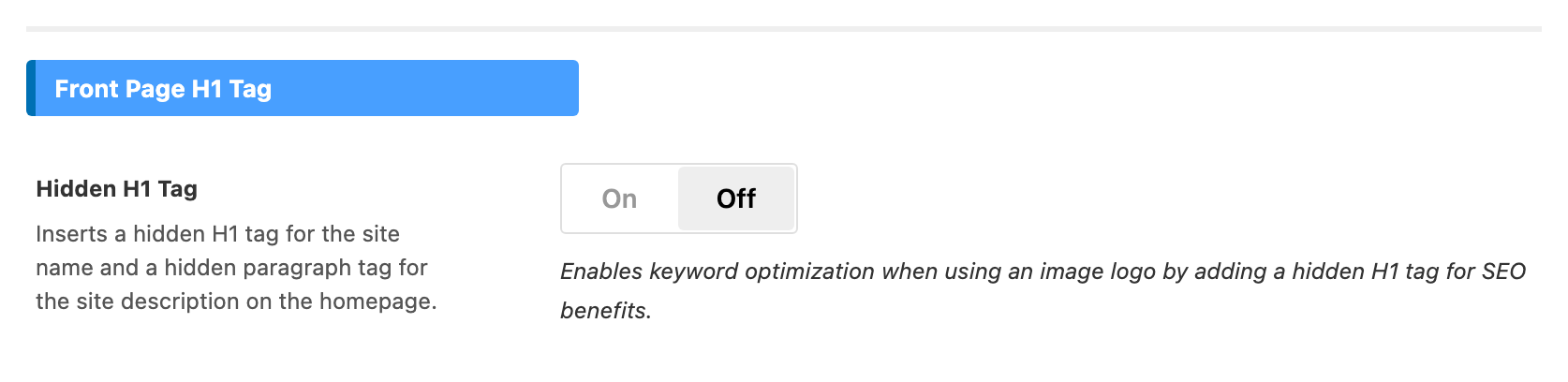
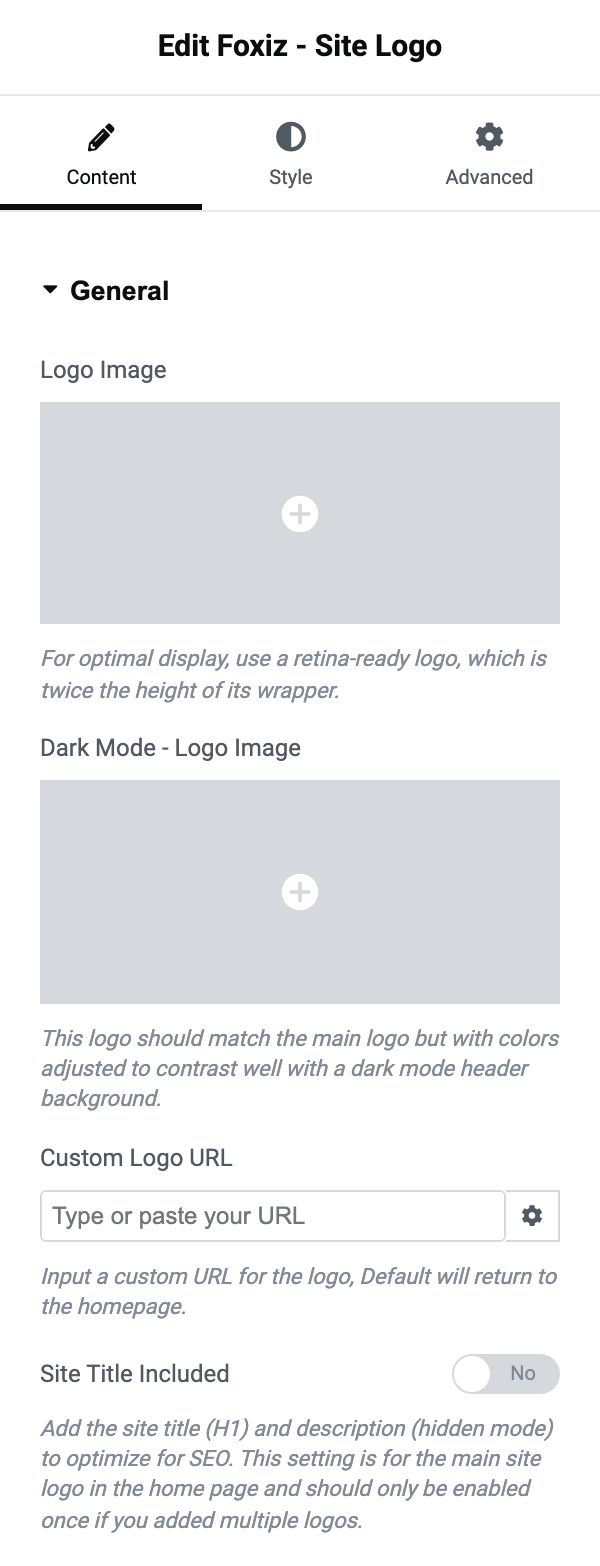
If your header is a header template, its Foxiz - Site Logo block has its own switch, Site Title Included, and the logo adds the hidden H1 only when it is on. Keep it on in one logo block at most, the one in your main header. To check it:
-
Find the template that holds the logo. On the front end, hover "Edit with Elementor" in the admin bar: the submenu lists every template on the page, header and footer included. Click the one you need to open it for editing. (Or go to Ruby Templates, hover over the template that holds the logo block, and click Edit with Elementor.)

-
Click on the Foxiz - Site Logo block, and its settings will be displayed on the left side of the screen.
-
You will see the "Site Title Included" option, in the block's General section. It is off out of the box, so a template you built yourself is probably not the source of a second H1.
-
If several Site Logo blocks have Site Title Included on, turn it off in all but the one in your main header.
-
Click "Publish"
If both switches are correct and view-source still shows two, the second one is coming from your content or from another plugin: a heading in the editor set to Heading 1, or an Elementor Heading widget whose HTML tag is H1. Neither is a Foxiz setting, and both are edited where you wrote them.
Did this answer your question?