Download and Install Theme
Download theme
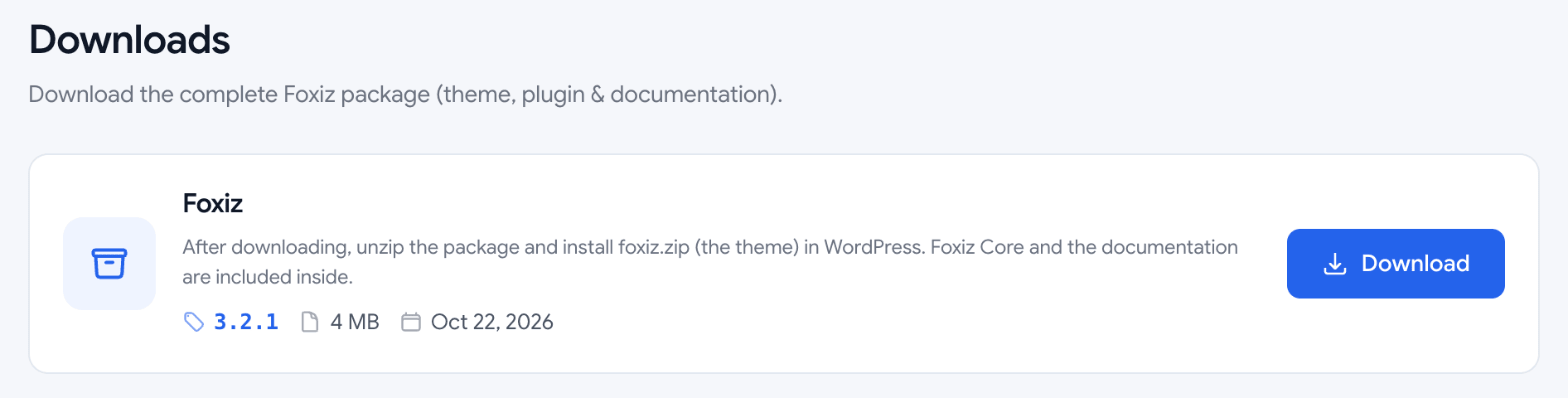
After you purchased the theme, download it from your account on store.foxiz.io. There is one download, the full Foxiz package, and it is not the file you install.
-
Sign in at https://store.foxiz.io and open your account.
-
Click the Downloads tab in the row at the top of your account (Overview, Support, My Licenses, Downloads, Profile). It lists one item, Foxiz.
-
Click Download on it.
-
You need to unzip this package to find the theme file (foxiz.zip) to install. Foxiz Core and the documentation are inside the package too, so there is nothing else to download.
Install theme via WordPress Dashboard
In order to install the theme into WordPress, you should directly upload the theme file via the WordPress Theme Uploader.
Before you start, WordPress has to be 6.0 or newer on PHP 8.0 or newer. Both are declared in the theme header, and WordPress refuses the install below either.
-
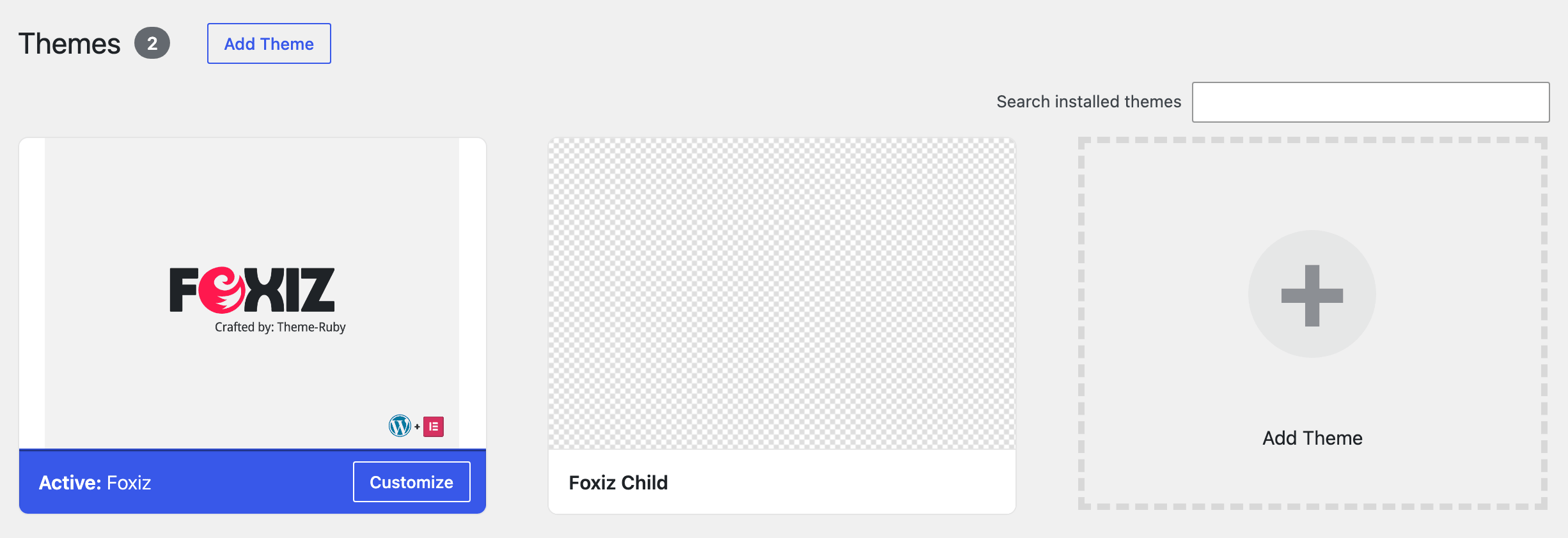
Log into your admin panel and browse for Appearance → Themes.
-
Click Add Theme at the top of the screen. Older WordPress versions labelled this button Add New.
-
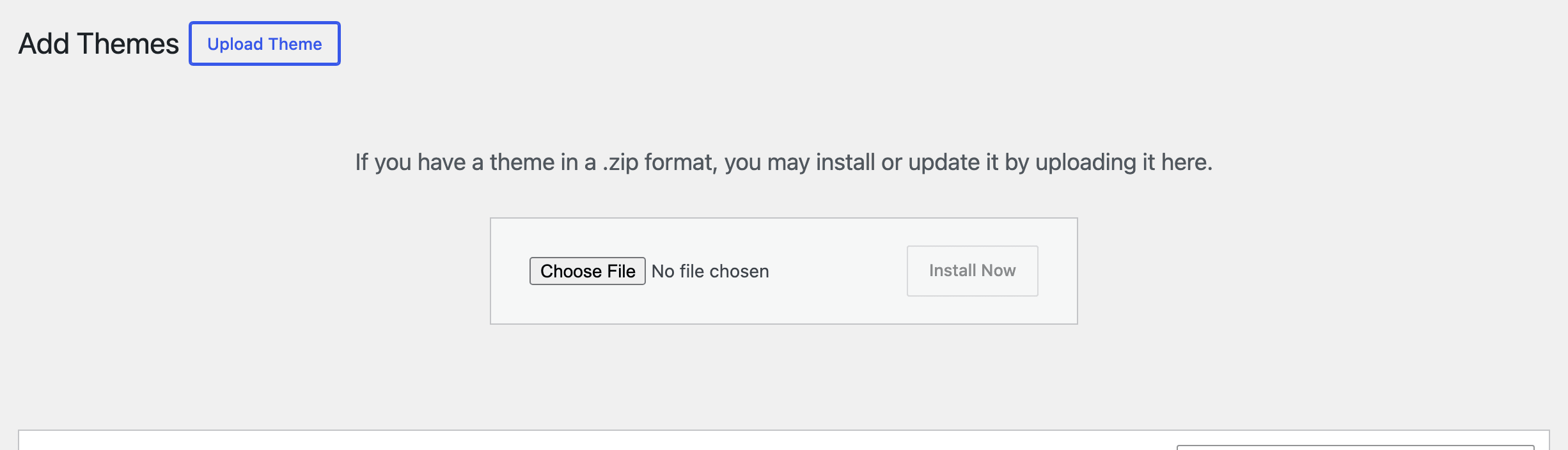
Click the Upload Theme button.
-
Find the package foxiz.zip on your device and click the Install Now button.
-
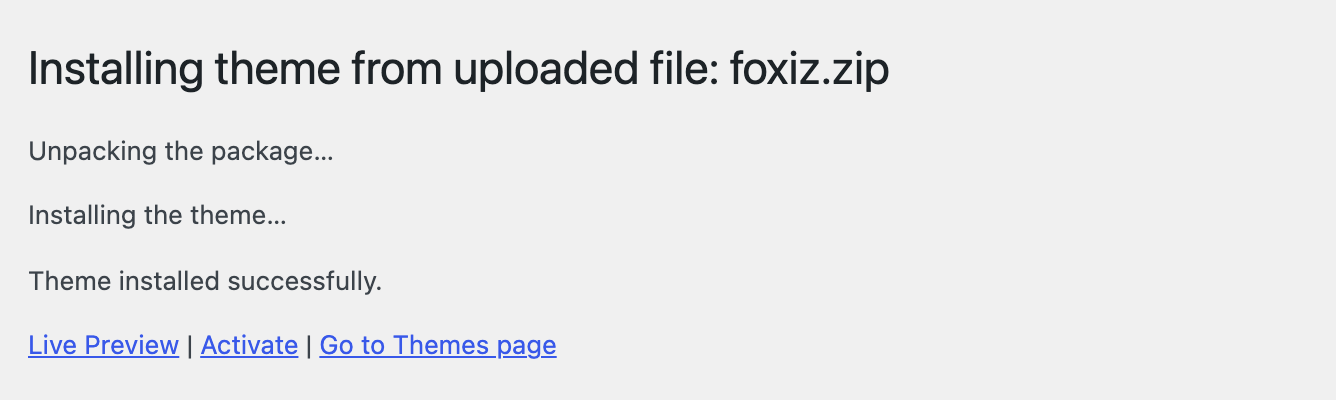
Click Activate, once the upload has finished.
-
Foxiz answers with a welcome notice headed Launch Your Perfect Site in No Time. Click Let's Get Started on it. That installs and activates Foxiz Core from the copy bundled inside the theme, so you never download that plugin separately, and it leaves you on the Foxiz dashboard.

-
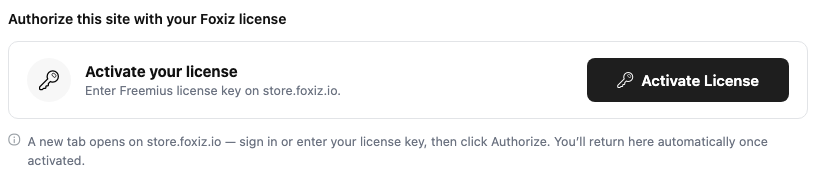
Activate your licence. Go to Foxiz → Registration and click Activate License. How to Activate the Theme walks the store side of it.
-
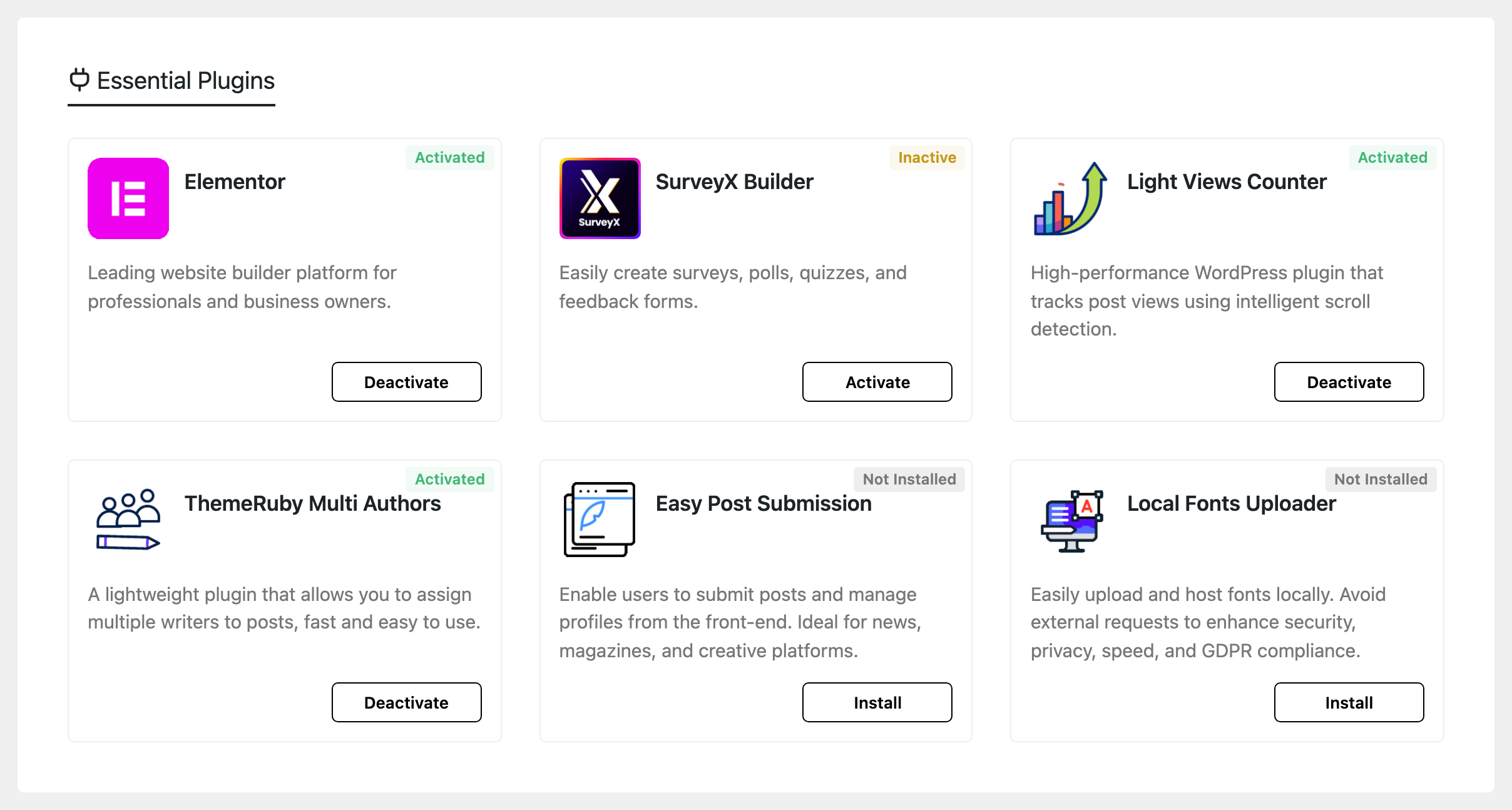
Install the other theme plugins from the Essential Plugins list on the Foxiz dashboard. The list appears once the licence is active; before that, the dashboard shows only the registration screen. There is no Appearance > Install Plugins screen; the Foxiz dashboard is where the plugin list lives.
Step 7 is not optional, and it is the step people skip. Until the site is activated, the theme registers no Theme Options panel at all, so Foxiz → Theme Options is missing rather than empty, and the Demo Importer refuses to run.
A common issue. It means you uploaded the full package. Unzip the package, find the foxiz.zip archive inside it, and install that one.
While installing your theme through the WordPress admin, you may encounter this error message. This is most likely due to your hosting php.ini configs.
The theme file is about 3 MB. The setting is upload_max_filesize, and some hosts still set it to 2M by default, which is just under it. Foxiz's own System Info page wants 32M or greater, and the same page wants post_max_size at 32M, so raise both rather than to a figure that only just fits today's zip.
To solve this issue, you should either increase your maximum upload size on your hosting or ask the hosting provider to do it for you. This is a very common request and they should be able to help you out. Once the limit is increased, you can re-try the install.
Fallback Method: Install theme via FTP
A further option to install the theme would be to upload it via FTP manager. Both ways install the same theme. Use this one when the upload through the dashboard fails.
- Login to yourFTP account or cPanel account and navigate to your WordPress Installation directory.
- Navigate to the folder
/wp-content/themes - Unzip the theme archive foxiz.zip on your device.
- Upload the foxiz folder (not the .zip file). Keep the folder name as it comes out of the zip. Foxiz Core recognises the theme by the folder slug
foxiz, and the automatic updater looks for that same slug, so a renamed folder costs you both. - Now log into your WordPress admin dashboard.
- Navigate to Appearance > Themes.
- Now you will see the theme in the listing, Activate it.
- The same welcome notice appears here. Click Let's Get Started to install Foxiz Core.
- Activate your licence at Foxiz → Registration, as in step 7 above, then install the rest from Essential Plugins on the Foxiz dashboard.
Next Steps
Install Default theme plugins.
Did this answer your question?