How to Move from Foxiz Classic to Foxiz Next
Foxiz comes in two editions:
- Foxiz Classic is sold on ThemeForest. Its version numbers start with 2 (2.8.0, for example).
- Foxiz Next is sold at foxiz.io. Its version numbers start with 3. These docs describe Foxiz Next.
Moving from Classic to Next is a theme update. Both editions are the same theme in the same foxiz folder, and both keep their settings in the same place. Your posts, pages, menus, Elementor layouts and Theme Options all stay as they are.
You do not have to move. Foxiz Classic keeps receiving security, compatibility and maintenance updates. New features and new demos arrive in Foxiz Next only.
The move at a glance:
- Check that your site is on Foxiz Classic and that your server runs PHP 8.0 or newer.
- Back up your site.
- Buy a Foxiz Next license at foxiz.io/pricing. Your Foxiz Classic purchase code does not work on Foxiz Next.
- Download Foxiz Next.
- Upload it over Foxiz Classic.
- Update the Foxiz Core plugin.
- Activate your Foxiz Next license.
- Check your site.
What Foxiz Next gives you
- New features first. New tools ship in Foxiz Next as they are released.
- Faster over time. Performance and Core Web Vitals work continues in Foxiz Next.
- New demos. New prebuilt websites are added to Foxiz Next.
- One-click activation. You authorize the site from your store account. There is no purchase code to type.
- One account for everything. Your licenses, downloads, invoices and support requests sit together in your store.foxiz.io account.
- One license for several sites. Plans cover 1 to 100 sites, yearly or, on some plans, lifetime.
- Longer support. Support for as long as your license is active instead of six months: a year at a time on a yearly plan, never ending on a lifetime one. Professional and Business plans add priority support.
- A 14-day money-back guarantee on every plan.
The two editions side by side:
| Foxiz Classic | Foxiz Next | |
|---|---|---|
| Where to buy | ThemeForest | foxiz.io |
| Price | $59 once, which includes 6 months of support | From $49 a year |
| Sites per license | 1 | Up to 100 |
| Support | 6 months; each further 6 months costs $41 | As long as your license is active: renewed yearly, or lifetime |
| Security and maintenance updates | Yes | Yes |
| New features and demos | No | Yes |
| Activation | Purchase code | One click from your store account |
| Where you manage your license | Envato account | store.foxiz.io account |
On Foxiz Classic, support beyond the first 6 months costs $41 for each further 6 months. A yearly Foxiz Next plan includes a full year of support for less, and support carries on for as long as you renew; on a lifetime plan it never runs out.
If a Foxiz Next license lapses, your site keeps working as it is. Updates, new features, demos and priority support pause until you renew.
Step 1: Check your edition and your PHP version
Which edition you have. Go to Appearance > Themes and click the Foxiz card. The details show the version next to the name. A version starting with 2 is Foxiz Classic, and this article is for you. A version starting with 3 is already Foxiz Next: update it as How do I Update the Theme? explains.

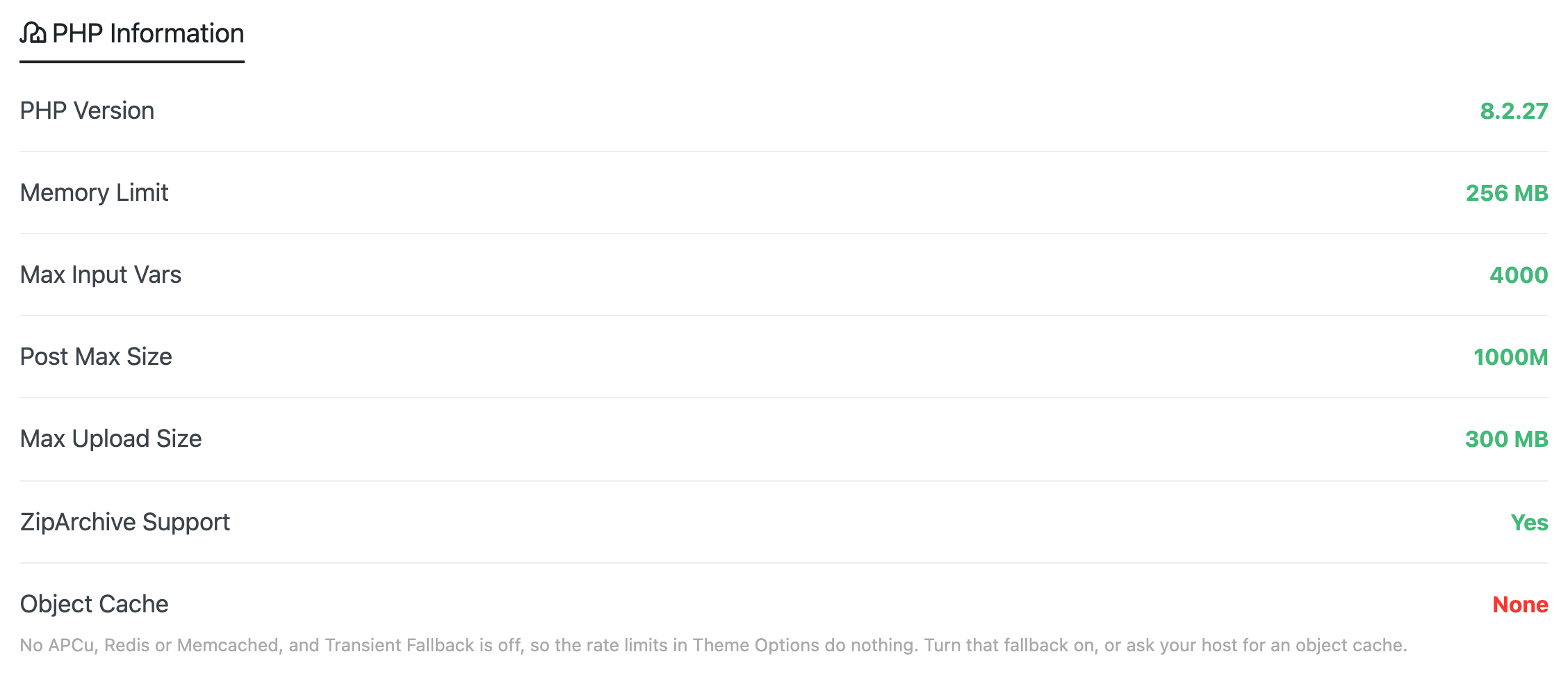
Your PHP version. Foxiz Classic runs on PHP 7.4, but Foxiz Next needs PHP 8.0 or newer. Go to Foxiz > System Info and read PHP Version. If it is lower than 8.0, ask your host to raise it before you go on. WordPress refuses to install Foxiz Next on an older PHP.
Step 2: Back up your site
Make a full backup of your files and database before you change the theme. If anything goes wrong, you can put the site back exactly as it was. See Backup & Restore Website Data.
Step 3: Buy a Foxiz Next license
Your ThemeForest purchase code cannot be used on Foxiz Next, and it cannot be converted into a Foxiz Next license. Foxiz Next needs its own license, bought at foxiz.io/pricing.
-
Go to foxiz.io/pricing and choose a plan. For one site, Starter is enough. Choose a bigger plan only if you run several sites.
-
Complete the purchase. Your store account at store.foxiz.io uses the email you buy with. Keep that email: you sign in with it to download Foxiz Next and to activate it.
-
Sign in at store.foxiz.io and open My Licenses. Your license is listed there. Its License Key starts with
sk_; you only need it if you activate without signing in (Step 7).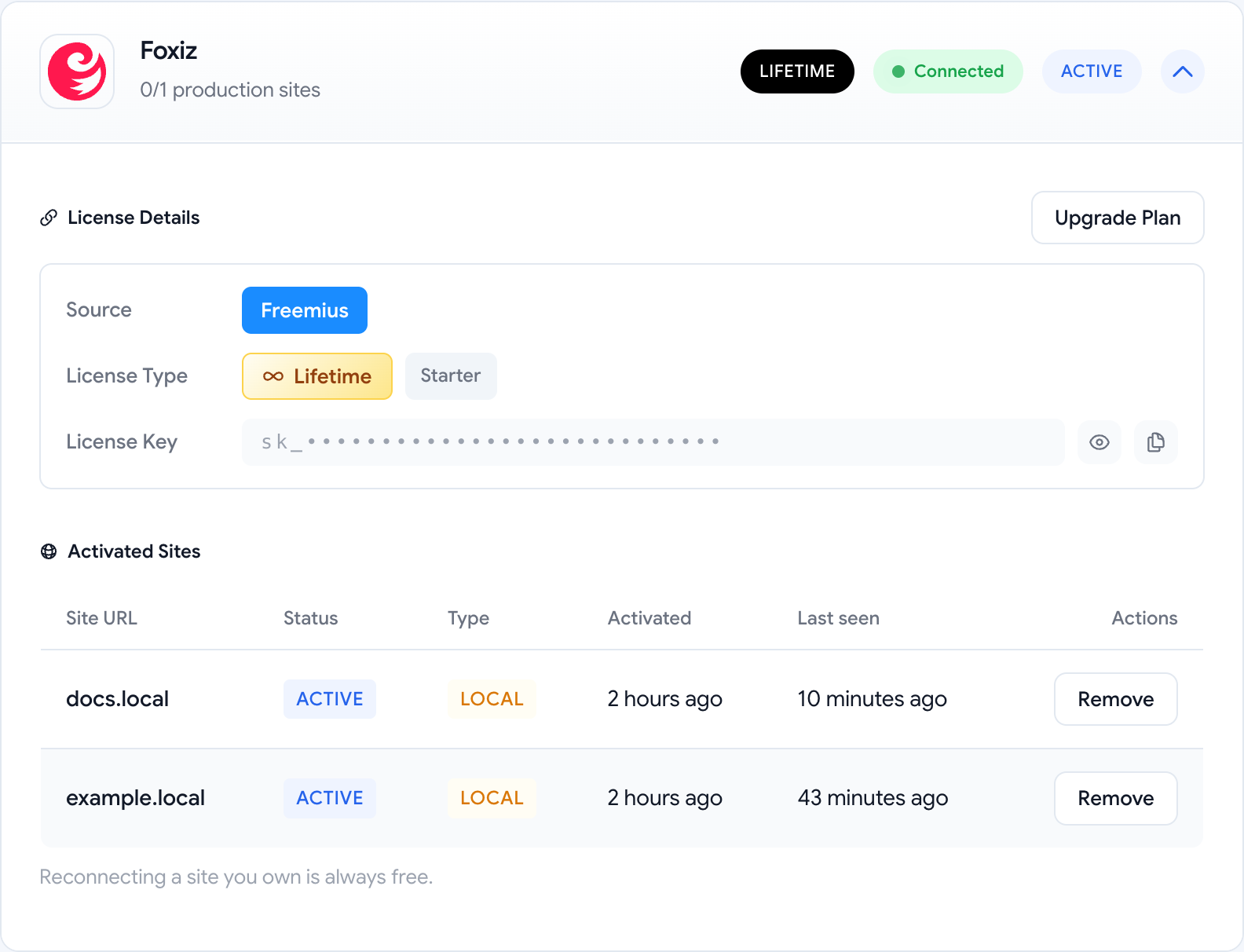
Step 4: Download Foxiz Next
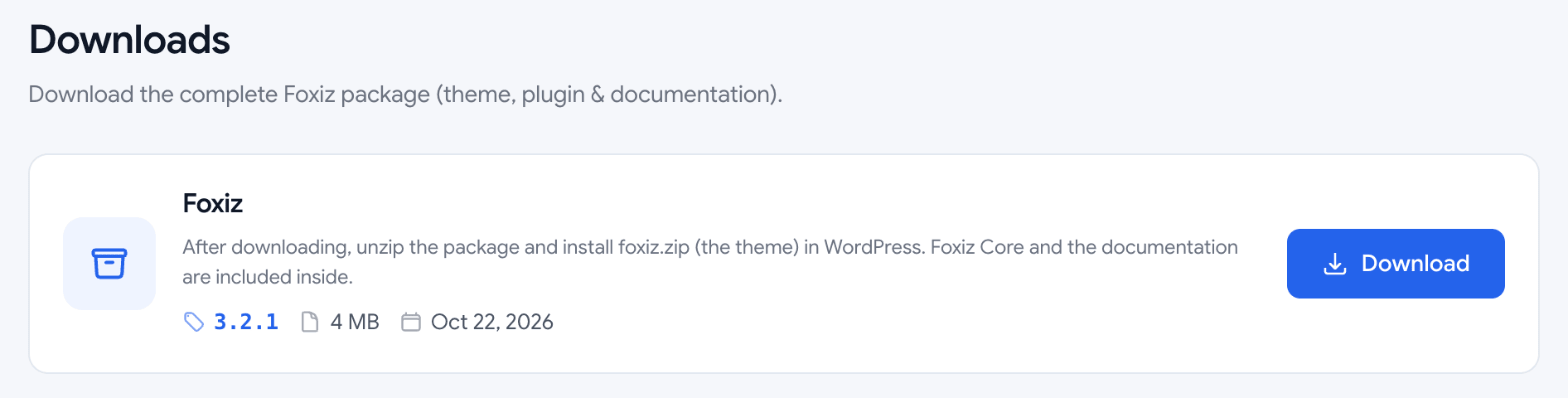
In your store account, open the Downloads tab and click Download on Foxiz. Unzip what you downloaded. Inside it is foxiz.zip: that is the file you upload in the next step. Do not unzip foxiz.zip itself.
Step 5: Upload Foxiz Next over Foxiz Classic
You do not need to switch themes or delete Foxiz Classic first. WordPress replaces it in one go.
-
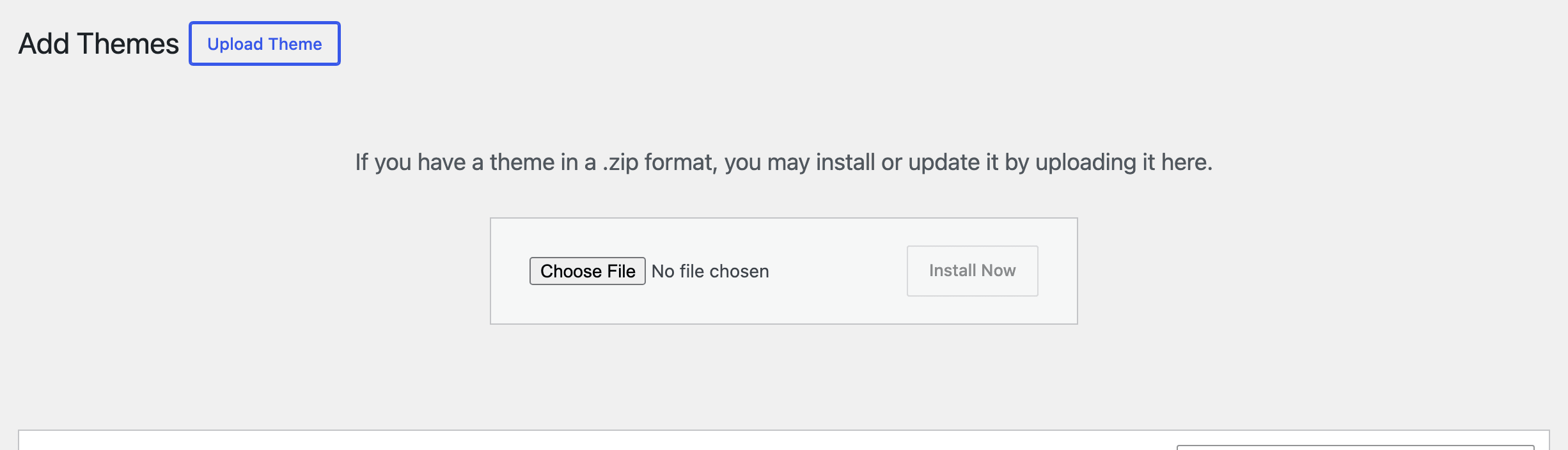
Go to Appearance > Themes and click Add Theme at the top, then Upload Theme.
-
Click Choose File, pick foxiz.zip, and click Install Now.
-
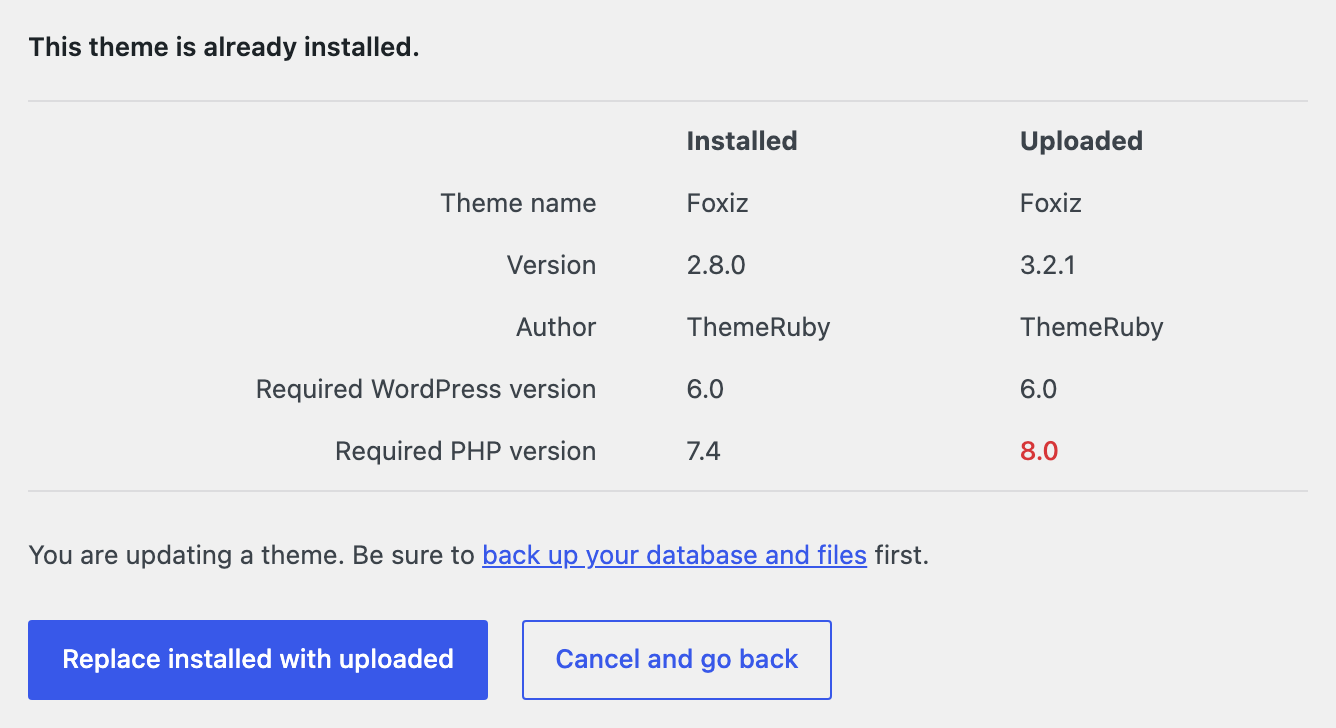
WordPress says This theme is already installed. and compares the two versions: your Classic version under Installed, 3.x under Uploaded. Required PHP version shows 8.0 in red only because it differs from Classic's 7.4. Click Replace installed with uploaded.
-
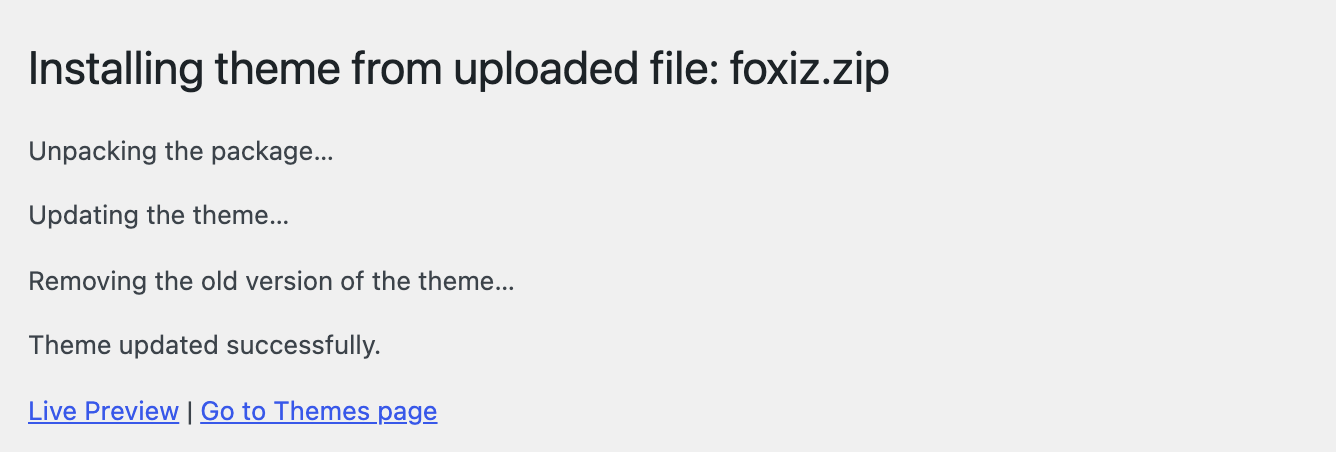
Wait until the page reads Theme updated successfully.
If you use a child theme, keep it active. It runs on Foxiz Next unchanged, because it points at the same foxiz folder. If it overrides foxiz_register_script_frontend(), update that copy, as Using Child Theme explains.
Step 6: Update Foxiz Core
Foxiz Next needs the Foxiz Core plugin from the same release, and your site still has the Classic one.
-
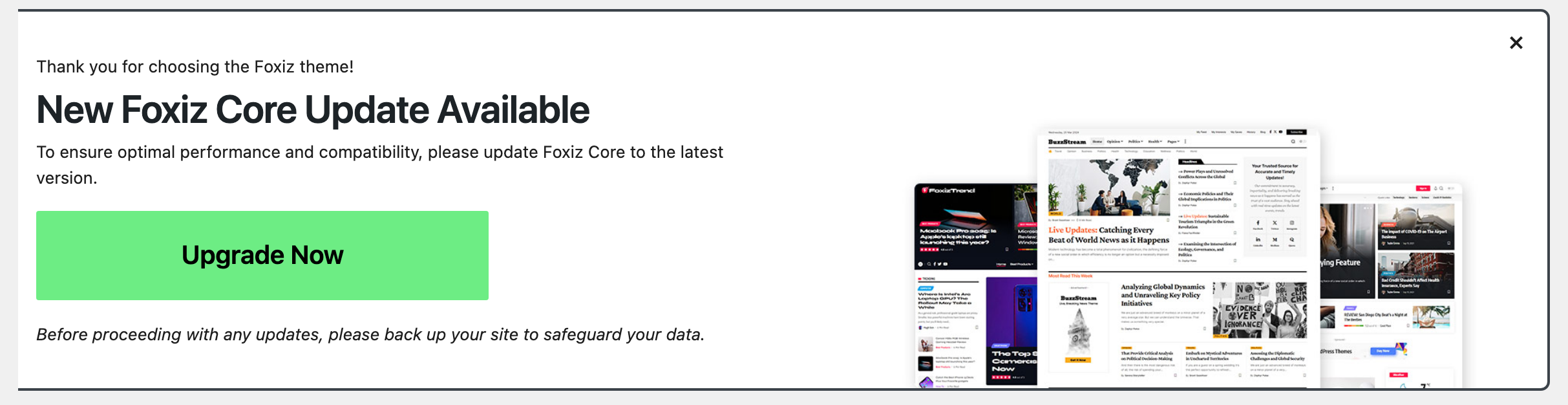
Open any admin screen, Posts for example. Foxiz shows New Foxiz Core Update Available at the top.
-
Click Upgrade Now. It installs the copy of Foxiz Core that comes with the theme, without leaving the page.
-
When the update finishes, the Foxiz dashboard opens on its own.
Step 7: Activate your Foxiz Next license
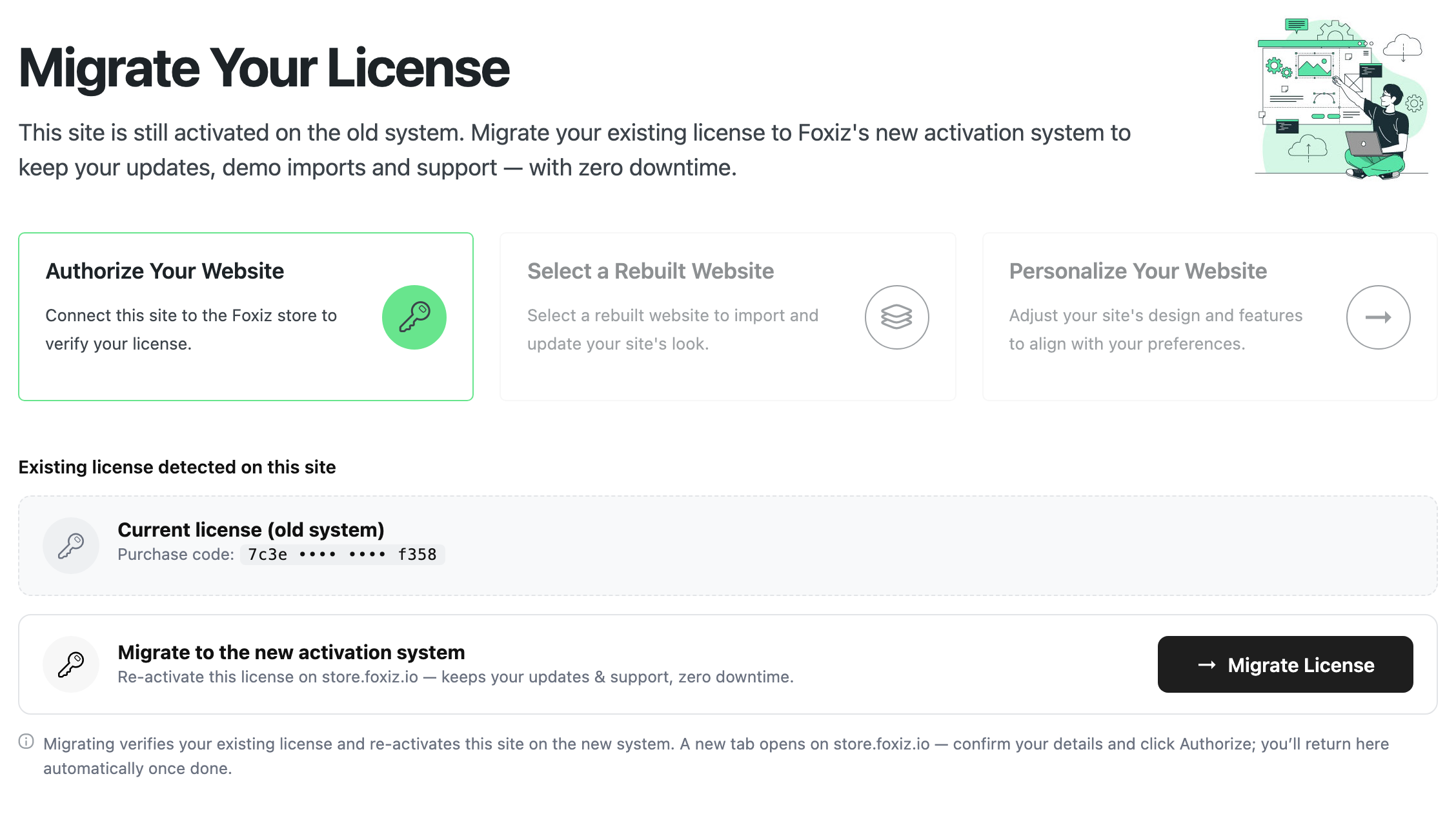
The Foxiz dashboard now reads Migrate Your License, and the badge at the top says Unregistered. That is expected: your site is still activated the old way, and nothing has stopped working. Theme Options and your site's front end carry on as before. Theme updates and demo imports, though, wait for the Foxiz Next license.
Before you start, sign in at store.foxiz.io in the same browser. It is the easiest route: the store then lists your license and you only click once.
-
Click Foxiz in the admin menu. Under Current license (old system) you see your old purchase code, partly hidden.
-
Click Migrate License. A new tab opens on store.foxiz.io, on a page headed Activate your license, with two steps, Verify and Authorize. Despite its name, Migrate License does not carry your purchase code over: it connects the site to the Foxiz Next license you bought in Step 3.
-
What you see next depends on whether you are signed in at the store:
- Signed in: the page goes straight to the Authorize step and lists your licenses. Go on to step 4.
- Not signed in: a License key field is already filled in with your old purchase code. The store does not accept it. Delete it, paste your Foxiz Next key (it starts with
sk_, see Step 3) and click Verify & continue. Or click Already activated before? Sign in under the field and sign in instead.
-
On the Authorize step, choose your Foxiz Next license and click Authorize. Each license shows how many of its sites are already used.
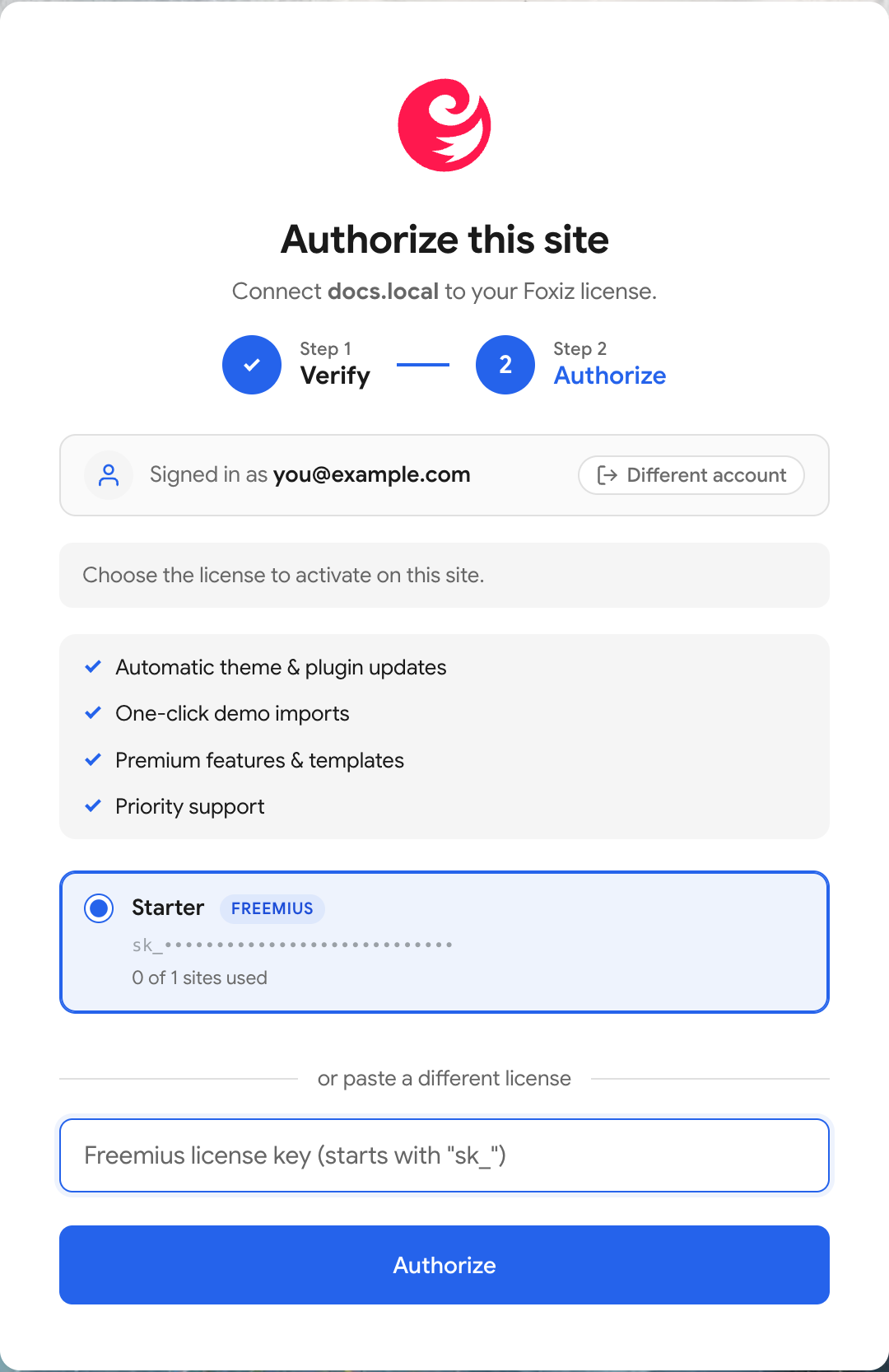
-
The store sends you back to the Foxiz dashboard. It shows "Your license has been activated. Welcome to Foxiz!", and the license card reads This site is activated, with your plan name.

You can close the store tab.
Step 8: Check your site
-
Look at the top of the Foxiz dashboard. It should read Ver: 3.2.1 (or newer) and Registered.

-
Clear the cache of your caching plugin and your CDN, if you use them.
-
Open Theme Options and click Save Changes once.
-
Visit your home page, a post and a category page, and check they look as before.
From now on, Foxiz updates arrive at Dashboard > Updates like any other theme. See How do I Update the Theme?.
If something goes wrong
- "The PHP version on your server is 7.4, however the uploaded theme requires 8.0." WordPress stopped the upload and nothing changed on your site. Ask your host to raise PHP to 8.0 or newer, then start Step 5 again.
- "That does not look like a valid license key (it should start with "sk_")." The store was given your old purchase code. Replace it with your Foxiz Next key from My Licenses, or sign in instead.
- "A theme update is available. Activate your license to update." Step 7 is not done yet.
- The dashboard reads Reconnect Your License. The license is registered to a different address, for example after you moved from a staging copy. Click Reconnect License. See How to Activate the Theme.
- The site looks broken after the move. Clear every cache first. If it still looks wrong, restore the backup from Step 2 and open a ticket.
Did this answer your question?