How to Activate the Theme
Foxiz is sold and licensed at store.foxiz.io, and activation authorizes this site against that store: you click a button, a tab opens there, you sign in and confirm, and the site is registered when you come back. Your licence key is the one from your store.foxiz.io account; the card on the screen says so, "Enter Freemius license key on store.foxiz.io."
Activation is what unlocks the rest of the theme. Until it is done, Foxiz registers no Theme Options panel at all, so Theme Options is absent from the menu rather than empty, and the Demo Importer refuses every import. The Foxiz menu shows two entries in that state, Registration and System Info, and nothing else.
To activate the Foxiz theme:
-
Make sure Foxiz Core is installed and active. The activation screen belongs to that plugin, so without it there is no Foxiz menu to go to. If you clicked Let's Get Started on the welcome notice after activating the theme, it is already there; if not, click it now (Download and Install Theme, step 6).
-
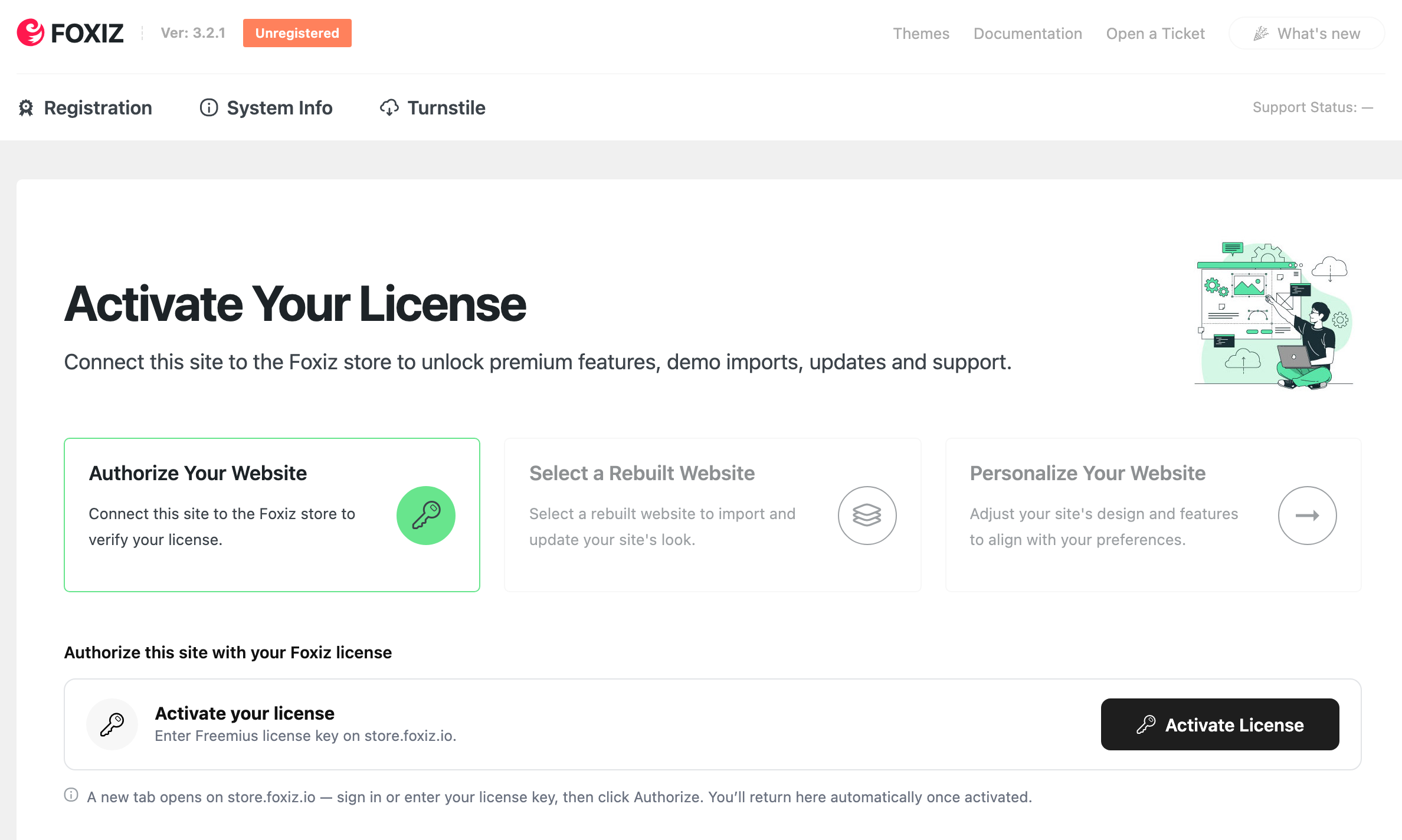
Click Foxiz in the admin menu. On a site that is not activated yet, the Foxiz dashboard opens straight on the activation screen, and the tab bar across the top of the page shows Registration. Once the site is activated, that tab becomes Dashboard, with the other Foxiz pages beside it. The tab reads License only when a licence is stored but cannot be used on this site, for example after the site moved or the licence stopped being active.
-
The page is headed Activate Your License, with the prompt Authorize this site with your Foxiz license. Click Activate License.
-
A new tab opens on
store.foxiz.io, on a page headed Activate your license that walks you through two steps, Verify and Authorize. The heading reads Authorize this site once you reach the second step. To verify, paste your Freemius licence key (it starts withsk_) and click Verify & continue, or, if you have activated a site before, click Sign in under the key field and sign in to your store account.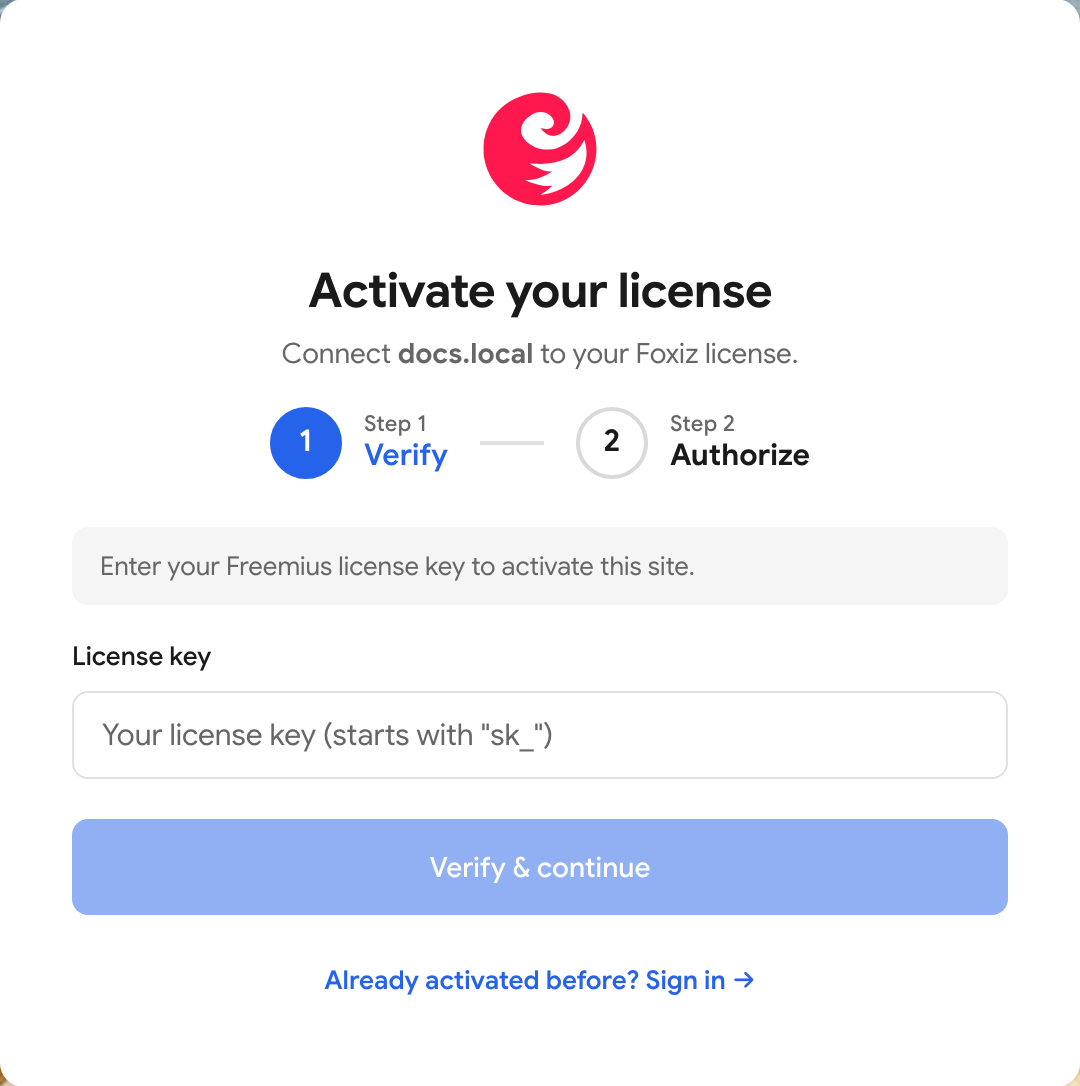
To find the key, sign in at
store.foxiz.ioand open My Licenses in your account. Each licence has a License Details box, and its License Key row shows the key masked, with an eye button to reveal it and a copy button beside it.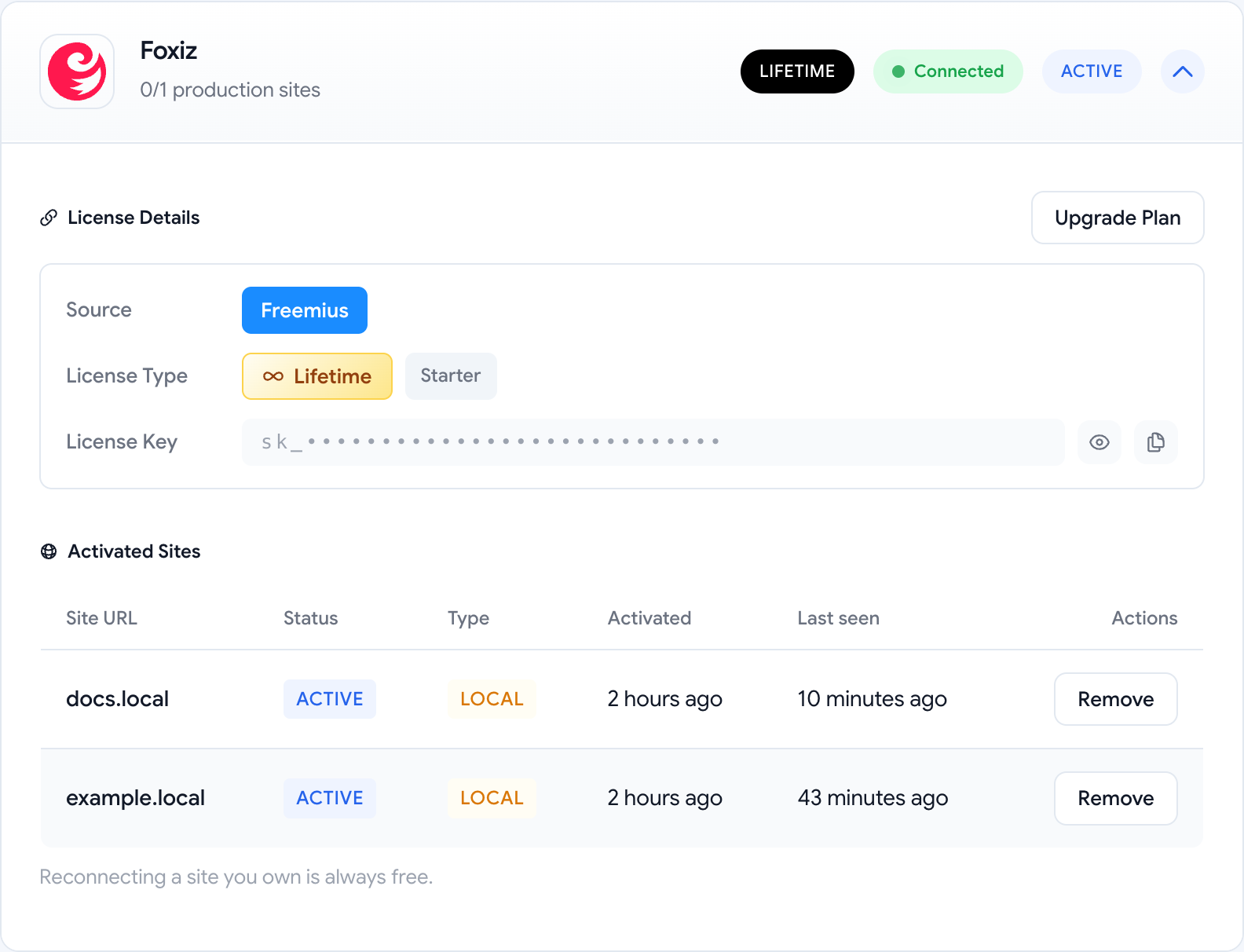
-
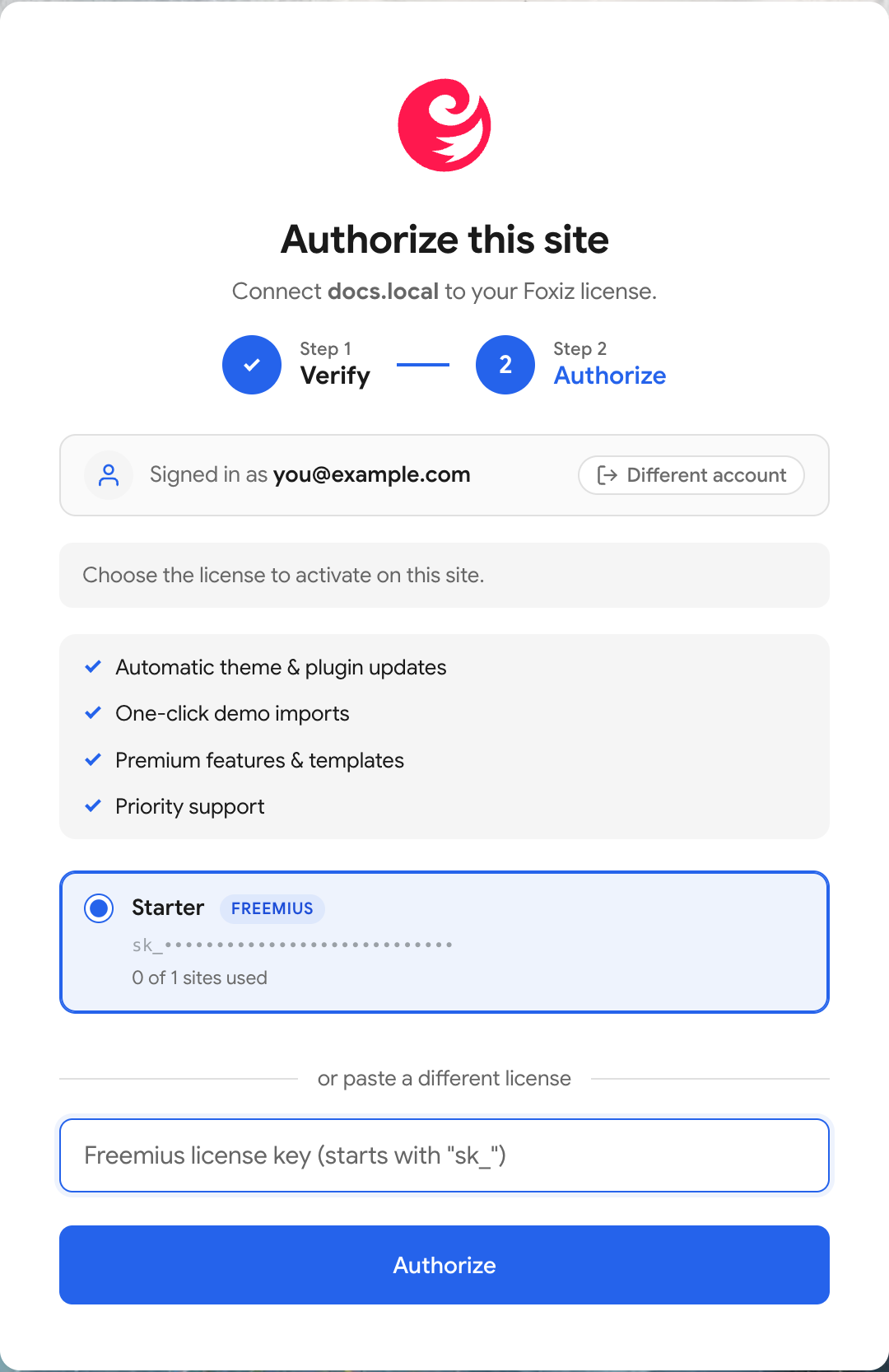
On the Authorize step, choose the licence to use on this site. Each licence shows how many of its sites are already used. You can also paste a different licence key in the field underneath. Click Authorize.
-
You are returned to the Foxiz dashboard automatically, with the notice "Your license has been activated. Welcome to Foxiz!" The dashboard then reads This site is activated, with your plan name and status, and the status badge at the top of the panel turns from Unregistered to Registered.


When the screen says no
The gated pages do not fail silently. Each one explains which of four states you are in and gives you the one button that helps:
- Foxiz Activation Required, with Go to Activate Page. The site has never been registered. Start at step 2 above.
- Foxiz Subscription Expired, with Renew Subscription. Your front end keeps working; demo import, features and updates are paused until the subscription is renewed.
- Foxiz License Revoked, with Contact Support.
- Foxiz License Locked, with Go to Dashboard. The licence is held while the team reviews recent activity.
One more state shows only as a badge in the panel header: Verification Failed, which is the panel saying the check itself errored rather than that your licence is bad. Its tooltip asks you to register again or contact support.
Support for any of them is one click away in the panel header: Open a Ticket goes to your account's support area at store.foxiz.io, and Documentation goes to help.themeruby.com.
There is one more screen, Reconnect Your License, and it is the one that catches people who move a site rather than buy a new one. It appears when the licence is registered to a different address from the one you are on now, which is what happens when you go from staging to live, or from http to https, or when the domain changes. Theme Options, updates and demo imports are unavailable until you clear it, and the fix is one button, Reconnect License, which releases the old registration and authorizes the current address.
No Foxiz menu at all, or the license is active and Theme Options or the Foxiz blocks are still missing? See Foxiz Blocks or Theme Options Are Missing.
Which sites count against your license
Activate your license on each production site. Development sites are free: Foxiz recognises them from the address and never counts them against your site limit, so you can build and test as much as you like without spending a seat.
These are the addresses it treats as development.
- A local install.
localhost, a private or reserved IP address, and anything ending in.local,.test,.localhost,.loc,.wp,.invalidor.example. Local, MAMP, XAMPP, Valet, DDEV and Lando are all covered as they come, by their own addresses as well as by those suffixes. - A staging or testing subdomain. A hostname beginning
staging.,stage.,stg.,dev.,test.,demo.,preview.,sandbox.,qa.,uat.orbeta., among others. - A temporary or sandbox address. The generated address a managed host gives you before a domain is pointed at the site, and hosted sandboxes such as InstaWP or TasteWP.
- A tunnel or cloud workspace.
ngrok, Cloudflare Tunnel,nip.io,sslip.io,localtest.me, Gitpod, GitHub Codespaces, Replit and Fly.io.
A staging or testing word counts in the middle of a hostname too, not only at the start, so site.staging.example.com is free as well.
One case catches people out. Detection reads the address and nothing else, so a staging copy sitting on an ordinary domain (staging-example.com, for instance) is not recognised, and it does take a production site. Move it to a staging subdomain and it is free again.
When you launch, the real domain is a production site and takes one from your plan. Check you have a site spare before you point the domain across, and release one with Deactivate below if you do not.
Deactivate theme license
To move the theme to another website, deactivate it on this one first, then activate it on the new one.
Go to Foxiz → Dashboard and click Deactivate on the licence card. Its tooltip says what it does: "Release this site so you can activate the license on another site." Nothing on this site is deleted; the licence simply stops being counted against this address, and you then run the activation steps above on the new one.
A local site still has to be activated for real, though. The demo import gate makes no exception for local or staging installs: it requires a licence whose status is exactly active, so an expired subscription cannot import demos on localhost either.
Next Step
Install Default Plugins
Did this answer your question?