How to Move Your Site to a New Domain or Host
You built the site on a staging copy and want it live, you are changing host, you bought a new domain, or you are switching from http to https. The site and its settings move with a migration plugin. Foxiz then needs two things from you on the new address: Elementor's files cleared, and the license reconnected.
The move at a glance:
- Export the old site.
- Import it on the new address.
- Save permalinks and check the addresses.
- Clear Elementor's files.
- Reconnect the Foxiz license.
- Check the site.
Only switching to https on the same host? Skip steps 1 and 2, and start with Problems with SSL?.
1. Export the old site
Use your host's migration tool if it has one. Otherwise All-in-One WP Migration does the whole copy, files and database, in one file:
- On the old site, install All-in-One WP Migration and go to All-in-One WP Migration > Export.
- Click Export Site To and choose File. Download the file it builds.
Backup & Restore Website Data shows both steps with pictures.
2. Import it on the new address
- Install a fresh WordPress on the new domain or host.
- Install All-in-One WP Migration there and go to All-in-One WP Migration > Import.
- Drag the file onto the page and confirm with Proceed.
The plugin rewrites every old address in the database to the new one as it imports, so links, images and Theme Options follow. When it finishes, log in again with the old site's user name and password, because the users came across with everything else.
A file bigger than the new server's upload limit is refused. Raise the limit as shown in Configuring Server Settings, or use your host's migration tool.
3. Save permalinks and check the addresses
-
Go to Settings > Permalinks and click Save Changes without changing anything. The import screen asks you to do this too. Until you do, posts can open as "page not found".
-
Go to Settings > General. Check that WordPress Address (URL) and Site Address (URL) both hold the new address,
https://included.
4. Clear Elementor's files
Elementor keeps a copy of each page's styles with the old address in it.
-
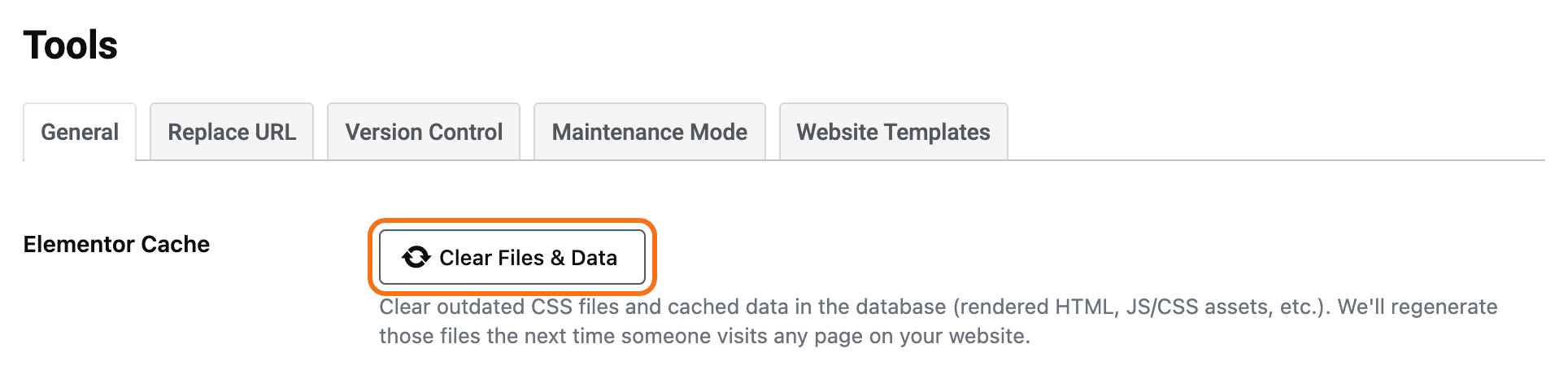
Go to Elementor > Editor. Elementor opens a second menu of its own, a white column just right of the WordPress menu. Click Tools in that column.
-
On the General tab, click Clear Files & Data.
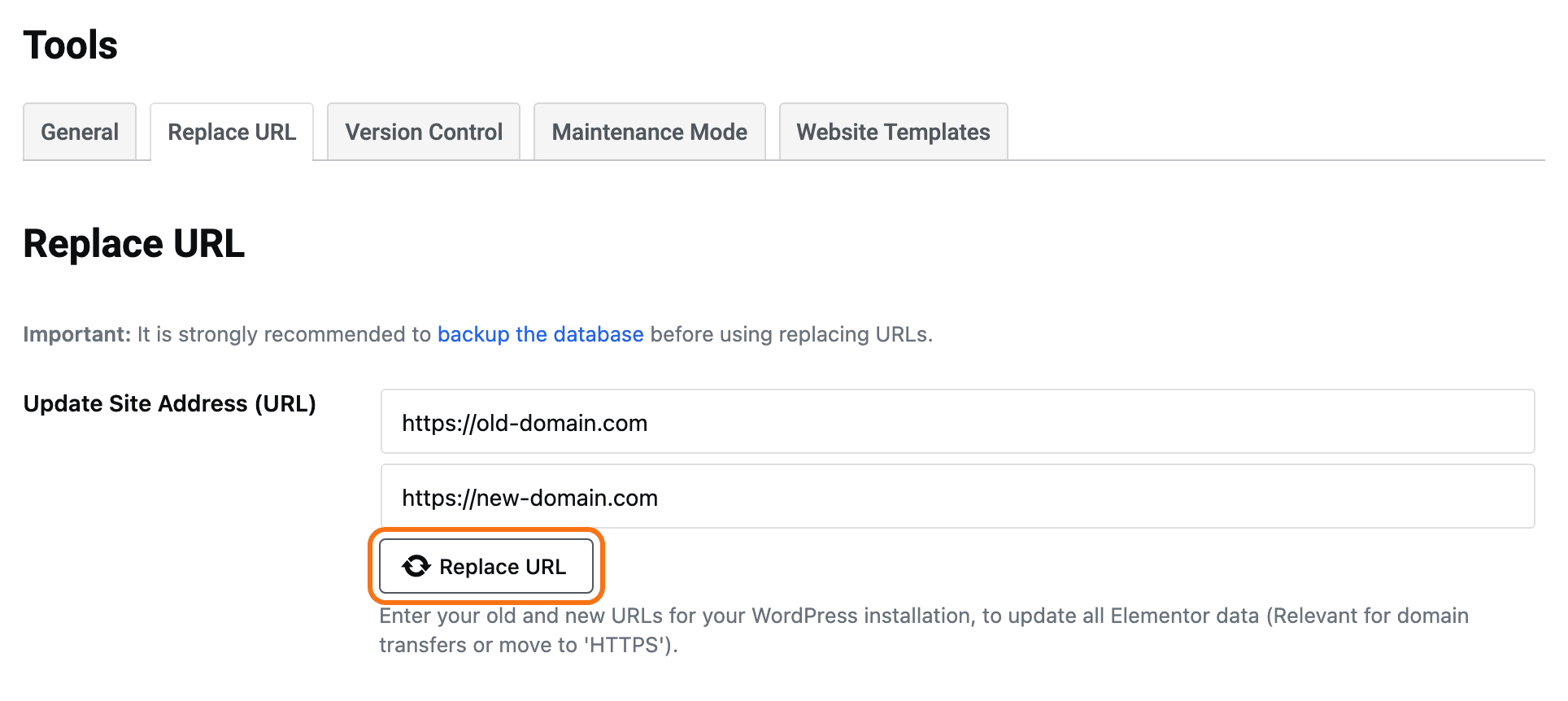
Moved the site without a migration plugin, by copying files and the database yourself? Use the Replace URL tab on the same screen as well. Enter the old address and the new one under Update Site Address (URL), and click Replace URL. Back up the database first, as the screen itself advises.
5. Reconnect the Foxiz license
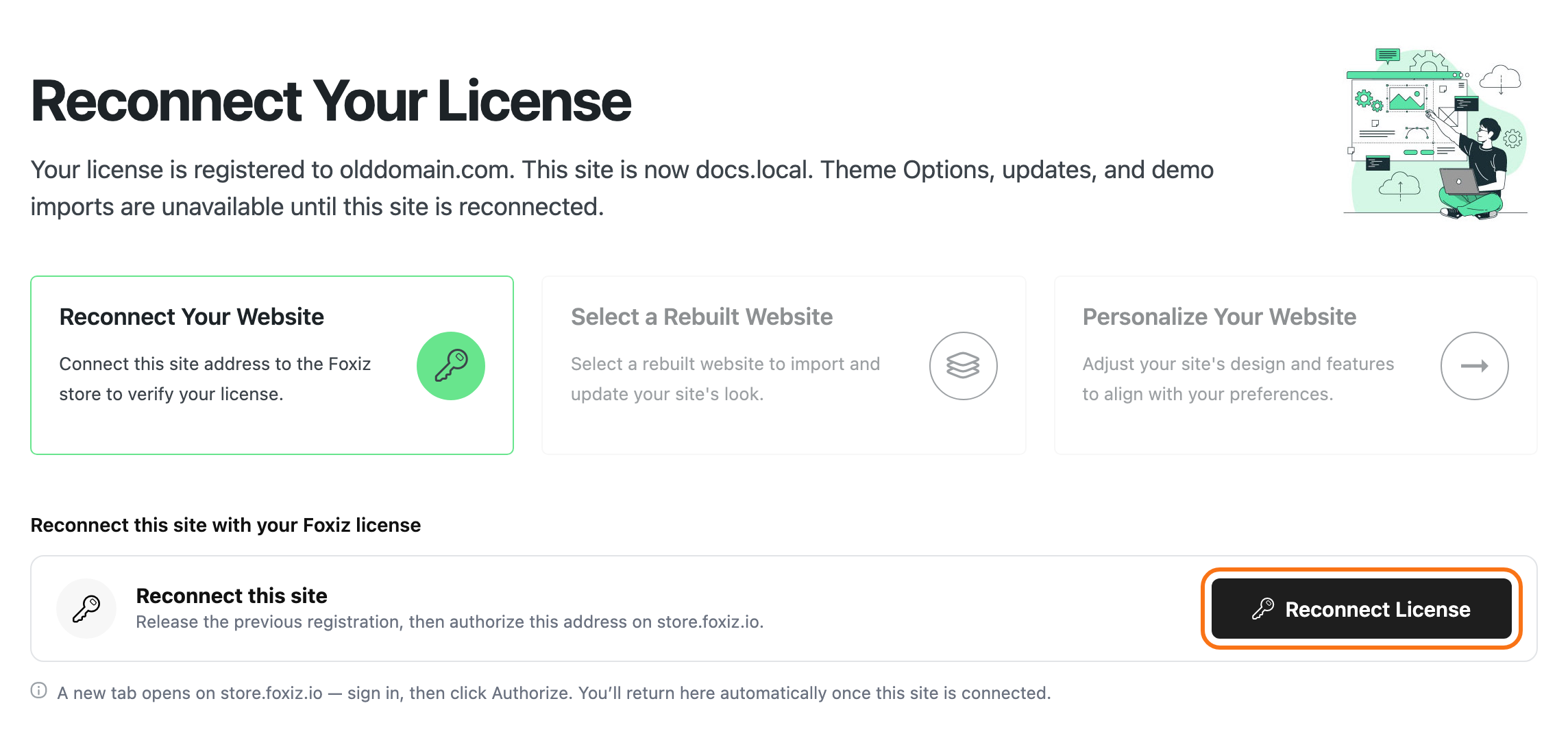
Your license is registered to the old address, so the new site opens the Foxiz menu on Reconnect Your License. Theme Options, updates and demo imports wait until you clear it.
-
Go to Foxiz in the admin menu.
-
Click Reconnect License.
-
Confirm. Foxiz releases the old registration and opens store.foxiz.io, where you authorize the new address.
Reconnecting a site you own is free. Moving a live site to a new domain uses no extra site, because Reconnect License releases the old registration first. Moving from a staging or local copy to the live domain does take one production site from your plan: staging and local addresses never count, but the live domain does. Check you have one spare before you launch. Keeping the old site running with Foxiz as well? It then needs a license seat of its own. See How to Deactivate a Theme to Transfer a Domain.
6. Check the site
Open the new site in a private window and check:
- the homepage, one post and one category page;
- the logo and the images, which should load from the new address;
- the menu links, which should point at the new address;
- signing in from the header, if you use it.
An image or a link still pointing at the old address usually sits inside a widget or a Ruby Template. Edit it there. Something looks unstyled? Clear your cache plugin as well, as shown in Changes Not Showing on the Site.
Changed domain on a live site? Tell Google too: add the new domain in Search Console and submit its sitemap. See How to Submit Your Sitemap to Google Search Console.
Did this answer your question?