Install Demo Content
There are some points to consider before using demo content:
- Foxiz Core is installed and active. It is the plugin the importer belongs to. You do not need to install the other plugins first: the importer's Required Plugins step installs and activates the ones the demo uses (step 6 below).
- Your licence has to be activated, and its status has to be exactly active. The importer checks this before it does anything and refuses with "An active Foxiz license is required to import demo content" otherwise. An expired subscription cannot import, and there is no exemption for local or staging sites.
- Demo content should be installed in a fresh installation of WordPress.
- Some images are copyrighted. We do not have the right to include some images of demos in the content due to copyright issues, so images will look different from the demo.
Importing overwrites your Theme Options and empties your sidebars. It does not ask first, and there is no undo.
- Theme Options. If Theme Options is selected, the demo's settings file replaces the whole
foxiz_theme_optionsrecord. Your logo, colours, typography, header, ad codes and every other panel go back to the demo's own settings. Nothing is merged. The Import Content step says this in one line above the checkboxes, and that line is the only warning you get. - Widgets. If Widgets is selected, the importer first empties all sixteen sidebars the theme registers, then writes that empty map over the site's entire
sidebars_widgetsrecord, so widget placements in any other sidebar go with them. It also rewrites the theme'smulti_sidebarslist to the six the demos use. - All Content turns both of those on, along with posts and pages.
If the site is not brand new, back up the database first, or clear the Theme Options and Widgets checkboxes at step 4 below and import only pages.
1-Click to import demos.
Using this tool is recommended for fresh installs. Demo Importer will not replace your existing posts and pages: it adds the demo's content alongside them. That merge behaviour covers content only, and not the Theme Options and widgets described above.
We always recommend running it on a fresh WordPress installation with no extra plugins active.
Be patient until the installation is complete. It may take several minutes on some web hosts. The panel's own advice is that if it runs past five minutes, reload the page and start the import again.
The importer also finishes the setup for you: it assigns the demo's menus to the Main Menu, Mobile Menu and Mobile Quick Access locations, and sets the demo's home page as your static front page. If the demo does not declare one, it puts the front page back to Your latest posts, which is why a site that had a static homepage before the import may not have one after.
Check the System Status to ensure your server meets the requirements for a successful import. Foxiz reports the same values on its own Foxiz → System Info page, and flags anything below what it wants.
Import Demo
-
Make sure Foxiz Core is installed and active. If you clicked Let's Get Started on the welcome notice after activating the theme, it is already there (Download and Install Theme, step 6).
-
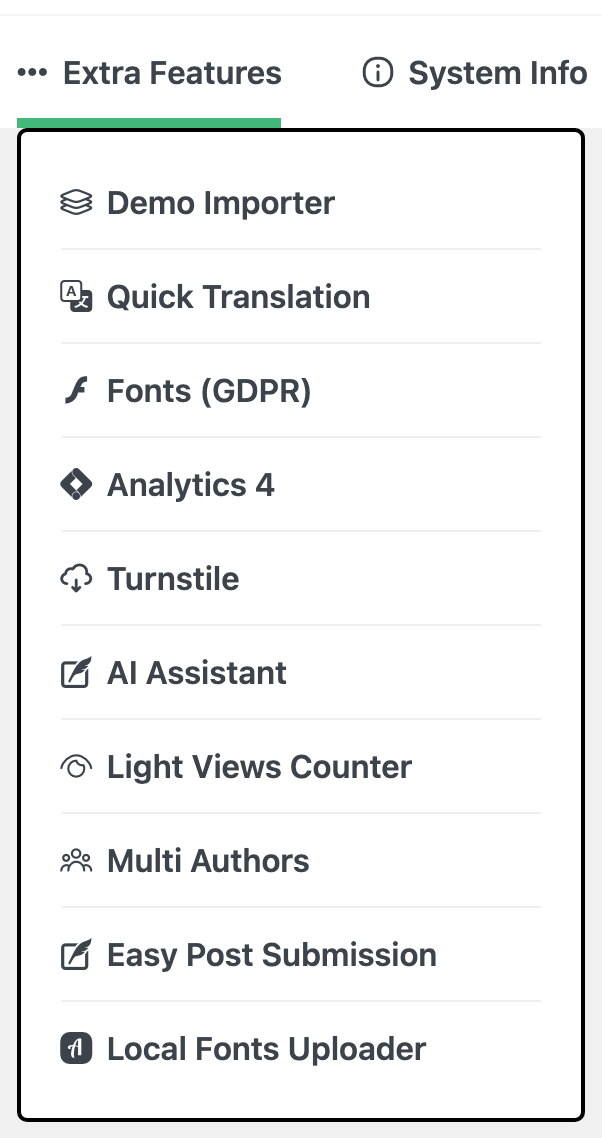
Navigate to Foxiz → Demo Importer. After your first successful import, this entry moves into the Extra Features menu on the Foxiz panel, which is where people go looking for it the second time.
-
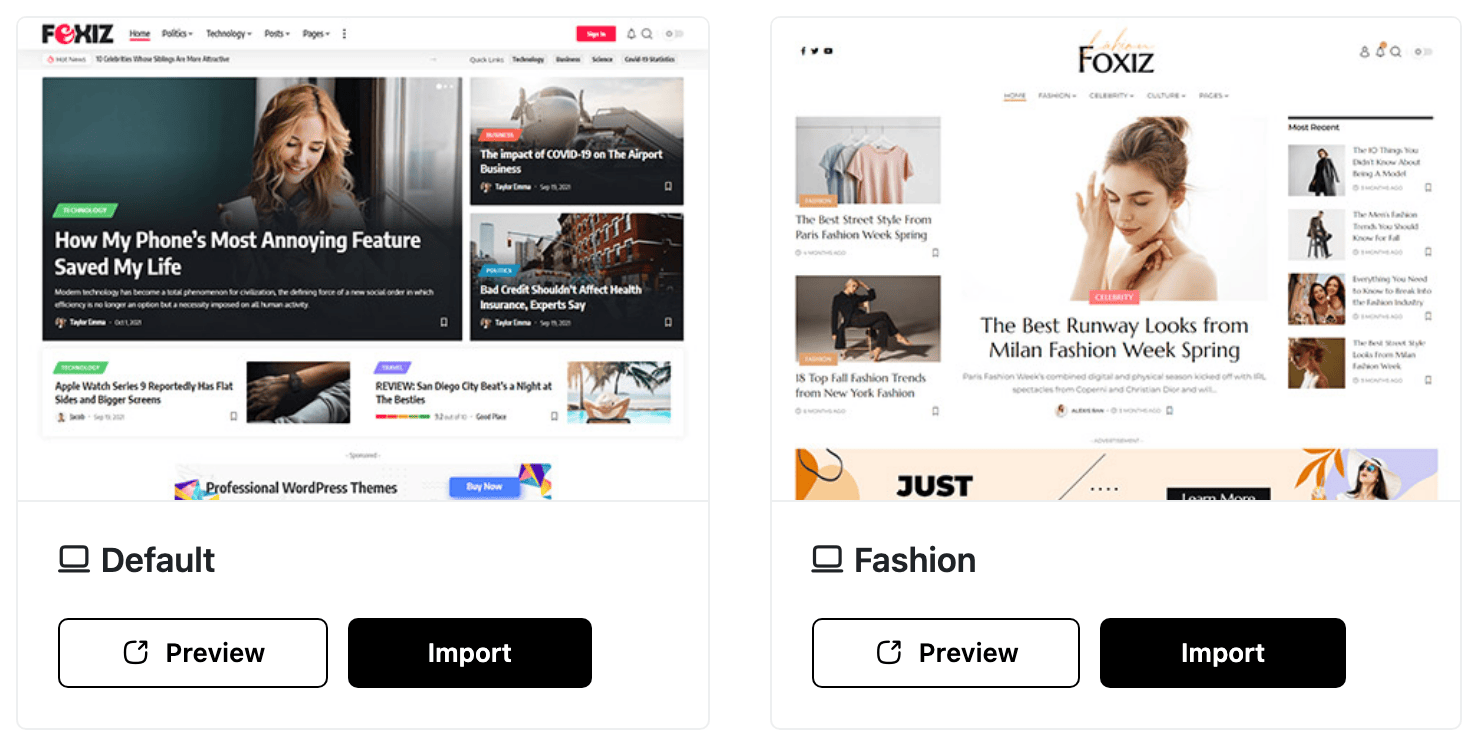
Under Prebuilt Websites, find the demo you want. The Preview link opens it on the live demo site; Import opens the import dialog.
Not sure which one? Type your site's subject (news, food, travel) into Search demos..., open Preview on the closest matches, and pick the one whose homepage layout you like. The demo's text and images get replaced with yours anyway.
-
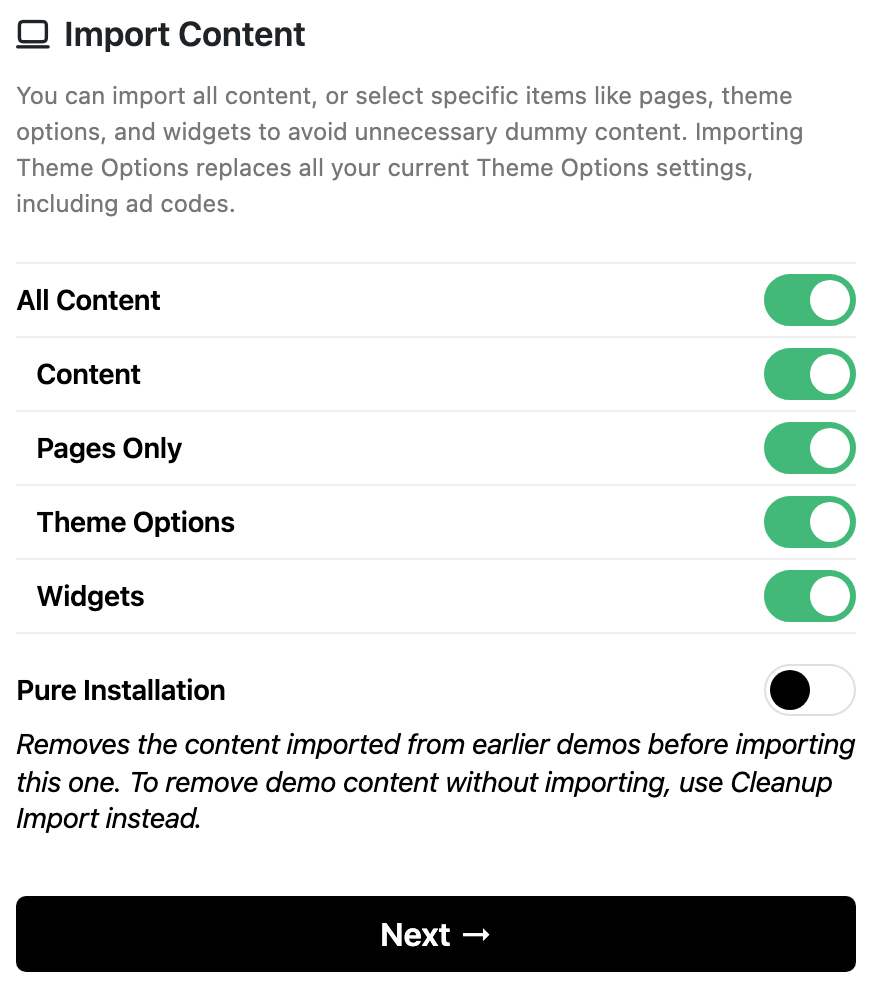
The first step of the dialog is Import Content. Everything is ticked by default. Clear what you do not want:
- All Content turns the four below on together.
- Content brings the demo's posts, media, taxonomies and custom post types.
- Pages Only brings the pages and Ruby Templates without the demo posts. It is ignored when Content is on, because content already includes them. A Ruby Template is a layout built in Elementor and saved once, such as the demo's header or footer (Ruby Templates).
- Theme Options replaces your Theme Options. See the warning above.
- Widgets empties your sidebars first. See the warning above.
- Pure Installation is off by default. Ticking it deletes the posts, pages, media, comments, categories, tags and menus a previous Foxiz import created on this site before importing again. It only touches what the importer itself brought in; your own posts are not in that list. It runs only as part of an import, so to remove old demo content without importing another demo, use Cleanup Import instead (below).
-
Click Next.
-
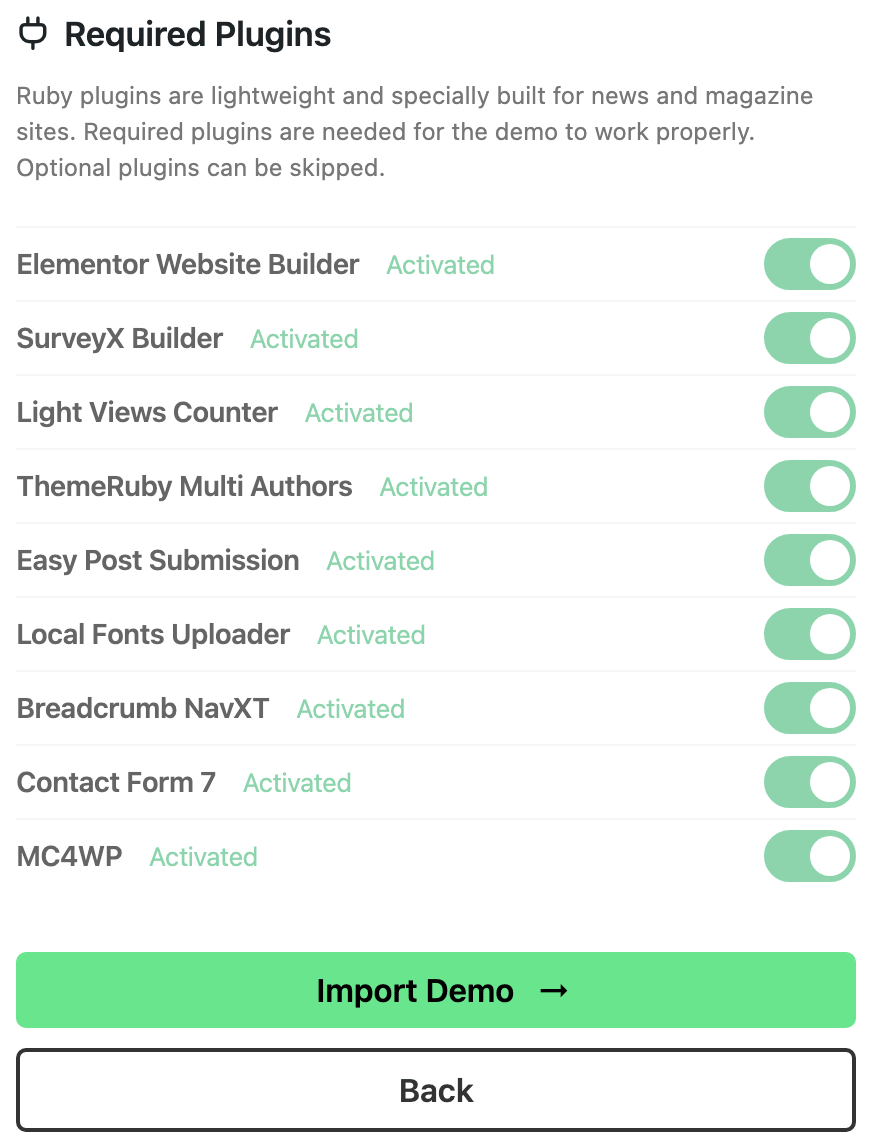
The second step is Required Plugins. Anything marked required or recommended for that demo is ticked already, and anything already active is ticked and locked. Leave them on: a demo built with a plugin you skip will import with gaps.
-
Click on the Import Demo button.
-
Wait until the import process is completed. The dialog reads Building the website... with a progress bar, and the panel puts the usual run at one to five minutes depending on the host. Please be patient and don't navigate away.
-
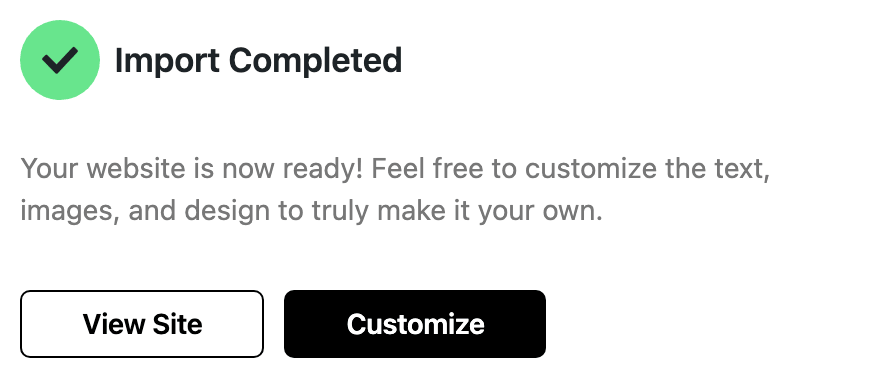
You will be notified once the process is completed: the dialog turns into Import Completed, with View Site and Customize buttons. View Site opens your home page in a new tab; Customize opens Theme Options.
-
After the successful installation, you can click Customize and then the Save Changes button at the top right of the Theme Options panel. Nothing breaks if you skip it: the importer already clears the styles Foxiz builds from your Theme Options, and they are rebuilt the first time a page loads.
After the import
Your site now looks like the demo, filled with the demo's posts. These jobs make it yours, in this order:
-
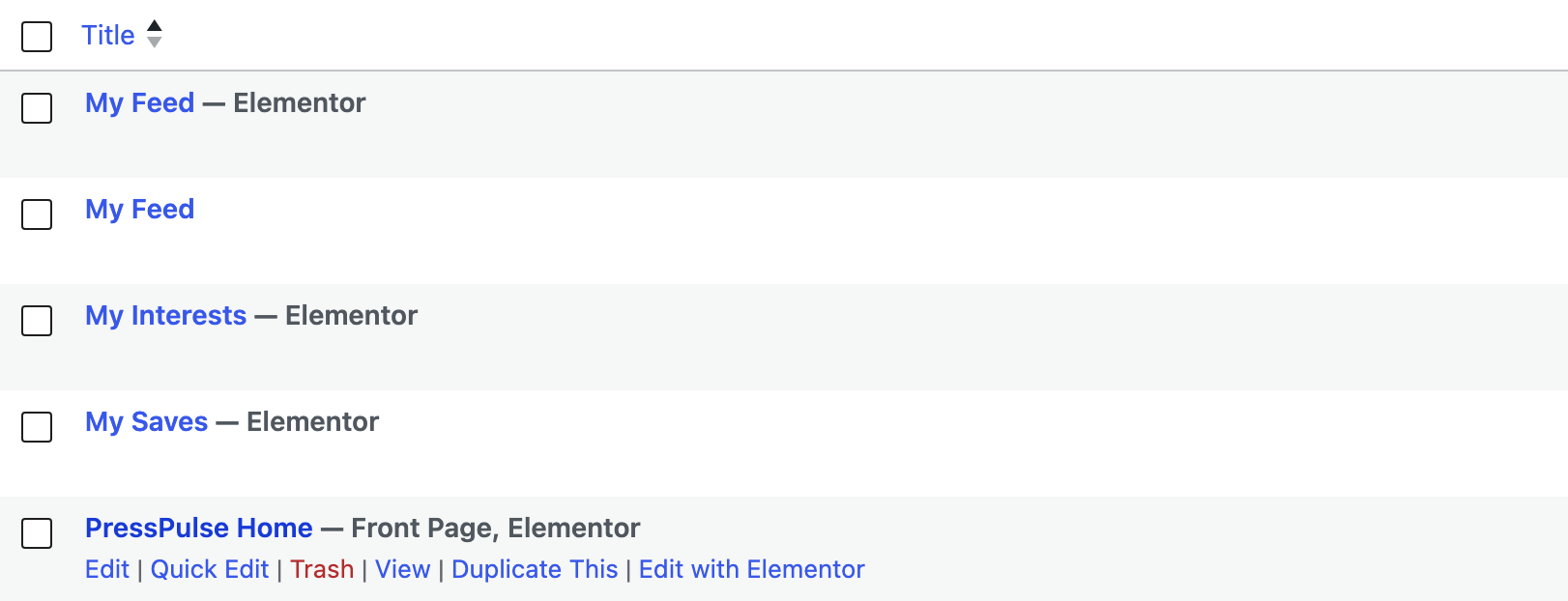
Find your homepage. The importer has already set it. Your homepage is the demo's own home page, named after the demo (the Default demo's is "Home Default"), and Settings > Reading already points at it. In Pages > All Pages it carries the label Front Page. There is no page to create and nothing to change in the Reading settings. If no page carries Front Page, the demo did not declare one and your front page is back to your latest posts: set it yourself with Setup HomePage below.
-
Open it in Elementor. Elementor is the page builder plugin the demo pages are built with (Elementor Builder). In Pages > All Pages, hover the homepage and click Edit with Elementor. While you view the homepage, the same link is in the admin bar at the top.
-
Point each block at your own categories. The blocks still show the categories the demo chose. Click a block, open Content > Query Settings, and pick one of your categories in Category Filter. How to Set Up Query Filters in Elementor Blocks explains every field there.

-
Replace the logo. How to Upload Logo & Favicon? covers both cases: the logo in Theme Options, and the logo inside a header built as a Ruby Template.
-
Edit the menus. The importer has already assigned its menus to the Main Menu, Mobile Menu and Mobile Quick Access locations. Go to Appearance > Menus, choose the menu named
mainin Select a menu to edit, swap the demo's items for your own pages and categories, and click Save Menu. Do the same formobileandmobile-quick-access. How to Create & Setup Header Menus? has the details. -
Edit the footer. The demo's footer logo, social links and copyright line stay until you change them. Footer Overview shows which kind of footer your site has, and How to Add the Footer Logo, Social Icons and Copyright replaces them.
-
Write your first post (How to Create a New Post?), then remove the demo's posts. Click Cleanup Import at the top of the Demo Importer and choose Posts & Attachments: it deletes the posts, images, categories and tags the import brought in, and keeps the demo's pages and menus.
-
Before your domain goes public, run the checks in Before You Go Live.
When you no longer need the demo's posts, Cleanup Import removes them; see the next section.
Setup HomePage:
The import sets this for you when the demo declares a home page, so check it before you change anything. Do this when the front page came back as your latest posts, or when you imported Pages Only into an existing site.
-
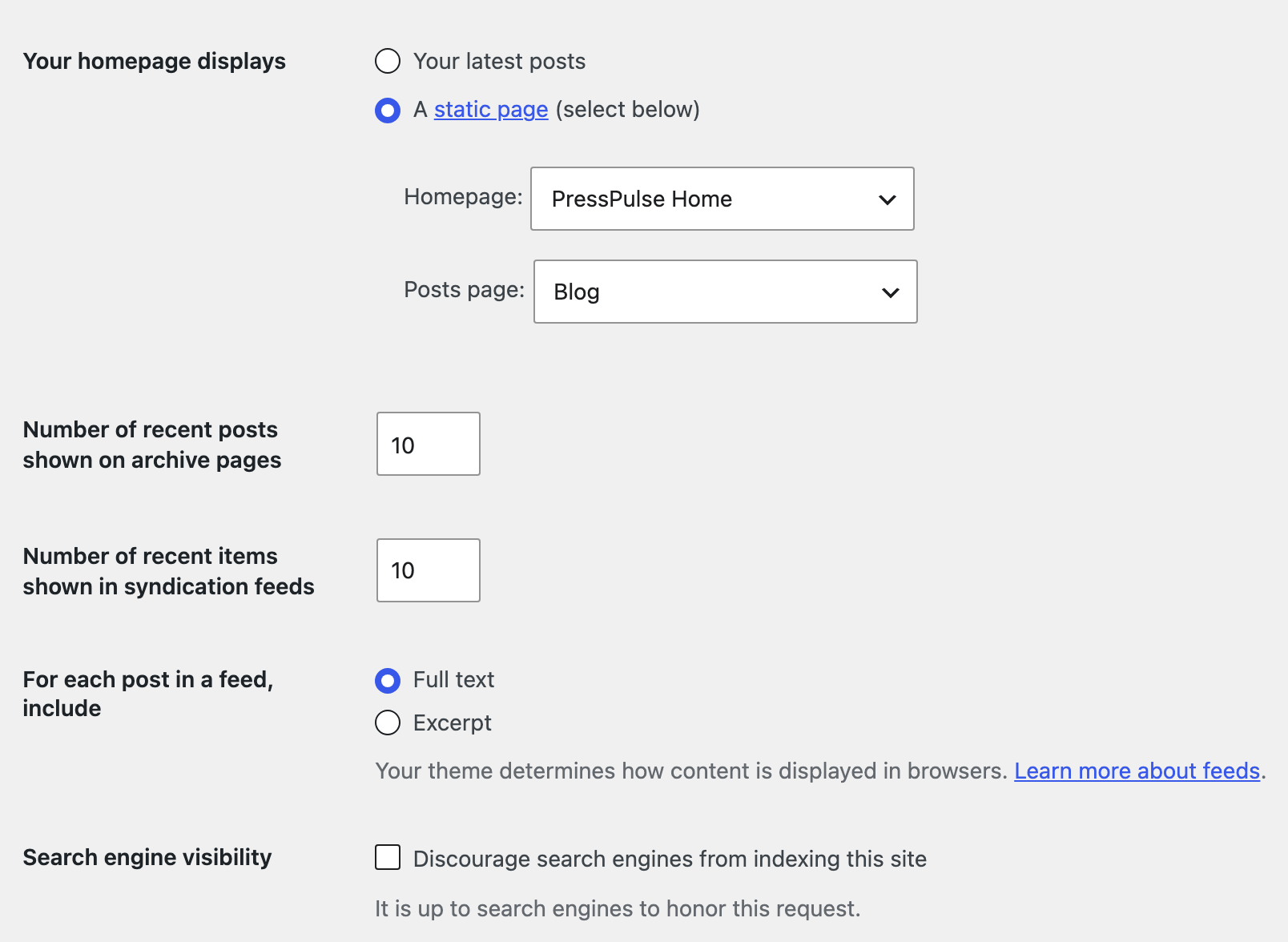
Navigate to: Dashboard > Settings > Reading
-
At the "Your homepage displays" option select "A static page". The label reads "Your homepage displays" in current WordPress.
-
At the "Homepage:" dropdown, select the home page.
Select Options to Import Demos Section by Section
If your website already has content, you can import only part of a demo:
- Pages
- Theme Options
- Widgets
By doing this, you can import page layouts similar to those in the demo versions, without including fake posts. It will utilize your existing posts instead.
The safe combination on a site you already run is Pages Only with Theme Options and Widgets cleared. That gives you the demo's page layouts and Ruby Templates and leaves your settings and sidebars alone. Taking Theme Options is the one choice that cannot be partially undone, because it overwrites every panel at once.
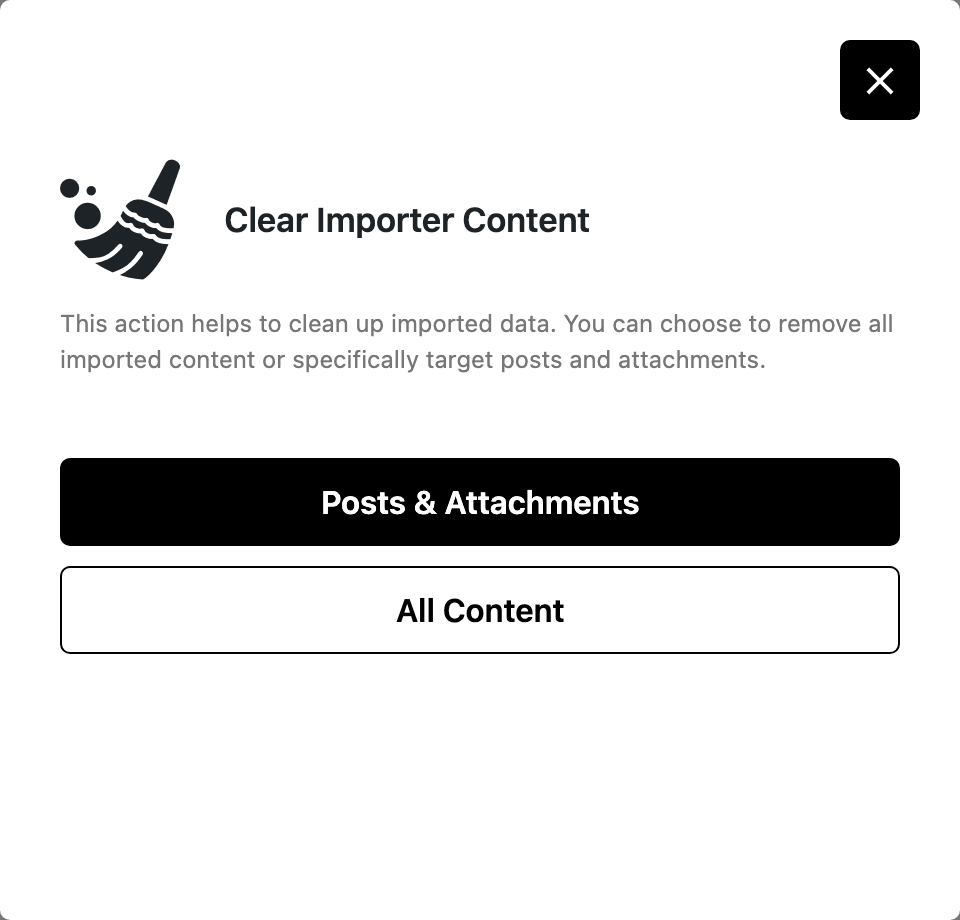
If an earlier import left content you no longer want, the Cleanup Import button at the top of the Demo Importer opens Clear Importer Content, which offers Posts & Attachments or All Content. Both delete only what a Foxiz import created.
Fallback Method: Contact the team support
If the importer doesn't work as expected, please contact our support. We will gladly help you solve the issue.
You can contact us via the URL below. Sign in to your store.foxiz.io account, the one that holds your licence, and send us a ticket from its support area:
https://store.foxiz.io/account/#support/
The Open a Ticket link at the top of every Foxiz dashboard page goes to the same place.
Troubleshooting
Almost every demo import issue comes from the web host. These are the common ones you may face:
Ruby Importer could not complete the process.
The importer words this differently now. A failed import turns the dialog into Error! with the text "An error occurred during the import", and gives you a Try Fixing Import button that refreshes the site's connection to the store and runs the same import again from the start, plus a Reload link back to the demo list. Try the button before anything else; it is there because most failures are a request that ran out of time rather than a broken package.
A request that runs out of time has one of two limits behind it. PHP's maximum execution time applies to the plugin step and to the Theme Options step, which downloads the demo's logo and other images; the content step lifts PHP's limit itself. The web server, or a proxy in front of it, has a timeout of its own that PHP cannot lift. Set max_execution_time to 300, five minutes, the longest the importer says a run takes, as Configuring Server Settings shows. If it still fails, ask your host to raise the web server timeout.
- Reload the import page and try to re-import.
- Change the php.ini config and try to re-import.
- If it still fails, contact support as described in Fallback Method: Contact the team support.
One-click import stuck at 99%
The issue happens when PHP max input vars are less than the theme requirements. Read Configuring Server Settings to increase your server max_input_vars to the recommended value. Foxiz asks for 3000 and warns below 2000, and reports the value your host is actually using on Foxiz → System Info as Max Input Vars.
Error 504 (Gateway Time-out)
A 504 is the web server or the proxy in front of it giving up on a request that runs too long. The import asks PHP to drop its time limit for the content step, so it is the host's timeout that has to be raised: ask your host for it. Check max_execution_time is at 300 as well, as Configuring Server Settings shows, because the plugin and Theme Options steps still run under it.
Other issues
The import finished, but your own settings changed, or the site got slow? See My Settings Changed After a Demo Import and Site Is Slow After Importing a Demo.
If you faced any other issues or cannot import, please contact us via Support.
Demo Images
Some images are copyrighted and are not included in the demo content. If you need to use any of them on your website, you need to acquire the appropriate license.
The Demo Importer says the same thing above the demo list: the structures import intact and you replace the images with your own.
Membership Data:
Membership data will not be imported due to the limitation of the WordPress importer (wp-option DB table is not included).
Foxiz's own membership settings are an exception worth knowing, because they live in Theme Options rather than in a plugin's own tables: a demo import that includes Theme Options replaces them along with everything else in that record.
If you imported a paywall demo, such as a subscription one, set up your plans, membership levels and payment method with these articles:
Did this answer your question?