How do I Update the Theme?
We strongly recommend always keeping Foxiz up to date. Backup your website and theme folders completely to make sure you have a restore point in case of any complications.
If direct customizations have been made to the main theme, they will be overwritten when the theme is updated. We recommend applying your customizations through a child theme instead.
Update from the Dashboard
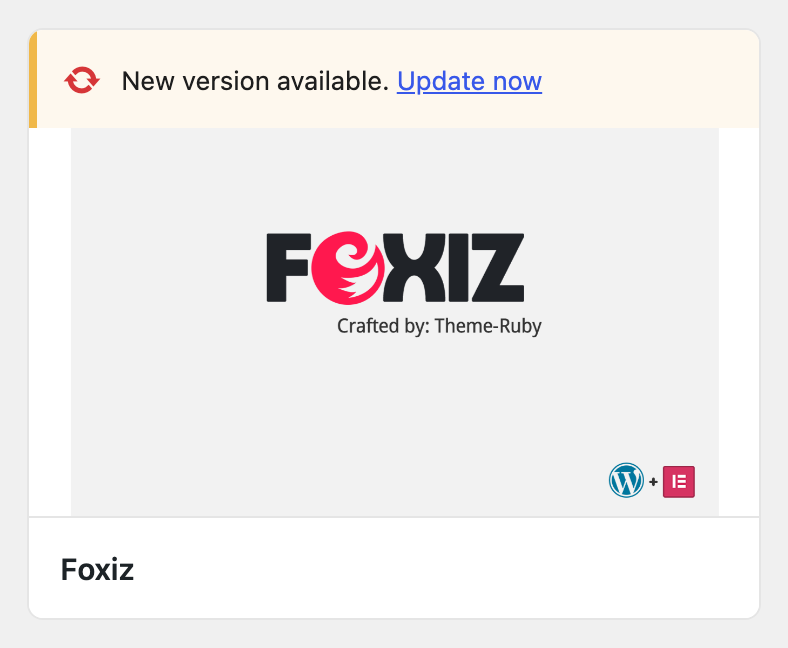
The easiest way, and the one we recommend. Foxiz updates like any theme from wordpress.org: once the site's licence is activated, Foxiz Core checks store.foxiz.io and registers both the theme and itself with WordPress's own update system. A new version shows up at Dashboard > Updates and on Appearance > Themes like any other update and installs with one click. Nothing to download, and no extra plugin.
-
Activate your licence, if you have not. See How to Activate the Theme. Without it the update is detected but not downloadable.
-
Backup your website completely to make sure you have a restore point in case of any complications.
-
Go to Dashboard > Updates. New theme and plugin versions appear there, with the update counter in the sidebar. Under Themes, tick Foxiz and click Update Themes; under Plugins, tick Foxiz Core and click Update Plugins.
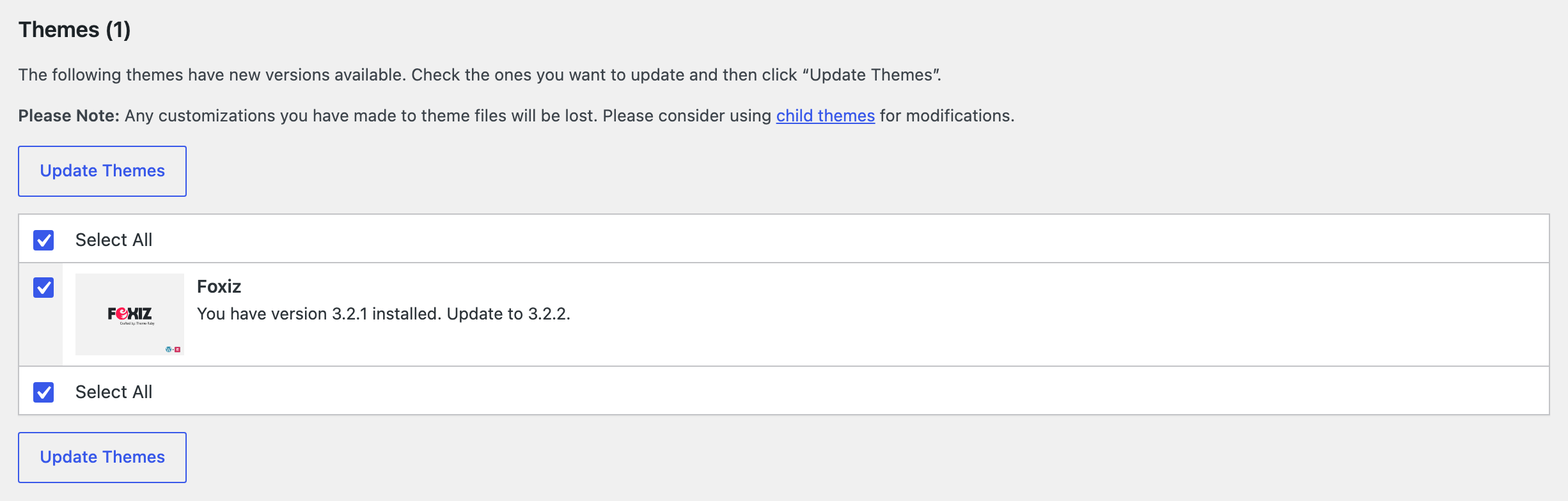
If the licence is not active you still see that an update exists, in a notice reading "A theme update is available. Activate your license to update.", and the download is withheld until you activate.
Updates follow your subscription, not your install. When a subscription expires, Foxiz raises Foxiz subscription expired. and says so plainly: "Your frontend site keeps working, but features and updates will be paused. Renew your subscription to restore them." Its Renew now button goes to foxiz.io/pricing. A revoked licence goes further: theme updates, demo imports and support are all disabled, and the notice's button is Contact support.
None of that touches your front end. The site keeps serving; it is the update channel that stops.
If the update does not arrive this way, use one of the manual routes below.
Manual Update
Upload the new version yourself when the dashboard update is not available to you.
-
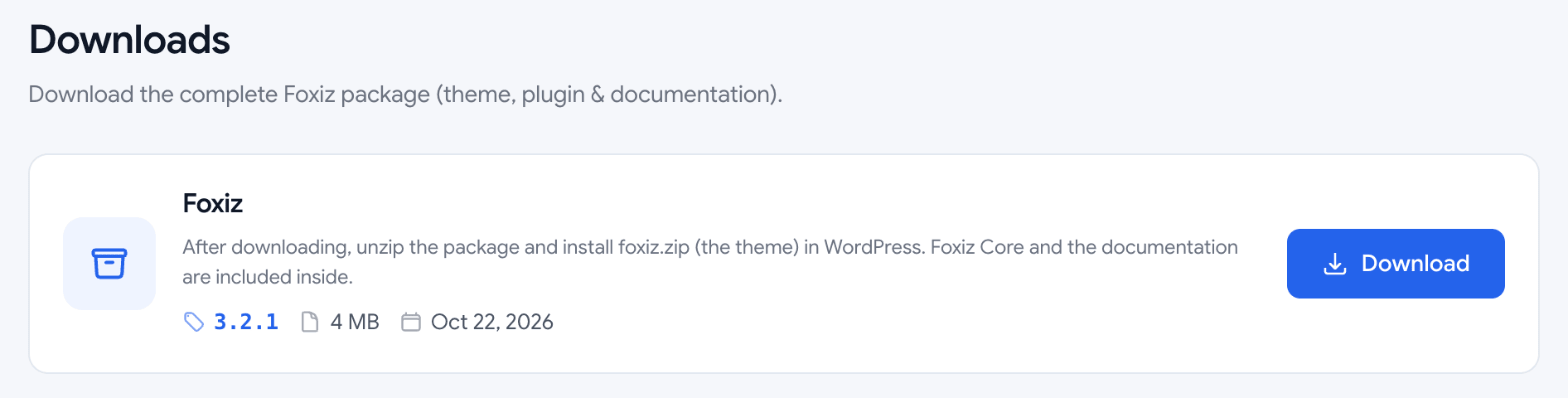
Download the most recent Foxiz version from your account on store.foxiz.io: open the Downloads tab and click Download on Foxiz. Unzip what you downloaded; the theme installable zip file is foxiz.zip, inside it.
-
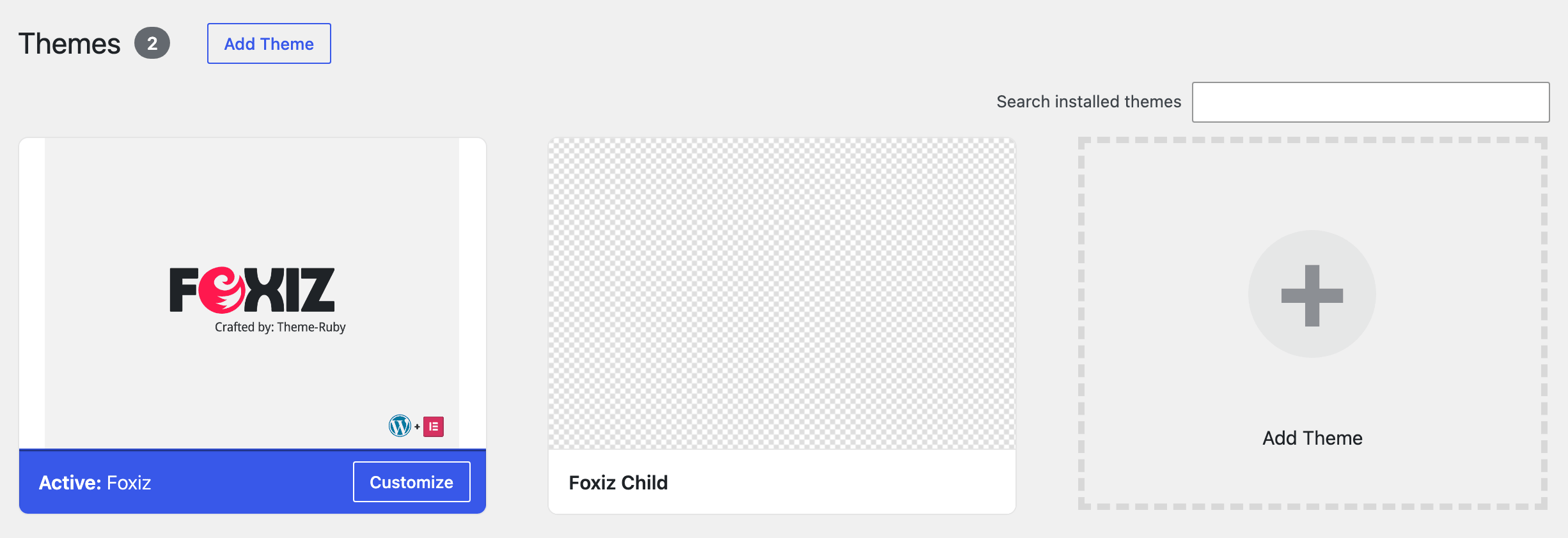
Go to Appearance > Themes and click Add Theme. Older WordPress versions labelled that button Add New.
-
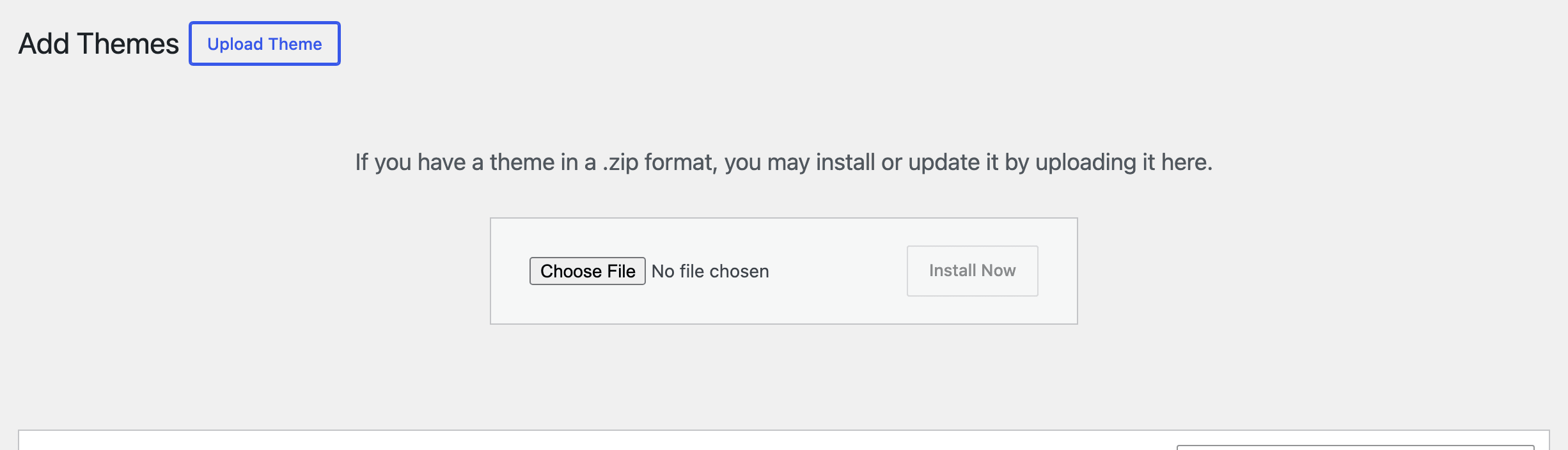
Click the Upload Theme button, then choose the theme installable zip file in the form.
-
Click Install Now.
-
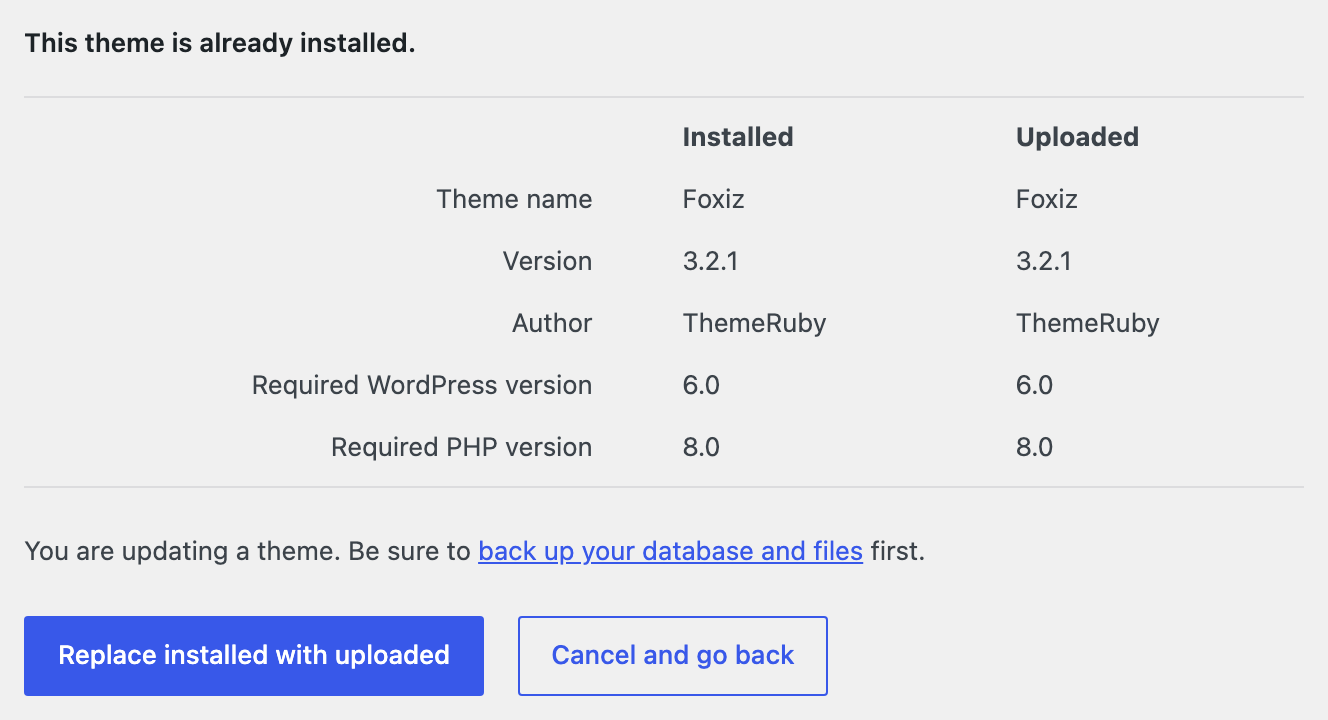
WordPress shows a screen headed This theme is already installed., comparing your version with the uploaded one. Click Replace installed with uploaded. The button was called Replace active with uploaded in older WordPress versions.
-
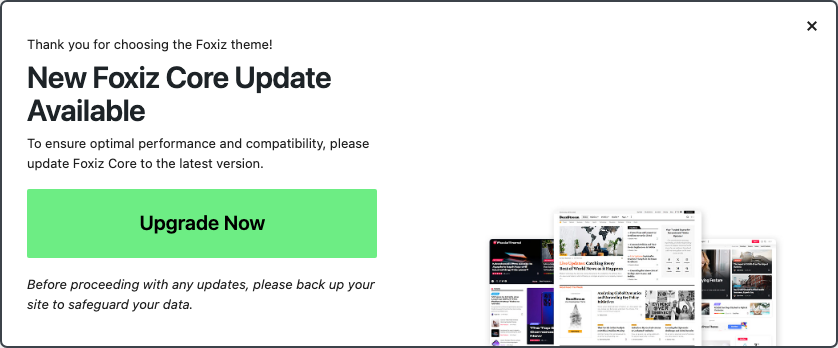
Update Foxiz Core as well, from Dashboard > Updates or from Plugins. A theme newer than the plugin makes Foxiz raise its own notice, New Foxiz Core Update Available, with an Upgrade Now button that does it in place.

Update using FTP
- Go to the Downloads tab of your store.foxiz.io account to download the latest version of the theme to your device. Unzip it, then unzip the foxiz.zip inside to get the
foxiztheme folder. - Connect to your hosting via FTP software
- Upload the theme folder you unzipped to wp-content/themes. Keep the folder named
foxiz; Foxiz Core identifies the theme by that slug and so does the updater. - You should be asked to confirm the overwriting of this folder and its contents. Confirm the overwrite.
- It will take between 5 to 20 minutes to replace all files. Once you are done, login to your WordPress dashboard and go to Theme Options. The Foxiz bar across the top of the page reads Ver: followed by the theme version, and that number changing is the indication that your theme is updated.
Updating default plugins
A new theme version may come with a new version of Foxiz Core. A notification banner will appear after updating the theme if there is a new plugin version: Foxiz compares the two and raises New Foxiz Core Update Available on every admin screen except the Foxiz panel, the plugins list and the update screens.
We recommend updating it to the latest version to ensure maximum compatibility with the theme. If you fail to do so, your page builder may not render.
To update Foxiz Core
There is no separate Foxiz Importer plugin. The demo importer is part of Foxiz Core, so Foxiz Core is the only bundled plugin there is to update, and the Appearance > Install Plugins screen that older versions of this article point at does not exist.
-
Click Upgrade Now in the New Foxiz Core Update Available notice. It installs the copy bundled in the theme you just updated, in place, without leaving the page.
-
Or update it like any other plugin, from Dashboard > Updates or Plugins, which is where the licence-backed update also arrives.
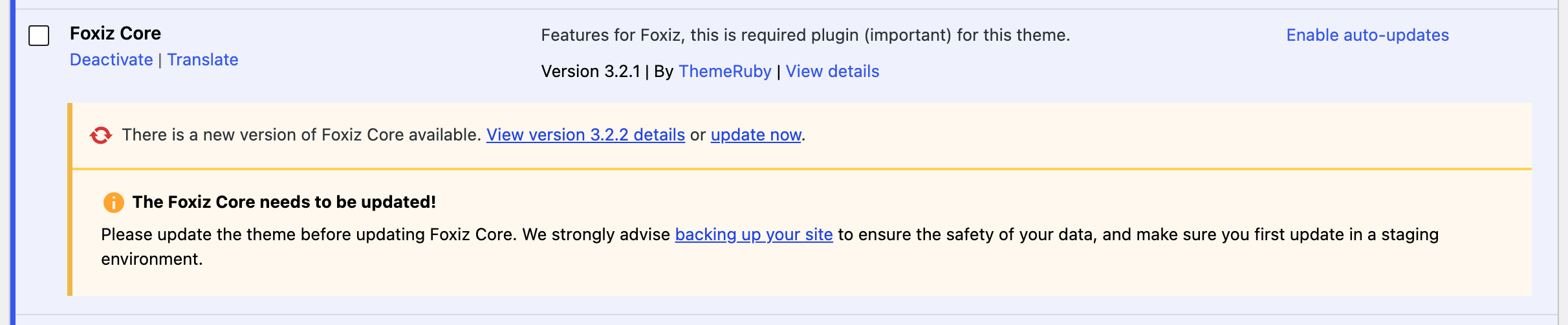
Under the notice, the Foxiz Core row also shows a box titled The Foxiz Core needs to be updated!, asking you to update the theme first, back up your site and try the update on a staging copy. It shows on every Foxiz Core update, so it is not an error. With the theme already updated, go ahead; for a backup, see Backup & Restore Website Data.
If WordPress insists there is nothing to update when you know there is, use its own Check again link on Dashboard > Updates. Foxiz hooks that link to throw away its cached answer and ask the store again.

Quick Checklist after Updating
- Ensure you activated "Foxiz Core" plugin.
- If your child theme overrides
foxiz_register_script_frontend(), copy the current version from the parent theme'sfunctions.phpinto it. An old copy leaves Summarize with AI, Auto Load Next Posts, live blog updates, the AdBlock detector and the WooCommerce buttons without their scripts. See Using Child Theme. - Clear all of the cache. Foxiz Core clears Elementor's generated CSS itself after its own update, so this is about your caching plugin and your CDN.
- Navigate to the Theme Options panel and click the Save Changes button at the top right of the panel, to make sure everything works smoothly.
Troubleshooting issues
If you encounter the message “Are you sure you want to do this? Please try again.” or “The link you followed has expired” when attempting to update, this is most likely because your server sets a low maximum upload file size and a low maximum execution time in php.ini. Increase these PHP settings:
- upload_max_filesize – greater than 32M
- post_max_size – greater than 32M
- max_execution_time – 300, the value in the Configuring Server Settings snippets
The first two are the ones Foxiz checks for you: Foxiz → System Info shows them as Max Upload Size and Post Max Size and flags either below 32M.
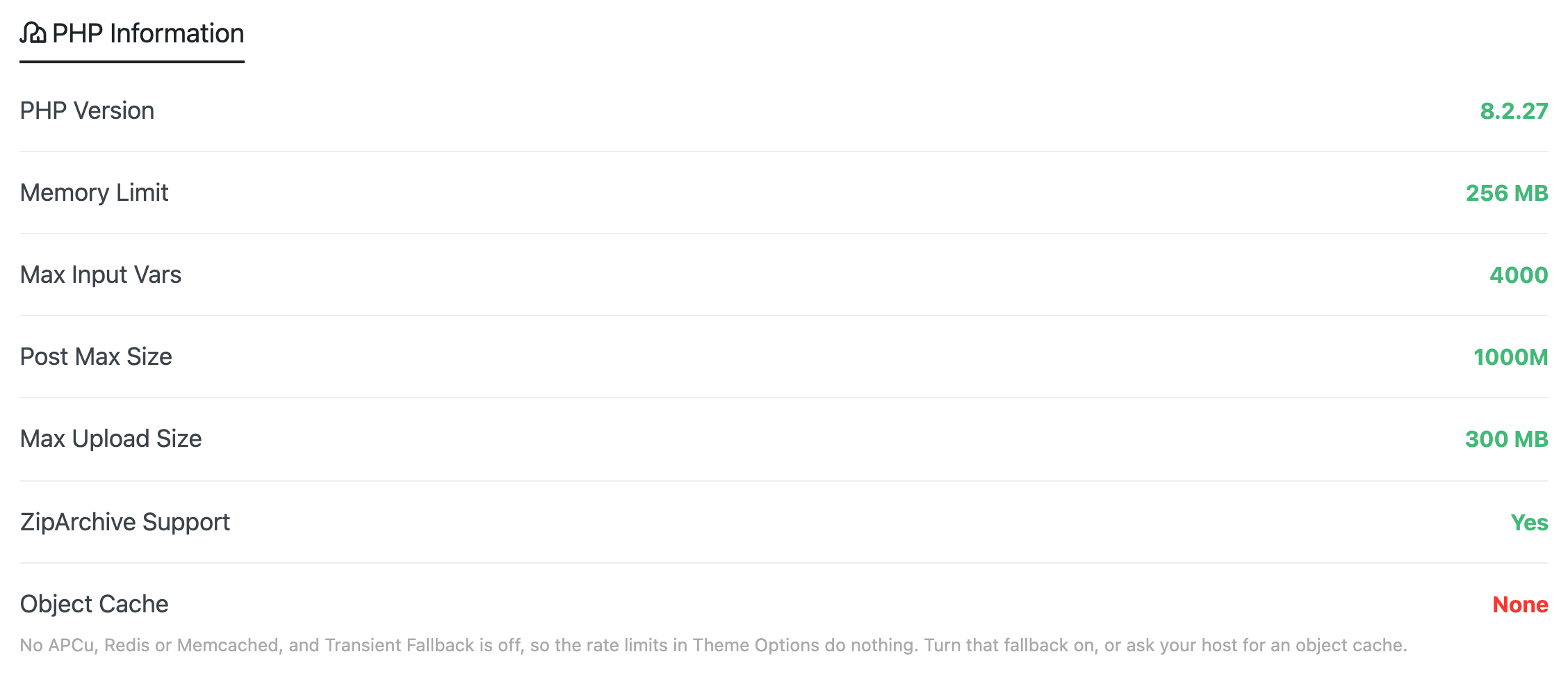
Refer to Configuring Server Settings and Are you sure want to do this for more details.
The update finished but something on the site broke, or the site shows There has been a critical error on this website? See Something Broke After Updating Foxiz and There Has Been a Critical Error on This Website.
Did this answer your question?