How to Deactivate a Theme to Transfer a Domain
According to the Foxiz license, your plan covers a set number of production sites running at the same time: Starter 1, Professional 3, and Business 10 or 100. Local and staging sites never count. You can move a license to a new domain as often as you need, on the understanding that the old site is no longer using Foxiz. To learn about the license, you can refer to the regulations at this link: https://foxiz.io/license/
However, if you wish to transfer your theme to a different domain, you can deactivate it from the current domain, after which you can reuse the activation license on your new domain. You do not have to delete the theme, the content, or anything else on the old site; deactivating releases the site address and leaves everything else in place.
The registration is a seat on a licence held by the Foxiz store, so deactivating is a live call to store.foxiz.io and the site has to be able to reach it. What you are moving is that seat, not the theme files.
To deactivate the license, follow the steps below:
There are two ways to release the licence from the old site:
- From the Foxiz dashboard on the old site. The release is immediate. Use this whenever you can still log in to the old site.
- By force from store.foxiz.io, when the old site is gone or you cannot log in to it. This one is not instant: expect a waiting time before it takes effect.
Way 1: from the Foxiz dashboard
-
Log in to your WordPress website. Within the Dashboard, locate and click on "Foxiz". The menu entry was called Foxiz Admin in older versions; it is just Foxiz now, and it sits near the top of the sidebar.
-
On the Dashboard tab, find the licence card. It is headed This site is activated and shows your plan and its status.

-
Click the button labelled "Deactivate" on that card, and confirm when the browser asks "Are you sure you want to deactivate the current license? This action could lead to site errors or disruptions." The warning is about this site: once released, it loses Theme Options, demo imports and updates until it is activated again.
-
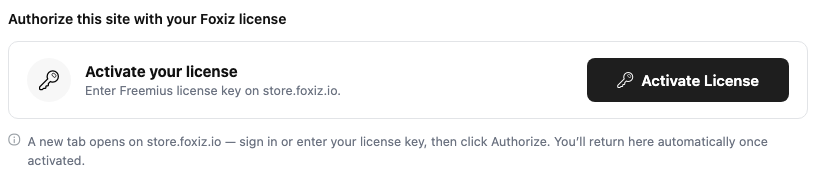
The screen confirms with "License deactivated successfully." and the panel drops back to the Registration screen. That is expected: Theme Options and the Demo Importer are gated on an active licence, so they disappear from the menu until you activate somewhere.
-
On the new site, install Foxiz, then activate it there. The panel's own note says the same thing: "To move this license to another site, deactivate it here first, then Authorize again from the new site."
Way 2: by force from store.foxiz.io
- Sign in at
store.foxiz.ioand open My Licenses. - Find the old address under Activated Sites and click Remove on its row. The store asks "Remove this site from your license? You can reconnect it any time." and answers "Site removed."
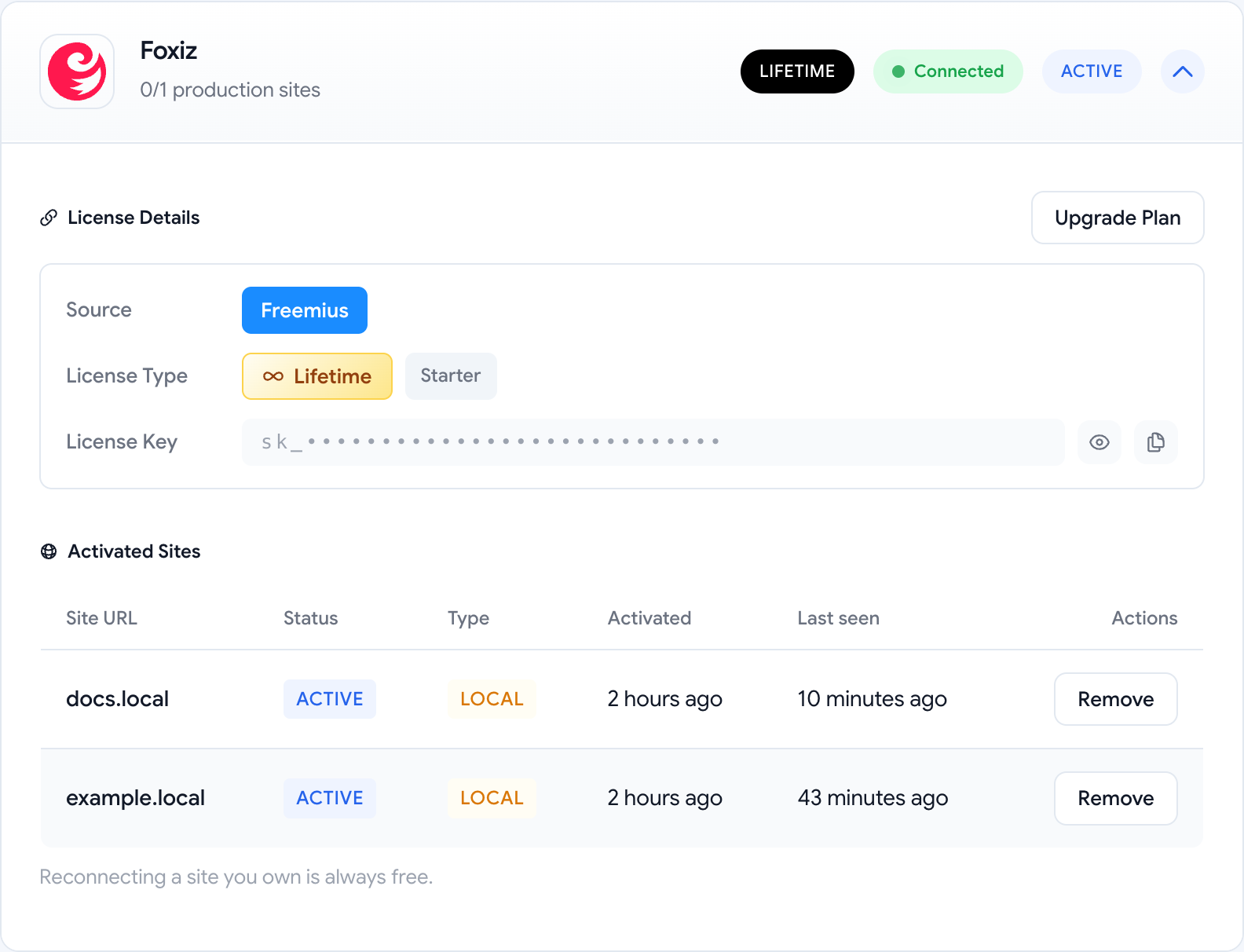
- On the new site, install Foxiz and activate it. As the note under the table says, "Reconnecting a site you own is always free."
A release made on the store takes a while to take effect. The store does not contact the old site; the old site only finds out at its next scheduled licence check, and until then it keeps showing the licence as active. If you can still log in to the old site, Way 1 avoids the wait.
Check that the old site is released
Whichever way you used, sign in at store.foxiz.io and open My Licenses. Each licence card shows how many production sites it is using, for example 0/1 production sites, and lists every connected site under Activated Sites with its Status, Type, when it was Activated and when it was Last seen. A local install is typed Local and does not take one of your production sites.
The Overview tab adds it up as Active Licenses, Active Sites and Sites available.

If you cannot reach the old site
You do not need it: use Way 2, or let the new site do it. When the same licence is opened on a new address, Foxiz shows Reconnect Your License instead of the dashboard, and its button, Reconnect License, releases the previous registration and authorizes the current address in the same step.
That screen is also what you get on a site that simply moved: staging to live, a domain change, or a switch from http to https all read as a different address.
Did this answer your question?